







Losing your Roku remote is seriously frustrating. Unlike traditional TV remotes that were chunky and easy to spot, Roku remotes are compact enough to disappear into couch crevices, slide between cushions, or get buried under throw blankets without a trace.
Most Roku owners don't realize the company anticipated this problem and built a solution into many devices: Certain Roku remotes contain small speakers that let them emit audible chimes when triggered. You activate this feature from your TV, mobile app, or even via voice commands, and the remote beeps for up to a minute while you track it down by sound.
The catch: only specific Roku remotes support this. Here's everything you need to know about finding lost Roku remotes using the built-in tracker.
Which remotes support remote finder?
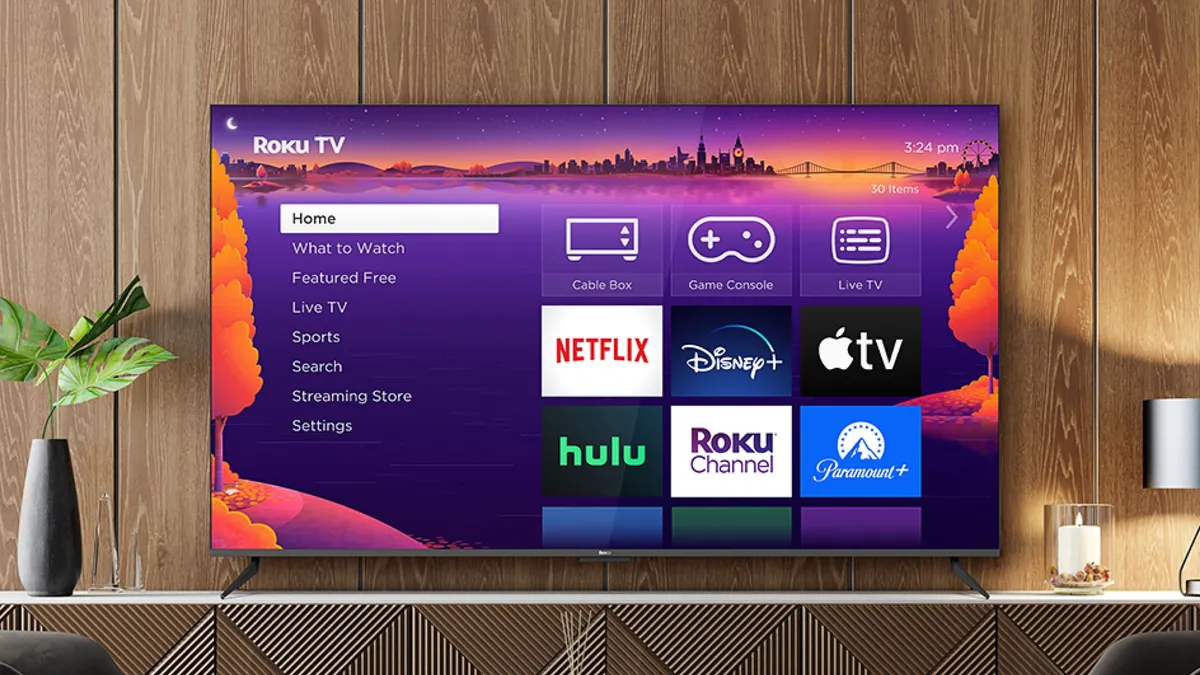
The remote finder requires remotes equipped with internal speakers capable of producing sound. This limits compatibility to newer Roku Voice Remote models — specifically the Voice Remote Pro and Voice Remote Pro 2nd Edition.
These remotes ship with select Roku streaming sticks and smart TVs. If your Roku came with an older, simpler remote without voice capabilities, it won't have the speaker needed for this feature.
You're not stuck with an incompatible remote forever. Roku sells upgraded remotes separately through its online store, and major retailers like Amazon stock them as well.
Before purchasing, verify the product description explicitly mentions the remote contains a speaker and supports remote finding.
1. Activate remote finder using your Roku device

Many Roku devices include dedicated hardware controls for triggering the remote finder without requiring navigation through menus. This is useful when you've lost the remote entirely and can't operate your Roku through the usual interface.
Roku Ultra streaming boxes feature a small button labeled for finding remotes, typically located on the device's top or side panel. Press it once and listen for the chime coming from your missing remote.
Roku Pro Series TVs make this even simpler with a clearly marked Find My Remote button integrated into the TV's physical controls, positioned above the power button. One press initiates the chime immediately.
Standard Roku TVs without dedicated finder buttons still offer access through the TV's built-in controls. Use the physical buttons or control stick on your TV to navigate to the Inputs menu, where you'll find a Find Remote option you can select to start the audible alert.
2. Find your remote using the Roku mobile app

The Roku mobile app turns your smartphone into both a backup remote and a tool for locating your physical one.
Download the official Roku app for iOS or Android if you haven't already. Open it and tap Devices in the bottom menu. Your Roku products appear in a list — select whichever one is missing its remote. Tap the three-dot overflow menu icon, then select Ping Remote from the available options. Your lost remote should begin chiming within a few seconds.
Alternatively, you can use the app's built-in virtual remote to access the feature through Roku's interface. Tap the Remote icon in the app's navigation bar, then use the virtual buttons to navigate: press Home, then Settings, then Remotes & Devices, then Remotes. Select the lost remote from the list and choose Find Remote.
The mobile app also functions as a backup remote control, so you can continue using your Roku even while searching for the physical remote.
3. Use voice commands to find your remote
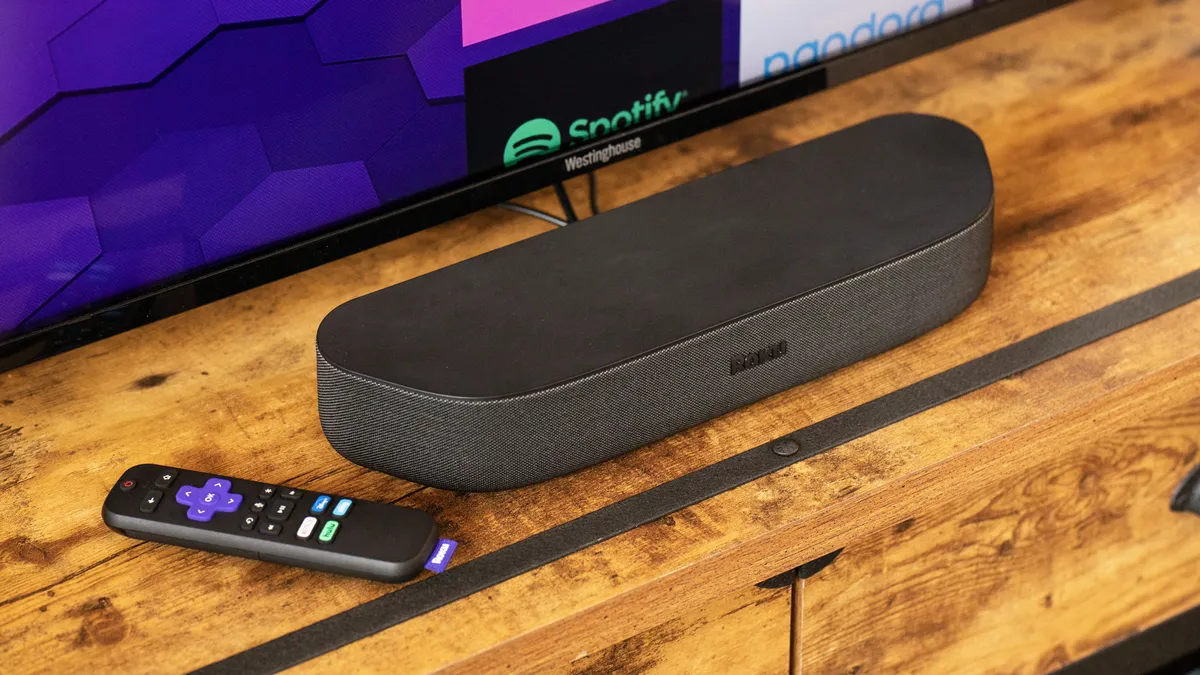
Both Voice Remote Pro models support hands-free voice activation, meaning you can trigger the finder without touching anything at all. Your remote listens for wake words even when you're not holding it.
Say "Hey Roku, where's my remote?" in a clear, moderately loud voice. The remote responds with its chime if it's within hearing range and has sufficient battery power. This works from across the room, making it ideal when you have no idea which room the remote ended up in.
Note, however, that background noise interferes with voice detection. If your TV is playing audio, conversations are happening nearby, or other sounds are present, the remote may not hear your command. Mute your TV and wait for relative quiet before trying voice activation.
The remote must be within range of your Wi-Fi network for voice commands to work. If it's left the property, ended up in outside in the garage, or somehow traveled to a neighbor's house, voice activation obviously won't reach it.

Follow Tom's Guide on Google News to get our up-to-date news, how-tos, and reviews in your feeds. Make sure to click the Follow button.
More from Tom's Guide

