




Your old smart TV still produces a decent picture, but everything else about it feels sluggish. Apps take forever to load, menus lag when you navigate them, and streaming services occasionally crash or buffer endlessly. Essentially, it's showing its age in ways that can make daily use frustrating.
Most people assume a slow, outdated TV needs replacing. But smart TVs last significantly longer than phones or laptops. The screen, speakers, and core hardware often remain perfectly functional for a decade or more, even if the software can't keep up with streaming demands.
Instead of running to replace, try these five straightforward upgrades that will bring your smart TV back to life.
1. Add a streaming stick or box
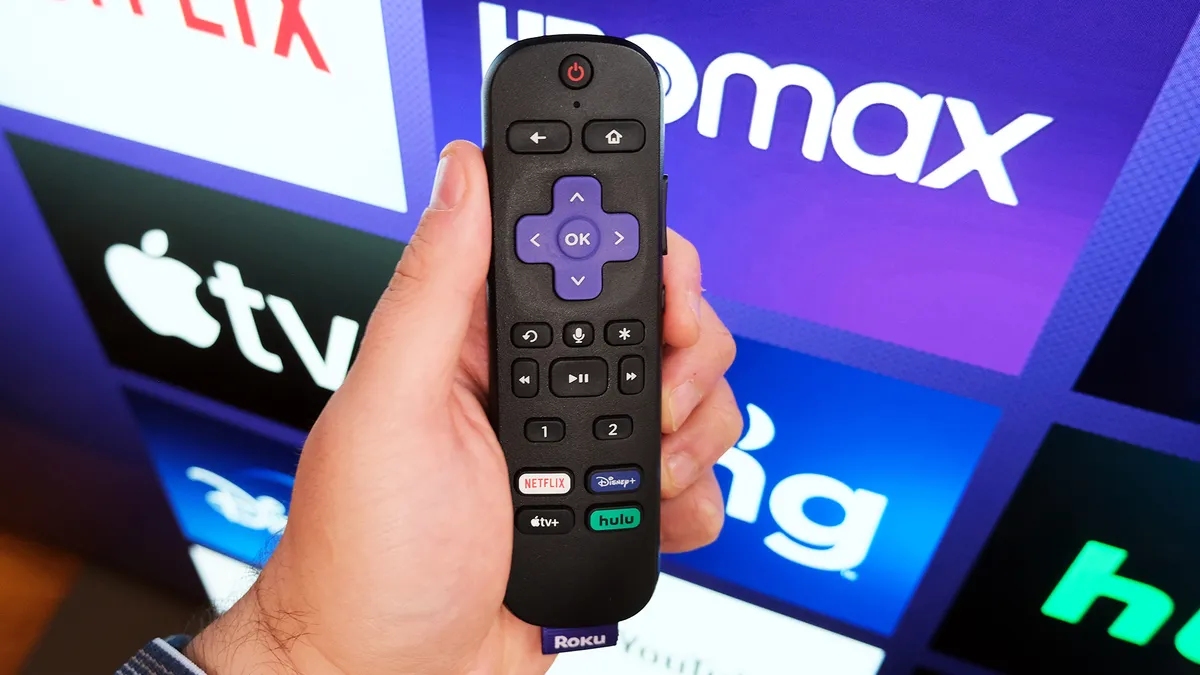
The fastest way to revive an old smart TV is replacing its outdated built-in software with a modern streaming device. A Roku stick, Fire TV, Apple TV, or Google TV streamer plugs into your TV's HDMI port and takes over all streaming functions.
Your TV's original smart features become irrelevant. The streaming device handles everything: Netflix, Disney+, YouTube, all of it. Your TV just displays the picture. Streaming sticks run faster than 5-10 year old TV processors. They support apps your old TV can't run anymore. They even include voice remotes, better search, and interfaces designed for current streaming services.
Streaming devices typically range from $30–$150 depending on the features you want — and they're well worth the investment. I was amazed by how much the Fire TV Stick breathed new life into my older TV, letting me put off the replacement I'd been eyeing (Samsung's The Frame) for a little while longer.
Simply plug the device into an HDMI port, connect it to Wi-Fi, sign into your accounts, and you're done. Your old TV instantly feels current.
2. Update your TV's firmware immediately
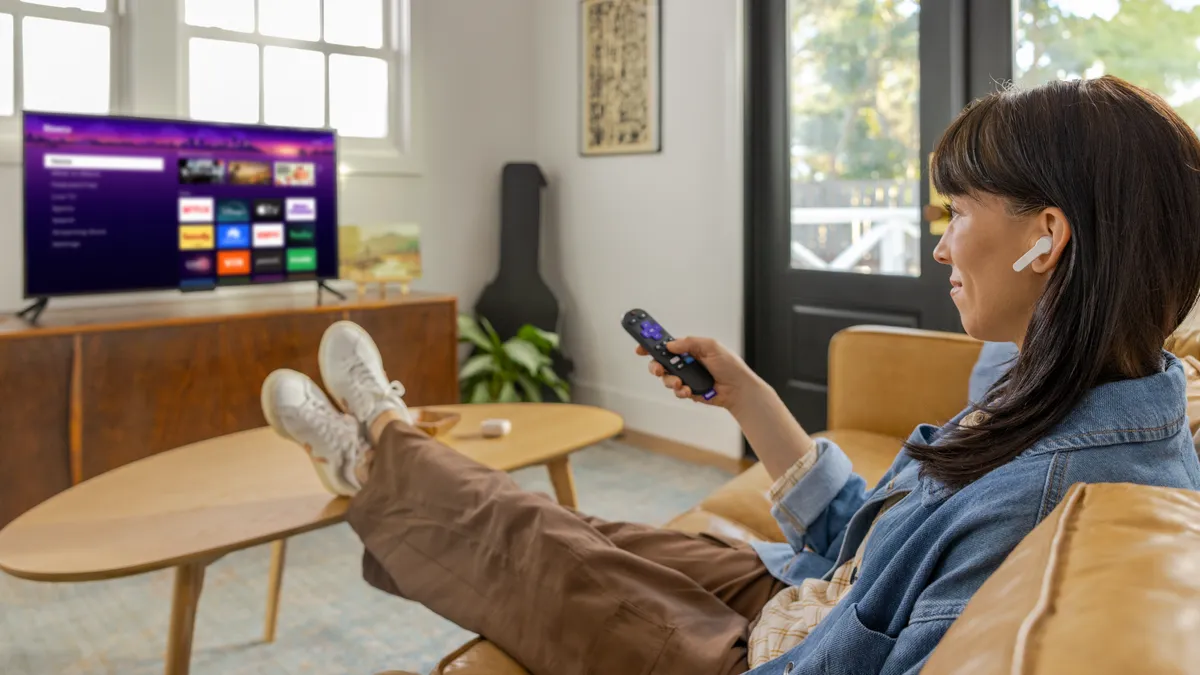
Outdated firmware is one of the biggest reasons smart TVs run slowly. If your TV still receives software updates, make sure to install them. Manufacturers typically support TVs with updates for 5-7 years. These updates fix bugs, improve performance, and add new features.
Go to Settings and look for an option labeled Software Update, System Update, or something similar — the exact wording varies by brand. Check if an update is available and install it if so.
Many smart TVs have an auto-update feature you can enable so updates install automatically in the future. Turn this on to ensure your TV stays current without you having to remember to check manually.
Some very old TVs will no longer receive updates. If checking shows "no updates available" and your TV is 8+ years old, you've probably reached end-of-support. At that point, a streaming device becomes your best option to increase the longevity of your Smart TV.
3. Clear cache and delete unused apps
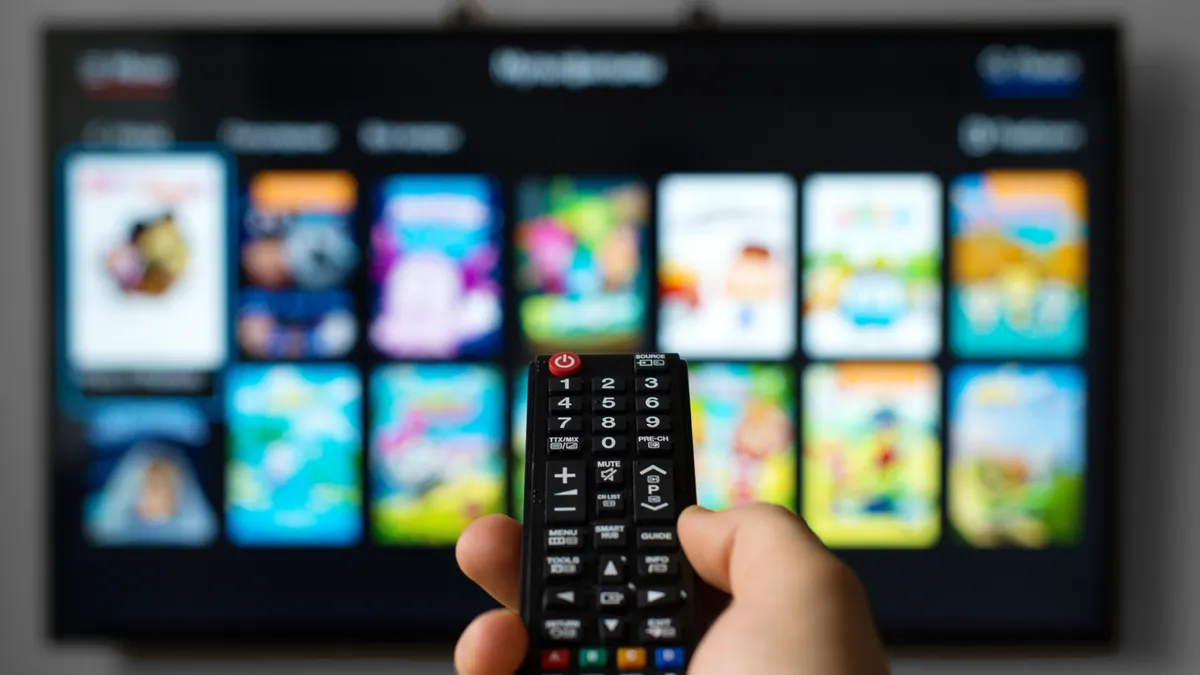
Clearing cache every few months keeps your TV running smoothly and frees storage for updates. Apps accumulate temporary files over time that consume storage and slow performance.
To clear the cache on your Smart TV, head to Settings, Apps or Storage, select frequently used apps like Netflix or YouTube, and choose Clear Cache. This removes temporary files without deleting logins or preferences.
While you're at it, delete apps you haven't used in months. Long-press app icons to find uninstall options, or manage them through Settings. Plus, delete any downloaded movies, games, or photos you no longer need — storing unnecessary files on an aging smart TV is just wasting precious storage space.
4. Connect via Ethernet
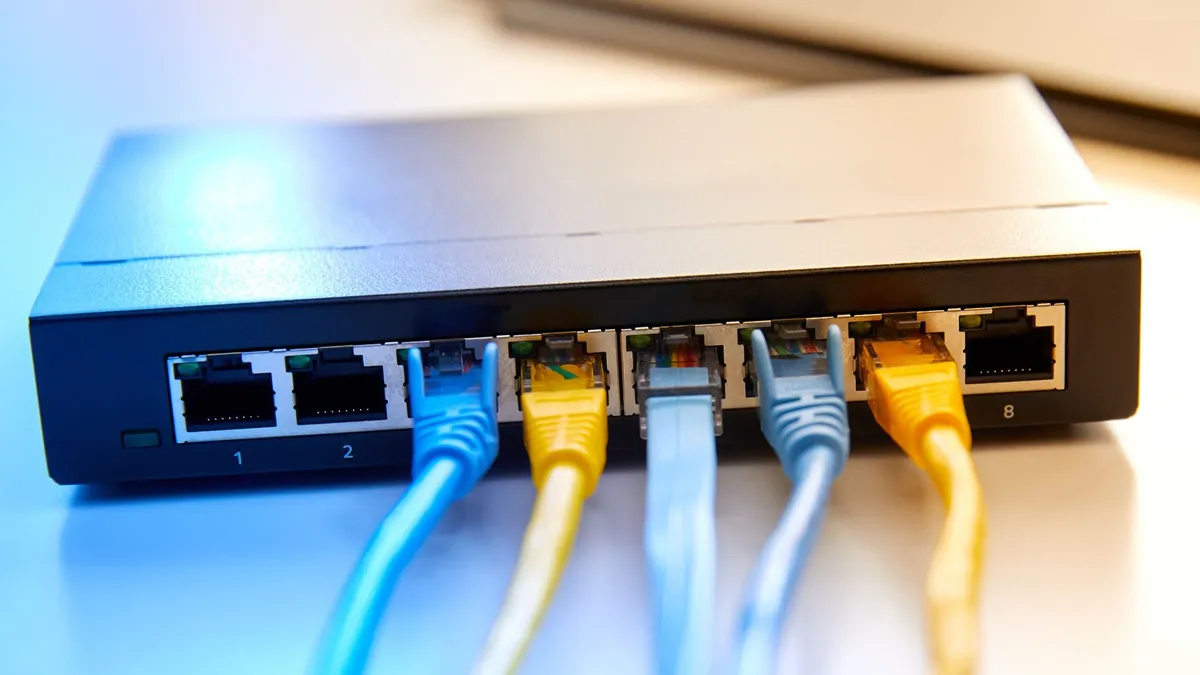
Wi-Fi is convenient, but Ethernet provides faster, more stable connections that eliminate buffering on older TVs with aging wireless chips. Older smart TVs often have outdated Wi-Fi hardware that can't take full advantage of router speeds, which can cause buffering, low resolution, and longer loading times.
Running an Ethernet cable from your router to your TV can solve this. Wired connections deliver full network speed directly to your TV. Streaming loads faster, plays at higher quality, and maintains stability. If running cables aren't practical, however, powerline adapters send network signals through your electrical wiring, giving you Ethernet-like performance without the long cables.
For aging smart TVs, switching to an Ethernet connection is often the most cost-effective way to see the biggest difference in terms of performance.
5. Reorganize your home screen for a fresh look
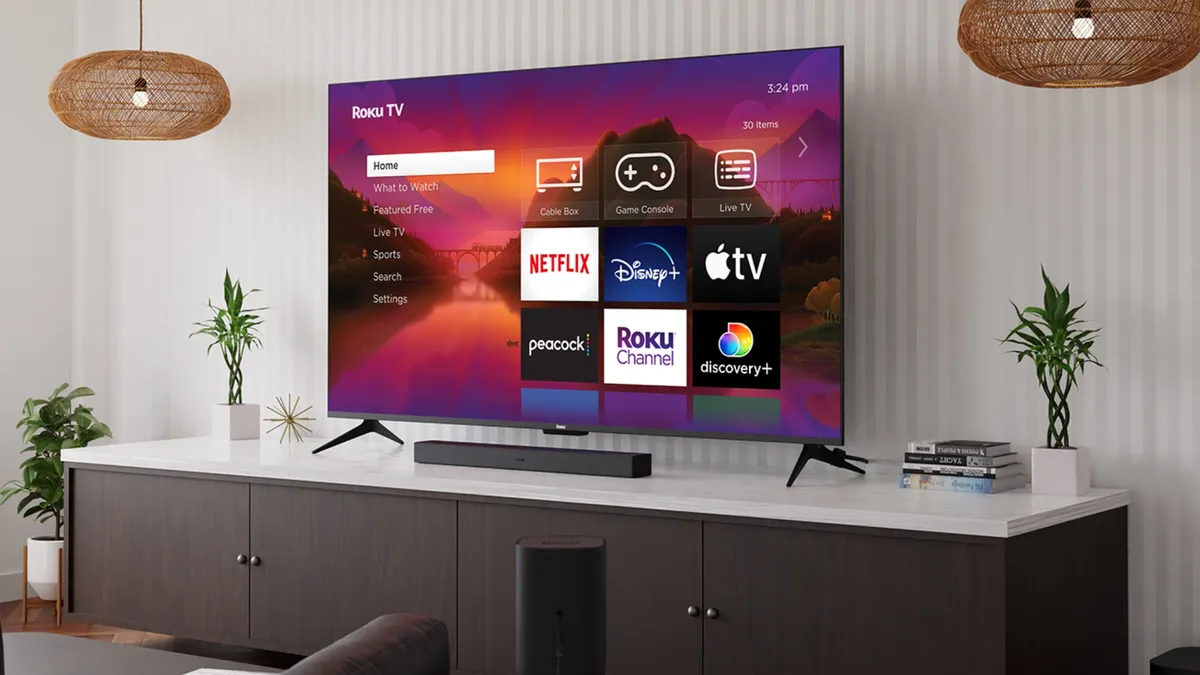
A cluttered, disorganized home screen makes your TV feel dated. Rearranging your home screen gives your TV an instant facelift while also making it faster to navigate. Pin your most-used apps front and center — Netflix, YouTube, whatever you actually open daily. Push everything else to the back or hide it entirely if your TV allows it.
Most smart TVs let you long-press app icons and drag them to new positions. Some let you create folders or completely hide apps you can't uninstall. Use these features to create a clean, intentional layout that looks deliberate rather than like the default setup from five years ago.
Think of it like organizing your phone's home screen — the difference between a cluttered mess of app icons versus a clean, curated layout makes the device feel newer and more pleasant to use. The same applies to your TV.
A fresh, organized home screen makes the entire experience feel more modern, even if the hardware underneath is ancient.

Follow Tom's Guide on Google News and add us as a preferred source to get our up-to-date news, analysis, and reviews in your feeds. Make sure to click the Follow button!
More from Tom's Guide

