







If your Roku has been freezing, buffering, or stuttering through your streaming sessions, you're not alone. Even the best Roku TVs suffer from performance issues that often stem from accumulated cached data, temporary files, and digital clutter that build up over time.
The good news is that these issues usually have simple fixes that take just a few minutes. A quick restart or cache clear often solves the issue entirely, targeting the most common culprits behind sluggish streaming. Even if you've had your Roku for years, these troubleshooting steps can restore it to smooth performance.
Here's how to fix a freezing Roku without buying a new one.
1. Restart your Roku through settings

The simplest fix for a freezing Roku is a system restart, which clears temporary data and refreshes the device. From the Roku home screen, scroll to Settings at the end of the menu and select it.
Next, navigate to System, then scroll down to Power. Select System Restart and click Restart to confirm. Your Roku will turn off and back on within about 30 seconds. This restart clears the cache without factory resetting the device, meaning all your apps and settings stay intact.
If your Roku was freezing due to memory buildup or minor software glitches, this restart often solves the problem immediately. Try this method first before moving on to more involved fixes.
2. Use the hidden remote restart sequence
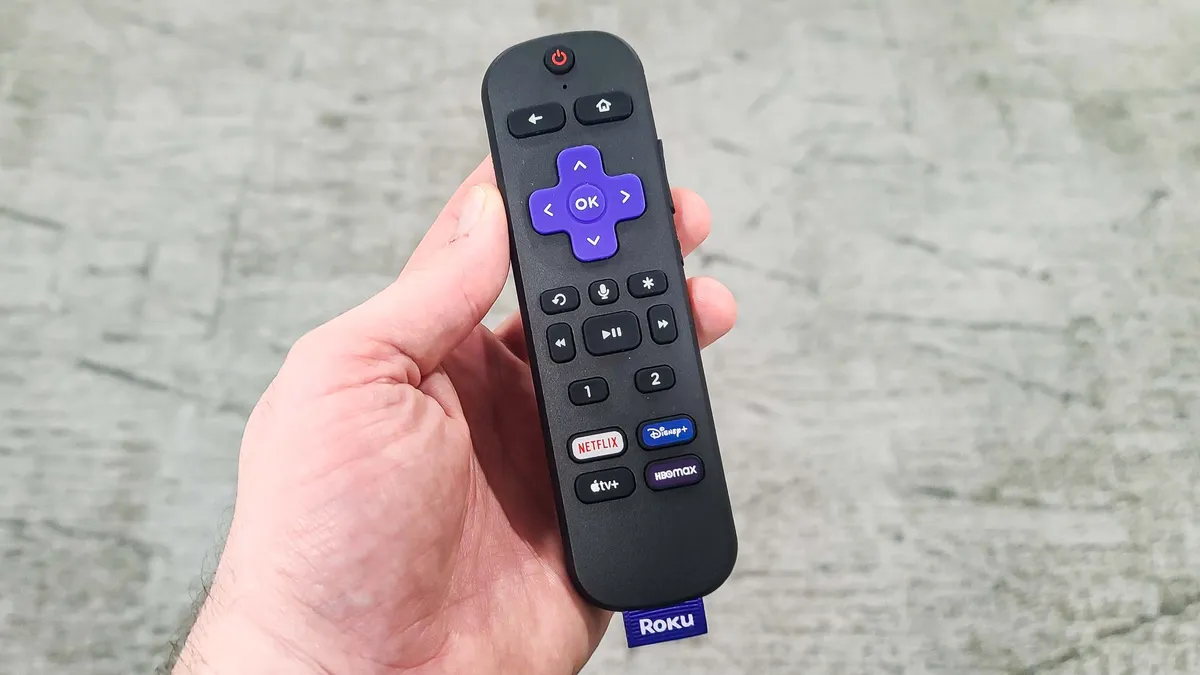
If the settings restart doesn't work or your Roku is too frozen to navigate menus, there's a hidden remote sequence that forces a restart.
From the Roku home screen, make sure the highlight is over the Home option on the left side. Press the Home button on your remote five times, then press the Up arrow once, press Rewind twice, and press Fast Forward twice. Your Roku will automatically restart within a few seconds.
This method works even when the device is mostly unresponsive, making it useful when freezing is so severe you can't access the settings menu. The restart still preserves all your apps and preferences while clearing cached data that might be causing performance issues.
3. Uninstall and reinstall problematic apps
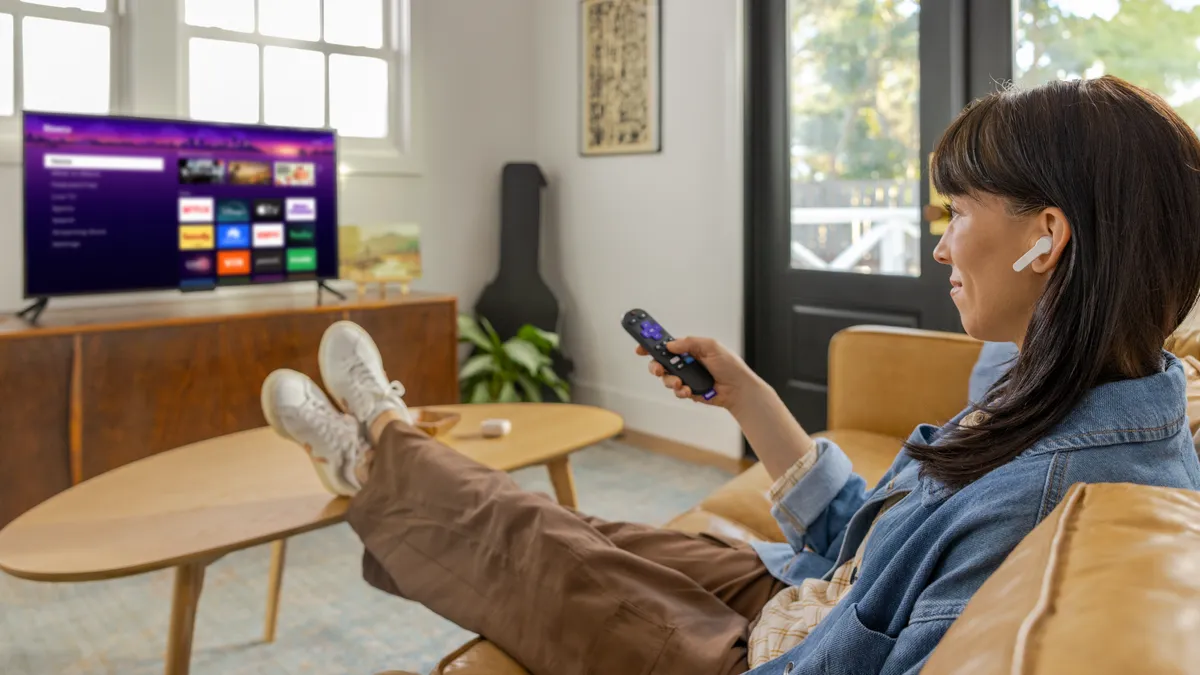
If freezing only happens with specific apps, uninstalling and reinstalling those apps can fix the issue.
Navigate to the app that's causing problems, but don't open it — just highlight it. Then press the * (star) button on your remote to bring up the options menu, and select Remove Channel. This uninstalls the app completely, removing all user data and settings.
Once removed, go to the Roku Channel Store, search for the app, and reinstall it fresh. You'll need to sign in again and reconfigure any settings, but you'll have a clean version without corrupted data.
This is particularly effective if one streaming service freezes constantly while others work fine, indicating the problem is app-specific rather than device-wide.
4. Refresh your network connection

Even with a strong signal, your Roku's connection to your network can degrade over time, causing buffering and freezing issues. A network connection reset forces your device to establish a fresh connection, which often clears up persistent streaming problems.
From the Settings menu, navigate to System, then Advanced System Settings, and select Network Connection Reset. This removes all saved network information and restarts your Roku automatically.
After the restart, you'll need to reconnect to your Wi-Fi. Go to Settings, select Network, and choose Set Up Connection, then enter your Wi-Fi password when prompted. This fresh connection often eliminates buffering issues that persisted through other fixes.
Keep in mind that any connected devices like soundbars or wireless speakers may need to be reconnected after this reset.
5. When all else fails, try a factory reset
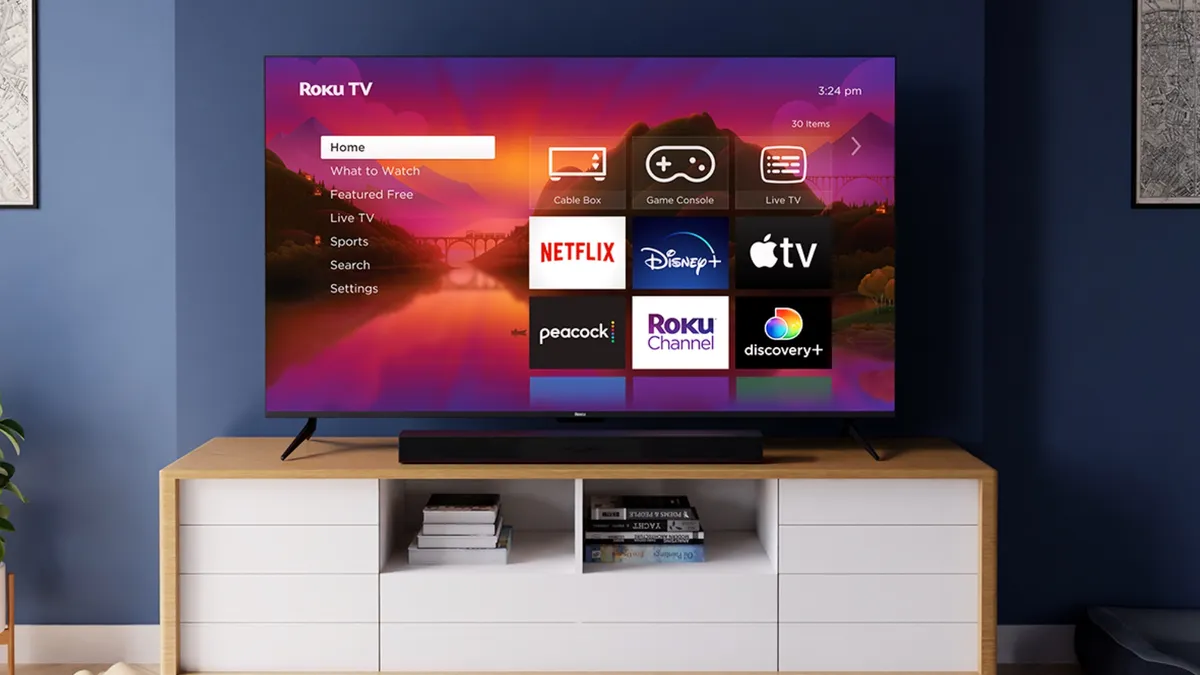
If your Roku still freezes after trying the previous fixes, a factory reset wipes everything and returns the device to like-new condition. This removes all apps, user accounts, and settings, so only use this option when other methods fail.
From the Settings menu, select System, then scroll to Advanced System Settings at the bottom. Select Factory Reset and enter the code shown on screen to confirm. Your Roku will restart and walk you through the initial setup process as if it were brand new.
You'll need to reinstall all your apps and sign in to each service again. While this is the most time-consuming fix, it solves persistent freezing issues caused by deep software problems or excessive cached data that simple restarts can't clear.

Follow Tom's Guide on Google News and add us as a preferred source to get our up-to-date news, analysis, and reviews in your feeds. Make sure to click the Follow button!
More from Tom's Guide
- 7 hidden Roku tricks everyone needs to know
- Try these Roku tips to instantly improve your TV experience
- 5 ways to mount your TV safely without a stud finder

