







Most Roku users undoubtedly launch apps, watch shows, and maybe use the search function once in a while. But your device has shortcuts, hidden menus, and features buried throughout the interface that make streaming significantly easier.
I've only recently discovered some of these tricks that save time and solve common frustrations. Some require specific button combinations on your remote, others are tucked into settings menus you've probably never opened, and a few are accessible right from the home screen but easy to overlook.
All of them are genuinely useful once you know they exist and take just seconds to use. Here are the five best Roku shortcuts everyone should know about.
1. Find your remote using your phone
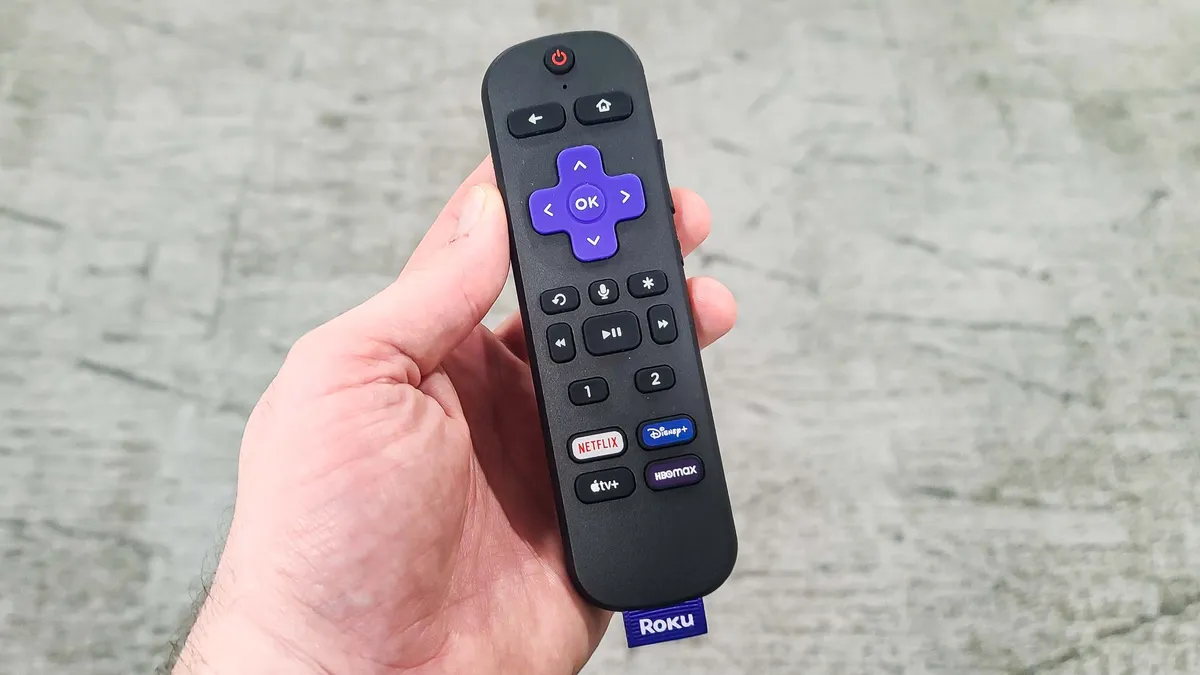
If you have a Roku voice remote with a speaker grille, you can make it beep loudly so you can find it when it inevitably slips between couch cushions. Open the Roku mobile app on your phone, tap the microphone icon, and say "Hey Roku, find my remote." The remote will start beeping until you press any button on it.
If you own a Roku Ultra, there's an even easier method — just press the physical button on the Roku device itself and the remote will beep. This works whether the remote is buried under blankets, hidden in another room, or stuck somewhere you can't see it.
2. Create a universal watchlist
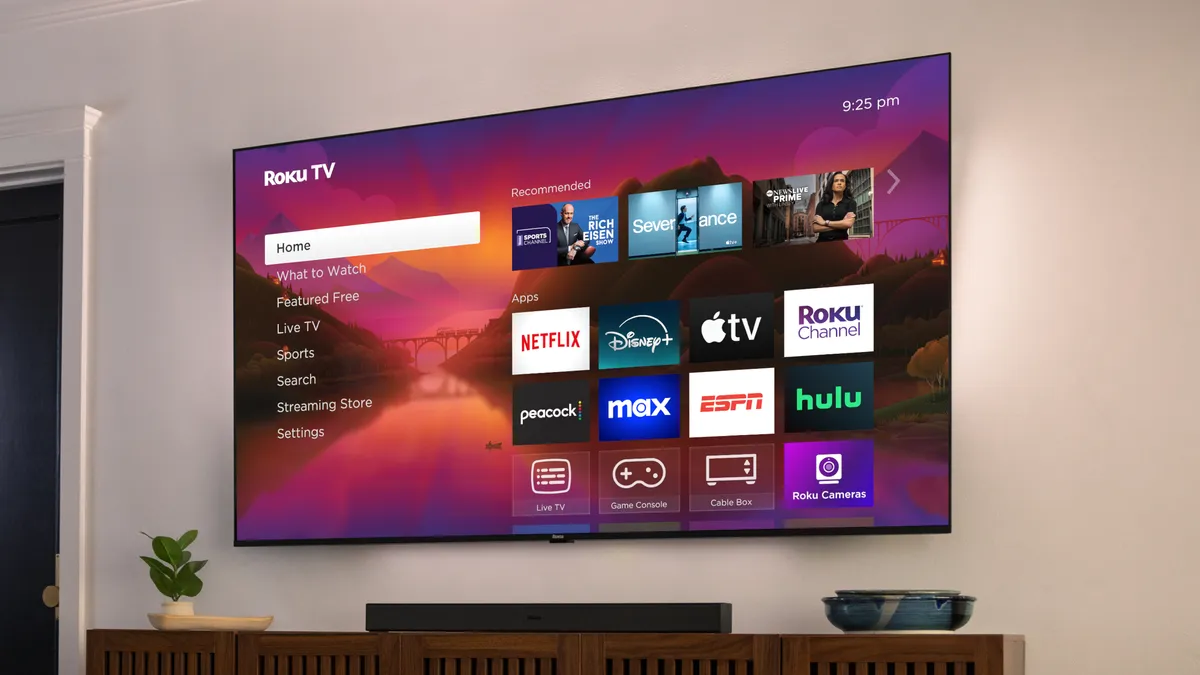
Instead of maintaining separate watchlists in Netflix, Hulu, Max, and every other streaming service, Roku lets you build one master list that shows everything you want to watch in a single place. When you find a movie or show in any app or through Roku search, select "Add to Save List" on its details page.
Roku collects all these saves into a "What to Watch" section accessible from your Home screen. Press Home, select What to Watch, and you'll see every movie and episode you've saved from across all your streaming services. There's also a "Continue Watching" section in the same menu that shows everything you've started but haven't finished, regardless of which app it's in.
This eliminates the need to remember which service had that show you were halfway through or where you saved that movie you wanted to watch later.
3. Clear your Roku cache when it starts acting up
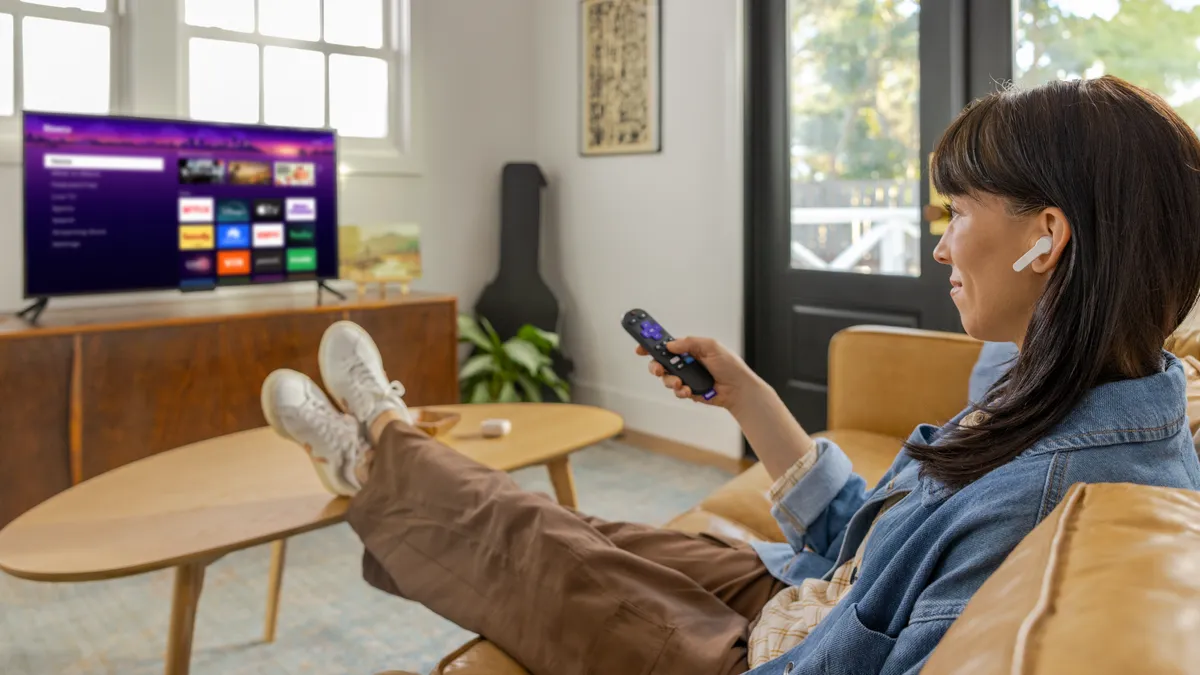
When your Roku starts running slow, apps crash randomly, or you notice audio sync issues, the problem is usually cached data clogging up the system. Roku doesn't have a simple "clear cache" button, but there's a secret remote button sequence that forces a soft reset and clears temporary files.
Go to your Home screen and make sure the highlight is over the Home option on the left side. Press Home five times, press Up once, press Rewind twice, then press Fast Forward twice. Your Roku will restart automatically within 30 seconds. This doesn't delete your apps or settings — it just flushes out temporary data that builds up over time.
If you don't want to memorize the button combo, you can also just go to Settings, System, and System Restart to accomplish the same thing.
4. Use your phone as a full-featured remote

The Roku mobile app isn't just a backup when you lose your physical remote — it's actually better for certain tasks. Download the Roku Official Remote app on your iPhone or Android device, connect it to your Roku on the same WiFi network, and you get a full touchscreen remote with features the physical remote doesn't have.
The app includes a full keyboard that pops up when you need to type, which is infinitely faster than hunting and pecking with arrow buttons to enter passwords or search terms. You can also use voice search by tapping the microphone icon and speaking your query instead of typing it.
The app shows all your installed channels in a grid so you can launch them with a single tap instead of scrolling through your Home screen.
5. Access hidden diagnostic screens
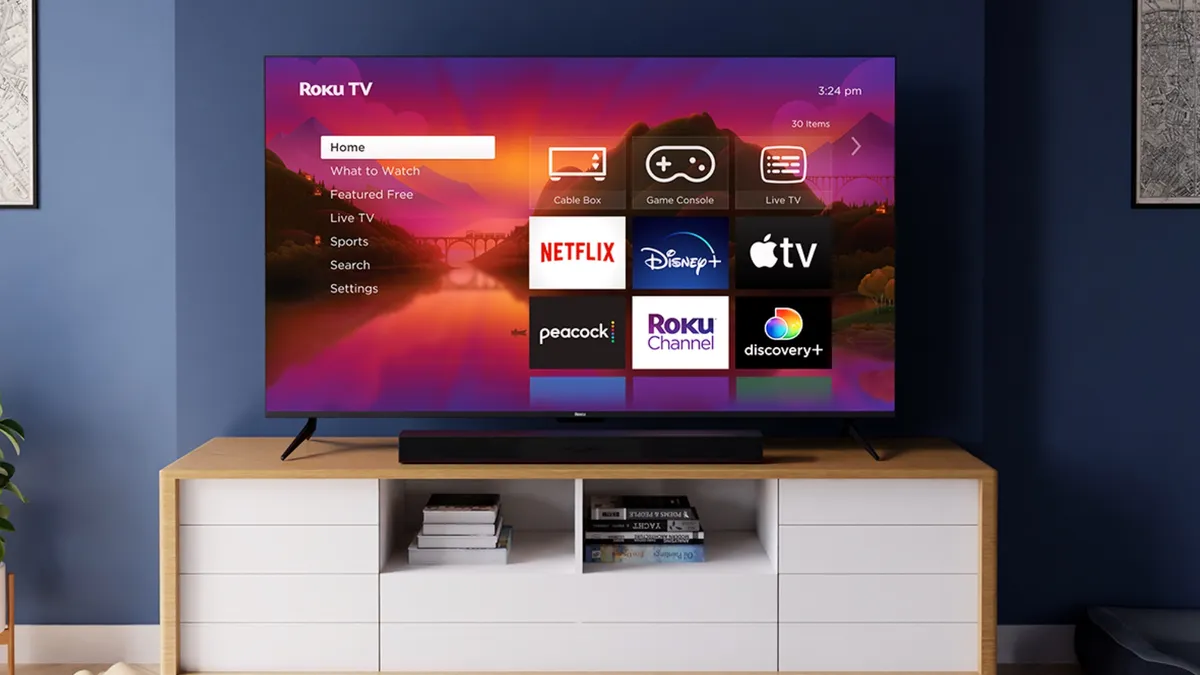
Roku has several secret menus hidden behind specific button combinations that reveal diagnostic information, connection details, and advanced settings most users never see. These screens help troubleshoot problems and give you detailed technical data about your device.
For wireless connection info, press Home five times, then press Up, Down, Up, Down, Up. This shows your WiFi signal strength, connection type, and network diagnostics. For HDMI information, press Home five times, then press Down, Left, Up, Up, Up to see resolution, refresh rate, and HDMI handshake details.
There's even a secret screen that lets you take screenshots or control ad settings — press Home five times, then Up, Right, Down, Left, Up. These hidden menus won't change your daily streaming experience, but they're incredibly useful.

Follow Tom's Guide on Google News and add us as a preferred source to get our up-to-date news, analysis, and reviews in your feeds. Make sure to click the Follow button!
More from Tom's Guide
- Try these Roku tips to instantly improve your TV experience
- How to fix Roku freezing and buffering — including a secret remote shortcut
- 5 ways to mount your TV safely without a stud finder

