




You've got an expensive TV, connected your PS5, Apple TV 4K, or gaming PC. Everything works — the picture is sharp, colors look decent, HDR seems to be on, but something just doesn't feel right. For what you paid, the image should look better than this.
The problem isn't your TV's panel or your device. It's your HDMI settings. Most TVs ship with HDMI ports set to standard or compatible mode that limits bandwidth. This ensures compatibility with any device you plug in, preventing connection errors and no signal screens. But it also caps your picture quality far below what your TV and devices can actually deliver.
Switching to enhanced HDMI mode unlocks the full capabilities you paid for. Here's how to enable it and why it matters.
Why HDMI defaults to limited mode
When you connect a device via HDMI, your TV and that device negotiate resolution, refresh rate, color depth, and HDR support. If anything goes wrong during this — an old cable, incompatible device, or weak connection — you get black screens or no signal at all.
TV manufacturers avoid this by defaulting to a conservative bandwidth limit that works with virtually anything you plug in. Which is great for them, but can mean you're not getting the full capabilities you paid for.
Enhanced mode removes that safety buffer and lets your TV and devices communicate at maximum bandwidth. The result: proper HDR, richer colors, sharper text, and higher refresh rates that were available all along but initially capped.
Some TVs already have enhanced HDMI enabled
Before diving into settings, know that some TV brands ship with enhanced HDMI already enabled on newer models. Many recent Samsung and LG TVs default to enhanced mode, though this varies by specific model, year, and region.
Hisense and Sony TVs typically require manual activation. Regardless of brand, it's worth checking your settings — even if enhanced mode is already on, verifying ensures you're getting full picture quality from your devices.
How to enable enhanced HDMI on your TV

Enhanced HDMI is a per-port setting on most TVs. Enabling it on HDMI 1 doesn't automatically apply to HDMI 2, 3, or 4. You need to activate it individually for each port you're using, or enable it globally if your TV offers that option.
The setting has different names depending on manufacturer:
Samsung: Go to Settings, General, External Device Manager, Input Signal Plus (or HDMI UHD Color on older models). Then toggle it on for the specific ports where your PS5, Apple TV, or PC are connected.
LG: Navigate to Settings, General, Devices, HDMI Settings, and HDMI Deep Color. Enable it for the ports you're using.
Sony: Open Settings, Watching TV, External Inputs, HDMI Signal Format. Then select Enhanced Format for the relevant ports.
Hisense: Go to Settings, Picture, Advanced Settings, HDMI Format. From here, change from Standard to Enhanced for each port.
For other brands, look for settings labeled Enhanced Format, 4K Signal Format, HDMI Deep Color, Input Signal Plus, or similar. If you can't locate it, check your TV's manual. The function exists on virtually all 4K TVs made after 2016.
Restart your devices
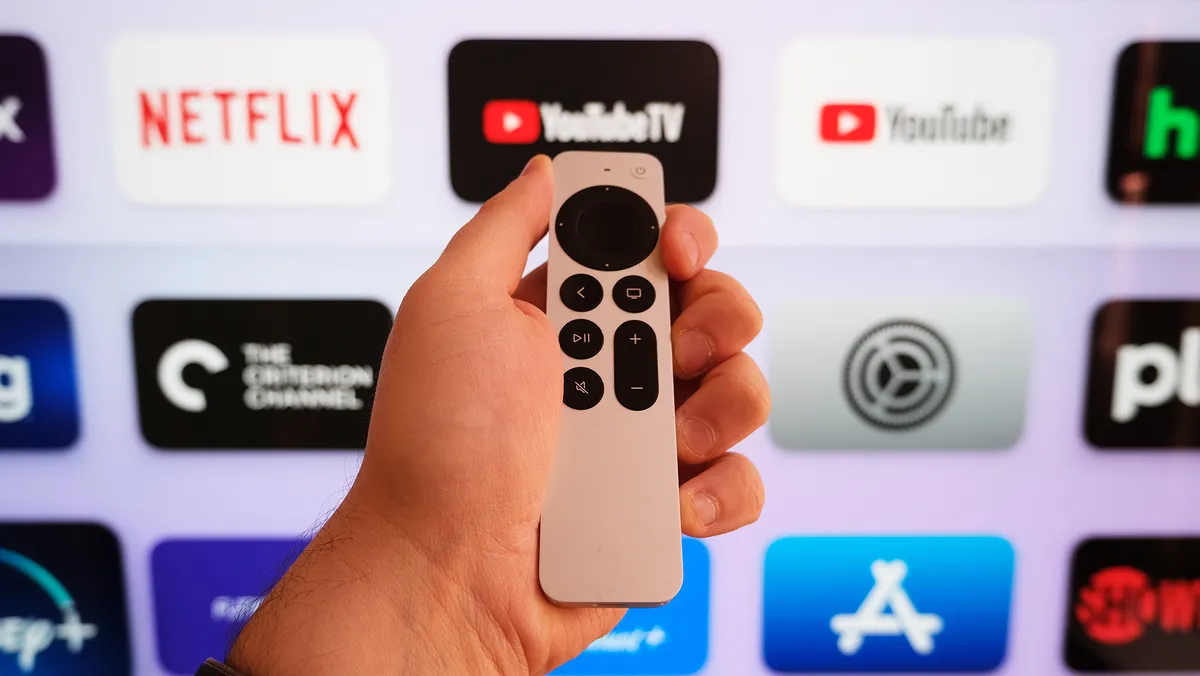
After enabling enhanced HDMI, restart your connected devices. Some devices automatically detect the change and adjust output settings, while others require a manual reboot to recognize the increased bandwidth.

Follow Tom's Guide on Google News and add us as a preferred source to get our up-to-date news, analysis, and reviews in your feeds. Make sure to click the Follow button!
More from Tom's Guide

