




Your smart TV probably isn't as smart as it was when you first unboxed it. Apps that used to load instantly now take forever. Streaming shows buffer at the worst possible moments. The interface feels laggy when you're just trying to find something to watch. Most people assume this slowdown is inevitable, but your TV just needs some basic maintenance and a few simple tweaks.
These straightforward adjustments that take less than 10 minutes and cost nothing, yet they can bring your sluggish TV back to the responsive device it once was. Whether you're using a Samsung, LG, Sony, or any of the other best smart TVs for streaming, these upgrades are game-changers.
Here's five ways to improve your smart TV's performance without spending a cent.
1. Update your TV's firmware immediately
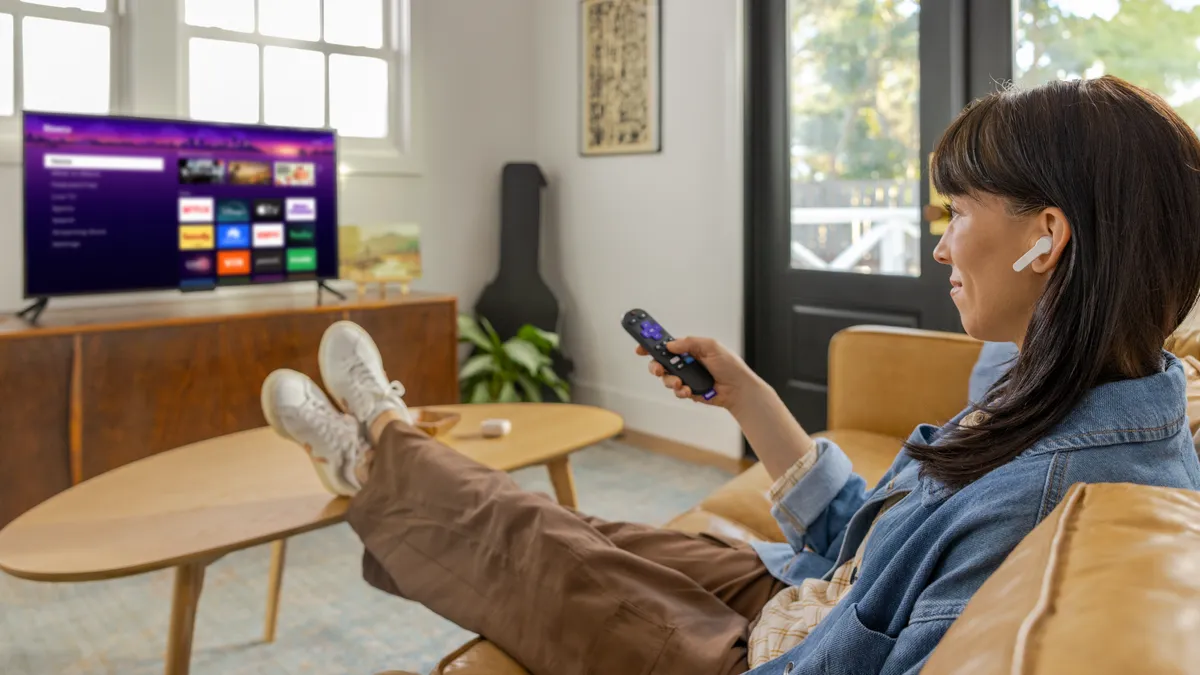
Outdated firmware is one of the biggest reasons smart TVs run poorly. Manufacturers release regular updates that fix bugs, patch security vulnerabilities, and improve overall performance. If you're experiencing freezing, app crashes, or slow response times, an outdated operating system is likely the culprit.
Go to Settings and look for an option labeled Software Update, System Update, or something similar — the exact wording varies by brand. Check if an update is available and install it if so.
Many smart TVs have an auto-update feature you can enable so updates install automatically in the future. Turn this on to ensure your TV stays current without you having to remember to check manually.
2. Clear your cache to free up memory
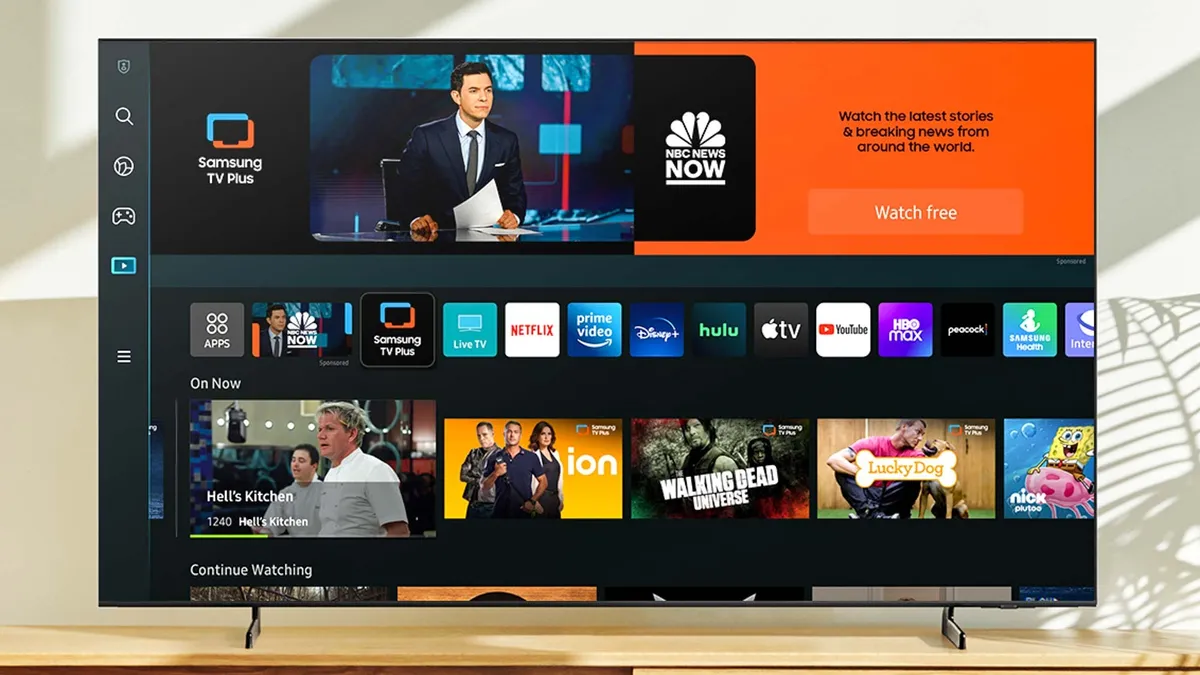
Just like phones and computers, smart TVs accumulate cached data over time that takes up storage space and slows down performance. Apps store temporary files to load faster, but when this cache gets too large, it actually does the opposite and makes everything sluggish.
Go to Settings and find the Apps or Storage section. Next, select individual apps that you use frequently, especially streaming apps like Netflix, Hulu, or YouTube, and look for an option to Clear Cache or Clear Data. This removes temporary files without deleting your login information or preferences. You should also delete any apps you no longer use to free up additional space.
If you've downloaded movies, games, or stored photos on your TV, consider moving them to external storage or deleting them entirely. Clearing the cache every few months will keep your TV running smoothly.
3. Switch to a wired internet connection
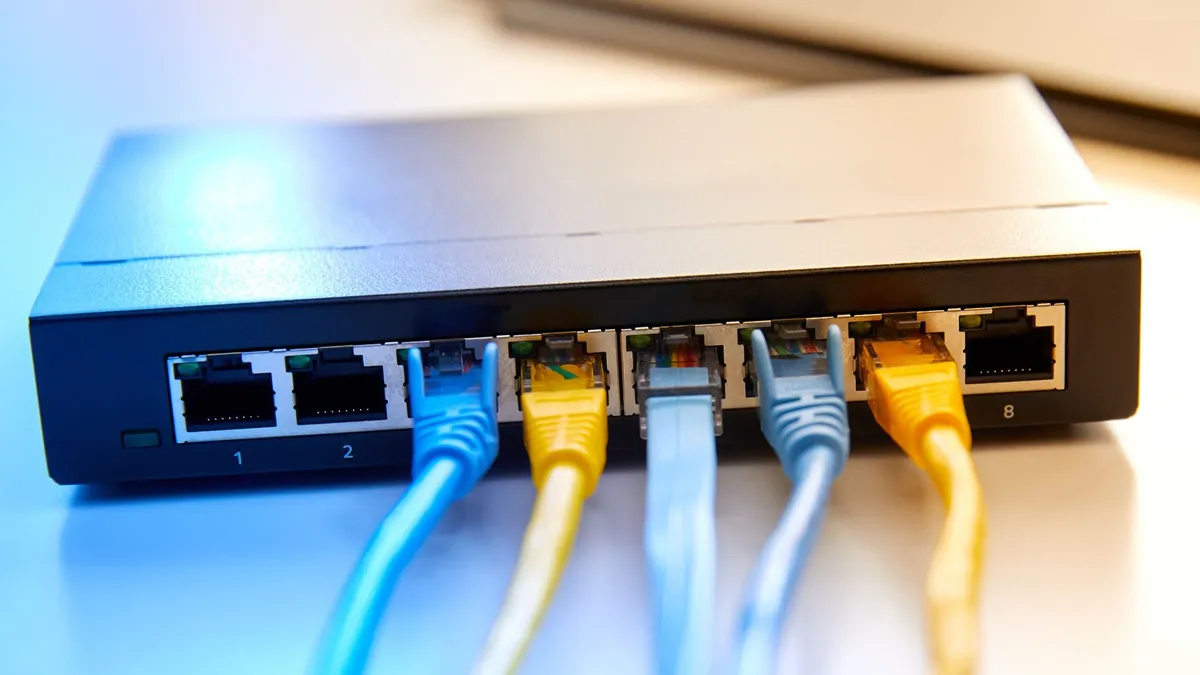
Wi-Fi is convenient, but it's often the reason your TV buffers constantly or struggles with high-quality streams. Wireless connections are susceptible to interference from thick walls, other devices, and neighboring Wi-Fi networks, all of which cause instability.
If your TV has an Ethernet port, connect it directly to your router with an Ethernet cable. Wired connections are faster, more stable, and immune to the interference that plagues Wi-Fi. This makes a huge difference when streaming 4K content, gaming online, or using apps that require consistent bandwidth.
The only downside is running a physical cable from your router to your TV, which can be inconvenient if they're in different rooms. But if you can manage it, the improvement in streaming quality and connection stability is immediately noticeable.
4. Turn off motion smoothing

Motion smoothing is a feature that most TVs enable by default, and it makes movies and TV shows look unnatural and cheap. Different brands call it different things: TruMotion on LG, Motionflow on Sony, Auto Motion Plus on Samsung, but they all do the same thing — insert extra frames between the original frames to make motion appear smoother.
This works well for live sports, but it ruins movies and shows by creating what's known as the "soap opera effect," where everything looks like it was shot on cheap video cameras instead of film. The picture appears unnaturally smooth and loses the cinematic quality filmmakers intended.
To fix this, go to Settings, find Picture or Display settings, and look for motion-related options. Then simply turn off any settings with names like Motion Smoothing, TruMotion, Auto Motion, or Motionflow. The exact location will vary by brand, but it's usually under advanced picture settings.
Once disabled, movies and shows will look more natural and film-like.
5. Add an HDMI switcher if you need more ports
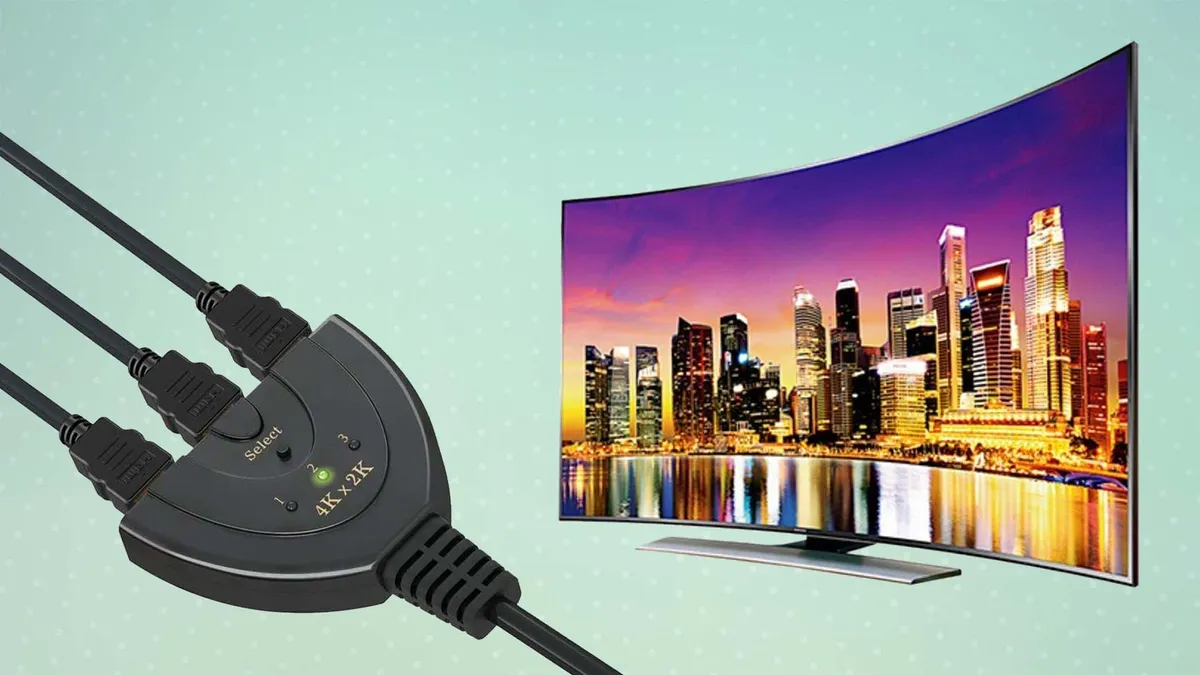
If you have multiple devices competing for limited HDMI ports, an HDMI switcher solves the problem. This small device plugs into one HDMI port on your TV and splits it into multiple ports, usually three to five. You can then connect all your devices to the switcher instead of constantly unplugging and swapping cables.
There are two types: manual switchers require you to press a button to change between devices, while automatic switchers detect which device is active and switch automatically. For example, if you turn on your PlayStation, an automatic switcher senses the signal and switches to that input without any action from you.
This is especially useful if your TV only has two or three HDMI ports, or if the ports with advanced features like HDMI 2.1 are already occupied. If you don't have one already and are looking to invest, check out our best cheap HDMI switchers guide.


Follow Tom's Guide on Google News and add us as a preferred source to get our up-to-date news, analysis, and reviews in your feeds. Make sure to click the Follow button!
More from Tom's Guide
- Your TV probably has a microphone in it — how to turn it off
- 5 ways to mount your TV safely without a stud finder
- These smart TV settings make watching so much easier

