






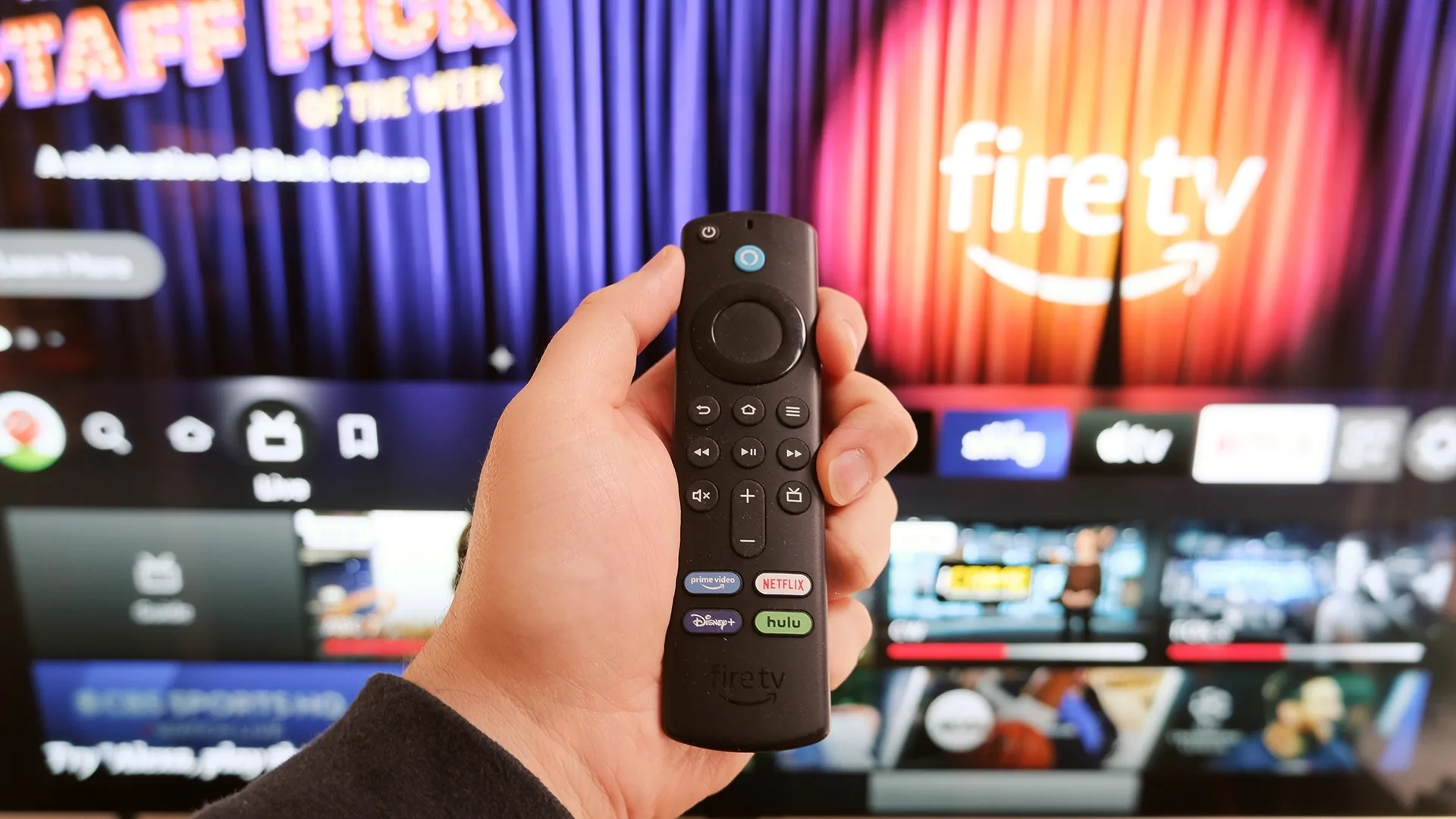
If your Fire TV or Fire TV Stick feels sluggish lately, you're not alone. Navigation lags, apps take forever to load, and buffering circles appear constantly. Before you blame your internet connection or buy a new device, the problem is likely your Fire TV's own software and accumulated clutter.
Over time, temporary files build up, apps run in the background hogging memory, and unnecessary tracking features consume system resources. A few quick settings changes can improve performance without requiring a factory reset or technical expertise.
Here are five practical Fire TV settings adjustments that make the biggest difference in speed and responsiveness.
1. Restart your Fire TV regularly
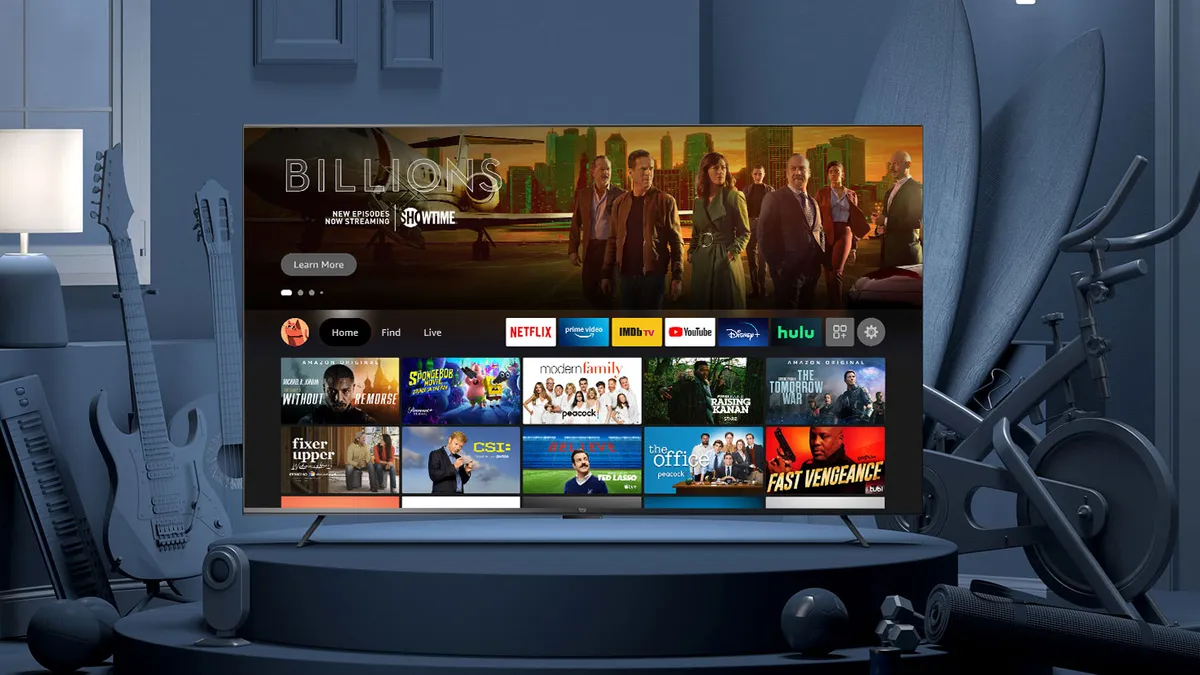
The simplest fix for a slow Fire TV is restarting it. Most people leave their Fire TV plugged in and running constantly, even when not actively watching. Over time, this causes software glitches and temporary file buildup that slow performance.
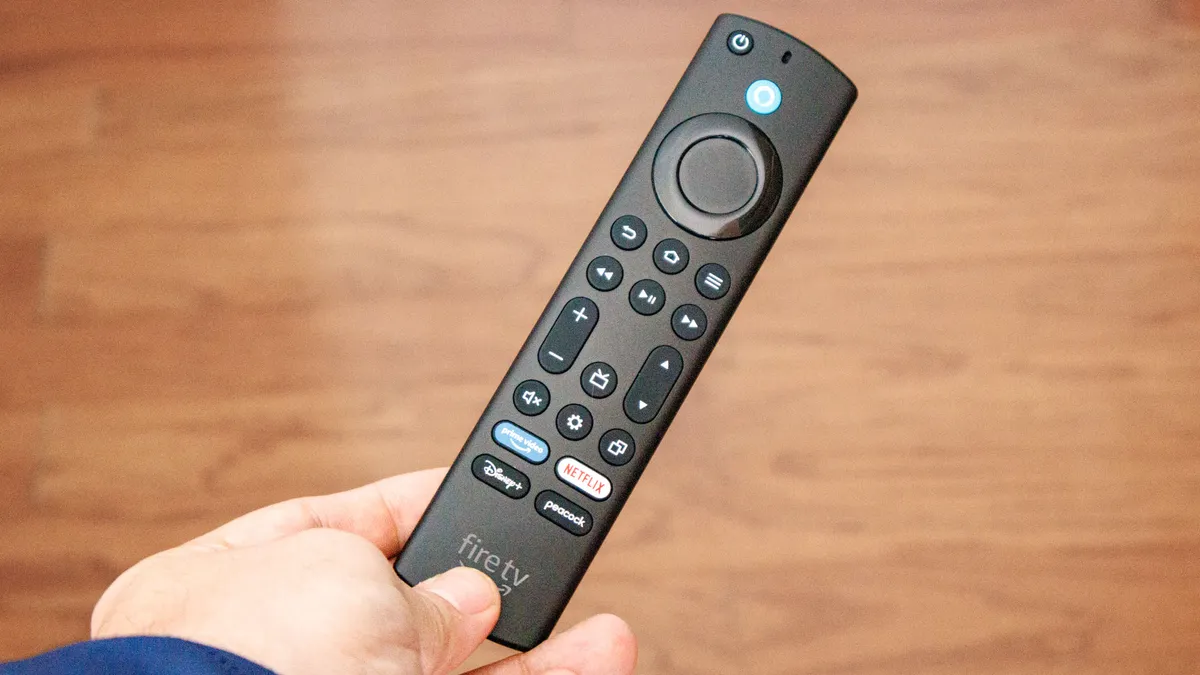
A restart clears these temporary files and gives your device a fresh start. Hold down the Home button on your remote for a few seconds, select Settings, go to My Fire TV (or Device and Software), choose Restart, and confirm.
Alternatively, unplug the power cord, wait three seconds, and plug it back in. The restart takes less than a minute, and you'll likely notice immediately snappier performance afterward. Try making this a regular habit whenever your Fire TV feels slow.
2. Clear app cache to free up memory
Apps accumulate temporary files called cache over time, and when left unchecked, this cache slows down individual apps and your Fire TV's overall performance. Clearing cache just removes temporary files that apps don't actually need.
Go to Settings, Applications, Manage Installed Applications. Then select an app like Netflix, YouTube, or Spotify, and choose Clear Cache. Repeat this for any apps you use frequently. Do this monthly to keep your Fire TV running smoothly.
After clearing cache from several apps, you'll notice faster load times and smoother navigation throughout the system.
3. Delete unused apps
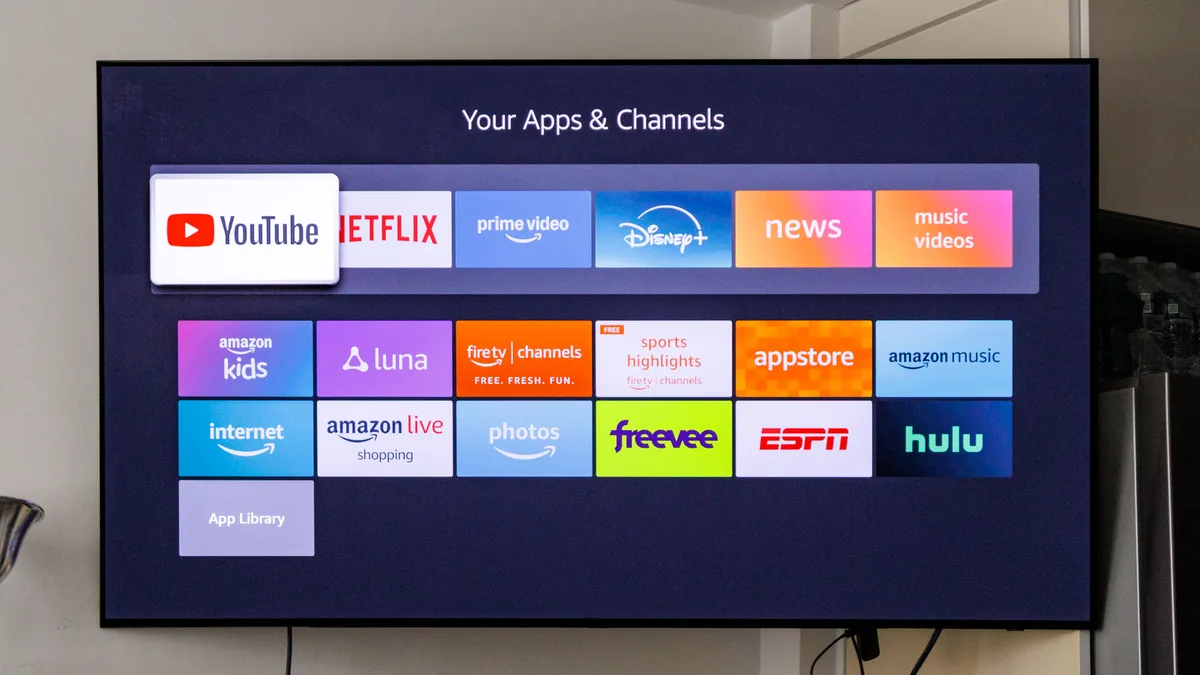
Over time, you accumulate streaming apps you downloaded once, tried briefly, and decided they weren't for you. These unused apps take up valuable storage space and sometimes run background services that consume memory even when you're not using them.
Removing apps you don't need frees up both storage and RAM, which directly improves your Fire TV's performance. To do this, go to Settings, Applications, Manage Installed Applications, scroll through the list, and select any app you haven't used recently. Then choose Uninstall and confirm.
Repeat for all unused or rarely used apps. After clearing out the clutter, your Fire TV will have more resources available to handle the apps you actually use, making everything load and scroll noticeably faster.
4. Force stop apps running in the background
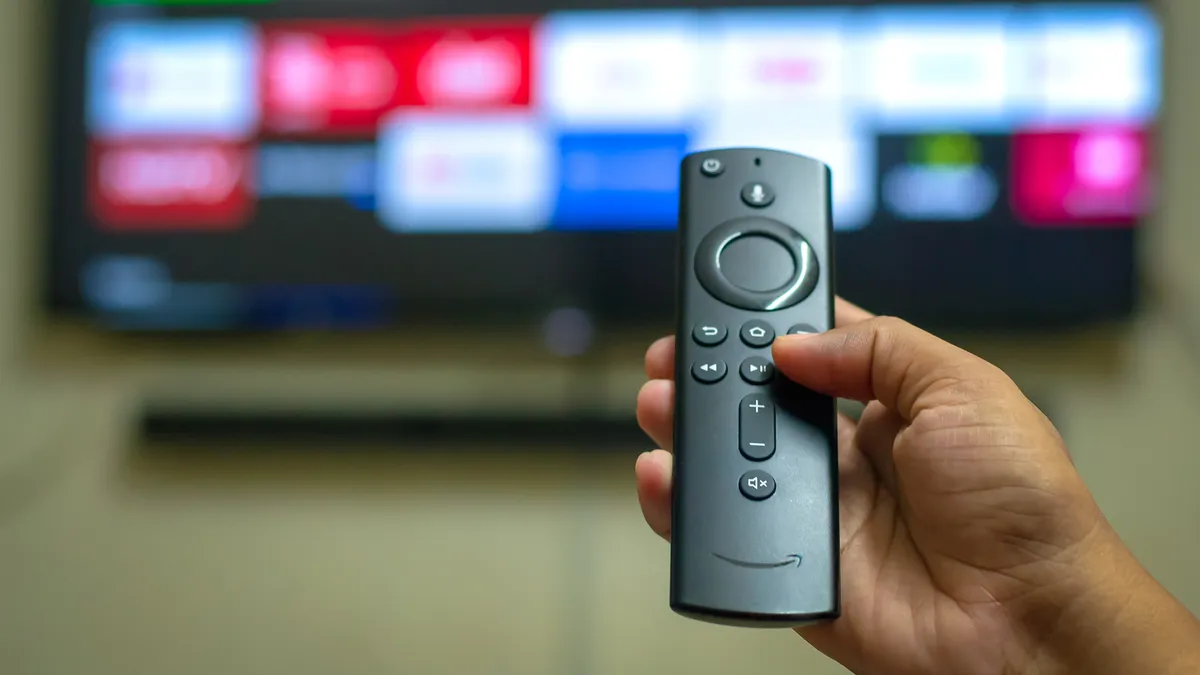
Apps you've used recently might continue running in the background, consuming memory that your Fire TV could use for active tasks. Force stopping these background apps frees up RAM for whatever you want to launch next.
Navigate to Settings, Applications, Manage Installed Applications and select an app you suspect is running in the background, like Netflix, Hulu, or Prime Video. Then choose Force Stop and confirm if prompted. Do this for multiple apps that you're not currently using.
After force stopping unnecessary background apps, your Fire TV can dedicate more resources to the app you're actually trying to watch.
5. Turn off data monitoring

Fire TV's data monitoring feature tracks how much bandwidth your apps consume, but this tracking itself uses system resources including CPU and memory. Most people don't need this information, and disabling it frees up resources for actual streaming.
From the home screen, open Settings, select Preferences, go to Data Usage Monitoring, and toggle Data Monitoring off. You may notice immediate improvements, especially during high-bandwidth activities like 4K streaming or gaming.
With data monitoring disabled, your Fire TV stops constantly tracking bandwidth usage in the background and can focus entirely on delivering smooth streaming performance instead.

Follow Tom's Guide on Google News and add us as a preferred source to get our up-to-date news, analysis, and reviews in your feeds. Make sure to click the Follow button!
More from Tom's Guide
- How to permanently stop your smart TV from buffering
- 7 tips and tricks to make your Fire TV even better
- 5 free ways to upgrade your smart TV right now

