







Most people use their Fire TV Stick exclusively for streaming Netflix, Prime Video, and the rest of the best streaming services. But there’s a hidden feature that turns it into something completely different: a cloud gaming console that plays full AAA games without needing an Xbox, PlayStation, or gaming PC.
I discovered this by accident when I was desperately craving my Fallout fix since Season 2 ended. I’d recently replayed New Vegas and wanted to dive back into Fallout 4 for what would be my umpteenth playthrough. I tried Xbox Cloud Gaming, but it refused to work properly on my not-so-great internet connection. Then I stumbled onto Amazon Luna, a cloud gaming service built directly into Fire TV that I’d completely overlooked.
This feature is a game-changer, literally. If you have Amazon Prime, you already have access to Luna’s rotating game library at no extra cost. Here’s what you need to know and how to set it up.
What you need to know about Amazon Luna

Amazon Luna streams games directly to your Fire TV Stick from Amazon’s servers. This means no downloads, no installations, and no hardware requirements beyond the Fire TV Stick you already own.
The library changes periodically, but consistently offers several AAA titles and quality indie games. For a larger catalog, Luna+ subscription costs extra, but the Prime selection alone provides plenty of worthwhile content.
Of course you'll need a compatible game controller to play. Any Bluetooth controller works — Xbox, PlayStation, or third-party controllers all pair easily with Fire TV Stick. You can also use your phone. I used a standard Xbox controller and it works great.
Performance depends on your internet connection, but Luna is surprisingly forgiving. My Wi-Fi isn't particularly fast, and Luna handles demanding games like Fallout 4 smoothly while Xbox Cloud Gaming stutters and pixelates on the exact same network.
How to set up Amazon Luna on Fire TV Stick
1. Download the Luna app

On your Fire TV home screen, navigate to Find or use the search function. Type “Luna” and select the Amazon Luna app when it appears. Then download and install it.
Once installed, the Luna app appears in your Apps & Channels section. You can move it to your home screen for easier access.
2. Launch Amazon Luna
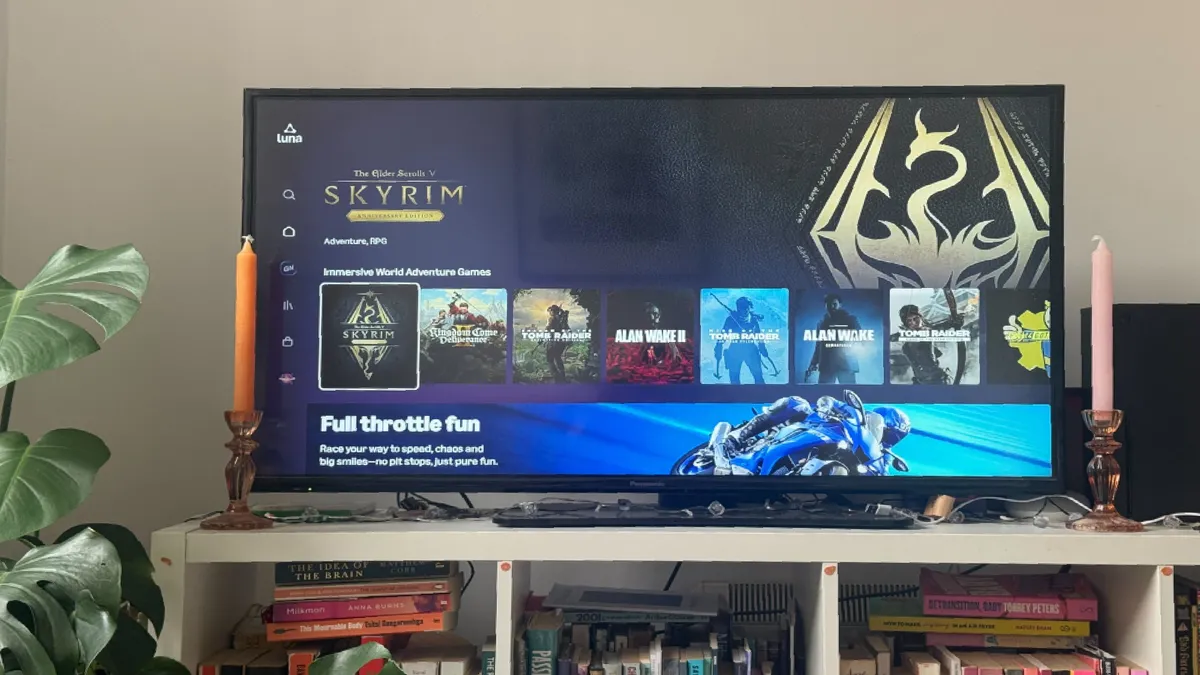
Open the Luna app from your Fire TV home screen. If you need too, sign in with your Amazon account if prompted.
The Luna home screen shows available games. If you have Amazon Prime, navigate to the Prime Gaming channel to see included titles. Browse the library and select a game to play.
Games load within seconds — no downloads, no updates, no waiting. You’re playing almost immediately. One small caveat is if there's many people playing at the time you might have to wait a couple minutes for it to load, but it's a small price to pay.
3. Pair your game controller

You can use any controller with a Bluetooth connection to play games on Luna, as well as your phone and even the Fire remote itself for simpler games such as Jackbox and Human Fall Flat.
PS5 controllers can connect by holding the Create (share) and PS buttons until the light flashes. Similarly with Xbox controllers, hold the small, circular button for three seconds until it flashes.
You'll then be prompted to select your controller from the on-screen options. Now you're ready to start playing from titles like Fallout, Alan Wake II, Indiana Jones, Hogwarts Legacy, and Fortnite.

Follow Tom's Guide on Google News and add us as a preferred source to get our up-to-date news, analysis, and reviews in your feeds. Make sure to click the Follow button!
More from Tom's Guide

