




Smart TVs pack impressive features, but navigating menus and enjoying content can be challenging for users with visual, hearing, or motor impairments. Many people might not realize their TV already includes accessibility tools designed to create a more comfortable viewing experience.
Both Google TV and Samsung smart TVs offer built-in features that can enlarge text, provide audio descriptions, reduce eye strain, and simplify navigation. These settings often go unused simply because people don't know they exist or how to activate them.
Understanding these accessibility options can transform how you interact with your TV, whether you need them occasionally or rely on them daily. Here are five settings worth exploring.
1. Enable voice guidance
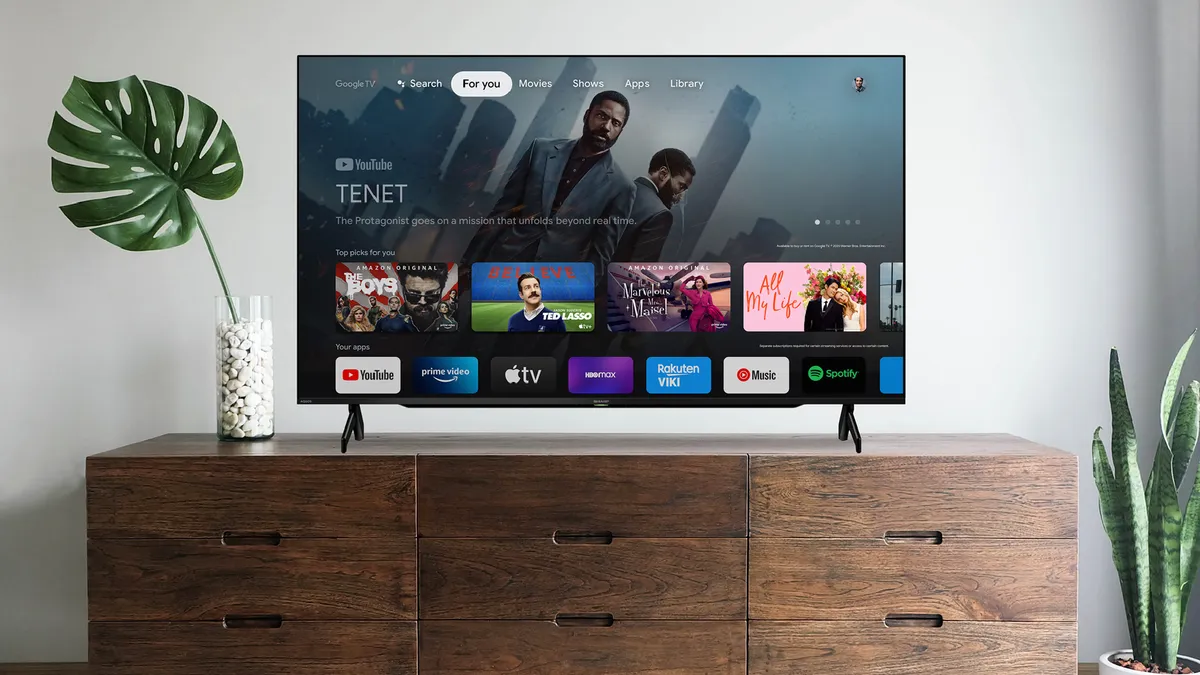
Voice guidance shows visual indicators like green borders around selected items so you know exactly what's being read. This makes navigation possible even when you can't clearly see or read on-screen text.
Activate TalkBack on Google TV by going to Settings, System, Accessibility, then TalkBack to have your TV read menu options and settings aloud. This feature explains what's selected and what actions are available without requiring you to read small text.
On Samsung TVs, enable Voice Guide through Settings, System, Accessibility, then Voice Guide Settings for similar functionality. You can adjust speech rate, pitch, and volume to match your preferences.
2. Turn on closed captions for clearer dialogue

Enable captions on Google TV through Settings, System, Accessibility, then Captions to display text for all spoken content. This helps when audio isn't clear, accents are difficult to understand, or you're watching in noisy environments.
Samsung TV users can access subtitle settings through Settings, General, Accessibility, then Subtitle Settings with similar customization options. Both platforms let you adjust font size, color, and background for optimal readability.
Many streaming apps like Netflix and Prime Video also offer additional caption controls within their individual settings menus, allowing app-specific customization beyond your TV's general settings.
3. Use picture-off mode for audio-only content

This option currently remains exclusive to Samsung TVs and isn't available on Google TV or other Android TVs, making it a unique Samsung advantage for audio-focused viewing.
The Picture Off feature is accessible through Settings, General, then Accessibility that turns off the display while keeping audio playing. This works perfectly for music streaming, podcasts, or background audio.
To return to normal viewing, simply press any remote button and you'll exit picture-off mode. This feature also conserves energy when you only need audio content from your TV's speakers
4. Magnify text and menus for easier reading

Google TV's text magnification feature activates through Settings, System, Accessibility, then Text magnification and displays enlarged versions of selected text in dedicated windows at the screen edges.
Samsung TVs offer zoom functionality via Settings, General, Accessibility, then Zoom menus and text that enlarges menu items when you hover over them without affecting the rest of the display.
Samsung's implementation typically works better since it enlarges text without obscuring other content, while Google TV's version can sometimes block parts of the interface with its magnification windows.
5. Reduce eye strain with Greyscale mode
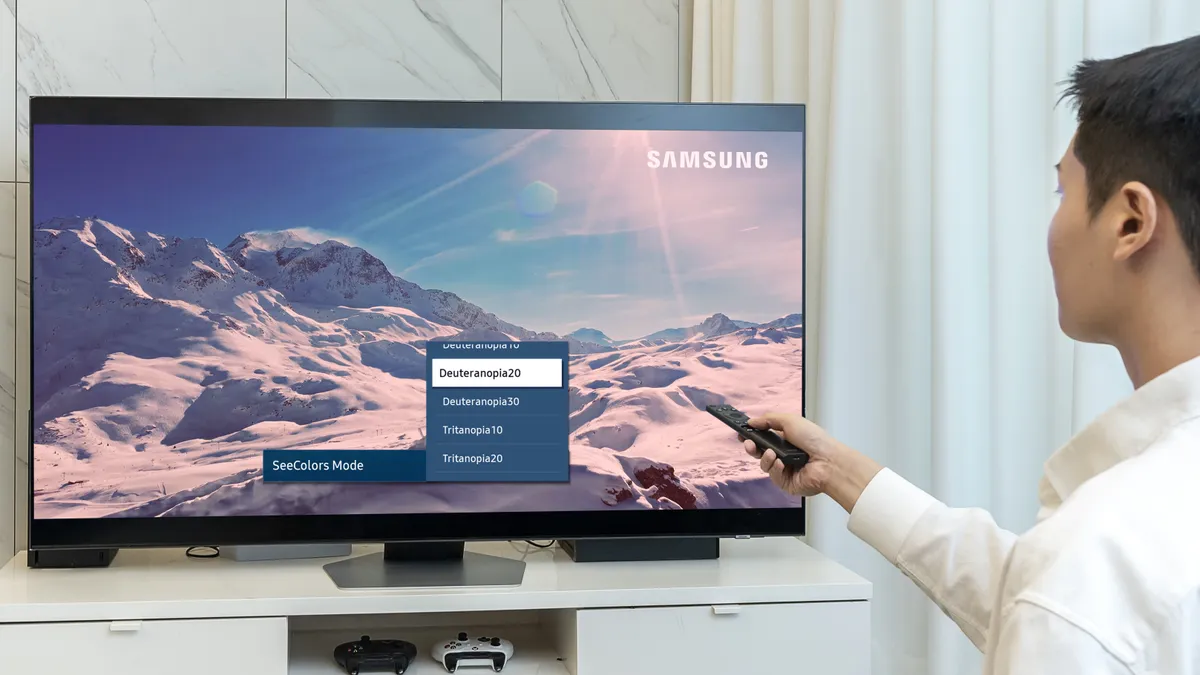
Grayscale mode works particularly well for late-night viewing or when bright colors cause discomfort, though you'll need to manually activate it each session since automatic scheduling isn't currently available on either platform.
Enable grayscale on Google TV through Settings, System, Accessibility, then Greyscale mode to convert the entire display to black and white, reducing visual complexity and eye strain during extended viewing.
Samsung TVs support grayscale through Settings, General, Accessibility, then Grayscale with broader compatibility across older TV models compared to Google TV's newer requirement.
Follow Tom's Guide on Google News and add us as a preferred source to get our up-to-date news, analysis, and reviews in your feeds. Make sure to click the Follow button!
More from Tom's Guide
- 5 ways to stop your smart TV from buffering
- Speed up your smart TV — here's how to clear the cache
- 5 Samsung TV settings to change to make your TV look and perform better

