We’re hours away from the biggest televised sporting event of the year, and while snacks, drinks and seating arrangements are on the minds of viewers everywhere, plenty of people overlook their TV — the portal to all of the action.
Even as a TV-reviewer, I get the impulse not to tinker with your TV. But the truth is, most people are just a few simple steps away from improving their TV’s picture by a considerable margin.
Whether you’re planning to stream the Super Bowl for free or you’re angling to watch the Super Bowl in 4K on Peacock or YouTube TV, here are five settings to tweak for a better-looking broadcast. (And, if you’re worried about tinkering with your TV, fear not: These changes are just as easy to undo as they are to make.)
1. If it’s still enabled, turn off Eco mode

Most TVs arrive with at least one energy-saving setting enabled by default. You can read all about these settings in our Eco mode explainer, but here's the gist: Energy-saving picture modes (or eco-friendly brightness settings) dynamically adjust a TV's brightness in order to reduce energy consumption.
This process is managed by a light sensor on the TV that adjusts the backlight (or OLED pixel brightness) in real time. In my experience, this picture mode or setting is, more often than not, too aggressive in its approach. As a result, this can lead to a dull, dim picture — especially in well-lit rooms.
To disable this setting, check your TV's settings menu for options like Power and Energy or Energy Saving. Some TV brands stick their brightness toggle in the TV's Brightness menu, while others relegate this setting to a General Settings menu.
As mentioned, there’s a possibility that your TV’s primary energy-saving step has been folded into an entire picture mode. I recommend using a different mode — and it’s probably not the mode you’d expect.
2. Choose a better picture mode than Sports or Vivid
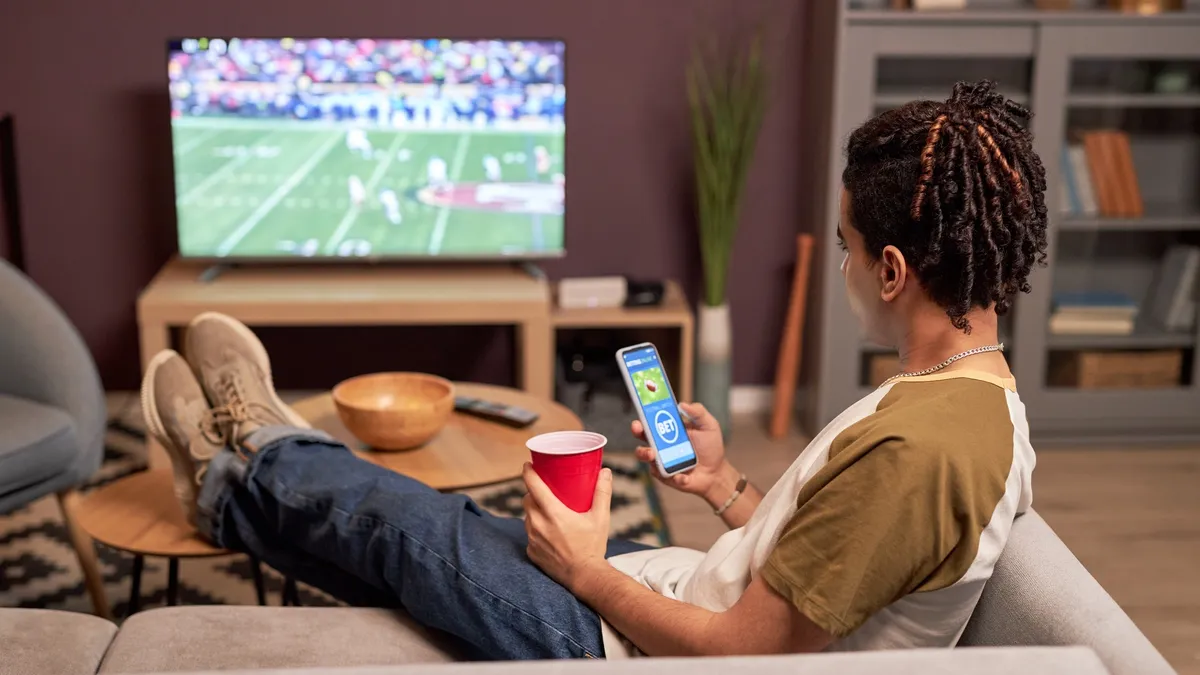
Look, I know the word “sports” is right there in the name of the Sports picture mode, but in my twelve years of testing and reviewing TVs, I can’t recall a single TV whose Sports mode was worth using.
This mode might look fine if you’re squinting at it from across a dark pub or sports bar, but you can almost certainly achieve a better-tuned picture by avoiding its bluish, highly-saturated look. The same can be said for Vivid or Dynamic, two picture modes to avoid on every TV.
I can’t recall a single TV whose Sports mode was worth using.
Instead of setting your TV to Sports and walking away, start with a more accurate picture mode (like Cinema, Movie, Filmmaker, Theater, or even Standard) and make finer adjustments to your viewing preferences. These modes are closer to reference accuracy, which means they allow your TV to more closely replicate the colors of everyday life.
When it comes to making those finer adjustments, a good place to start is with your TV’s backlight. Believe it or not, your TV could be holding itself back.
3. Crank up the backlight
Unless you’re trying to go easy on your eyes, increasing your TV’s brightness will go a long way towards improving the picture. On most LED TVs, this setting will be called Backlight, but depending on the type of LED TV, you should also check that Local Dimming is set to High and Peak Brightness is set to High, too.
OLED TVs don’t rely on LED-based backlights. For these sets, the overall brightness of the picture can be adjusted via the OLED Pixel Brightness and/or Peak Brightness setting.
4. Double-check the color temperature
If you’ve already switched into a more-accurate picture mode, you might not need to change your TV’s color temperature setting. However, it’s worth double-checking.
While some people favor a cooler-looking picture for sports, I recommend using Warm or Low for a more accurate presentation. If you’ve been using a cooler color temperature setting regularly, it might take a few moments to adjust to a warmer setting, but in my experience, it makes for a more pleasing picture in the long term.
5. Reduce (or disable) motion-smoothing

Motion-smoothing settings might not be ideal for filmic content shot at 24fps, but football is an entirely different story. Sports are typically broadcast at 60fps, which means there’s some wiggle room for motion-smoothing settings to potentially improve your viewing experience.
If you’re lucky enough to own a TV whose motion enhancements are granular and not just an on/off toggle, I recommend starting with a light touch. Despite the fast-paced nature of football, the players’ movement can start to look a little rubbery if you crank up motion interpolation too high.
Most TVs keep these settings within the Picture menu, sometimes tucked away in a submenu marked Clarity. As mentioned, depending on the make and model, your TV might have several motion-related options.
On Samsung TVs, for example, you’ll find both Blur Reduction and Judder Reduction. Blue Reduction smooths out fast-moving objects by reducing the smearing effect that often comes with them. This is relevant for sports.
Judder Reduction, on the other hand, is less relevant for 60Hz broadcasts, so I wouldn’t recommend using it. (For what it’s worth, I also wouldn’t enable Judder Reduction for movies and shows.)
I’m confident that making these simple changes to your TV’s settings will result in a better picture, regardless of your TV’s capabilities. Don’t fumble the ball this Sunday.

Follow Tom's Guide on Google News and add us as a preferred source to get our up-to-date news, analysis, and reviews in your feeds.
More from Tom's Guide