




I always assumed my TV was energy-efficient because it's relatively new, but I had no idea how much power it was actually wasting. Default settings prioritize picture quality and convenience over energy savings, which means most TVs use more electricity than necessary.
When I discovered that a few simple setting changes could reduce my TV's power use without hurting my viewing experience, I made the adjustments immediately.
Here are the five settings I changed to cut my TV's energy use.
Why certain settings increase your energy bill
Your TV's screen is its biggest energy consumer. Brightness, backlighting, and display modes all directly affect how much power the TV draws. Most TVs ship with settings designed to look impressive in bright retail stores, not to save energy in your home.
Features like standby mode keep your TV ready to turn on instantly, but they consume power 24/7 even when you're not watching. Similarly, leaving the screen on while only using audio, like when streaming music, wastes electricity on a display you're not even looking at. Leaving TVs on overnight or while in other rooms also uses energy unnecessary.
5 TV settings to change now
1. Turn off the screen when streaming music

If you stream Spotify or music channels through your TV, the screen stays on showing album art or visualizations you're probably not watching. Since the display uses the most power, this wastes significant electricity.
Check your TV's settings menu for Display Off, Screen Off, or Audio Only options. This turns off the screen while keeping audio active.
If your TV doesn't have this feature, manually lower brightness to minimum before playing music. It's not as effective as turning the screen off completely, but it still cuts power use.
2. Choose picture modes that use less power

Vivid and Dynamic picture modes use maximum brightness and contrast, consuming the most electricity. Movie and Cinema modes reduce these settings while producing more accurate colors and using less power.
Standard mode usually falls between these extremes. For everyday watching, Standard or Movie modes offer the best balance between picture quality and energy use.
If you have an LCD TV, reduce the backlight setting in your picture menu. This cuts power use more effectively than any other picture adjustment. Find the lowest backlight level that still looks good in your room.
3. Power down instead of using standby

When you press the power button on your remote, most TVs go into standby mode instead of turning off completely. Standby uses about half a watt constantly to keep the TV ready for instant-on and remote wake features.
Half a watt doesn't sound like much, but it runs 24/7 when the TV isn't in use. Over time, this phantom power adds to your electricity bill.
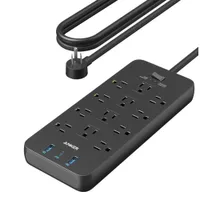
To eliminate standby draw completely, turn your TV off at the wall socket when you're finished watching. If your wall socket isn't easily accessible, you could always consider plugging your TV and connected devices into a power strip with an on/off switch. This makes cutting power completely quick and convenient
4. Lower your brightness
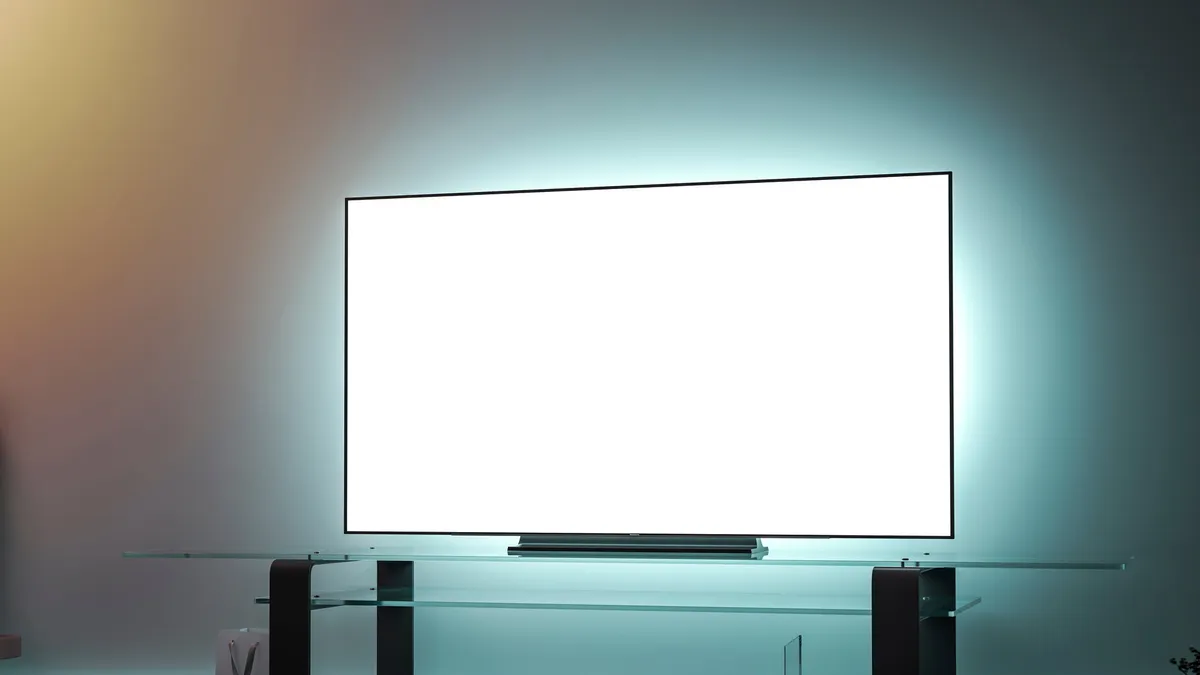
It might seem obvious, but the easiest way to reduce the amount of energy used is to lower the brightness. TVs are set to very high brightness by default because they need to stand out on bright showroom floors. At home, this level is too high and is a waste of electricity.
Picture modes like Eco, Movie, or Cinema automatically lower brightness to better levels for home viewing. These modes use less power and actually improve picture quality by reducing the washed-out look from over-brightness.
If your TV has an ambient light sensor, turn it on. It adjusts brightness automatically based on room lighting, using less power in dark rooms and brightening when needed.
You can also manually reduce brightness by 20-30% in your picture settings. The picture will look better in dim rooms, and your eyes won't strain from too much light.
5. Set a sleep timer

If you fall asleep with the TV on, it runs for hours after you stop watching. Sleep timers automatically shut down the TV after a set time.
Set your timer for 60-120 minutes, so it's long enough to finish what you're watching, but short enough to power down if you fall asleep. Look for this setting in the main menu under Timer, Sleep, or Power.
Some TVs also have auto-standby modes that turn off after detecting no remote activity for a while. Either option prevents the TV from running all night when nobody's actively watching.

Follow Tom's Guide on Google News and add us as a preferred source to get our up-to-date news, analysis, and reviews in your feeds.
More from Tom's Guide

