




Hisense TVs deliver solid performance for the price, but straight out of the box, they're not set up to look their best. The default settings prioritize energy savings and showroom appeal over what actually looks good in your living room.
That means you're probably dealing with a dimmer picture than necessary, muted colors, and features that could be working harder for you. Fortunately, getting your Hisense TV to perform the way it should takes just a few minutes and five simple settings changes.
These five tweaks will make an immediate difference in picture quality, brightness, and overall performance. Here's what to adjust and why.
1. Turn off Energy Saving mode and disable the light sensor

Almost every Hisense TV arrives with energy-saving features enabled right out of the box, which can significantly limit your TV's performance. The most obvious culprit is the Energy Saving picture mode, which reduces brightness and dims your display to conserve power.
To disable it, navigate to Settings, Picture, Picture Mode and select any mode other than Energy Saving. You'll likely need to do this twice — once for standard content and again when you watch HDR content for the first time, as Hisense defaults to Energy Saving for both.
But changing the picture mode alone might not be enough. Your TV's automatic light sensor also needs attention. This feature dynamically adjusts brightness based on ambient lighting, often making your picture darker than it should be.
To do this, go to Settings, Picture, General and disable the Light Sensor to maintain consistent brightness.
2. Switch to Filmmaker or Theater picture mode

Hisense's default picture modes often oversaturate colors or add unnecessary processing that makes content look unnatural. Filmmaker mode is designed to display movies and shows exactly as their creators intended, with accurate colors and minimal processing.
Navigate to Settings, Picture, Picture Mode and select Filmmaker Mode. This preset automatically disables motion smoothing and other picture enhancements that can ruin the cinematic experience.
If Filmmaker mode isn't available on your model, try Theater Day, Theater Night, or HDR Theater (for HDR content). These modes closely adhere to industry standards and deliver more natural, film-like images.
Avoid modes like Vivid or Dynamic, which are optimized for bright store displays and produce overly sharp, unrealistic images.
3. Set Local Dimming to High and adjust Peak Brightness

If you own a mid-range or high-end Hisense TV with Mini-LED technology, you have powerful display hardware that needs proper configuration. Navigate to Settings, Picture, Brightness and look for the Local Dimming setting.
Set Local Dimming to High. This allows your TV to control its backlight zones independently, dramatically improving contrast by making dark areas darker and bright areas brighter. The difference is especially noticeable in movies with dark scenes.
Next, adjust Peak Brightness. If you're in a bright room or want to take full advantage of your TV's capabilities, set Peak Brightness to High. Hisense's top models are among the brightest TVs available, and this setting unleashes that potential.
If the picture feels too bright, try Medium and see how it looks in your viewing environment.

4. Enable Enhanced format for HDMI inputs

If you use a PlayStation 5, Xbox Series X, or other gaming consoles, your HDMI inputs need to be configured properly to support their advanced features like 4K at 120Hz and variable refresh rate.
Go to Settings, All Settings, Channels & Inputs and select your list of inputs. For each device, change the format from Standard to Enhanced. This ensures your TV can receive and display the full capabilities of your connected devices.
Without this change, you might be limited to lower resolutions or refresh rates, even though your TV and devices support better performance. This takes just seconds but makes a significant difference for gaming and high-quality video content.
5. Mute the built-in microphone for privacy
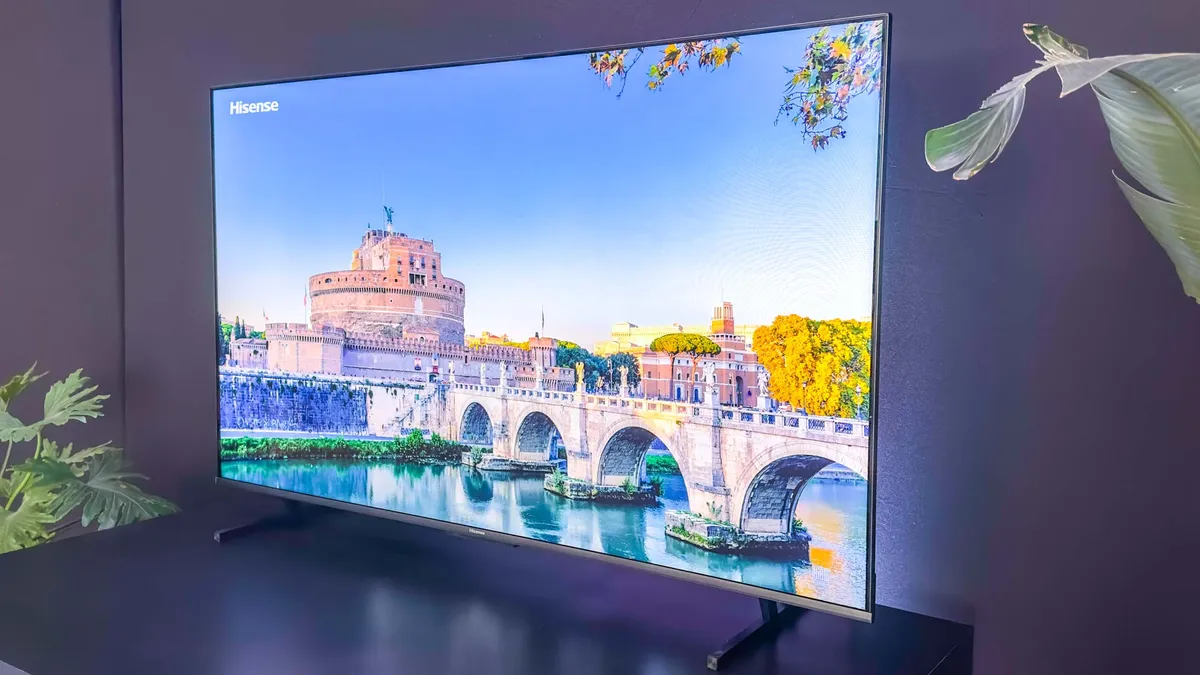
Most recent Hisense TVs include an onboard microphone for voice commands and smart features. If you're uncomfortable with your TV listening for voice activation or prefer not to have an always-on microphone in your living room, you can disable it.
Look for a physical switch hidden beneath the Hisense logo on the front of your TV. Flip this switch to mute the microphone completely. This is a hardware-level control, so even if software settings change, the microphone will remain off until you manually switch it back on.
Disabling the microphone doesn't affect your TV's core functions or smart features that don't require voice input, so you can safely turn it off without losing functionality.

Follow Tom's Guide on Google News to get our up-to-date news, how-tos, and reviews in your feeds. Make sure to click the Follow button.
More from Tom's Guide
- Your Hisense TV isn’t showing sports at its best — here’s 7 ways to fix it
- Here’s how to stop your TV from turning on your Xbox or PS5
- 5 ways to mount your TV safely to the wall without a stud finder

