




Today, my smart home is packed with just about every smart gadget imaginable — from smart plugs and displays to a pair of smart heaters — but it wasn’t always this way. My journey actually started with a simple yet magical idea: what if I never had to flip a light switch again?
To make those first steps into building out a smart home as seamless and easy as possible for the rest of my household, I paid a premium (at first). That’s right, I went for a Philips Hue starter kit with three smart bulbs and a hub to connect them to my home network. This was the perfect entry point back when we lived in an apartment and yes, adding a new bulb here and there was expensive but it wasn’t unreasonable.
Then when we got our first home, the smart possibilities seemed almost endless. However, with all that extra ground to cover, paying over $50 for a colored smart bulb from Philips Hue really stung. I bore the burden for a bit though, that was until I started trying to light an area of my house that there just wasn’t a Philips Hue light for. That’s when I stumbled upon Govee and never looked back.
Besides being much more affordable, Govee’s smart lights are also available in loads of different form factors to meet just about every lighting need you could think of. There was just one problem: the Govee app. Compared to the Philips Hue app it lacked that same responsiveness. Instead of instantly turning my lights on and off, I found myself looking at loading screens for longer than I’d like to admit.
Now though, after using the Govee app for the past three years, I finally figured out a hidden trick that makes it just as fast (or almost as fast) as the Philips Hue app.
No Hue for that

To be perfectly honest, I just might have kept paying the Philips Hue tax if it wasn’t for my side porch. When we moved in, there were already string lights with one of those now old-fashioned timer plugs set up. Given that a few of the bulbs were broken though, I figured it was the perfect time for a smart upgrade.
I started looking into outdoor smart lights only to realize that at the time, Philips Hue didn’t make any for this project. Now if I had waited until the end of that year, I could have picked up its Festavia smart string lights. However, I’m the kind of person that once an idea gets into my head, I have to bring it to life even if that does mean switching brands.
To that end, I bought two packs of Govee’s Smart Outdoor String Lights to decorate my porch. We recently had our roof done and our porch lifted slightly higher up. Once I went through the process of adding hooks and rehung them, they look just as good if not better than when I first installed them.

That experience started my journey down the rabbit hole that is Govee smart lighting. From smart lightstrips to curtain lights and even an AI sync box that’s able to recreate the lighting of whatever game or movie I’m watching — much like I used to do with the Philips Hue Sync app — I fell for Govee and I fell hard. In fact, I’ve even bought and tested out a few of its smart appliances with my own money, including a smart tower fan and a smart heater.
Govee gave me an affordable way to keep building out my smart home but even as I added more devices, I’d avoid the app whenever possible. Instead, I turned to Alexa to control my Govee devices as doing so was faster and easier. That was until I discovered a hidden trick to using the app that took me years to realize.
A swipe in time saves nine

There’s quite a lot to the Govee app once you really dig into it. You can pick from loads of preset scenes for practically every one of its smart lights, have them sync with music or even apply someone else’s premade scene to your lights. You can also make your own scenes and now, even have Govee’s AI Bot generate them for you like I recently did over the holidays when making a Grinch theme for a party.
It recently dawned on me that maybe the Govee app wasn’t the problem. Instead, it was the way in which I was using it.
The problem with Govee’s app isn’t so much how it works. Yes, there are ads for its other products and a bit of bloat compared to the more streamlined Philips Hue app but these minor inconveniences weren’t what were driving me nuts. It was when I exited the app and then reopened it that really stung.
Unlike a lot of the best smart lights, Govee’s connect over both Wi-Fi and Bluetooth. This means that you can actually have smart lights in places that you normally wouldn’t be able to, like in a dorm room or an office. However, in a home setting like mine, it’s actually a double-edged sword.

If you have a light open in the app that supports Bluetooth, when you reopen it, the app will try to reconnect to that light using Bluetooth first before it does so over Wi-Fi. When you’re close enough to a light like I was here, that won’t be a problem. Now if you’re on the other side of your house, you’re met with a Bluetooth connection loading screen that just won’t seem to go away. A lot of times, your only option is to swipe out from that light and back to the home screen, even to do something simple like turn it off or on.
It recently dawned on me that maybe the Govee app wasn’t the problem. Instead, it was the way in which I was using it. Rather than being met with that pesky Bluetooth connection screen and having to swipe it away, what if I swiped back to the app’s home screen before I closed the app? Well, I’ve been doing just that since I first realized it a few months ago and guess what, it works like a charm.

Once you’re back on the home screen or even in one of the tabs for a room you’ve set up, you don’t have to worry about Bluetooth. It’s still there when you need it and the direct to device connection that Govee favors over Wi-Fi does have its benefits, like not needing a smart home hub and being able to control your lights during an internet outage. From the home screen of the Govee app though, you can quickly turn your lights on and off with just a tap as this is done over Wi-Fi and not Bluetooth.
No app, no problem
It may have taken years for the Govee app to finally ‘click’ for me but it’s not your only option. Like I mentioned before, Alexa is great for controlling your Govee smart lights but so too is Google Assistant or Gemini.
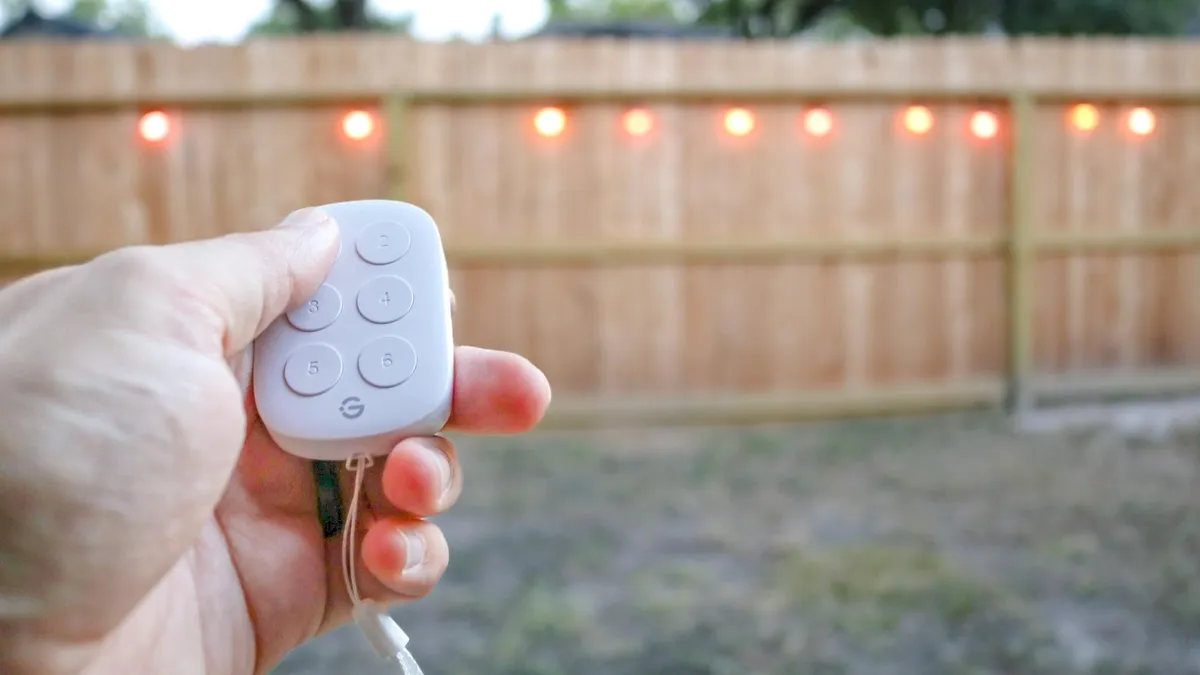
Likewise, if you don’t want to add one of the best smart speakers to your home, there is a simpler way where you do get a tactile click while watching your smart lights come to life. Govee sells several smart button sensors that, while you do have to initially configure them in the app, let you turn your lights on and off with the press of a button. I’m particularly fond of my six button smart sensor as it lets me illuminate my whole yard with just a few presses.
Govee may lack some of the polish and Apple-like experience that you get with Philips Hue smart lights but if you don’t want to spend a fortune lighting your smart home, it’s an excellent alternative. You can also expand out to smart appliances if you want to.
Even though I write about gadgets and smart tech for a living, I almost can’t believe it took me this long to finally figure out the best way to use the Govee app. If you too have struggled with the almost endless Bluetooth reconnection screen, a swipe back to the home screen before exiting the app is all you need for a much more responsive experience.

Follow Tom's Guide on Google News and add us as a preferred source to get our up-to-date news, analysis, and reviews in your feeds.
More from Tom's Guide
- I used this smart light strip to transform my living room and it's been a game changer for my home
- 3 ways I'm using smart bulbs to make my life a bit easier
- I tried Govee’s new Curtain Lights Pro and this hidden feature makes me want to leave them on all the time

