

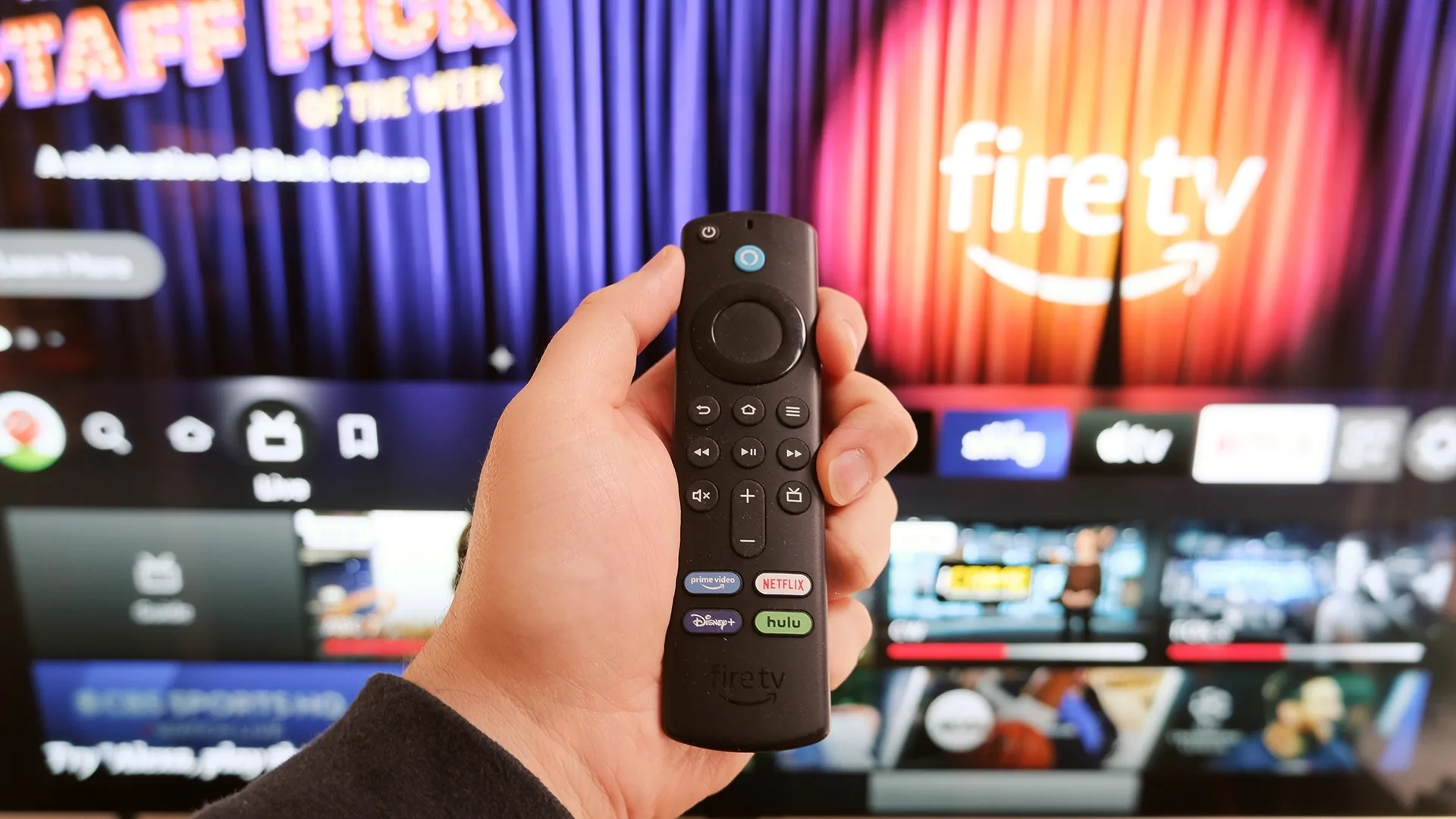
This Fire TV stick setting causes lag — here's how to turn it off
I fixed my Fire TV stick's lag by changing one simple setting
Here at Tom’s Guide our expert editors are committed to bringing you the best news, reviews and guides to help you stay informed and ahead of the curve!
You are now subscribed
Your newsletter sign-up was successful
Want to add more newsletters?
Daily (Mon-Sun)
Tom's Guide Daily
Sign up to get the latest updates on all of your favorite content! From cutting-edge tech news and the hottest streaming buzz to unbeatable deals on the best products and in-depth reviews, we’ve got you covered.
Weekly on Thursday
Tom's AI Guide
Be AI savvy with your weekly newsletter summing up all the biggest AI news you need to know. Plus, analysis from our AI editor and tips on how to use the latest AI tools!
Weekly on Friday
Tom's iGuide
Unlock the vast world of Apple news straight to your inbox. With coverage on everything from exciting product launches to essential software updates, this is your go-to source for the latest updates on all the best Apple content.
Weekly on Monday
Tom's Streaming Guide
Our weekly newsletter is expertly crafted to immerse you in the world of streaming. Stay updated on the latest releases and our top recommendations across your favorite streaming platforms.
Join the club
Get full access to premium articles, exclusive features and a growing list of member rewards.
Fire TV Stick lag is frustrating. You're trying to load a show, and the home screen stutters, menus load slowly, and content takes forever to buffer. Before you blame your internet connection or assume your Fire TV Stick is too old, there's a setting worth checking.
Featured Content autoplay runs preview videos on your home screen as you browse. These snippets start loading automatically before you've even selected anything, competing for bandwidth with whatever you're actually trying to watch. This background activity slows down the entire device, causing the sluggish performance most people attribute to poor internet or aging hardware.
Turning off this setting takes less than a minute and noticeably improves Fire TV Stick responsiveness. Here's how to disable it.
1. Navigate to settings
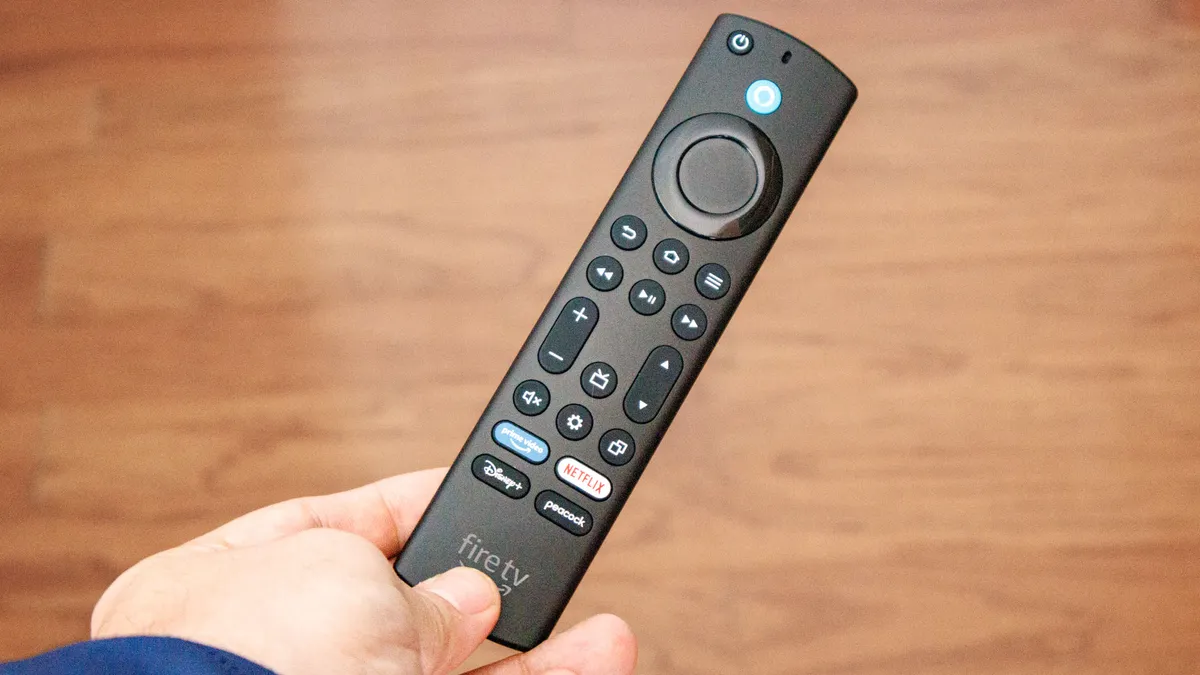
Press the Home button on your Fire TV remote, then scroll to Settings on the main menu. Select Settings to open the full settings menu.
2. Access Featured Content preferences
In Settings, scroll down and select Preferences. Within Preferences, find and open Featured Content. This is where autoplay controls are located.
3. Disable video and audio autoplay
Toggle Allow Video Autoplay to Off. Then toggle Allow Audio Autoplay to Off as well. Both settings need to be disabled to completely stop background previews from loading.
Once both are off, back out to your home screen. Navigation should feel noticeably snappier, and content should load faster without the lag caused by competing autoplay videos.
If you still experience sluggishness after disabling autoplay, try a soft reboot by holding the Select and Play/Pause buttons simultaneously on your remote until the Fire TV Stick restarts.

Follow Tom's Guide on Google News and add us as a preferred source to get our up-to-date news, analysis, and reviews in your feeds. Make sure to click the Follow button!
More from Tom's Guide

- I discovered this Fire TV stick feature by accident — and it's a game-changer
- 5 Fire TV settings you should change right now for better performance
- Your TV is watching you — how to turn off data collection on LG, Samsung, Roku and more
Get instant access to breaking news, the hottest reviews, great deals and helpful tips.

Kaycee is Tom's Guide's How-To Editor, known for tutorials that get straight to what works. She writes across phones, homes, TVs and everything in between — because life doesn't stick to categories and neither should good advice. She's spent years in content creation doing one thing really well: making complicated things click. Kaycee is also an award-winning poet and co-editor at Fox and Star Books.
You must confirm your public display name before commenting
Please logout and then login again, you will then be prompted to enter your display name.
