




There’s nothing quite like the feeling of pressing down on the keys of a mechanical keyboard when you write all day like I do. However, what if you didn’t have to take your hands off your keyboard every time you needed to use your mouse?
Well, that’s exactly why I chose a ThinkPad a few years ago when I upgraded to one of the best laptops for those times when I need to step away from my desk setup and hit the road. While I love the convenience of its TrackPoint pointing stick, it isn’t my dream device, solely because like most other laptops, it doesn’t have a mechanical keyboard.
After switching to one of the best mechanical keyboards over a decade ago now, I could never see myself going back to using a membrane one as my daily driver. But what if I could have the convenience of a built-in mouse with the feel and reliability of a mechanical keyboard?
I’ve spent the past few months testing out the HHKB Studio and while it’s certainly a premium keyboard, it gives me the best of both worlds. Here’s what it’s been like using it as my daily driver and how it almost convinced me to ditch my mouse for an all-in-one device.
Part keyboard, part mouse

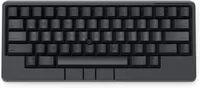
Besides its unique layout (more on that later), the HHKB Studio looks quite a bit different than most other mechanical keyboards due to the fact that it has a nub or pointing stick right in the center of its home row. Likewise, along the bottom of the keyboard, there are three extra keys that serve as your left click, middle click and right click when using the pointing stick.
In the box, you get a USB-C cable for charging, some extra pointing stick caps in case you wear the original one out and a pack of four AA batteries. You don’t get a keycap puller or any extra keys either and with a unique layout like this one, good luck finding a spare set of keycaps. Still, the included ones are made from PBT and feel nice on your fingers. While I typically love dark legends for the letters on keycaps, they do make learning a brand new keyboard layout for the first time a bit more difficult.

Things are a lot simpler around back though. On the right side there’s a USB-C port if you want to plug in the HHKB Studio directly instead of using Bluetooth and on the left, there’s a power switch. It’s when you flip this keyboard over that things start to get interesting again.

In 2025, loading AA batteries into a mechanical keyboard felt strange, but this isn't new for PFU Limited, which has historically used removable batteries in its past wireless keyboards like the HHKB Professional Hybrid and the HHKB Professional Hybrid Type-S.
Compared to a rechargeable, internal battery, this did surprise me at first. However, once I looked into the benefits like longevity (AA batteries can last for years on a charge) and long-term functionality (you can always swap in a fresh set), this design decision which at first seemed odd began to make a lot more sense.
While I’ve always wanted to try out one of HHKB’s keyboards, two things held me back: their much higher price and the fact that they previously used Topre switches instead of your standard mechanical ones. As PFU Limited sent this HHKB Studio over for me to try out, that removed my first hurdle and with the second one, this keyboard actually uses silent linear mechanical switches made by Chosfox instead of Topre ones.
With the initial setup out of the way, it was time to start learning a whole new keyboard layout while putting the HHKB Studio’s pointing stick to the test.
Relearning how to type (and track)

Despite its name, the original Happy Hacking Keyboard wasn’t designed with cybercriminals in mind. Instead, it was created specifically for programmers and those who write a lot like I do. You see, by moving certain keys like Control around, you’re able to move your hands less while typing and this is especially true with the HHKB Studio’s integrated mouse. It’s the same reason many people like myself prefer a smaller 60% keyboard over a larger, full-sized one.
On the HHKB Studio and other Happy Hacking Keyboards, the Control key is located where you’d normally find the Caps Lock key. This makes a lot of sense because, unless you’re constantly yelling at people online, the Caps Lock key is rarely used. Instead of remapping a key you don’t use, the HHKB simply uses that prime real estate for the much more frequently utilized Control key.

I have to admit, I struggled getting used to the HHKB Studio at first, which is why it’s taken me this long to finally share my thoughts on it. I use the Control key all the time for all of my favorite keyboard shortcuts like Ctrl + K to insert links or my personal favorite, Ctrl + Shift + Tab to reopen Chrome tabs I’ve accidentally closed that I now suddenly need.
At first, the pointing stick felt more like a gimmick than a useful feature. However, as I used it more and more, I found myself moving my right index finger over a key to navigate around my computer instead of reaching for my mouse.
My other big hang-up with the HHKB Studio was that while connected via Bluetooth, it turns off after 30 minutes. This is done to conserve battery life and I’m happy to report that even after months of use, I still haven’t had to swap out those four AA batteries it came with.
The problem is that pressing a key to reconnect took a little too long for me and I often found myself simply turning the HHKB Studio off and then back on. I eventually got over this (and its unique layout) and learned to love this premium all-in-one keyboard.

The same is true with its pointing stick. At first, it seemed more like a gimmick than a useful feature. However, as I used it more and more, I found myself moving my right index finger over a key to navigate around my computer instead of taking my hand off to reach for my mouse.
One thing that I found the pointing stick particularly useful for is scrolling. To scroll, you hold down the middle click key directly underneath it and then just carefully nudge your finger up or down. This really came in handy when scrolling through articles or long documents.

As the HHKB Studio is a premium keyboard after all, of course it comes with downloadable companion software. With the HHKB Keymap Tools app, you can tweak everything from the physical dip switches underneath its batteries to what each individual key does.
It’s a nice little app and I particularly like how it runs locally on my computer instead of being a web-based one like VIA — which is often used with QMK-compatible keyboards like the NuPhy Halo75 V2 — offering a more integrated experience.

Since I had to physically plug the HHKB Studio into the Geekom A9 Max I was reviewing at the time to use its keymap tool, I realized that doing so fixed one of my biggest issues with this keyboard: the automatic shutoff when using Bluetooth.
Sure, you can turn this off in the HHKB Keymap Tool, but I actually like having this initially annoying feature enabled. That way, the next time I pick this keyboard up — whether that be in a month or three months — it will still have battery. With one of the best mini PCs front and center on my desk, I found using a USB-C cable with the HHKB Studio to not be an inconvenience at all.

The HHKB Studio has one more trick up its sleeve: four reprogrammable gesture pads. There’s one on the left side, one on the right side and two on either side of the pointing stick’s mouse buttons. During my time with this keyboard, I found that I could use the gesture pads to quickly pull off many of the same keyboard shortcuts I often program to the extra buttons on my mouse which certainly had me reaching for it less.
It definitely took a while to get used to a brand new keyboard layout after using the standard QWERTY one for years but my resilience paid off. Now I see exactly why HHKB’s one-of-a-kind keyboards have remained a top choice among programmers and writers alike since they first debuted back in 1996.
Not without my trackball

Using the HHKB Studio as my daily driver for the past few months has been a real joy. Yes, its unique layout did take some getting used to, but now that the initial hurdles are cleared, I might not even go back to the Keychron K2 HE which I was previously using as my main keyboard.
At the same time, I’ve gotten really accustomed to just moving my right index finger over to use its built-in mouse. There’s just something about not having to take your hands off your keyboard and only having to connect a single device for both typing and cursor navigation that I’ve really come to appreciate. Still, I don’t think it will replace my trusty trackball mouse anytime soon.
For me, moving my computer’s mouse cursor around using a trackball just feels more natural. I also have a lot more precision with a trackball compared to a pointing stick, making it better for detailed editing work.
However, my favorite thing about my Elecom trackball (and the others I’ve tried out from Logitech) would have to be its customizable buttons. I have two next to my mouse’s left click which I have mapped to Enter and Backspace while I tilt my scroll wheel left to copy and right to paste. Then there’s the extra clickable button on my Elecom EX-G Pro and I actually have its far right click mapped to Ctrl + K so I can quickly add links to my stories.
With it next to the HHKB Studio, I actually get the best of both worlds. While I can take my right hand off the keyboard to reach for my trackball, I don’t have to unless absolutely necessary. Even this small break has done wonders for my hand and my productivity since I now have two highly optimized ways to do the exact same thing.
The HHKB Studio is certainly an investment at $329. However, if you’re a programmer, a writer, or just want an all-in-one keyboard that lasts for up to three months on a charge with the option to instantly swap in a fresh pair of batteries, it could definitely be worth it. Learning its unique layout and switching from using a mouse to a pointing stick will take some time. Once you do though, you’ll be clacking away and moving your mouse cursor with ease.

Follow Tom's Guide on Google News and add us as a preferred source to get our up-to-date news, analysis, and reviews in your feeds.
More from Tom's Guide
- I spent just $30 on a mechanical keyboard to prove you don’t need to waste your money
- How to clean a mechanical keyboard safely and thoroughly
- This space-age keyboard has one cool feature that's been a game-changer for my productivity

