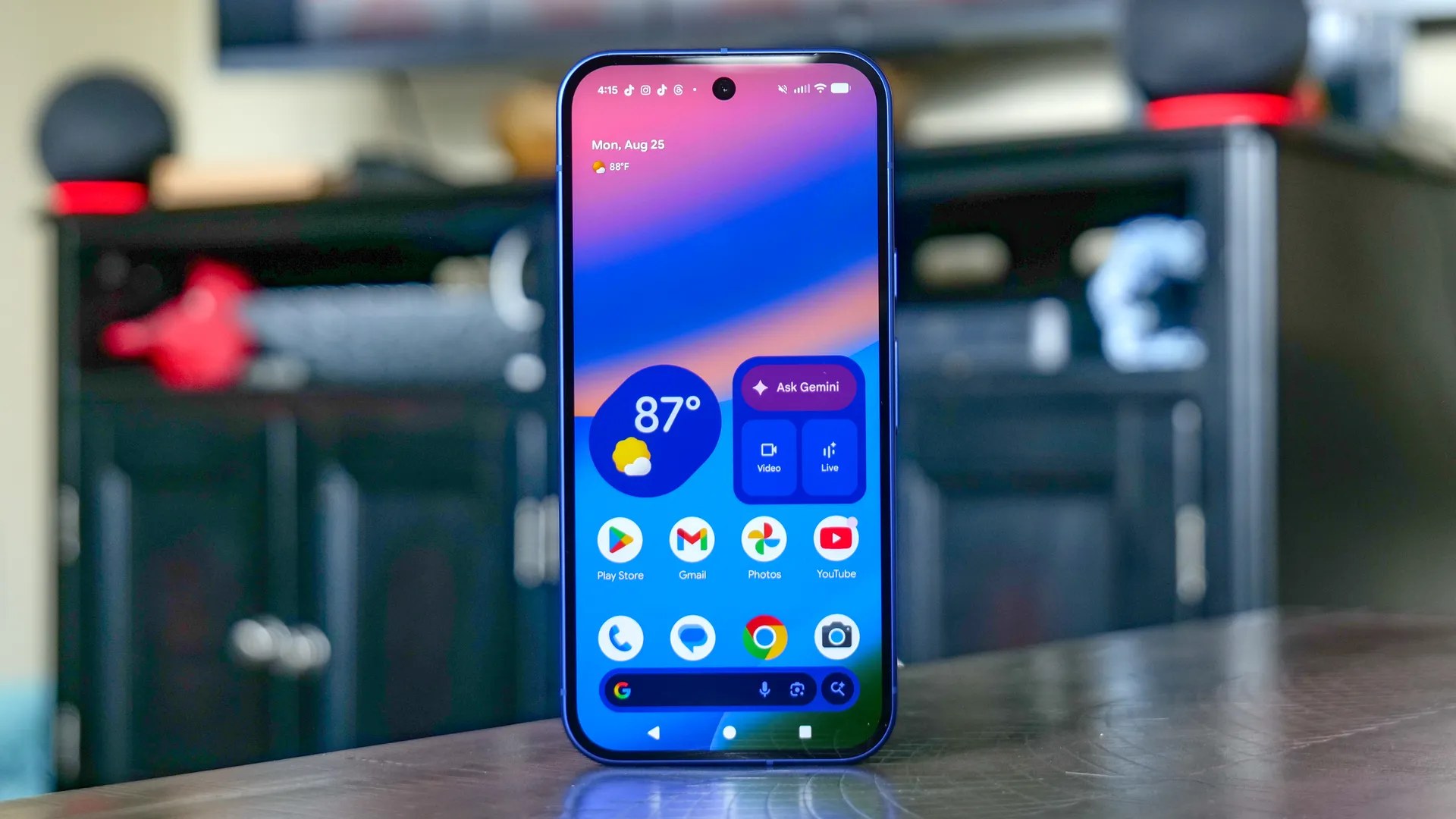
When it comes to Google Pixel smartphones, the company's intention has always been clear: let software do the heavy lifting. Phones like the Pixel 10 flagship series or the mid-range Pixel 9a may not pack the best specs available, but Google's meaningful software features can make Pixel phones more compelling than competitors for many users.
However, Google ships so many features that it can be easy to forget what's actually there. I have been using the Pixel 10 Pro as my daily driver for the past four months, and I recently rediscovered several features I barely noticed during my review period. Here are some Google Pixel features I forgot about, but now rely on almost every day.
Pixel Rules

Google has leaned into AI features so heavily over the past few generations that some simple features, often go unnoticed. One of these is Pixel Rules.
Have you ever missed an important call because your phone was on silent, or embarrassed yourself in public with your Pixel ringing loudly in a quiet space? I have been there, and the Pixel Rules feature solves most of these situations.

With Pixel Rules, you can set your Pixel to switch between ring or silent mode based on your phone's location or the Wi-Fi network it is connected to. It may sound simple, but this kind of solution is still missing on most phones.
To set up Pixel Rules, go to Settings > System > Rules. If you are setting it up for the first time, you will need to grant background permission, after which you can create a rule to turn on Do Not Disturb or switch between silent, vibrate, or ring based on the Wi-Fi or location of your phone.
Personally, I use it to keep my phone on ring when connected to home Wi-Fi, but switch to vibrate once disconnected.
Quick Tap

While other Android smartphones offer quick gestures to take screenshots, Pixels by default require you to pull down Quick Settings or press the volume and power buttons together. And that is not always convenient.
Thankfully, Pixel phones have a hidden gem called Quick Tap. With this feature, you can take screenshots and perform other useful actions by simply double-tapping the back of your phone.
You can enable it by going to Settings > System > Gestures > Quick Tap to start actions and turning on the toggle. Once enabled, you can use Quick Tap to take screenshots, open recent apps, invoke Gemini, play or pause media, or even launch a specific app, depending on what you want.
You can also turn on the Require stronger taps option to reduce accidental triggers.
Modes

If you are like me and get distracted easily when a non-important notification appears, and then end up doomscrolling on Twitter, Instagram, or TikTok, this feature might be perfect for you.
Google Pixels include a feature called Modes. This feature works similarly to Do Not Disturb, but adds deeper customization.
For example, if you do not want notifications to interrupt you while driving, you can create a Drive Mode that prioritizes safety. Similarly, I use a Work Mode that allows notifications only from work-related apps like Slack, Gmail, and Telegram during work hours, while putting calls on silent. This has changed my workflow - and it might help you as well.
To create and customize Modes on your Pixel, go to Settings > Modes. You can choose from the premade modes or build one from scratch based on your needs.
Notification history

If you are someone who installs a lot of apps, you probably receive hundreds of notifications every single day. Not only does this clutter your notification tray, but it also becomes overwhelming to manage.
When there are too many notifications to tackle, it is easy to accidentally swipe away something important and then spend time wondering what it actually was.
Thankfully, Google Pixel smartphones include a feature that keeps a running log of all notifications that arrive on your device. It essentially gives you a full list of notifications from every app, even after you dismiss them, so you can always go back and check what you might have cleared by mistake.
To turn it on, go to Settings > Notifications > Notification history and enable the toggle. It will not show past notifications from before you switched it on, but once enabled, it will start logging everything moving forward.
Private Space

Unlike other manufacturers' versions of Android, the Pixel still does not offer a native way to create duplicate or second instances of apps on Pixel phones. Thankfully, Google provides a workaround that lets you run two versions of the same app, and it can also be useful if you want to keep private data on your device.
The feature is called Private Space. Google debuted it alongside Android 15 in 2024. Private Space creates a separate, locked area on your Pixel that functions like an additional user profile. You can hide apps, files, and media inside it, and even run a cloned version of apps already installed on your phone.
Private Space appears only at the very end of your app drawer, and notifications from it do not show up in the notification tray. You can also set a separate PIN or password for added privacy.
To set up Private Space, go to Settings > Security & Privacy > Private Space. Once created, you can even sign in with a different Google account if you prefer. Everything stored inside will live only within that private section of the app drawer.

Follow Tom's Guide on Google News and add us as a preferred source to get our up-to-date news, analysis, and reviews in your feeds.
More from Tom's Guide
- 19 hidden Android features you should be using
- Google's best-kept secret needs to be a standard Android 16 feature
- Google Pixel 10 is stuffed with AI features — here are the 7 we're most excited about