I'm still annoyed by the few hardware upgrades that Google gave the new Pixel 10a. But despite that, it proves to be one of the best cheap phones around — and the software has a lot to do with that. However, it's still hard for me to swallow given how it Google's asking $500 for practically the same phones as the previous Pixel 9a.
Despite this, I mention in my Pixel 10a review how the software drives much of its value. In fact, there’s one specific new feature that justifies the price — and I’m not talking about the new AI features.
Instead, I’m referring to its brand-new desktop mode that gives Samsung DeX a run for its money. As much as I lament the Pixel 10a’s shortcomings, this "easter egg" makes up for them in a huge way. Here’s why.
It goes toe-to-toe with Samsung DeX

I’ve spent a great deal of time using Samsung DeX over the years to help untether me from my laptop — or, at the very least, keep my load as light as possible when I travel. That’s why I’ve occasionally ditched my laptop for a Galaxy phone that supports Samsung DeX.
Ever since the Android 16 desktop mode was first teased at last year’s Google I/O 2025, it was revealed that Google’s been working with Samsung to develop it — which is no wonder the Pixel 10a desktop mode looks and feels remarkably like Samsung DeX.

It matches it on just about every front because the experience is so similar. After connecting my Pixel 10a to a portable monitor, I’m greeted by a familiar desktop that lets me run multiple apps simultaneously. From what I can gather so far, it can support between five and seven apps simultaneously, but the system minimizes older apps whenever I run new ones, presumably to free up memory.

Just like DeX, I can also snap two windows side-by-side, but it doesn’t have the multi-window Snap Assist feature found in Windows to handle several windows on screen at once. Still, this side-by-side view is way easier to juggle than on any smartphone display.
If that’s not enough, I can also create up to four desktop workspaces to better organize my apps. For example, I’ve kept one desktop workspace strictly for my social media feeds, another for work-related stuff, and a third for typing out my stories in Google Docs with Age of Origins running next to it.
Supports touchscreens and AR glasses
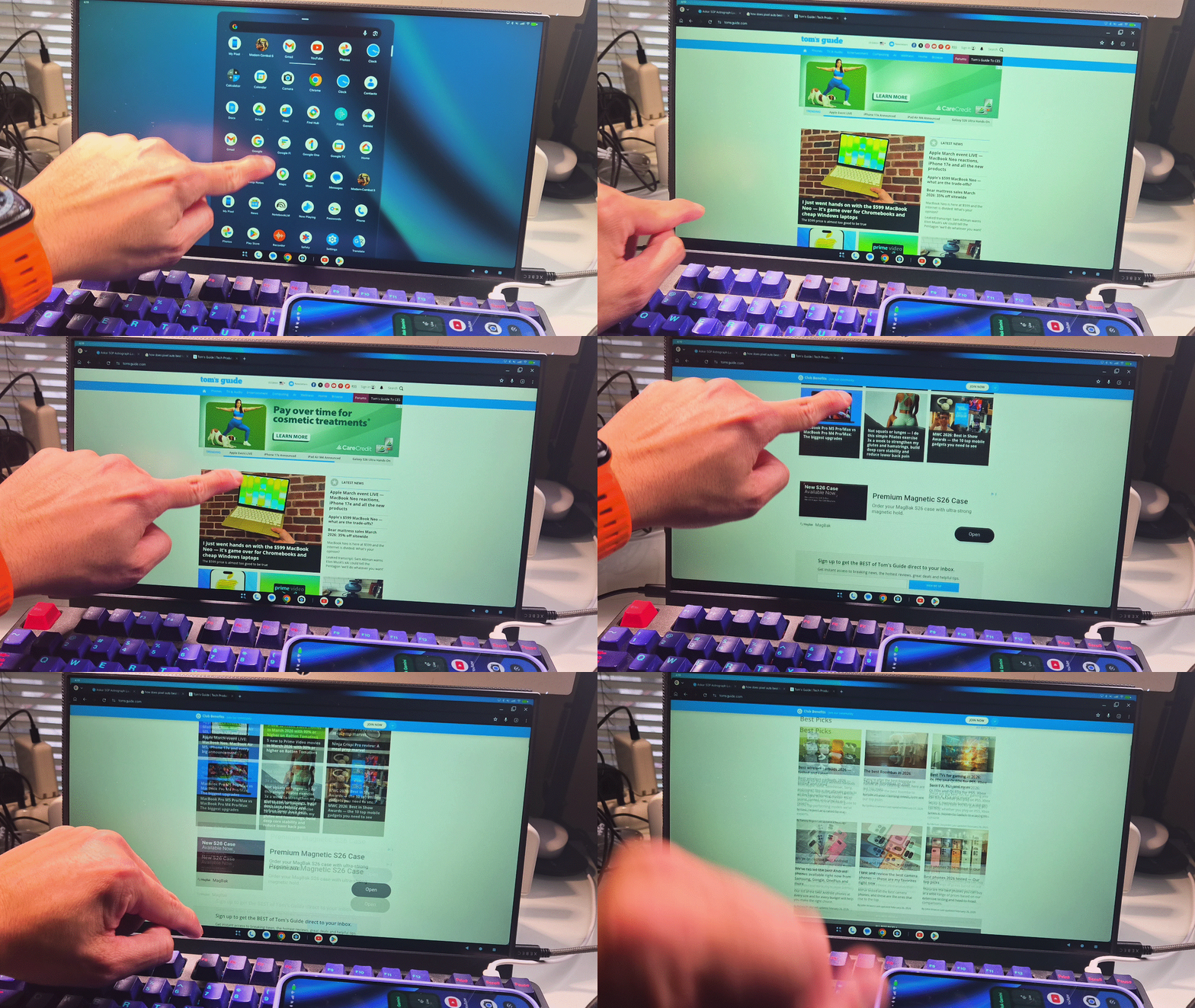
The simplest way to set up the Pixel desktop mode is to connect an external monitor via USB-C, provided your monitor supports that option. For monitors that only offer HDMI, I’ve used a handy MagSafe USB-C hub with my Pixel 10a to get them connected.

Another feature that makes this setup more versatile is its support for touchscreen displays. I connected one I had lying around directly to my Pixel 10a and was surprised to find that touch input works seamlessly. It essentially transforms the phone into an Android tablet — and when paired with a mouse and keyboard — it becomes the laptop replacement I’ve been craving.
However, there’s an even better solution. Instead of an ordinary monitor, you can use this Pixel 10 desktop mode with a pair of smart glasses. I’ve paired it with the Viture Pro XR and Xreal Air 2 Pro, which offer an even more immersive experience because the entire desktop is confined to my field of vision.

Within the Pixel 10a’s settings, I can also adjust the display size, resolution, and orientation of the connected screen — all of which help tailor the experience to my specific needs.
What’s missing

There’s still room for improvement, though, as the Pixel is missing several features that Samsung DeX offers. Most notably, there is no option to transform the Pixel 10a into a virtual touchpad to navigate the desktop interface — which is why I had to pair a wireless mouse. In contrast, a Galaxy phone automatically becomes a virtual trackpad once DeX is activated.
Secondly, it doesn't allow me to rearrange the extended display like the new Samsung DeX on the Galaxy S26. What I appreciate about Samsung’s implementation is that I can still use the phone in conjunction with the connected monitor. With the Pixel 10a, the phone is treated as a separate entity.

Yet, there is one thing this Pixel desktop mode offers that Samsung DeX does not: multi-user support. This is a game-changer because I can separate my work and personal accounts, ensuring each has access to its own specific apps and files.
Without question, this is the one redeeming quality that could convince you to buy the Pixel 10a. More importantly, it really drives home the point of how much value this phone offers at $499.

Follow Tom's Guide on Google News and add us as a preferred source to get our up-to-date news, analysis, and reviews in your feeds.
More from Tom's Guide
- Apple March event LIVE: MacBook Neo unveiled, iPhone 17e, iPad Air M4 and everything announced this week
- Google's bringing a bunch more upgrades to Android and Pixel devices — including the ability to tell airlines where your luggage is
- I took 200 photos on the Leica Leitzphone and the Google Pixel 10 Pro XL to see which is better — and it’s not even close