Even though 2025 might be remembered most for all the ultra-thin phones that came out, like the iPhone Air and Galaxy S25 Edge, I still think that it was a bigger year for artificial intelligence. Last year started this revolution, but after testing out all the best phones this year, I’m convinced that new AI features continue to play a more crucial role.
I’m not talking about the gimmicky stuff either, like all the variations of writing tools and live translation features. The AI features that really impressed me most are the ones that have practical applications on what I do daily.
From photo editing features that save me time, to straight up helpful researching, these are all the best AI features I’ve tested this year.
Ask Photos


- What it does: Performs complex photo edits through voice prompts or text descriptions.
- Supported devices: any phone running Google Photos
Nothing tops my list other than Ask Photos. It’s my favorite AI feature in 2025, namely for the fact that it combines generative AI and photo editing into one. Launched as a Pixel 10 exclusive at first, Google eventually rolled this out as a native feature in Google Photos — so you can access it regardless if you’re using an iPhone or Android device.
What makes Ask Photo the most compelling AI feature I’ve tested this year is frankly how intuitive it is and how well it works. It performs complex photo edits that would take me several minutes (or hours), and does them with great results in seconds.
From simple edits like brightening up faces or adjusting the color temperature of the entire shot, to more complex things such as removing backgrounds and swapping them with something else, it’s unbelievable that Ask Photos does it so well with nothing more than voice prompts or text descriptions. It works so well that it’s able to change my shirt into a blazer, which would be nearly impossible for me to do on my own.
Gemini Live

- What it does: Allows Gemini to tap into your camera to perform research, guidance, and answer questions.
- Supported devices: any phone running Gemini app
This next one technically works on any phone, but it does require a Gemini AI Pro subscription to unlock all of its features. Multimodal Gemini Live is the second most used AI feature I use, which is accessible through any phone that runs the Gemini app.
Gemini Live lets me verbally ask questions, but the multimodal component that’s really impressive is when it taps into my phone’s camera. That’s because it lets Gemini see what I see, then ask it any questions I have about it. Over the summer when the second floor of my home lost power, multimodal Gemini Live looked at my circuit breaker and determined one of them was tripped.
Not only did it detect the exact one, but it even guided me on how to reset the breaker. If I were to get an electrician to come out and check, it would have cost me easily a couple hundred dollars. Since then, I’ve gone on to use multimodal Gemini Live on the best foldable phones like the Motorola Razr Ultra 2025 and Galaxy Z Flip 7 — sort of like Samantha in the movie “Her.”
Pro Res Zoom




- What it does: Enhances photos captured at 30x and beyond by adding more detail and texture.
- Supported devices: Pixel 10 Pro and Pixel 10 Pro XL
If there’s one thing that Pro Res Zoom has proven to me, it has to be that AI can really make up for the lack of more optical zoom in telephoto cameras. Ever since Samsung ditched the 10x optical zoom camera, it feels like everyone is happy to be stuck at 5x — but this is what makes Pro Res Zoom special.
First of all, it’s exclusively available to the Pixel 10 Pro and 10 Pro XL. Secondly, this AI-powered feature activates only when photos are captured at 30x and beyond. What happens in the background is that Pro Res Zoom is analyzing the shot and enhancing them with the help of AI.
This allows it to draw out more detail, with outstanding results like the before and after shots I’ve captured above. Considering how it can produce realistic results, I don't mind telephoto cameras topping out at 5x optical zoom.
Veo 3

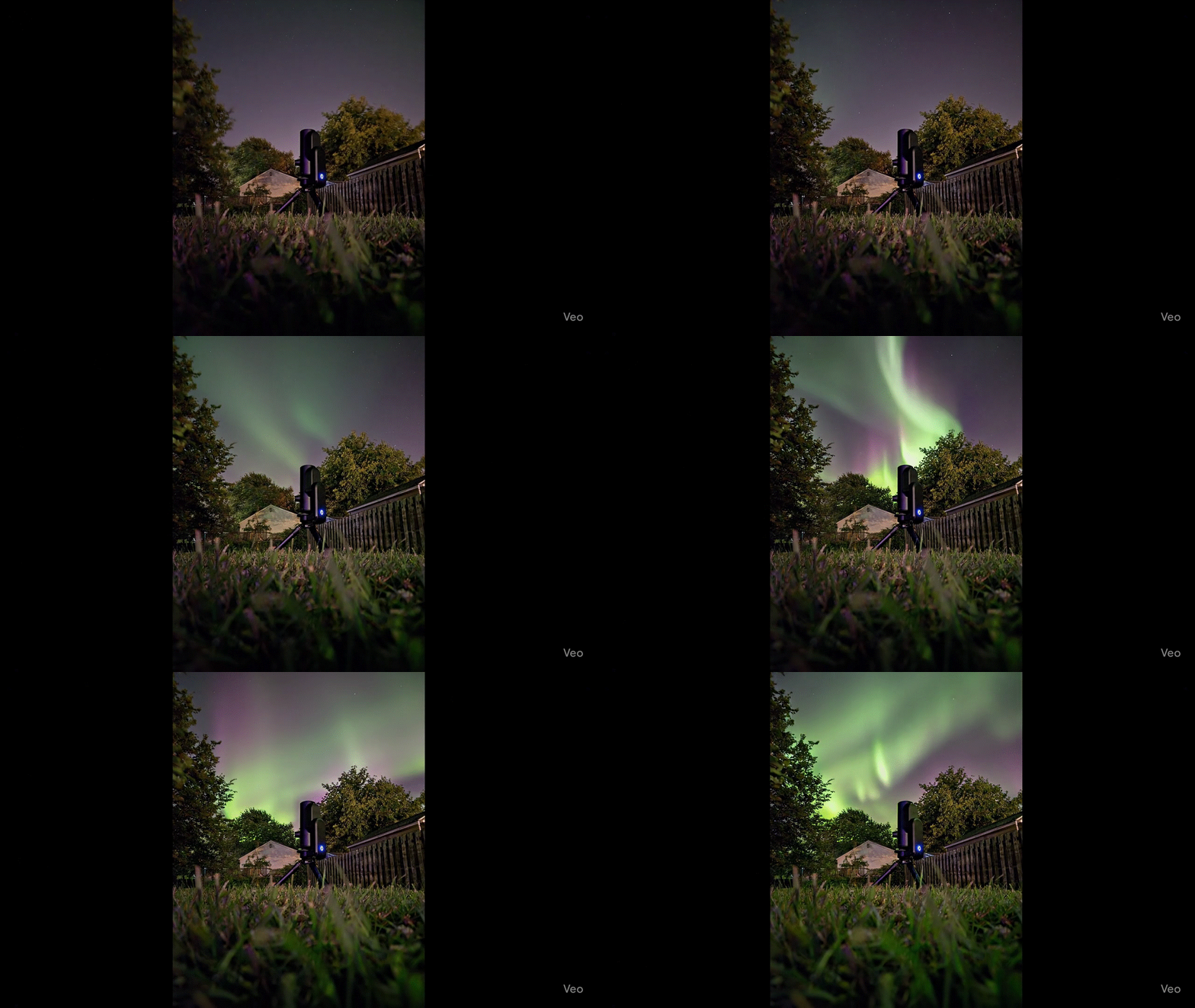
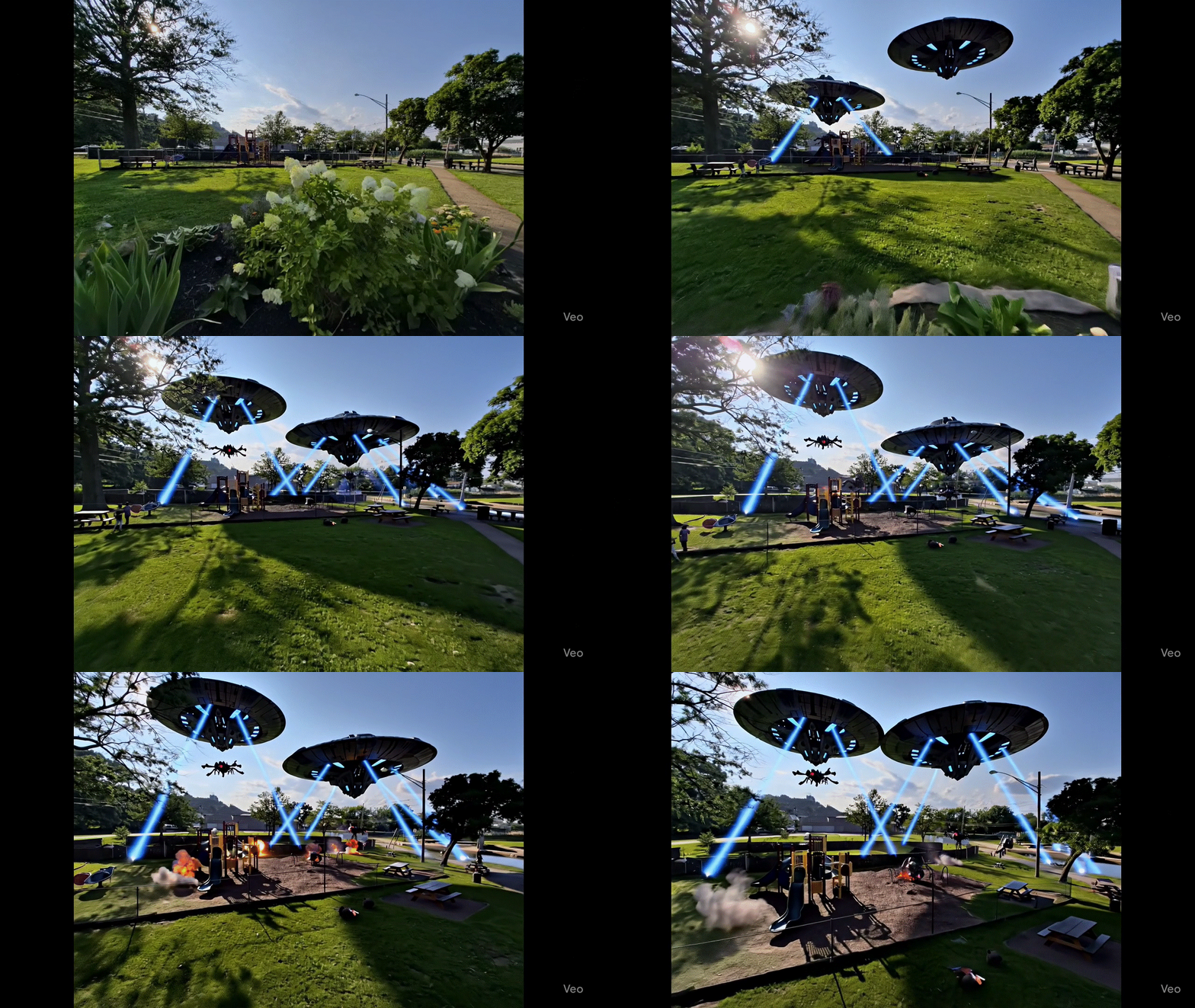

- What it does: Create custom videos through text prompts, or turn existing photos into video.
- Supported devices: Any phone running Gemini app.
Part of the Gemini suite of tools is Google’s updated AI video generation, Veo 3, which can do a number of things. It’s one of the many other tools you can access through the Gemini app, but a subscription gives you higher access to it.
Veo 3 doesn’t just let me create realistic videos from scratch through text descriptions, but it can also take existing photos I’ve captured and transform them into video. I really love taking some of my old family photos, like my father when he was younger, and animating them in such a way with Veo 3 to appear like a video of him was actually recorded.
Even though it takes several minutes for it to create a video, the end result is unbelievable.
Visual Intelligence

- What it does: Performs searches and other actions with Visual Intelligence through the iPhone screen shot function.
- Supported devices: Any iPhone that supports Apple Intelligence
It was a quiet year for Apple Intelligence, as iOS 26 only introduced one major new feature that I still use consistently now — the updated Visual Intelligence with screenshots. This update makes Visual Intelligence act a lot more like Google’s Circle to Search feature, by allowing Apple Intelligence to see what I’m looking at on my iPhone and make requests such as looking up more information.
For example, I was sent a photo of a toy that one of my nieces wanted for Christmas. I clearly didn’t know what it was, but I performed the screen shot function on my iPhone and then tapped into the new Visual Intelligence feature to ask what it was — and even find prices on eBay for it.
Alternatively, I’ve used it over the late summer to find out more details about the leftover weeds on my lawn and how I could prevent them from coming back in the spring.
Cross App Actions
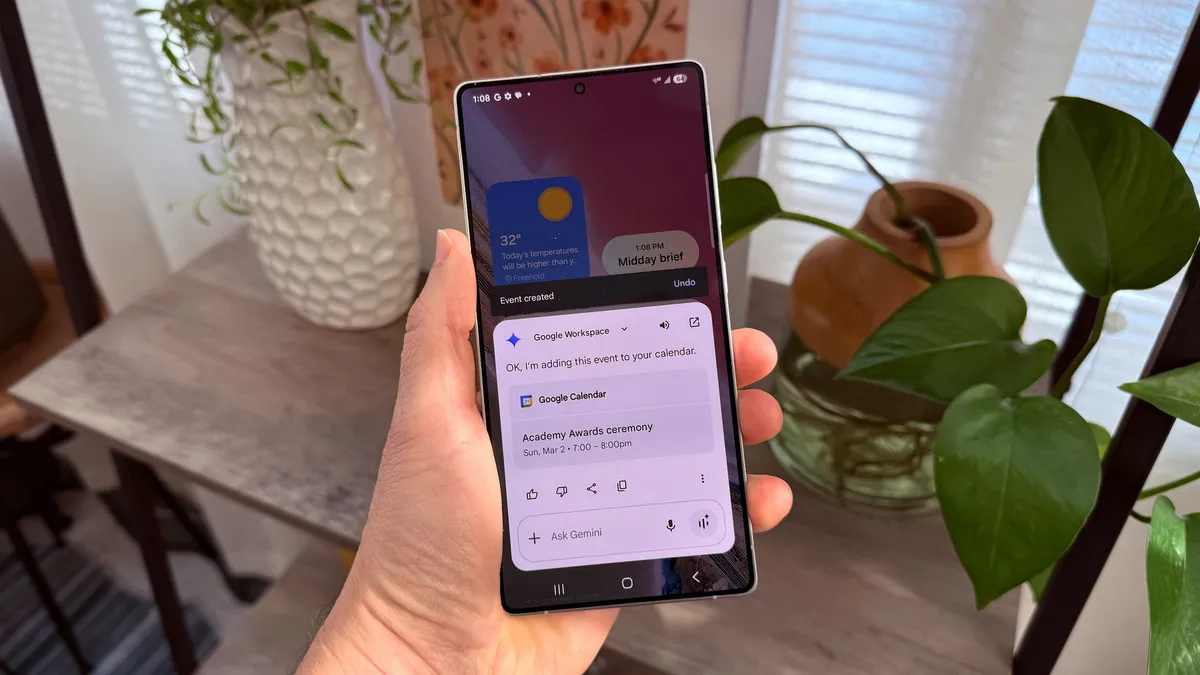
- What it does: Performs actions across different apps with voice commands.
- Supported devices: Galaxy S25 lineup, Galaxy Z Flip 7, Galaxy Z Fold 7
When the Galaxy S25 launched at the start of the year, it introduced Cross App Actions, a feature that leans on Gemini to perform multi-step commands across different apps. This is all carried out through voice commands, which streamlines processes that are otherwise tedious on their own.
One of the best examples I have about this AI feature was when I was trying to add all of the home games of my favorite triple-A baseball team to my calendar. Instead of looking up all of those dates and then proceeding to add them to my calendar, Cross App Actions does all of that in a matter of seconds.
The only downside about Cross App Actions is that it only supports the native apps on the Galaxy S25 — and it doesn’t have a broad support for third party apps. I’m hoping this will be updated with the forthcoming Galaxy S26 reveal, so that it can even do more complex actions.
AI Portrait Glow

- What it does: Brightens the exposure of faces in photos.
- Supported devices: OnePlus 15 and OnePlus 15R
Finally, the last AI feature I’ve come to use a lot comes to us from one of the least likely phone makers out there — OnePlus. Even though I was wowed most by its epic battery life performance, the OnePlus 15 also got me to use AI Portrait Glow a lot more than I had initially anticipated.
What makes this OnePlus AI feature so useful is how it realistically can change the exposure of my selfies and portrait shots. Sometimes the lighting in the scene is uneven, where I’m underexposed compared to the background, but this fixes it right up.
Through the Photos app, I can use AI Portrait Glow to boost the exposure of my face. I wouldn’t be able to do something like this with a traditional photo editing tool.

Follow Tom's Guide on Google News and add us as a preferred source to get our up-to-date news, analysis, and reviews in your feeds.
More from Tom's Guide
- Looking to make your holiday photos more festive? Try these 3 camera phone tips
- I put the OnePlus 15R in a dishwasher to test its IP69K rating — here's how it went
- I use the hidden ‘Back Tap’ iPhone feature to create my own instant shortcuts — here's how to do it