



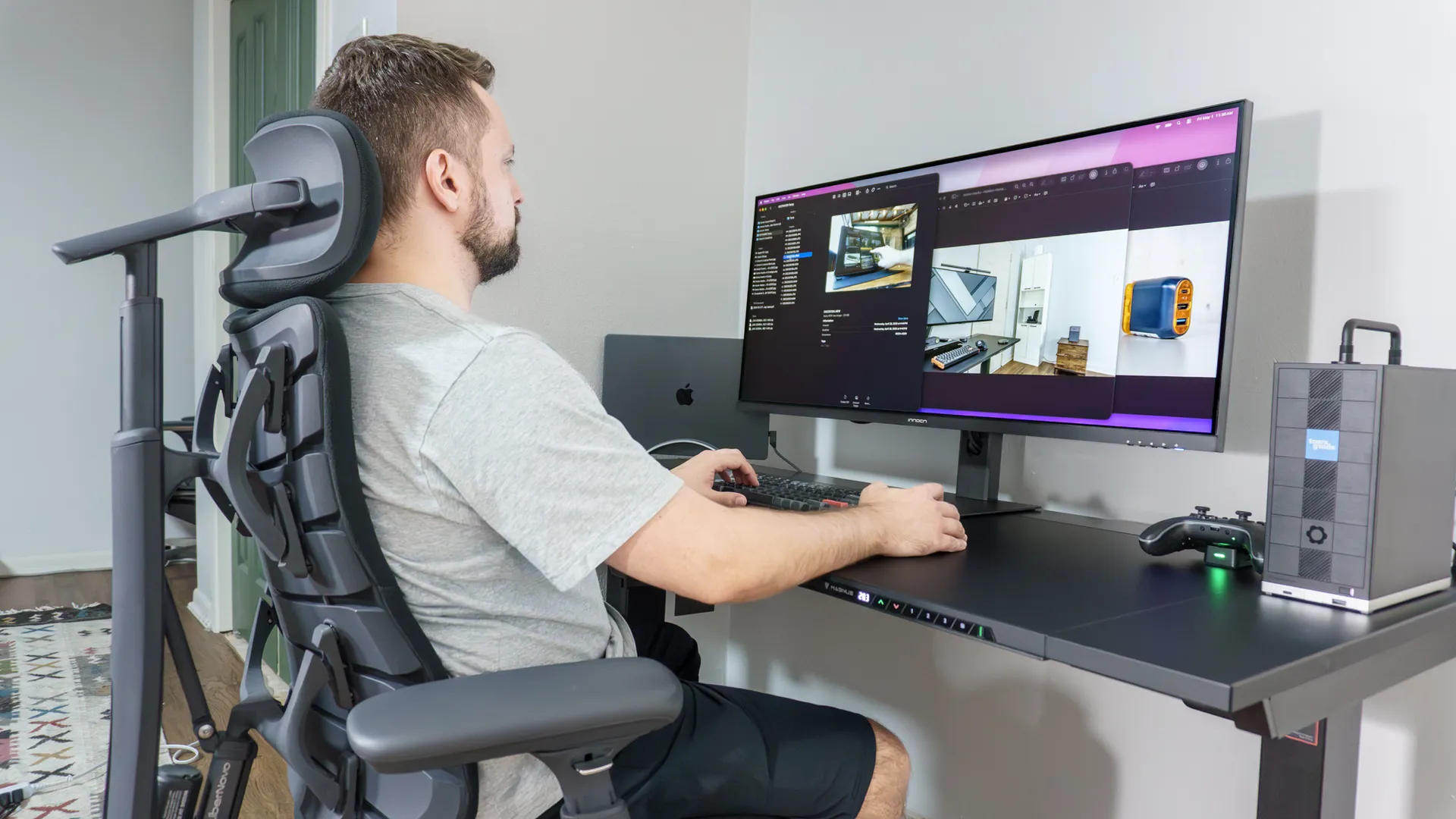
There’s no ideal desk setup that works for everyone. While one person might be content with a laptop or a single monitor, another might want multiple monitors. Likewise, your old desk setup might have been perfect at the time but now, it no longer meets your needs.
As someone who builds desk setups for a living, I’m constantly trying out new configurations when it comes to how many displays I have and what’s driving them. Although I spent years using a single ultrawide monitor by itself, I later added a portable monitor underneath it specifically to keep up with work chats. Of course, I wasn’t done there.
From stacked monitors to dual monitors and even triple monitors, it feels like my desk is constantly evolving and rightfully so. However, at the beginning of this year, I put together a dual-monitor setup that I just couldn’t bear to break down. That all changed though, when I finally had a chance to try out a larger, 40-inch ultrawide.
Even though the Innocn 40C1U’s screen is only six inches wider than the 34-inch ultrawide I’ve used for years now, it’s made a massive difference. So much so that I don’t think I could go back to using a dual-monitor setup anytime soon. If you’ve also been considering upgrading your own desk setup, here’s why you might want to go wider instead of adding another display.
No curves here
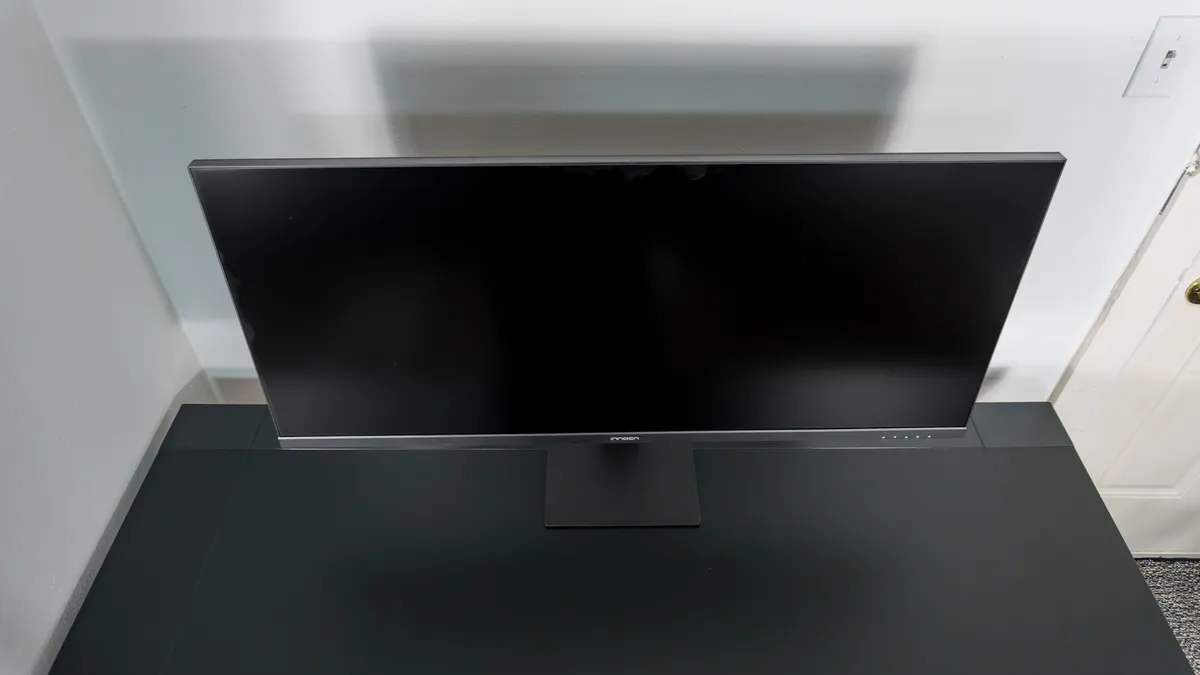
At 40 inches, the Innocn 40C1U is certainly an outlier. With most monitors, once you go beyond 34 inches wide, you no longer have the choice between a flat or a curved display. Since I have multiple monitors for my various desk setups stored in a closet, I don’t really have the option to use curved ones as they take up far too much space when not in use.
After eying the Innocn 40C1R online for what seemed like ages, the company reached out and asked if I’d be interested in trying out the more powerful 40C1U instead. Since I just reviewed the Apple Studio Display XDR, I decided to give this 5K2K monitor a try and I’m glad I did.
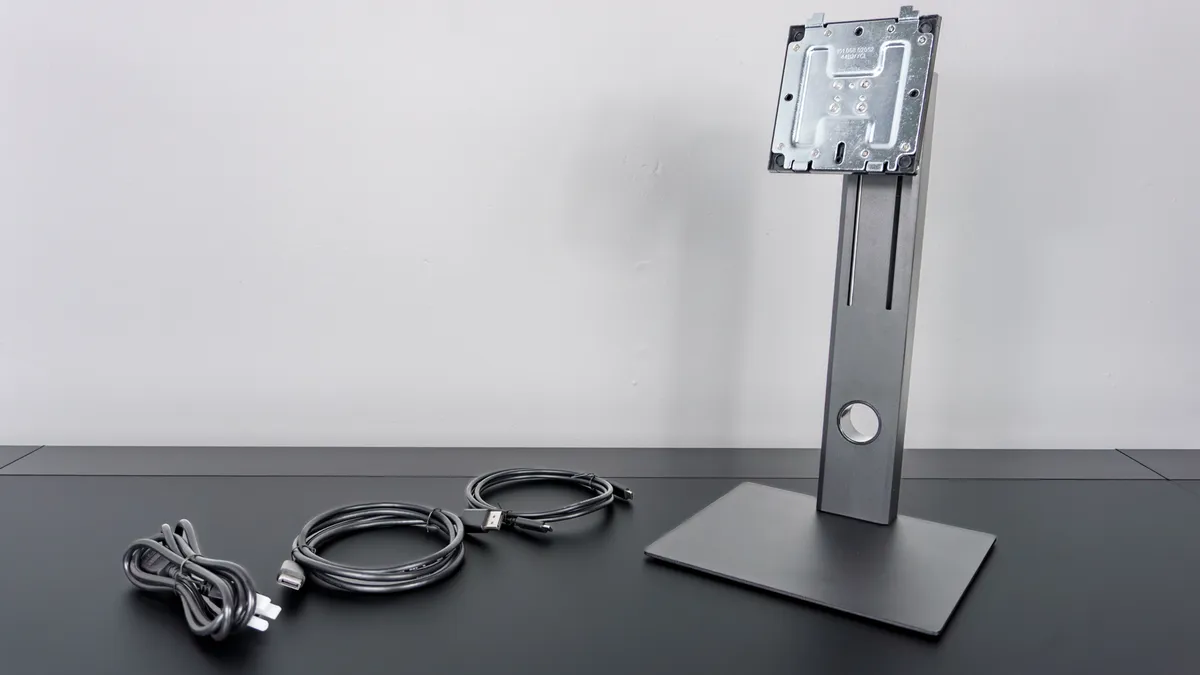
In the box, you get a surprisingly capable stand along with a high-speed HDMI cable, a USB-C video cable and a power cable. The fact that Innocn includes a USB-C cable in the box is a nice touch. However, like with the LG DualUp monitor I reviewed back when I first started at Tom’s Guide, I would have loved to see a USB-B to USB-A cable included as well — but more on that in a bit
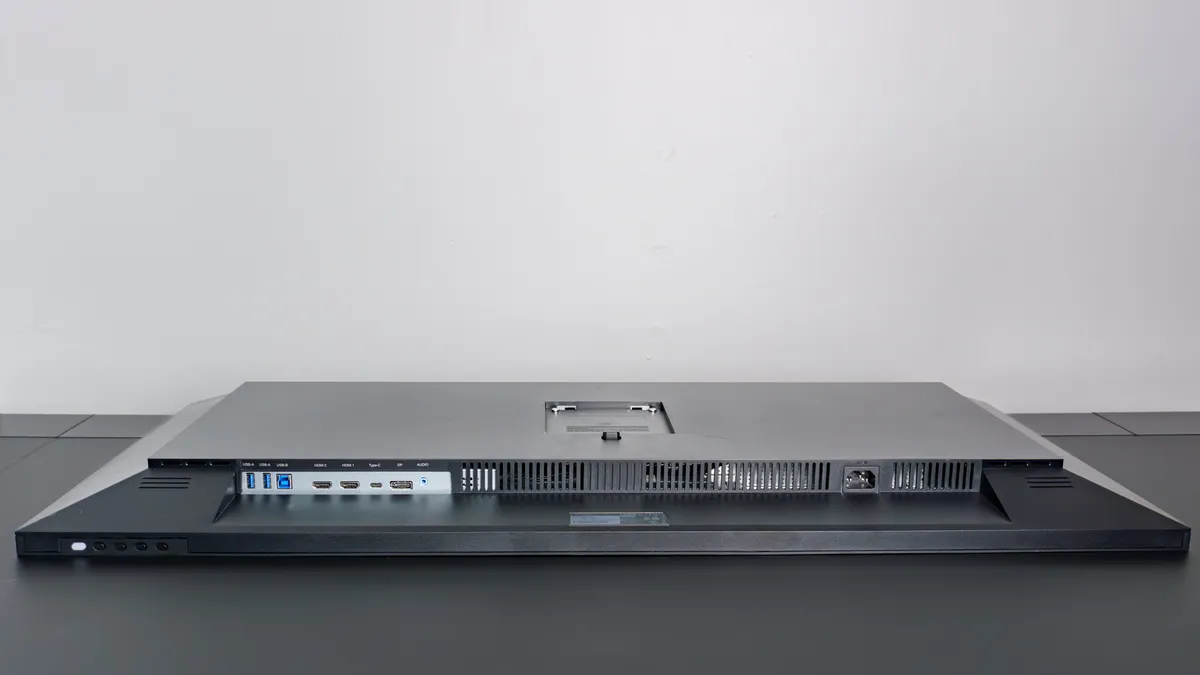
While the 40C1U is definitely on the less expensive side for a 5K2K monitor, I really like how it has a built-in power supply instead of a bulky power adapter with a barrel port connector. Likewise, it has standard 100 x 100 VESA mounting holes instead of the 75 x 75 ones you see on many of the best gaming monitors. If you’ve ever tried to lift a display like that up off your desk using one of the best monitor arms, then you know how much of a hassle it can be.
In terms of ports, the 40C1U has a generous selection on the right side including two HDMI 2.0 ports, a DisplayPort 1.4 connection, an upstream USB-C port with 65W of power delivery, two USB-A ports, a USB-B port and a headphone jack. As such, you can connect up to four devices at the same time.
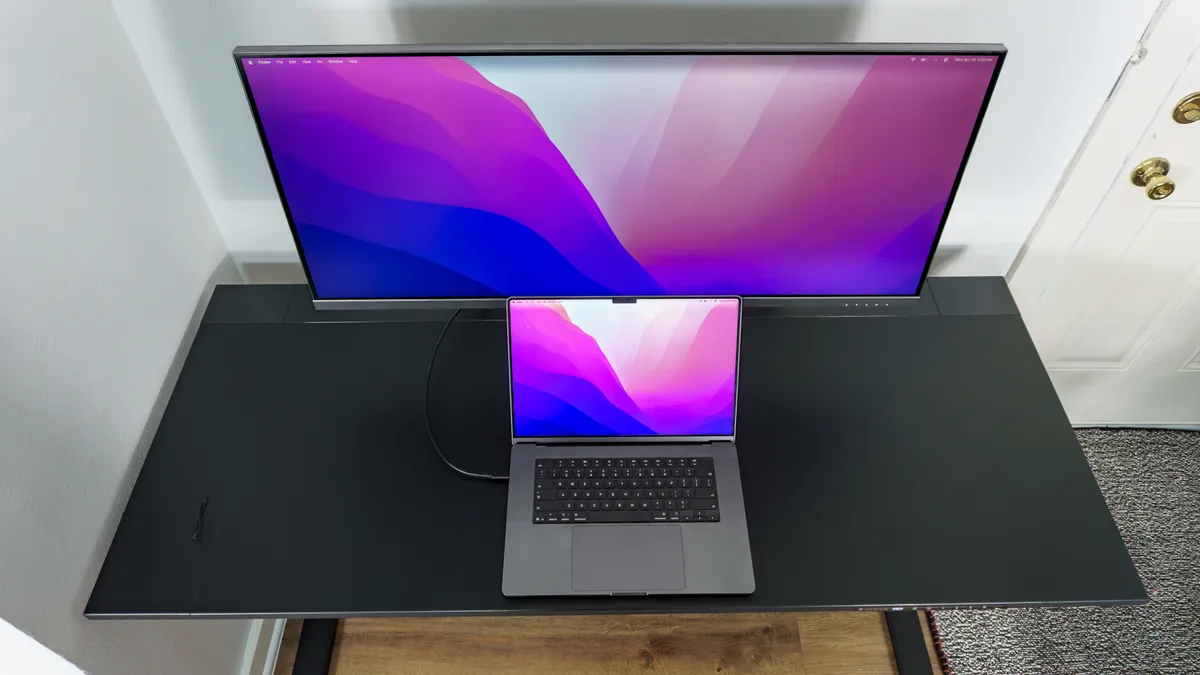
After unboxing the 40C1U and attaching the included monitor stand, it was time to take it for a spin. Given I had a MacBook Pro with an M5 Pro chip on hand, I figured that would be perfect for testing out this monitor as I previously used that laptop with the Studio Display XDR. Fortunately, there weren’t any dead pixels or other issues to be worried about and everything worked like a charm right out of the box.
With my initial testing out of the way, I decided to build a new desk setup based around the Innocn 40C1U to see just what this 40-inch, 5K2K ultrawide was capable of.
Mac or PC: why not both?
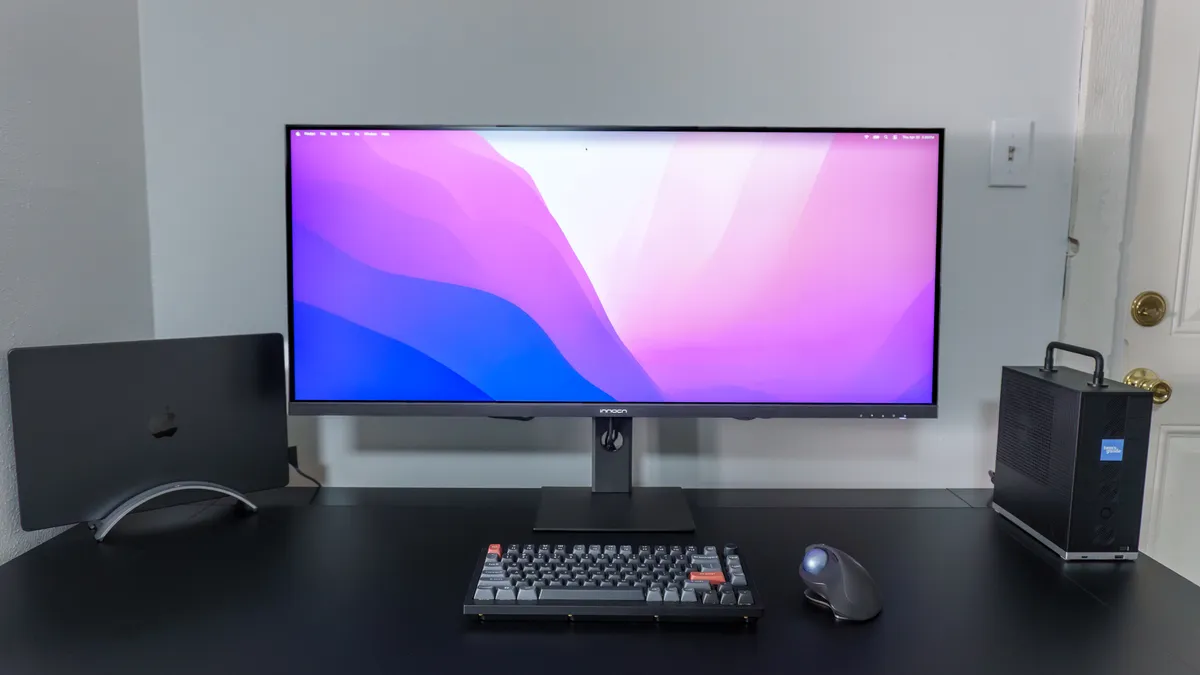
Deciding between a Mac or a PC for work can be difficult which is why many people like myself use both. Normally, I spend my time working on my Mac mini M4 at one desk setup and on one of the best mini PCs at another. This time though, I wanted the best of both worlds and figured having two computers on the wider Secretlab Magnus Evo desk wouldn’t be a problem, so I did just that.
On the left side, I set up that MacBook Pro in a vertical stand with the computer set to not go to sleep with its lid closed. Then on the right, I plugged in the Framework Desktop which, in addition to being a powerful PC for work, holds up surprisingly well when gaming despite not having a discrete GPU.
Normally, you’d need two separate keyboards and mice with a setup like this one. However, remember those USB-A ports and that USB-B port around back? Well, like many of the best monitors, the 40C1U features a built-in KVM (keyboard, video, mouse) switch. So instead of having to connect, disconnect and then reconnect my mouse and keyboard over Bluetooth, I plugged their respective 2.4 GHz USB dongles into the back of the 40C1U. This let me use the same mouse and keyboard with multiple computers.
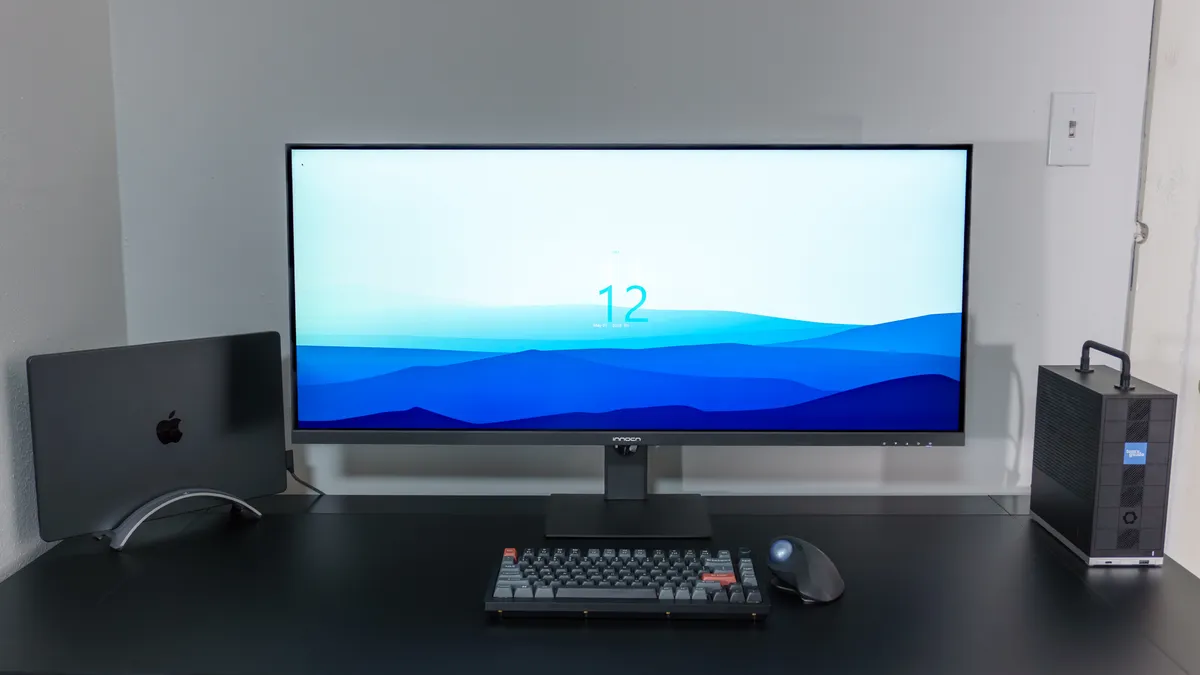
Since the USB-C cable plugged into the MacBook Pro handles both video and data, I was able to use my peripherals on Mac with just a single cable. However, because I connected the Framework Desktop via HDMI, I had to connect a USB-B to USB-A cable at the back of the monitor and then plug it into my PC. If you get a monitor with a built-in KVM switch that doesn’t come with this cable, don’t worry. Just like I did, you can likely borrow the one from your printer until you pick up a new one.
What I like about using the Innocn 40C1U with both of these computers is that I don’t have to press any buttons or mess around in the display’s settings menu to use my mouse and keyboard. Instead, I just switch inputs and the monitor does the rest, automatically assigning my peripherals to whichever computer is currently on screen. Having the option to use macOS or Windows 11 while working has been great and I’m kind of surprised I didn’t try something like this earlier.
With my dual-OS desk setup for work finished, it was time to try pushing the 40C1U — and the Framework Desktop too for that matter — to its limit.
Work hard, play wide
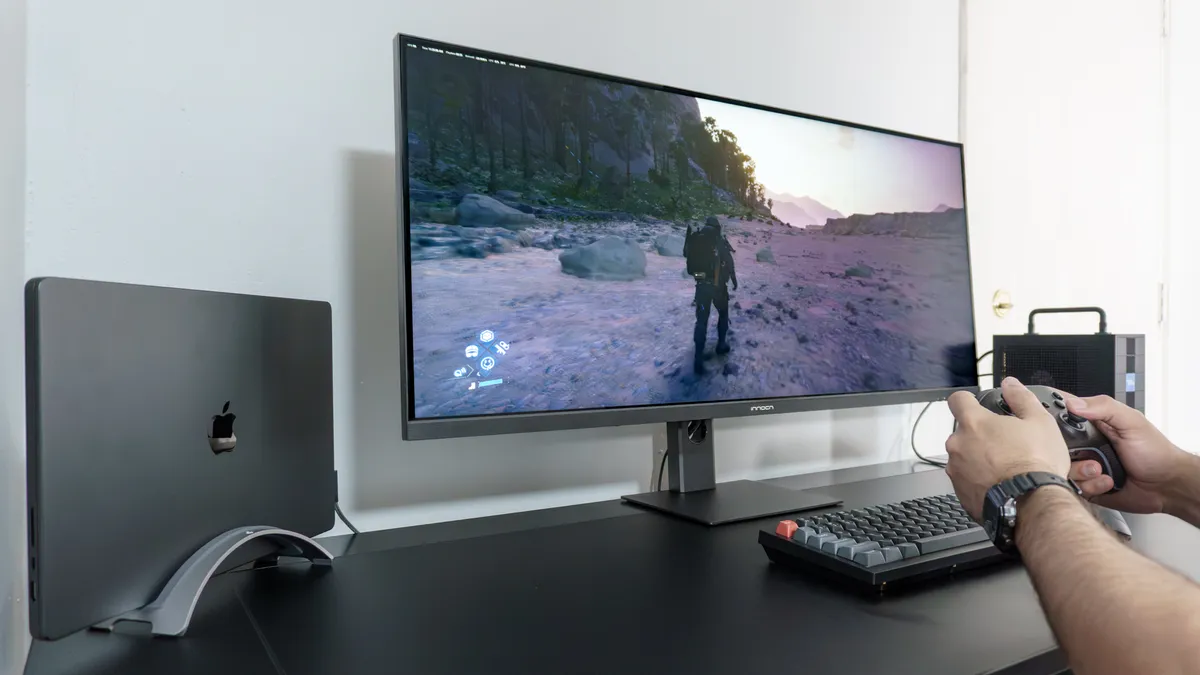
Now I know what you might be thinking: gaming on a 5K2K monitor requires a beefy gaming PC. I thought the same thing when I first booted up Steam on the Framework Desktop. Using a massive panel like the 40C1U for gaming seems impractical since you need to render a whole lot more pixels than you would on a 1080p or 1440p display.
I know Nvidia’s DLSS and AMD’s FSR upscaling tech sometimes get a bad rap due to "fake frames," but in this instance, FSR was a lifesaver. When I first loaded up Death Stranding 2, everything looked a bit blurry at this high resolution. After updating AMD’s software and enabling FSR, however, the game was surprisingly playable.
I did have to drop the game’s internal resolution down to 2560 x 1080 and let FSR upscale it back to 5K2K. Much like when I brought the Framework Desktop to my living room to play on my 4K TV, the Ryzen AI Max+ 395 chip and built-in Radeon 8060S graphics in this mini PC really surprised me.
Playing Death Stranding 2 on a 40-inch ultrawide adds so much immersion. With FSR enabled, my frame rate stayed at around 70 fps — even with the graphics set to high. I also didn’t have to worry about hooking up bookshelf speakers as the 40C1U has built-in audio. While you’ll still want one of the best gaming headsets for a truly premium experience, the monitor’s built-in speakers were more than capable.
It’s worth noting that with its 100Hz refresh rate, the 40C1U is a productivity monitor first and foremost. If you have a powerful GPU or don't mind enabling frame generation, you can certainly game on it, but running games natively at 5K2K will be a tall order for most rigs.
If you’re after a larger ultrawide primarily for gaming, the Innocn 40C1R is the better (and cheaper) choice. It has a more manageable 1440p resolution and a faster 144Hz refresh rate. Still, while it's better for high-speed gaming, you lose out on the incredible clarity and text crispness you get with the 40C1U’s 5K2K resolution.
The cost of simplicity
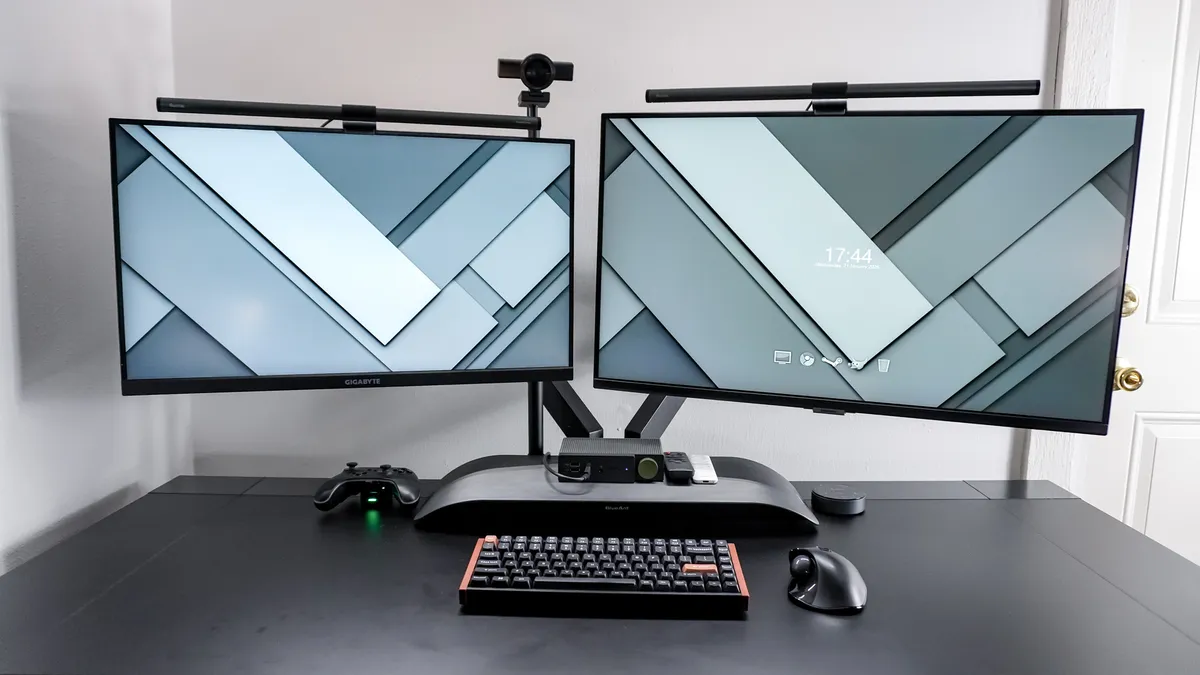
Deciding between a dual-monitor setup and a single ultrawide is a tough choice. You can pick up a pair of identical monitors — or even use mismatched ones like I did here — for a whole lot less than a massive ultrawide display. However, doing so requires a bit more work, both during the initial setup and in your daily workflow.
With two screens, you have twice the cables to manage. You also might need to swap out your power strip for one with more outlets and be much more deliberate with your cable management. Using a dual-monitor arm can help, but as I’ve found, this often requires longer cables to route through the arms and down to your computer.
When using a single ultrawide like the Innocn 40C1U, you cut your cable count in half. But since the display is so large, you might need to invest in a heavy-duty monitor arm. If you use a standard one, your monitor will likely droop instead of staying firmly in place.
After years of testing both configurations, I’d recommend setting aside some extra cash for a single, wider display. You don't have to worry about lining up bezels or managing a nest of wires. At the same time, both Windows and macOS also tend to play better with a single monitor than they do with multiple screens.
The Innocn 40C1U was the upgrade I needed to finally break down my previous setup and go back to an ultrawide. I’m not saying I won’t build another dual-monitor setup in the future — or finally tackle a quad-monitor one — but for now, I’m more than content using multiple computers on a single, massive display.

Follow Tom's Guide on Google News and add us as a preferred source to get our up-to-date news, analysis, and reviews in your feeds.
More from Tom's Guide

