

Most of the conversation around iOS 27 was centered on Apple’s upgraded, AI-powered Siri, which brings deeper on-screen awareness and smarter multi-step actions. The catch is that Apple Intelligence requires an iPhone 15 Pro or newer, leaving anyone holding onto an older compatible handset locked out of the headline feature.
If you have been putting off the update assuming there is nothing in it for older hardware, it is worth reconsidering. Beneath the AI marketing, Apple rolled out several high-impact security, camera, and interface upgrades that run without Apple Intelligence — and these three additions make a meaningful difference in daily use.
3 iOS 27 features that don't require Siri AI
1. Impersonation Risk Detection
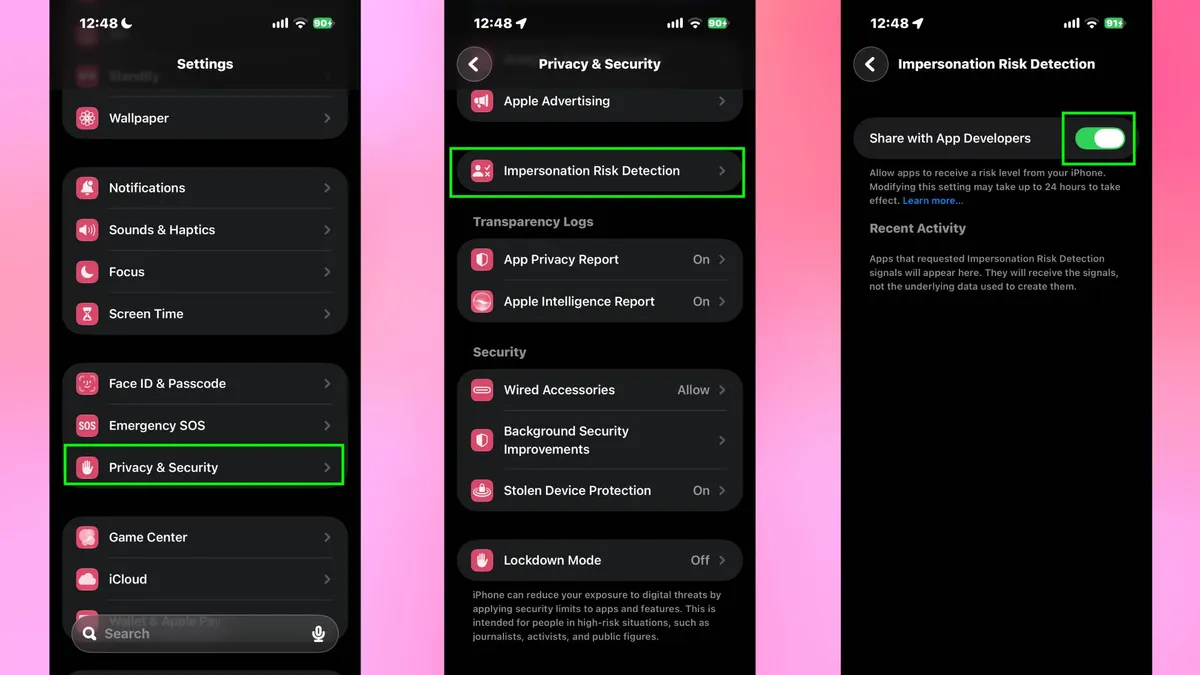
Scammers frequently rely on high-pressure calls and spoofed texts to trick you into wiring funds or surrendering credentials. Introduced in iOS 27, Impersonation Risk Detection serves as Apple’s built-in defense against this social engineering, and it works without requiring Apple Intelligence.
To activate it, open Settings, tap Privacy & Security, scroll down and select Impersonation Risk Detection, then toggle it on.
The system monitors on-device interaction patterns and behavioral cues during high-stakes actions without reading your personal messages, emails, or photos. If you attempt a large transfer or sensitive account change under signs of coercion, your iPhone flags the event and directs supported banking apps to require secondary verification before funds can leave your account.
2. Pin your most-used Camera shortcuts

Over the last few iOS updates, Apple has tucked more manual toggles behind the Camera app’s six-dot menu, adding extra taps whenever you want to tweak exposure, aspect ratio, or timer settings before taking a shot. iOS 27 fixes that friction by letting you pin your essential controls directly to the top of the viewfinder.
Launch the Camera app, tap the six-dot icon and hit Edit in the top-left corner. From there, tap any highlighted tools you want kept within thumb’s reach, remove shortcuts you rarely touch using the minus badge, and tap Done.
Even better, iOS 27 saves separate pinned layouts per shooting mode, allowing you to tailor your quick-access toolbar individually for Photo, Portrait, Video, Cinematic, Slow-Mo, and Time-Lapse.
3. Dial back Liquid Glass transparency
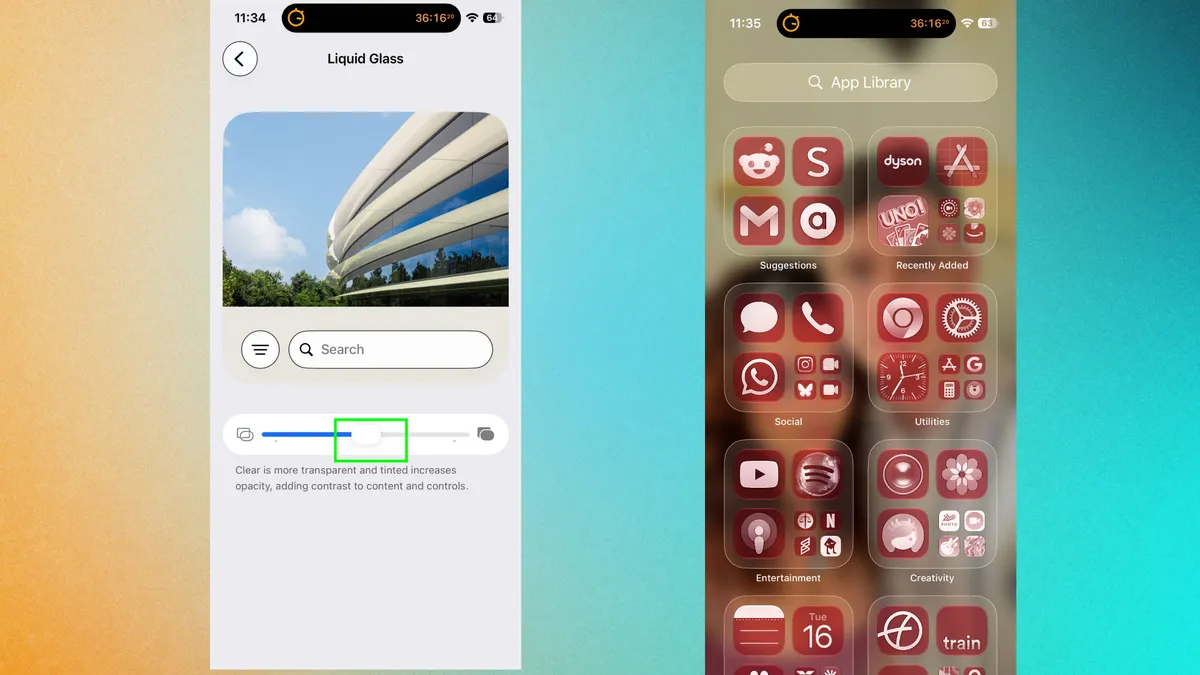
Apple’s translucent Liquid Glass design has remained one of iOS’s most polarizing visual shifts since its debut, particularly when semi-transparent menus sit over bright or busy wallpapers. Rather than forcing a one-size-fits-all look, iOS 27 introduces a dedicated precision slider so you can tailor how much transparency appears across your system interface.
Open Settings, tap Appearance, and select Liquid Glass to find the new control. Sliding the toggle to the left preserves the full see-through glass aesthetic, while moving it to the right applies a heavier, tinted backdrop that makes buttons and text significantly easier to read at a glance.
A live preview window sits directly above the slider so you can test the contrast before locking in your preferred look.

Follow Tom's Guide on Google News and add us as a preferred source to get our up-to-date news, analysis, and reviews in your feeds. Subscribe to Tom's Guide on YouTube and follow Tom's Guide Entertainment on TikTok and Instagram.
More from Tom's Guide
- After spending three months testing iOS 27, these 5 features are my absolute favorite
- From Stolen Device Protection to iOS 27's new Impersonation Risk Detection, here are 5 iPhone security settings you need to turn on right now
- Is your iPhone listening to you? The 'live listen' setting you should check right now