iOS 27 is finally here, and it's packed with a bunch of interesting new features you're going to want to try. The problem is that there are a lot of them, and some aren't that easy to find. In fact, Apple straight-up didn't tell us about a bunch of things iOS 27 can do.
Thankfully, the beta has been invaluable in this respect, with beta testers and early adopters figuring out a bunch of cool things hiding in the depths of iOS 27. So once you've installed iOS 27 on your iPhone, and checked out the seven features you should try right away, your next stop should be these 11 hidden features — and start making the most of what your phone can do.
Dual Cameras in FaceTime
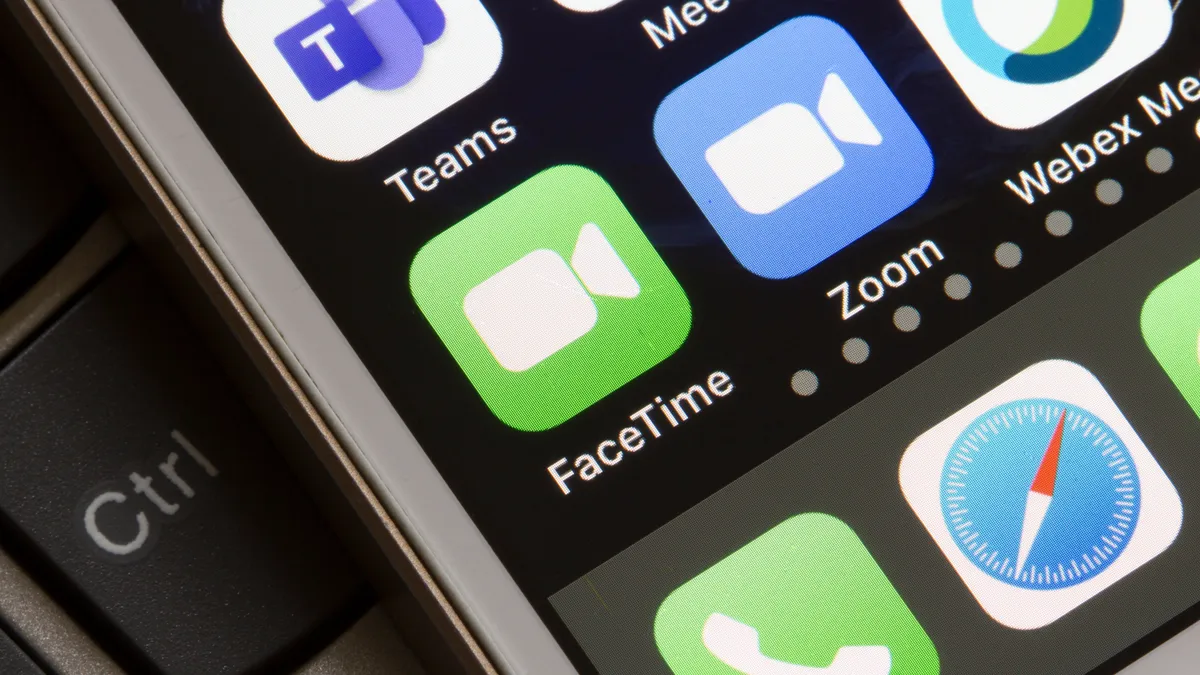
iPhone 17 debuted with the helpful Dual Capture feature, which allowed you to simultaneously record video from the front and back cameras. iOS 27 has expanded that by adding it to FaceTime, allowing you to utilize both cameras during your Apple-to-Apple video calls.
This means you can show people what you're looking at without cutting off the feed of your face and expressions. It also means you can have calls that include larger groups, provided you're with people that are happy to be visible on camera without seeing the person on the other end of the call.
To get things going, simply start a Facetime call, tap the screen to bring up call controls and then tap the Flip button. Tapping this button again turns off dual camera mode and only shows the view from the front camera. Dual camera mode is the default option the first time you make a call, but the FaceTime app will remember if you switch it off for the remainder of your call.
Create custom passes in Apple Wallet

Apple Wallet is an incredibly useful tool but iOS 27 just made it even more useful to have. This is the year Wallet catches up with Android, and gives users the ability to create their own custom passes — regardless of whether the pass is officially compatible with Apple Wallet or not.
You can create digital versions of passes that you'd otherwise need to carry around with you. Be it gym membership cards, tickets, gift cards or something else entirely. Just open up Apple Wallet, then tap the (+) button in the top corner followed by Create a Pass.
iPhone 15 Pro and above will be able to scan the barcode or QR code with the camera, while older models will require you to enter the details manually. From there you can Choose a template to match the physical pass and customize the colors and details to your liking. Hit Save and you're done.
Updated AirPods software
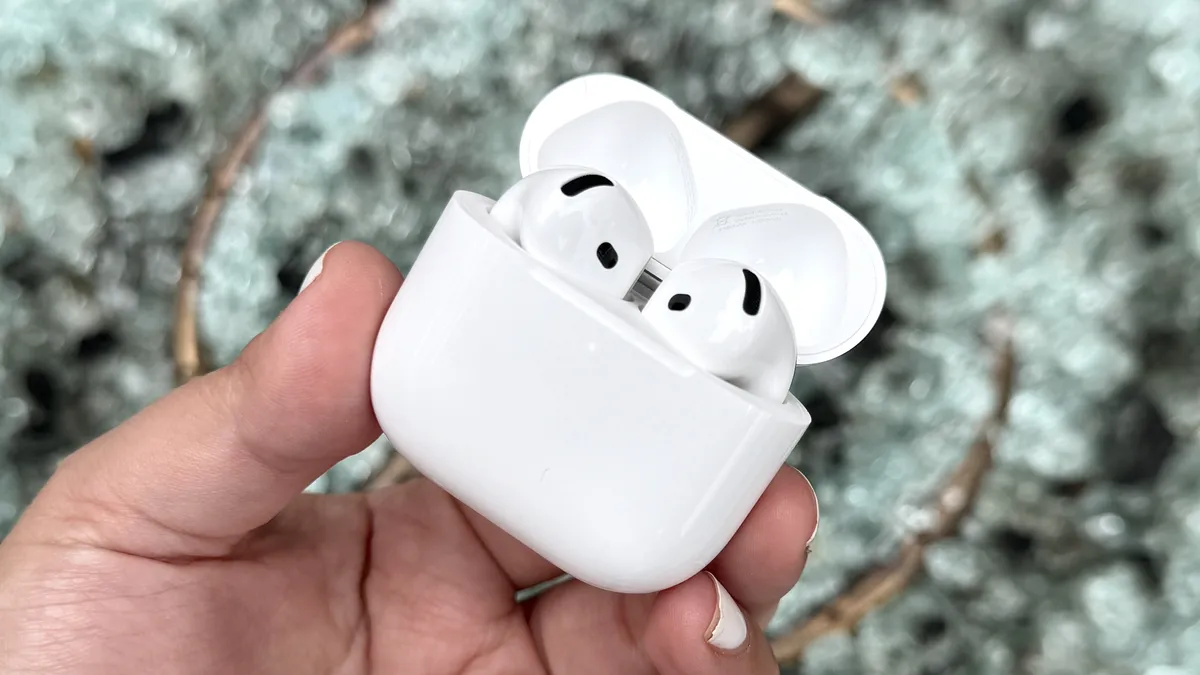
You don't need to buy the brand new AirPods 5 to get the benefit of some new earbud features. iOS 27 features a bunch of new AirPods settings that could make your existing buds feel like new. Especially if you're into the idea of customizing the level of active noise cancelling, and blending it with transparency mode.
That's right, this is a thing you can do in the AirPods app on iOS 27. The new slider doesn't force you to pick full ANC or full Transparency, and you can go somewhere in the middle if you prefer. Apple's also added a brand new EQ mixer, which lets you adjust the levels of your sound — whether it's bass, midrange or treble. Sadly this is only available on more recent AirPods, including AirPods Pro 2 and Pro 3, AirPods 4 and the upcoming AirPods 5.
Save video frames as photos

Google just released an entire mode dedicated to capturing video and photos simultaneously, but Apple's taken a different approach to the problem of deciding whether to snap or record. iOS 27 is able to pull single frames out of video clips and convert them into photos, and without forcing you to take a screenshot in the process.
Simply tap the Three-dot menu in the top right corner of Apple Photos, then choose the Save Video Frame as Photo. The frame is then pulled from the video and saved to your Photos library in full resolution.
Give your alarm a custom volume

Tying your alarm to system volume can be a pain, because it means you have to choose between silent notifications and remembering to wake up on time. Thankfully iOS 27 has split everything up, and now alarms have their own independent volume toggle. You may need to flick a switch in the Settings app first, though.
Head to Settings > Sound & Haptics and find the Alarms and Timers section. You'll then want to make sure the Match Ringtone Volume toggle is gray and switched off, at which point a volume slider will appear — letting you customize how loud the alarm actually is. You can do the same for Alerts and System Sounds as well, though you will need to navigate back into the sound settings if you want to customize the volume of both.
The clock is also able to recognize holidays, based on your own personal calendar. This allows the Clock app to proactively ask you if you want to skip alarms for days you may not be working — such as public holidays.
Rate your own photos
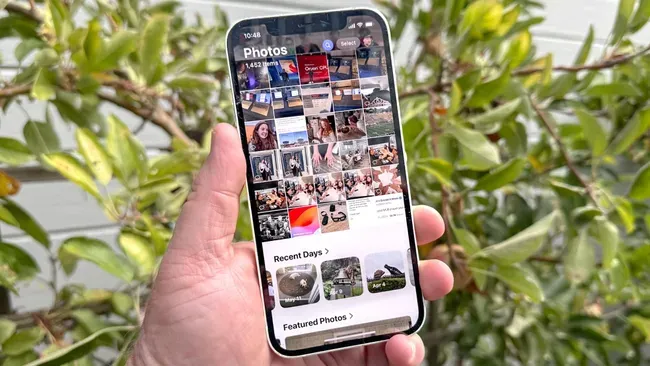
We're all used to leaving reviews with a star rating of some kind, but did you know you can do the same thing to your photos in iOS 27? Apple added this new organizational trick as a way to help find specific photos more easily. Even if you don't think a certain photo is worth one star, this gives you five new ways to save specific kinds of photos and videos — rather than simply marking it as a favorite.
This does need switching on in the settings app, though. Head to Settings > Apps > Photos > View Options and switch on Show Rating Controls. From there head into the Photos app and you'll see a drop-down menu with a star in the top right corner. Tap is, and select the star rating of choice.
To find your starred photos, simply tap the Filter icon in the top right corner of the Photos gallery, followed by ☆ Rating and select the rating you want to see.
Full-screen home widgets

Home screen widgets have a brand new size variant in iOS 27, and it means they can now fill an entire page of your home screen if you wish. It's not available for every widget, but the likes of Calendar and Photos can now be expanded further than they could before.
This can be done when you first add a widget to the home screen, or by pressing and holding an existing widget to summon the pop-up menu. In both instances, all you need to do is pick the largest design available, and iOS will take care of the rest.
Avoid accidental voice messages
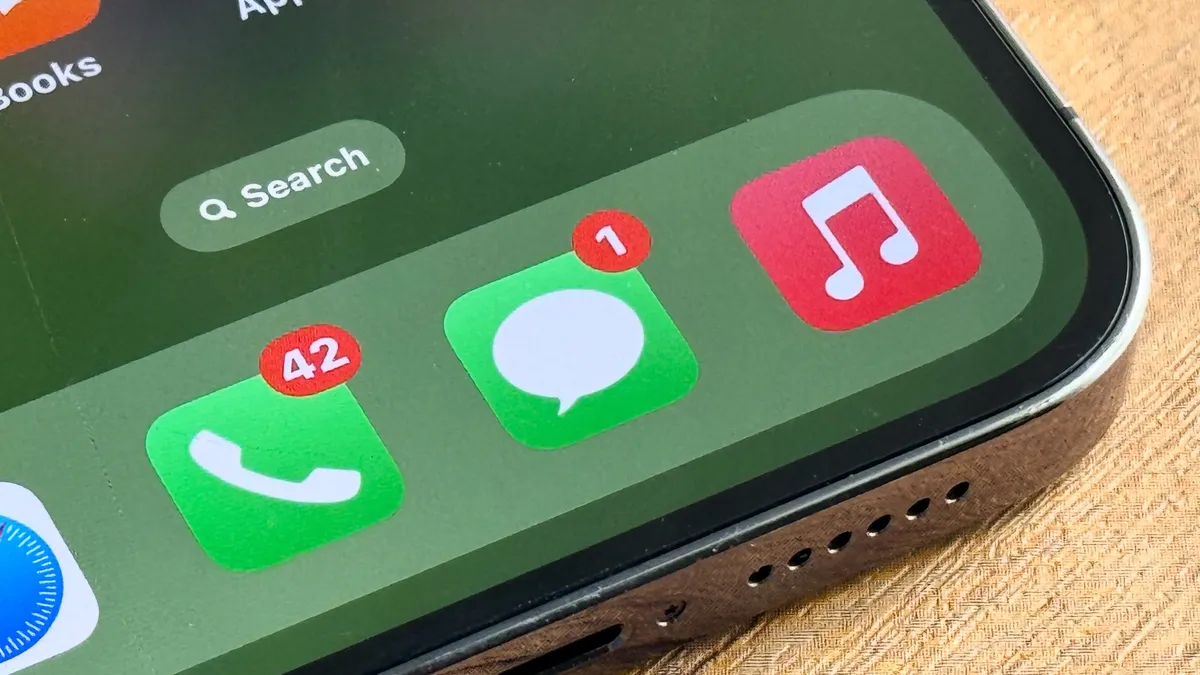
Nobody wants to accidentally start recording a voice note at awkward moments, and if that's a problem you deal with frequently, iOS 27 can help. The new update lets you remove the audio message button from the Messages app, or switch over to dictation. Either way, you won't be accidentally sending incomprehensible messages to your contacts anymore.
Head to Settings > Apps > Messages then select the Show in Text Field. From there select one of three options: Record Audio, Start Dictation or None. If you ever find you do want to send Audio Messages you can either switch the setting back, or tap the + menu on the left side of the screen and select the Audio option
Siri's "Notify me" watches websites for you

If you've ever had to sit and watch a website for an extended period, whether it's because you're in a virtual queue or waiting for a product restock, you know how tedious it can get. Fortunately iOS 27 can take all the stress out of the equation, by having Siri watch websites for any major changes.
Specifically, this feature is called Notify Me and it's only available in Apple's Safari browser. But it means that you can leave Siri watching a specific webpage, safe in the knowledge that it will tell you when things change.
All you need to do is open Safari on the relevant page, tap the three-line menu button on the left side of the URL bar, then tap Notify Me. Safari will ask you to describe what sort of change you want and how often it should check. Your options are hourly, weekly or monthly, which means it's not going to be useful for situations where speed is of the essence, like grabbing the latest hot product before scalpers do. But it does mean you have the ability to zone out and relax a little more.
Call Context

One of the big things AI is good for is contextual assistance, by which I mean it can proactively surface key information when it thinks you need it the most. That can be useful when you're making phone calls (assuming you still make phone calls) and don't want to waste time flicking through different apps or inboxes looking for stuff you might need.
Apple has added Call Context to iOS 27 and does exactly this. Recently it's been making headlines about how it's able to remind users about important dates, such as birthdays or anniversaries. On the off chance that you may have forgotten, and were calling for a very different reason. Though you do need to have added that information to the Contacts app first.
Just remember that this is an AI feature, and won't work on older devices that don't support Apple Intelligence.
Simpler slideshow generation
If you like creating slideshows of your photos, but hate the hassle involved, iOS 27 just made it a whole lot easier. In fact, all you need to do is select the photos you want to feature in the Apple Photos app, and it'll do all the hard work for you.
Simply head to Apple Photos, and choose a specific album or your main photo feed. Then tap Select to choose the photos you want, followed by the Three dot button at the top of the page — between the filter menu and the big X. A pop-up menu will appear, at which point you tap Start Slideshow.
Your slideshow then begins, scrolling through the selected photos automatically. Tapping the screen lets you pause everything, while swiping from the left and right lets you skip through photos. It doesn't loop by default, though, so be sure to tap the Customize button to set that up. This menu also lets you add music, and control the speed at which everything happens.

Follow Tom's Guide on Google News and add us as a preferred source to get our up-to-date news, analysis, and reviews in your feeds. Make sure to click the Follow button!
More from Tom's Guide