







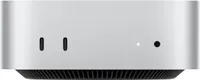
I was over the moon at the idea of a completely redesigned Mac mini in a much smaller case with a more powerful M4 chip. That was until Apple finally showed off its new design, revealing that, this time around, the power button on the Mac mini M4 would be on the bottom instead of on the back of the device.
The Apple Magic Mouse with its oddly placed charging port immediately sprung to mind. At least with a wireless mouse though, you don’t have to plug it in all that often. Now with one of the best mini PCs, a power button is integral to their daily use. Apple on the other hand saw things quite differently.
Shortly after the Mac mini M4’s launch, Apple’s SVP of Worldwide Marketing Greg Joswiak and SVP of Hardware Engineering John Ternus explained in an interview with IThome that the underside of the Mac mini M4 was the “optimal spot” for its power button due to the redesign. At the same time, they also noted that most Mac users never actually turn their devices off.
Although I used a Mac growing up and while in college, back when I reviewed the Mac mini M4, I had mostly been using Windows-based mini PCs. As such, I initially scoffed at the idea of never shutting down my computer and how Apple had practically made the device’s power button unreachable.
Now though, after using the Mac mini M4 for over a year I realized Apple just might have been right.
A non-optional accessory

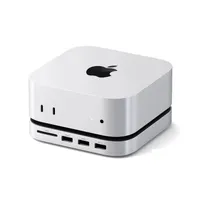
Just like when I spent a week testing out the Mac mini M2 ahead of the release of this updated model, the first accessory I added to the Mac mini M4 was a USB-C powered dock and stand.
I know most people are fine using Bluetooth accessories these days but since I’m constantly switching between computers, I actually prefer one of the best mechanical keyboards and a trackball mouse with 2.4 GHz USB receivers. With three USB-A ports on the front, I even have one left over to plug in a flash drive. Likewise, with an SD card reader on the left, it’s easy to quickly take photos off my camera.

The Satechi Mac Mini M4 Stand & Hub also has another trick up its sleeve. When you flip it over, there’s a free slot where you can install up to a 4TB M.2 SSD. Doing so lets you get around paying the Apple Tax for extra storage. Also, thanks to the fact that the Mac mini M4 comes with 16GB of RAM as the new standard, you likely won’t have to jump up to an upgraded model since this accessory easily lets you add more storage space.

The other big problem the Satechi Stand & Hub solves is that you can now easily reach the Mac mini M4’s power button. Without it, you’d have to awkwardly tilt the device over on your desk anytime you wanted to power it back on after a shutdown.
Although I haven’t stopped using this accessory with my Mac mini M4 for over a year now, the cutout at the back isn’t the killer feature I initially thought it would be.
Powered on and forgotten

Even though I still think the Mac mini M4 is the best mini PC for most people and especially for Apple users, I’ve been using it less lately so that I can spend my time testing and reviewing other, Windows-based mini PCs.
When OpenAI rolled out its ChatGPT Atlas browser back in October of last year though, I was tasked with installing it and doing a hands-on. Since it was Mac-only at that time, I got it up and running on my Mac mini M4. Now if I had one of the best MacBooks on hand, it would have been a lot easier taking pictures of this new AI-powered browser running on a Mac. Instead, I ended up putting a new desk setup together just to do so.

To Apple’s credit, when I was done, I didn’t shut down the Mac mini M4. Instead, I let it go into sleep mode and that was that. Much to my surprise though, when I returned from CES 2026 last week, I saw its status light was still on. After a few taps on my keyboard, it instantly sprung back to life, completely oblivious to the fact that I had left it powered on for almost three months.
It was at that moment that it dawned on me, maybe Apple was right. With a new puppy in our game room sleeping where I previously worked, I’ve found myself working from the Mac mini M4 in the next room and letting it fall asleep on its own each night for the past week.
I think what surprised me the most though is that besides that small white indicator light, I wouldn’t have known Apple’s mini PC was sleeping as it’s completely quiet when doing so and it isn't a light sleeper like some of the Windows-based mini PCs I’ve tested and reviewed. It doesn’t “wake up” for updates or from overly sensitive peripherals.
Even when my son would bump into my desk when running over to check on the puppy, the Mac mini M4 never stirred. That was until I started typing on the keyboard in front of it.
From hidden to essential

Now that I fully understand Apple’s reasoning with the Mac mini M4’s power button placement, I’d still like to see some changes with the Mac mini M5 or whatever comes next. Instead of tucking it away on the underside of the device, what if Apple actually made it useful?
After reviewing the MSI Cubi NUC AI+ 2MG and loving the fingerprint scanner integrated into its power button, I’d love to see Apple do something similar with the next Mac mini. Right now, if you want to use Touch ID to do things like log in, use Apple Pay, install new software or buy apps from the Mac App Store, your only option is to purchase a Magic Keyboard with Touch ID separately. But imagine how much more useful this functionality would be if it was built right into your Mac?
Even if Apple doesn’t want to give up the biggest selling point of its most expensive keyboard, there are other ways the Mac mini’s power button could be useful. Given that we’re getting an upgraded and more intelligent Siri soon, imagine if a short press of the power button could bring that up while a long press could be used to shutdown your computer. The possibilities are really almost endless once you bring short, long and even double presses into the mix.
It might have taken me over a year, but now, I finally understand why Apple compromised with the placement of the Mac mini M4’s power button. I’d say I was going to shut down my computer now but given that it’s been on for months, I guess I’ll just step away from my keyboard and let it drift off to sleep.

Follow Tom's Guide on Google News and add us as a preferred source to get our up-to-date news, analysis, and reviews in your feeds.
More from Tom's Guide

