







Modern TVs can last a decade or more with proper care — my trusty Panasonic is nearly thirteen and still going strong. But many people replace them far sooner, usually due to entirely preventable problems. Heat buildup, dust, and power surges cause the majority of early failures.
Extending your TV's lifespan doesn't require technical knowledge or expensive equipment. It comes down to five simple habits, most of which take just minutes to keep your TV running years longer.
Here's what actually makes a difference.
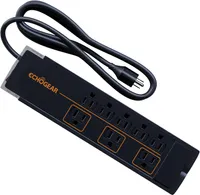
1. Use a surge protector

Power surges from storms, grid issues, or electrical problems in your building can instantly fry your TV's internal components. Wall outlets and basic power strips offer no protection against voltage spikes.
Buy a surge protector rated for at least 1,000 joules to cover your TV and a few peripherals. For full home theater setups or extra security, choose 2,000 joules or higher. This small investment prevents catastrophic damage that totals your TV.
Make sure to plug your TV into the surge protector, not directly into the wall, and replace surge protectors every few years or after major storms, as their protection capacity will degrade over time.
2. Turn off your TV when you're not watching

Leaving your TV on for hours while you're not watching, whether for background noise or screensavers, wears out components faster through constant heat exposure. The screen is particularly vulnerable, as heat accelerates pixel degradation and can cause dead or stuck pixels.
OLED TVs are especially at risk. Static images left onscreen too long cause burn-in, permanent damage where ghost images remain visible. Screensavers reduce this risk but don't eliminate it. Turning the TV off completely is always safer.
Make powering down a habit. If you forget frequently, enable your TV's auto-power-off setting or use a smart plug to cut power at specific times of the day.
3. Keep your TV out of direct sunlight and heat
Direct sunlight and excessive heat shorten TV lifespan by overheating internal components. Position your TV away from windows where sunlight hits directly, and close curtains or blinds during peak sun hours.
Keep room temperature below 85°F (27°C) when possible. Higher temperatures strain electronics unnecessarily. If a room runs hot, use a small fan to improve air circulation around your TV.
High humidity can also damage TVs if moisture condenses inside and causes short circuits. Improve ventilation, run air conditioning more often, or use a dehumidifier in particularly humid rooms.
4. Don't forget to dust your TV

Dust buildup blocks airflow around your TV, trapping heat inside and accelerating component wear. Heavy dust accumulation can also cause static discharges that damage electronics.
Every few months, power off your TV and wipe exposed ports and ventilation areas with a microfiber cloth. For hard-to-reach spots, you can consider using compressed air or an air bulb.
Clean your screen occasionally with a microfiber cloth and gentle cleaning solution (never use window cleaner and never spray directly onto the screen). This maintains image quality and further reduces heat by removing dust that blocks light output.
5. Enable built-in preservation settings

Many modern TVs include software features designed to extend lifespan. Auto-power-off turns your TV off after periods of inactivity. Auto-brightness dims the screen in low ambient light, reducing unnecessary power and heat.
OLED TVs have additional protective features like pixel shift (moves images slightly to prevent burn-in), logo luminance adjustment (dims static channel logos), and panel refresh cycles (evens out pixel wear). These are usually enabled by default, but verify in your TV's settings.
Manually reduce brightness to the lowest comfortable level while watching in typical room lighting. High brightness accelerates component wear, especially on OLED panels.

Follow Tom's Guide on Google News and add us as a preferred source to get our up-to-date news, analysis, and reviews in your feeds. Make sure to click the Follow button!
More from Tom's Guide

