




Your smart TV takes forever to load apps, menus lag when you navigate them, and Netflix crashes halfway through episodes. The picture quality is fine — using the TV is just painfully slow compared to when you first bought it.
This happens to most smart TVs after a few years. Apps accumulate temporary files that clog storage, firmware falls behind as streaming services add new features, and background processes pile up because the TV never fully shuts down.
Before assuming your TV needs replacing, try these five fixes that address the most common causes of slow performance.
Why smart TVs slow down
If you think about it, smart TV's are essentially computers. They run background processes, use RAM, and store temporary files. But unlike phones or laptops, they're often neglected when it comes to basic maintenance like cache clearing, or even restarting.
The other problem is that apps keep getting "heavier." A TV that ran Netflix smoothly five years ago is now running a much more demanding version of it on the same processor. Cache builds up, RAM gets bogged down, and firmware falls behind.
Cheap TVs slow down faster because they start with less to work with, often just 2 GB of storage and a processor that apps will quickly outpace. Premium TVs last longer, but all hit a wall eventually once manufacturers stop pushing updates. But before assuming the TV is done, it's worth trying a few things.
5 ways to reclaim your smart TV's speed
1. Properly restart your TV (not just turn it off)
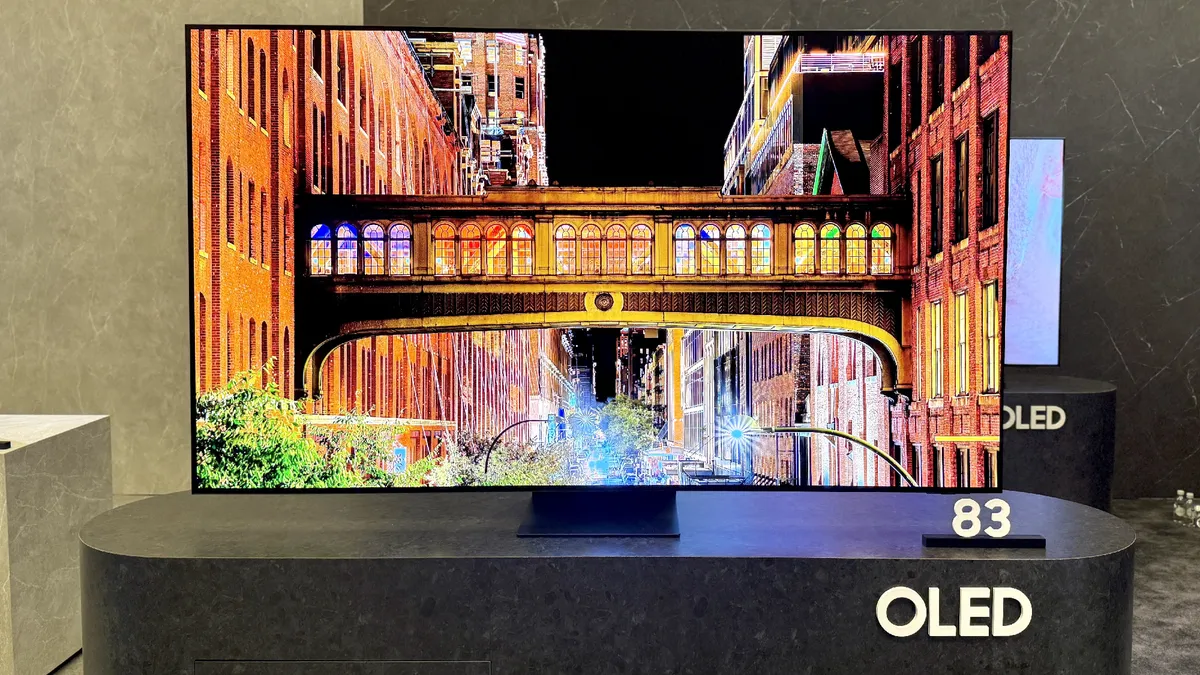
You turn your TV off every day, but that's not actually shutting it down. Smart TVs stay connected to the internet and run background processes even when the screen is black. They're in standby mode, not powered off. This means your TV likely hasn't been truly restarted in weeks or months.
A proper restart clears RAM and force-stops background processes that accumulate over time and slow performance. Most smart TVs have a restart option in system settings — look under System, General Settings, or Support depending on your brand. Then select Restart or Power Cycle and let the TV reboot completely.
If you can't find a restart option, unplug the TV from the wall and leave it unplugged for 10-15 minutes. This forces the TV to clear all temporary memory and shut down completely. Plug it back in and turn it on. It should feel noticeably more responsive.
Do this monthly if your TV starts feeling sluggish again. It's the equivalent of restarting your computer versus just closing the lid.
2. Clear cache and delete unused apps

Apps accumulate temporary files called cache that speed up loading but eventually consume so much storage they slow everything down. Streaming apps like Netflix, YouTube, and Hulu cache constantly as you watch, and most smart TVs have only 2-4 GB of total storage.
Go to Settings, Apps or Storage, select apps you use frequently, and choose Clear Cache. This removes temporary files without deleting your login information or preferences. Do this for Netflix, YouTube, Prime Video, and any other apps you use regularly.
While you're there, delete apps you haven't opened in months. Every app you remove frees storage space for the apps you actually use.
Smart TVs don't have enough storage to support dozens of apps the way phones do. Keep only what you actively use, and clear cache every few months to prevent buildup.
3. Update your TV's firmware
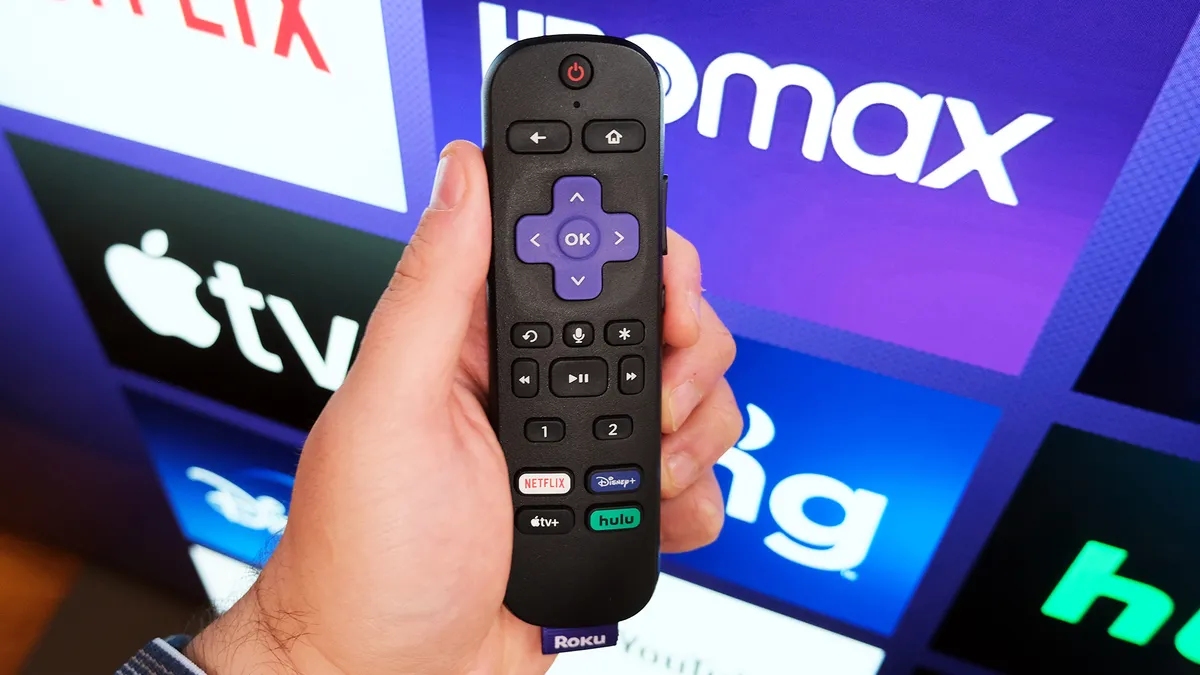
If your TV hasn't updated in months, it's running an outdated version that's likely causing problems. Go to Settings and look for Software Update, System Update, or Firmware Update — the exact wording will vary by brand. Check if an update is available and install it.
If your TV has the option, enable automatic updates. This ensures future updates install without you having to remember to check manually.
If your TV is 8+ years old and shows "no updates available," you've reached end-of-support. The manufacturer isn't releasing new software for your model anymore. At that point, consider adding a streaming device like Roku or Fire TV, which gets regular updates and runs faster than aging TV software.
4. Switch to Ethernet instead of Wi-Fi
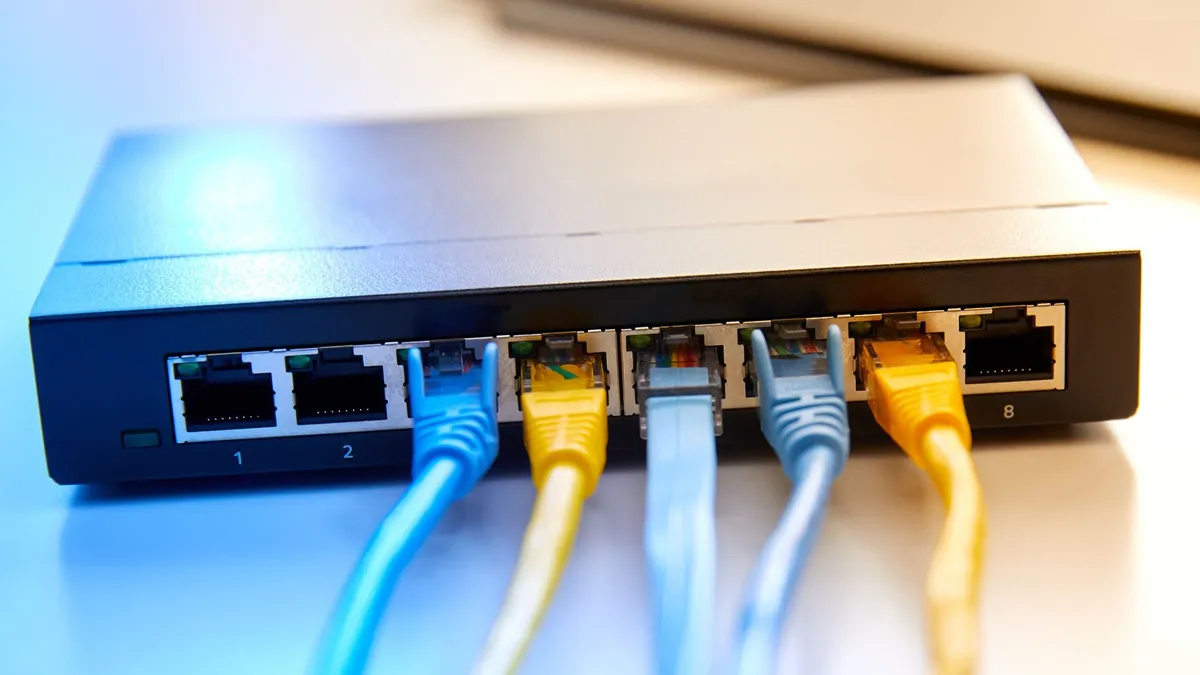
Wi-Fi is convenient, but it's also inconsistent. Walls, distance, and other devices on your network all affect signal strength — and a weak or fluctuating connection makes buffering and lag worse, even if your internet speed is technically fine.
A wired ethernet connection eliminates that variability. Your TV gets a direct, stable link to your router, which makes a noticeable difference for 4K streaming in particular.
Most smart TVs have an ethernet port on the back. If your router is in another room, a powerline adapter lets you run a wired connection through your home's electrical wiring without running a cable across the floor.
5. Factory reset as a last resort

If your TV is still slow after trying everything else, a factory reset clears all accumulated software issues and returns the TV to its original state. This is a nuclear option — you'll have to set up the TV from scratch, sign into apps again, and reconfigure all settings.
Find Factory Reset or Reset to Default in Settings, usually under System or General Settings at the bottom of the menu. Confirm you want to reset, and the TV will erase all data and restart.
After the reset completes, the TV will prompt you through initial setup as if it's brand new. Connect to Wi-Fi, sign into your streaming accounts, and reconfigure picture settings. The TV will also need to download any firmware updates released since it was manufactured, which can take additional time.
Factory resets fix persistent software problems that restarts and cache clearing don't resolve. If apps still crash after a factory reset, or if the TV remains extremely slow, the hardware is likely too old to run modern streaming software efficiently.
At that point, replacing the TV or adding a dedicated streaming device are your best options.

Follow Tom's Guide on Google News and add us as a preferred source to get our up-to-date news, analysis, and reviews in your feeds. Make sure to click the Follow button!
More from Tom's Guide

