



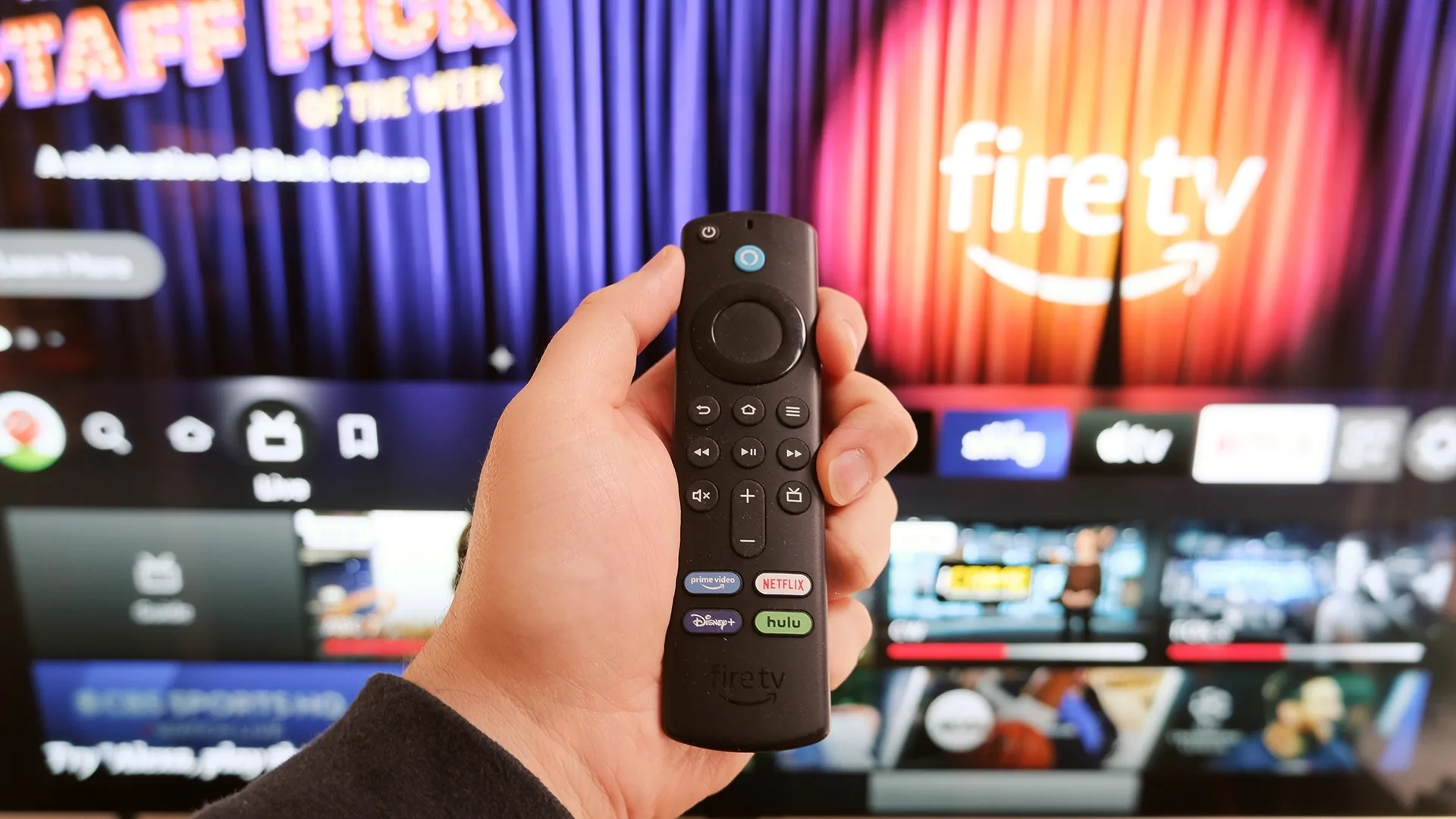
Something's wrong with your Fire TV Stick and you can't pinpoint exactly what. It still turns on, apps still open... eventually, video still plays, but everything feels wrong. Response times are off. Navigation stutters. The whole experience has degraded from smooth to frustrating.
This vague unresponsiveness is harder to diagnose than a clear error message, but the cause is usually the same: too much software running on too little memory. Fire TV Sticks have limited RAM, and when that memory fills up with cache files and background processes, performance tanks.
Most people live with the lag or buy a replacement. But three simple maintenance steps that take 30 seconds total, clear out the clutter and restore normal performance. Here's what to do.
1. Clear the cache
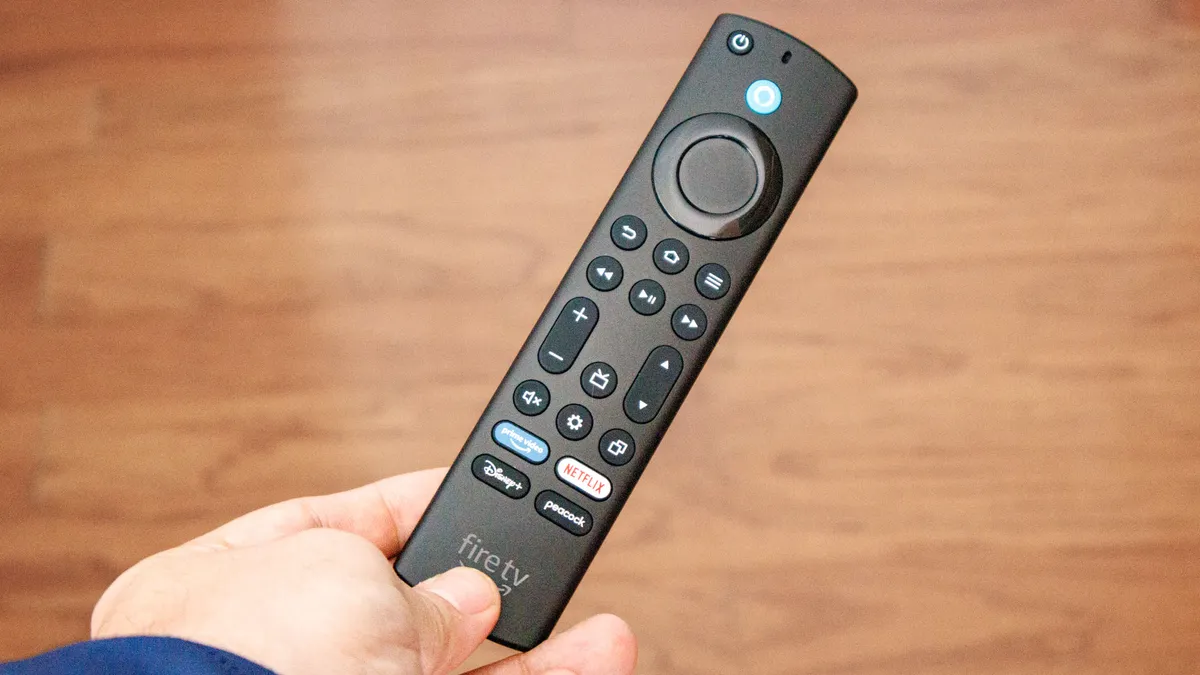
Apps like Netflix, YouTube, Prime Video, and Hulu accumulate temporary files called cache every time you use them. When cache builds up over weeks or months, it slows down both individual apps and your Fire TV's overall system performance.
Clearing cache removes these temporary files that apps don't actually need to function. This frees up memory and makes apps load faster.
Press the Home button on your remote, go to Settings, select Applications, then choose Manage Installed Applications.
Scroll through your app list and select a frequently-used app like Netflix or YouTube, then choose "Clear cache" and confirm. The cached data disappears immediately.
After cache-clearing several apps you'll notice faster load times and smoother navigation throughout your Fire TV. You could also do this monthly to prevent cache from building up again and slowing your device down.
2. Delete unused apps
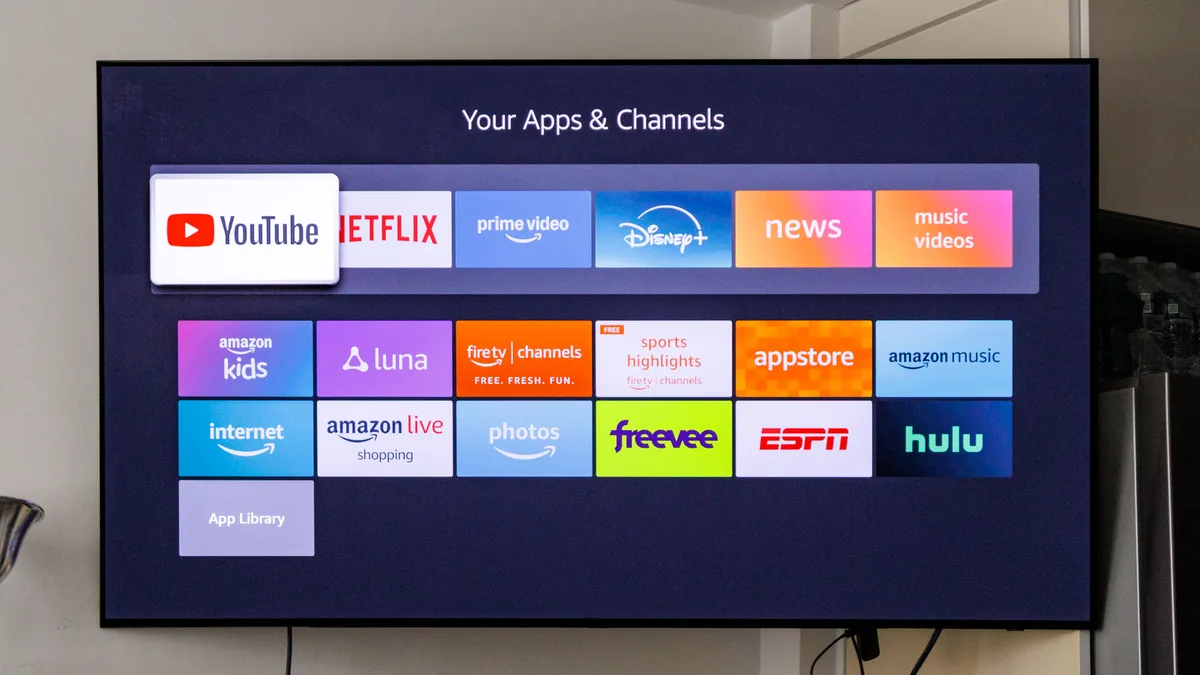
Every app installed on your Fire TV consumes storage space and often runs background services that use memory even when you haven't opened the app in months. Removing apps you don't use frees up both storage and RAM.
More free resources means better performance for the apps you actually watch regularly. The difference is especially noticeable if you've accumulated dozens of apps over time.
Navigate to Settings, Applications, and Manage Installed Applications. Scroll through the list and identify apps you downloaded but rarely or never use. Select each unused app and choose "Uninstall," then confirm. The app disappears from your Fire TV immediately.
After clearing out the clutter, your Fire TV has more memory available to handle the streaming services you actually use. Apps load faster, menus scroll smoother, and the system responds more quickly to remote commands.
3. Force stop apps running in the background
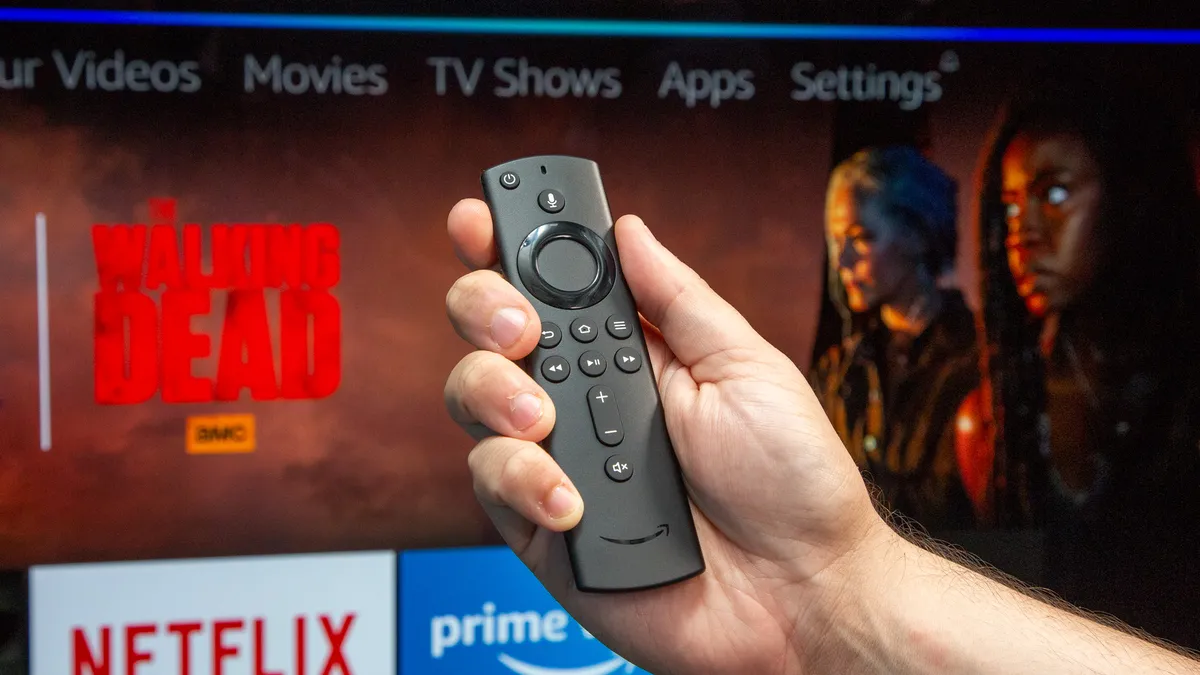
Apps you recently used often continue running in the background even after you exit them. These background processes consume RAM that your Fire TV could use for whatever you're actually trying to watch.
Force stopping background apps frees up memory immediately, giving your Fire TV more resources for active tasks.
Go to Settings, Applications, and Manage Installed Applications. Next, select an app you're not currently using but suspect is running in the background.
Choose "Force stop" and confirm when prompted. The app closes completely and stops consuming memory.
Repeat for multiple apps you're not actively watching. Force stopping doesn't delete the app or your login information, it just closes it completely so it's not eating up memory in the background.

Follow Tom's Guide on Google News and add us as a preferred source to get our up-to-date news, analysis, and reviews in your feeds. Make sure to click the Follow button!
More from Tom's Guide
- You're wasting your Fire TV Stick's potential — 7 features to enable right now
- This Fire TV stick setting causes lag — here's how to turn it off
- I discovered this Fire TV stick feature by accident — and it's a game-changer

