




Your smart home needs a spring clean too — here are 5 essential tasks you don't want to skip

Spring cleaning usually means dusting shelves, organizing closets, and washing windows. But there's one area most people overlook: smart home devices.
With 85% of homeowners now using at least one smart device in their homes, these gadgets have become essential parts of daily life, but they require maintenance just like any other household equipment.
Melissa Mohr, Senior Vice President, at Vivint, a leading U.S. security and smart home company, recommends treating smart devices as part of your spring cleaning checklist to ensure they continue working reliably and securely.
Here are five essential maintenance tasks to refresh your smart home this spring.
1. Update firmware and security patches

Smart security cameras and home devices require periodic firmware updates and security patches. Considering these updates "could potentially protect one's device from new malware or other defects," Vivint advises homeowners to avoid "snoozing updates for too long."
Many devices notify you when updates are available, but it's easy to ignore or postpone these alerts. Spring cleaning is a good time to check each device manually and install any pending updates.
Go through your smart home app, security camera settings, and thermostat controls to verify everything runs the latest software version.
Some devices update automatically when connected to WiFi, but others require manual approval. Check your device settings to enable automatic updates if available — this ensures you don't fall behind on critical security patches.
2. Inspect outdoor security cameras

Extreme weather can affect outdoor smart device functionality. Winter storms, heavy snow, temperature fluctuations, and spring winds take a toll on cameras and sensors mounted outside your home.
"Check your outdoor smart devices to ensure the light bulbs didn't go out, and no branches have grown to now block the camera view," Vivint recommends. Trees and bushes that were trimmed last fall may have new spring growth that now obstructs what the camera sees.
Wipe down camera lenses to remove dirt, pollen, and water spots that accumulate over winter. Even a thin layer of grime reduces image clarity, especially at night when cameras rely on infrared light. Use a soft microfiber cloth slightly dampened with water to do this.
3. Check and replace batteries

Many security devices and smart thermostats require batteries that need replacement. Devices may show low battery warnings in their apps, but it's easy to miss these notifications among other daily alerts.
"Test each device and ensure the batteries are fresh and/or charged," advises Vivint. Replace batteries in thermostats, motion detectors, smart locks, and wireless security cameras even if they haven't triggered low battery alerts yet. Fresh batteries ensure devices function reliably when you need them most.
For rechargeable devices like video doorbells, remove batteries and charge them to full capacity before reinstalling. This prevents devices from dying unexpectedly during critical moments when you're relying on them for security or automation.
4. Dust around sensors and devices

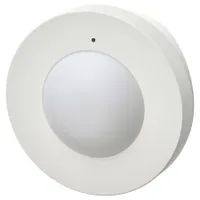
"A little dust won't disable your sensors but it's still a good idea to clear the dusty areas around them," according to Vivint. Dust accumulation can impair sensor functionality over time, especially for motion sensors, air quality monitors, and smart thermostats that have vents and openings where particles collect.
"Make sure there are no cobwebs or dust accumulations that could impair your sensors," the company advises. Check corners where sensors are mounted and remove any cobwebs that could trigger false motion alerts or block sensor openings.
It's good practice to give all of of your smart home devices a wipe down with a damp microfiber cloth, to remove any accumulated dirt.
For devices mounted near ceiling fans or air vents, dust buildup happens faster. These locations need cleaning more frequently than devices in low-traffic areas.
5. Delete old accounts and unused apps
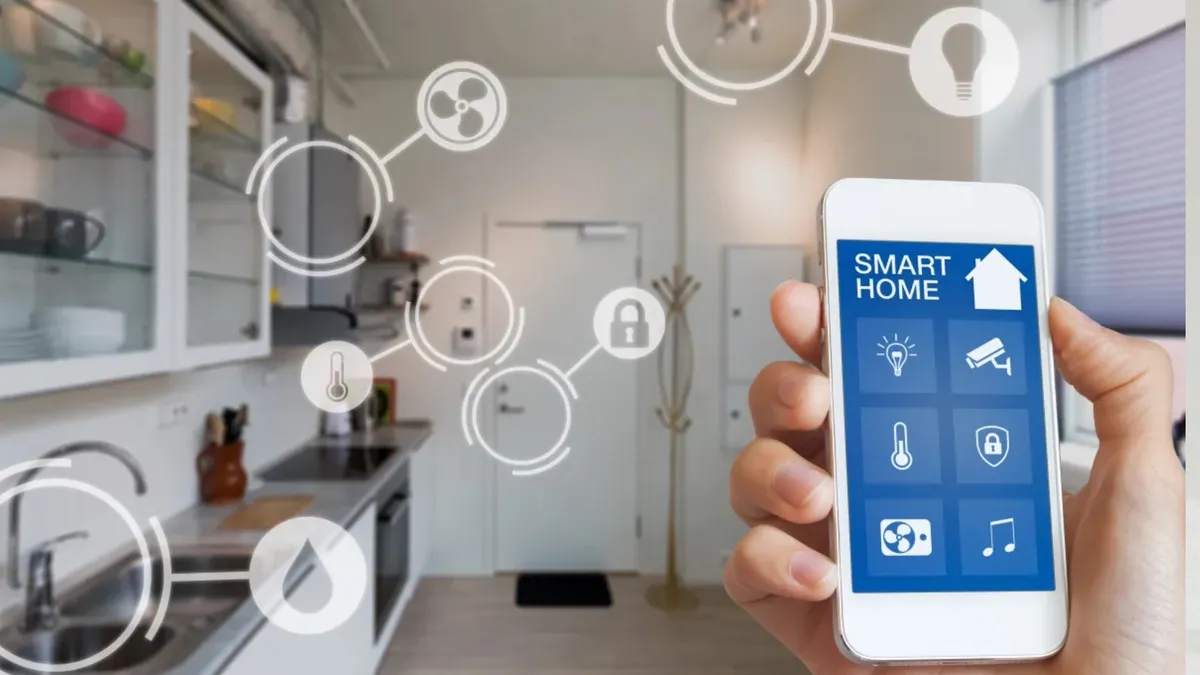
Old apps take up space and may still have access to your home network and personal data even if you haven't opened them in months. "Review apps connected to your devices and remove those you no longer use to free up phone storage," Vivint recommends.
Go through your phone's app list and delete apps for devices you've replaced, returned, or stopped using.Check which apps have permissions to access your home network, camera feeds, or location data. Revoke access for apps you don't actively use. This reduces the number of potential security vulnerabilities connected to your smart home system.
Deleting unused apps also frees up storage space and reduces background processes that drain battery life. Removing these apps improves phone performance while reducing unnecessary connections to your smart home network.

Follow Tom's Guide on Google News and add us as a preferred source to get our up-to-date news, analysis, and reviews in your feeds. Make sure to click the Follow button!
More from Tom's Guide

