



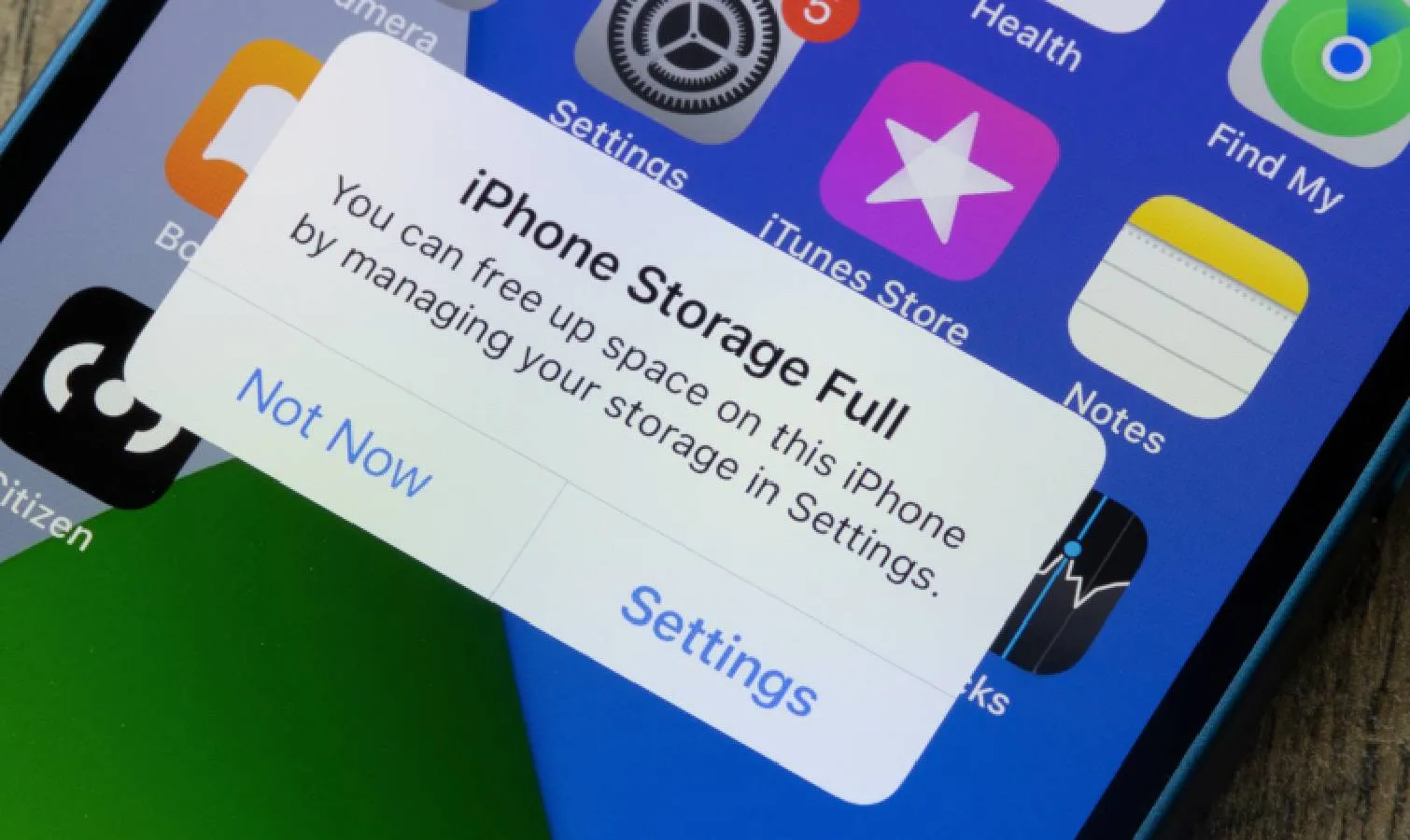
iPhone storage fills up fast. Photos, apps, videos, and downloads all compete for space, but one storage hog flies under the radar: text message attachments.
Every photo, video, GIF, and file sent through Messages gets saved to your phone automatically, even if you never intended to keep it. Group chats with hundreds of photos, funny videos forwarded months ago, duplicate screenshots — all of it sits in Messages consuming storage you didn't realize was being used.
Most people overlook message attachments since they aren’t visible like photos, but they can take up gigabytes of storage. Here’s how to find and delete them.
1. Review and delete large attachments
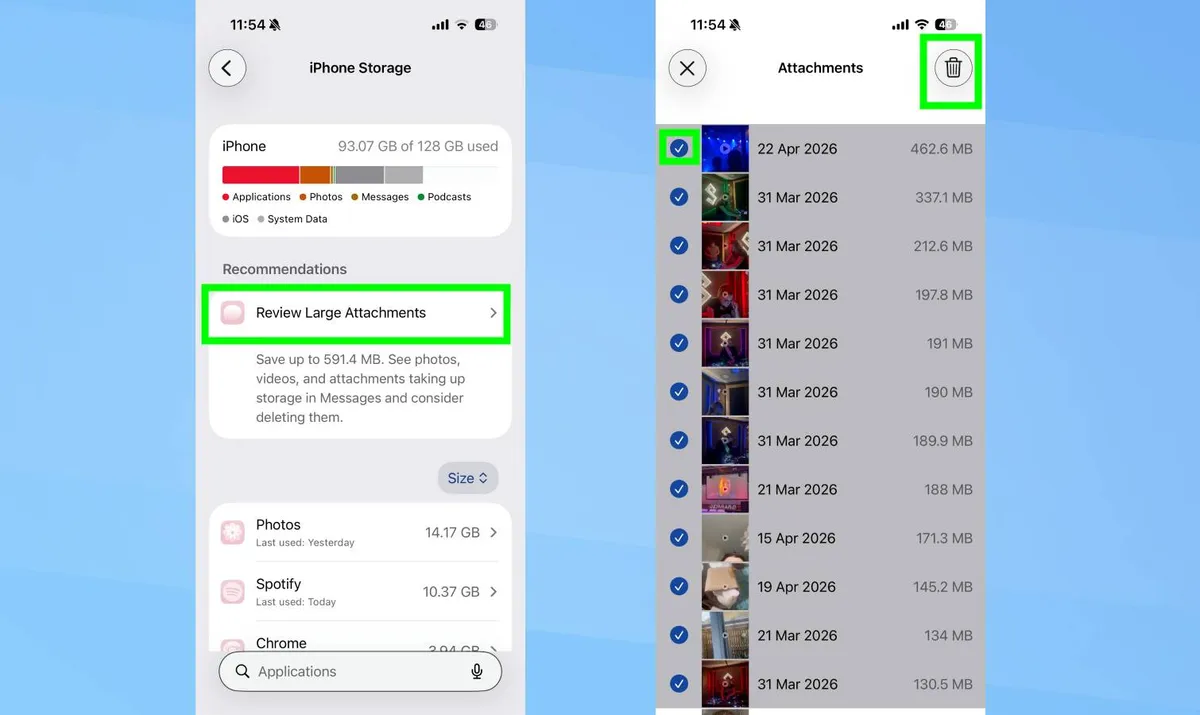
The iPhone automatically flags large attachments taking up significant storage and makes them easy to delete without removing your actual text conversations.
Go to Settings, General, iPhone Storage. Scroll down to "Recommendations" and select "Review Large Attachments."
A list appears showing every attachment stored in Messages, sorted by file size and date. This includes photos, videos, GIFs, and other files sent or received in any text conversation.
Swipe left on any item to delete it individually. To delete multiple items at once, tap "Edit" in the top right corner, select everything you want to remove, then tap the trash icon.
Check this list regularly if you're in active group chats or frequently receive media through messages. Storage builds up faster than you'd expect.
2. Delete attachments from specific conversations
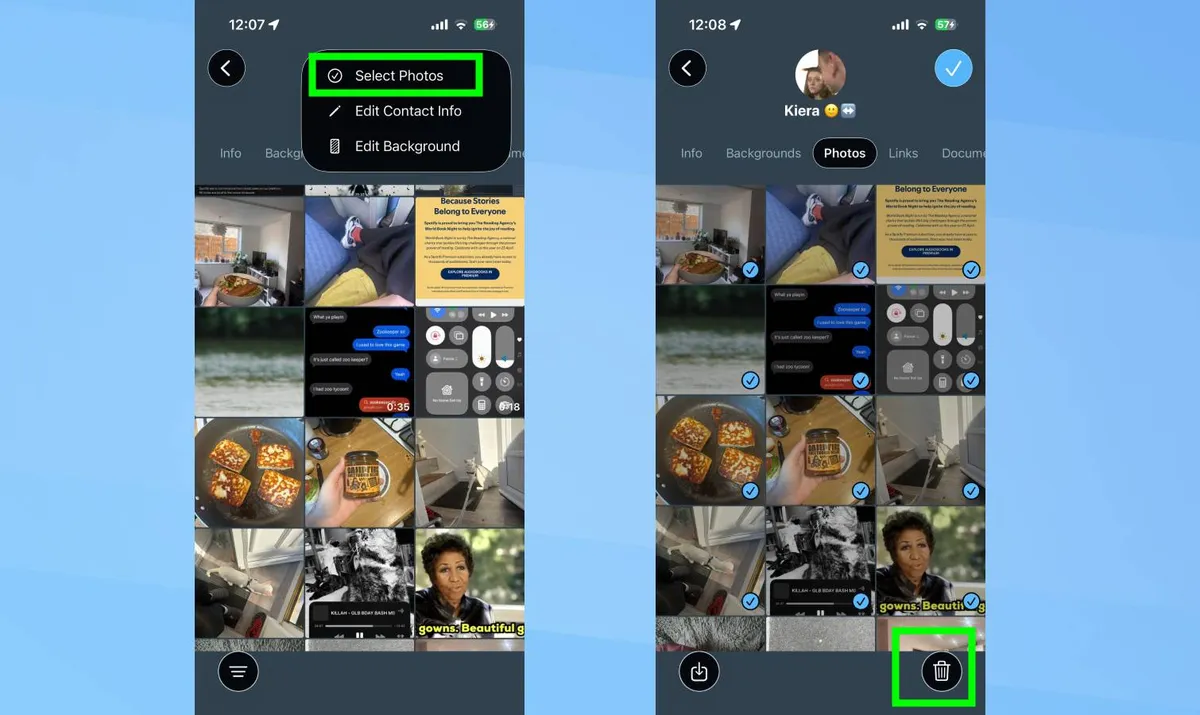
If you know which conversations contain the most media, you can delete attachments directly from individual text threads instead of scrolling through the master list.
Open Messages and select a conversation. Tap the contact name or group name at the top of the screen.
Select "Photos" to see all images sent and received in this conversation, or tap "Links" to see files and other attachments. Tap Edit and Select Photos, choose the items for deletion and tap the trash can to confirm.
This method works well for group chats filled with memes, family threads with long videos, or any conversation where media has accumulated over months.
3. Set messages to auto-delete
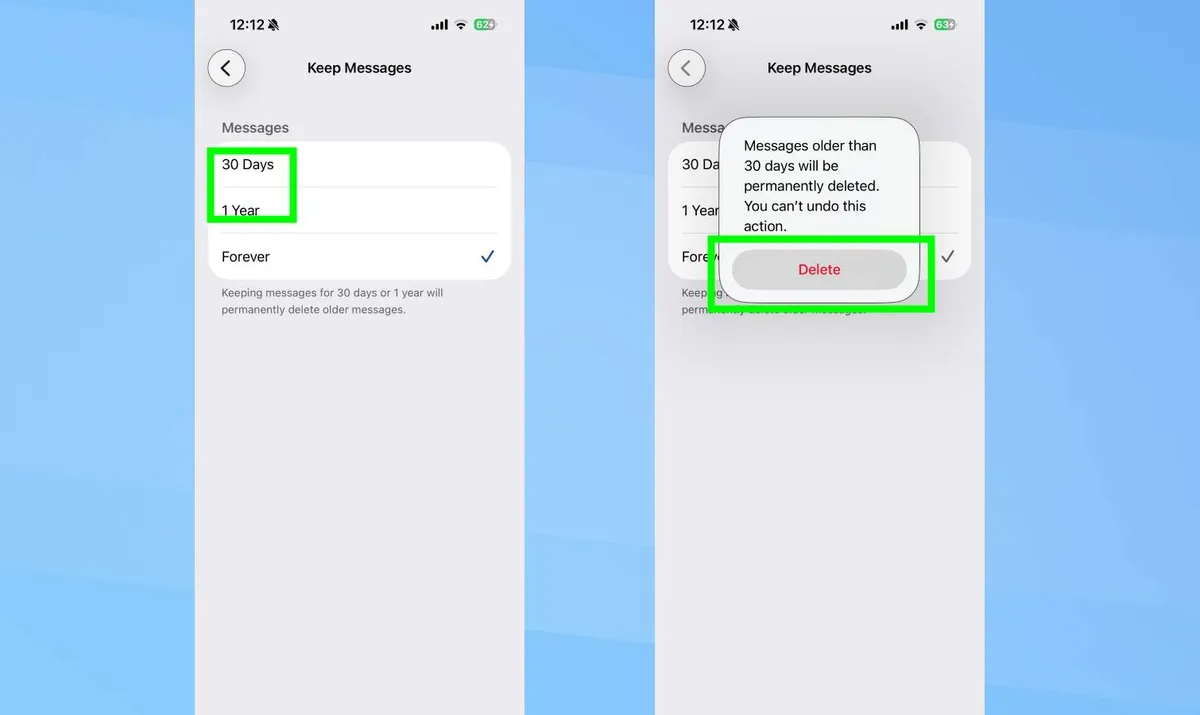
Instead of manually clearing storage every few months, you can set Messages to automatically delete old conversations and their attachments after a specified time period.
Go to Settings, Messages, and Keep Messages. Then simply choose how long to keep your messages: 30 Days, 1 Year, or Forever.
Selecting "30 Days" or "1 Year" automatically deletes messages and all their attachments once they exceed that age. This keeps your Messages app from growing indefinitely and consuming increasing storage over time.
When you first change this setting, iPhone asks if you want to delete messages older than your selected timeframe immediately. Confirm to free up storage right away, or cancel to only apply the rule going forward.
Protect your iPhone

Follow Tom's Guide on Google News and add us as a preferred source to get our up-to-date news, analysis, and reviews in your feeds. Subscribe to Tom's Guide on YouTube and follow us on TikTok.
More from Tom's Guide

