







"Can you turn it up? I can't hear what they're saying." If you've said this (or heard it) more than once this week, your TV is failing you.
The culprit here is the race to go thinner. Every year screens get sleeker and flatter, and every year the speakers get more compromised — shoved into shallower cavities, firing in the wrong direction, unable to fill a room with anything but a thin, reedy imitation of sound. This isn't just budget sets, even the best OLED TVs can have issues with audio.
You don't, however, need to buy anything to fix it. These adjustments cost nothing and take minutes. If all else fails and speech is still hard to follow after trying them, turning on closed captions is always a reliable fallback.
1. Enable dialogue enhancement mode
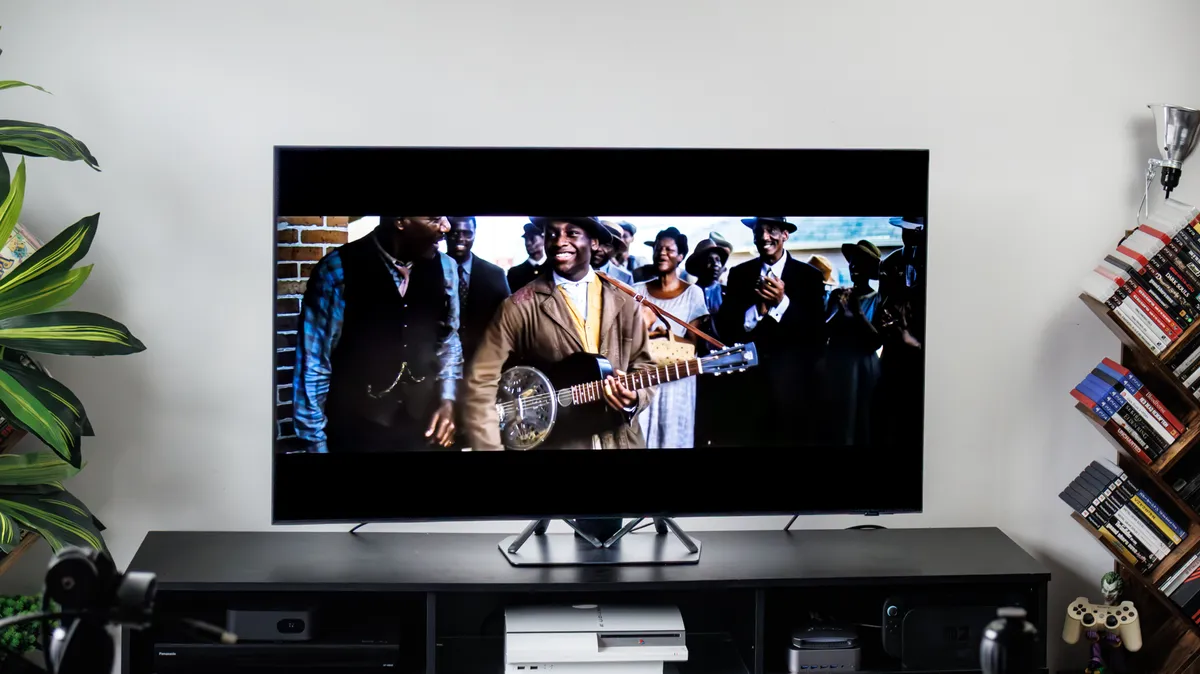
Most TVs have a setting designed specifically to make voices cut through, it just tends to be buried where you'd never stumble across it.
Look in your Audio or Sound settings for anything called Speech Boost, Clear Voice, Dialogue Enhancement, or Speech Clarity. If you find a toggle, switch it on and test it with a show that's heavy on dialogue.
Some TVs separate this into a dedicated "Speech Mode" or "Clear Voice" sound profile instead of a toggle. Try different profiles, Movie, Standard, Speech, and so on, and see which one makes dialogue clearest on yours.
2. Adjust the equalizer to emphasize midrange
If your TV has an equalizer (EQ), you can nudge the sound yourself rather than relying on whatever the TV thinks sounds good.
You'll usually find it buried under Audio or Sound in the settings menu. Once you're in, you'll see sliders for bass (low), midrange, and treble (high). Voices live in the midrange, so the goal is making that range stand out.
A good starting point is pulling the bass down a little, bringing the treble up slightly, and if there's a dedicated midrange slider, nudge that up too. You should hear a difference straight away. If it sounds worse just reset to flat and try again.
3. Check audio settings on your streaming device
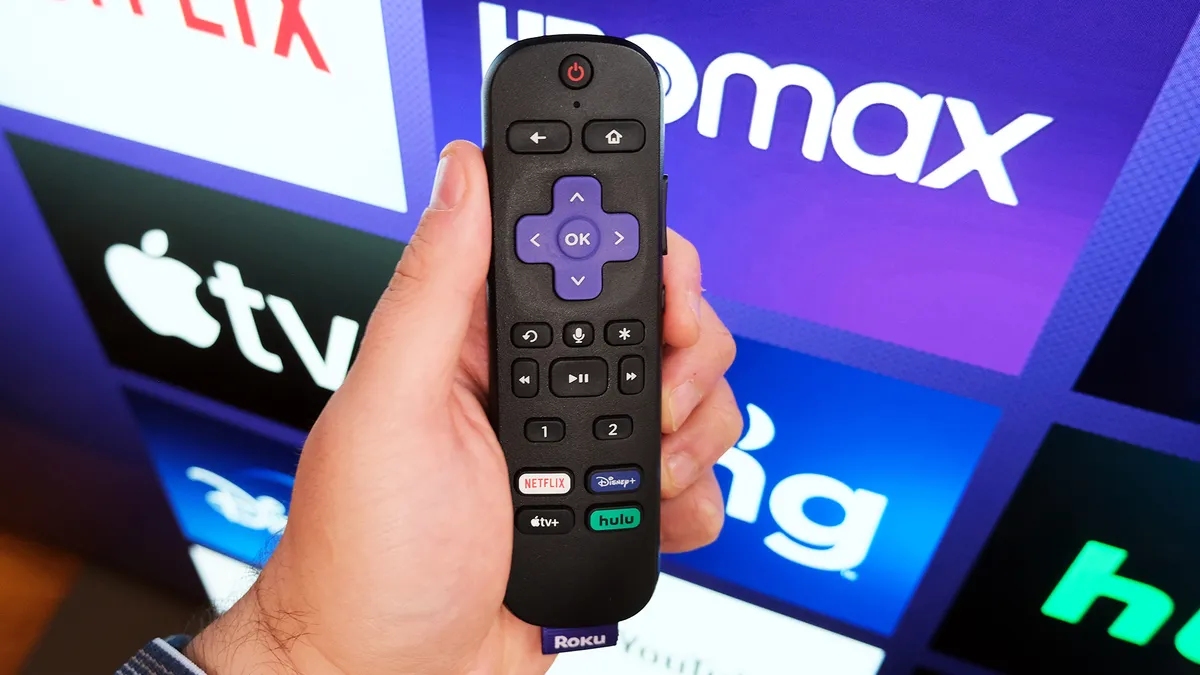
Streaming sticks, cable boxes, and game consoles are often set up to play "surround sound" by default, the kind designed for a full speaker system. When your TV tries to handle that with just its two built-in speakers, dialogue can get muddy.
Dig into the audio settings on whichever device you're streaming from and look for the sound output option. Then simply switch it from "surround sound" or "auto" to stereo (sometimes called "PCM stereo"). This tells the device to send audio your TV was actually built to handle.
One more thing worth checking: some streaming apps have their own hidden audio tricks. Amazon Prime Video, for example, has a Dialogue Boost option buried in its player settings. It's not available on everything, but when it is, it's worth turning on.
4. If possible, reposition your TV
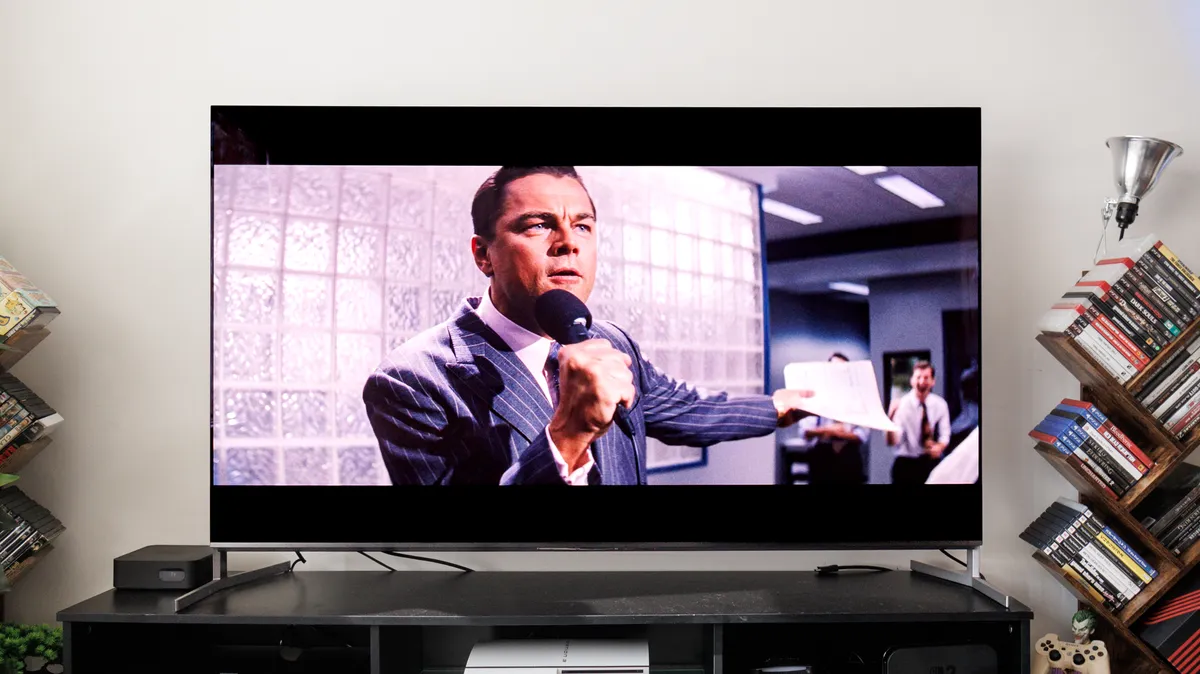
It sounds obvious, but where your TV sits has a big impact on how it sounds, and most people never think to question it.
Most TV speakers fire backwards, pushing sound toward the wall behind the TV, which then bounces out into the room. If something's blocking or absorbing that bounce, voices get muffled before they reach you.
A flat wall behind the TV works best. Cabinets, shelves, and enclosed entertainment units trap sound instead of reflecting it — so if yours is in one, try sliding it forward to the front edge. Even a few inches helps.
If it's on a stand, nudge it closer to or further from the wall while something's playing and listen for the difference. Corners are the worst spot of all as sound bounces off at odd angles and much of it never reaches you.
5. Enable automatic volume control
Movies and shows vary wildly in volume. Dialogue scenes are quiet, forcing you to turn up the volume, then action sequences or commercials blast you out of your seat.
Many TVs have a setting that handles this for you, quietly keeping loud moments in check and lifting quieter ones so dialogue stays consistently audible. Look for it under names like Auto Volume, Volume Leveling, Night Mode, or Dynamic Range Compression.
The downside is volume can "pulse" slightly during scenes as the TV adjusts levels constantly. Some people find this distracting. But if you're constantly reaching for the remote to adjust volume, this feature — along with the four features mentioned above — should significantly improve the experience.

Follow Tom's Guide on Google News and add us as a preferred source to get our up-to-date news, analysis, and reviews in your feeds. Make sure to click the Follow button!
- This smart TV setting is ruining your picture quality — turn it off now
- 3 OLED settings you should've enabled already — they prevent burn-in
- Your TV probably has a microphone in it — here's how to turn it off

