







One of my nightly rituals is to binge my way through shows or movies while in bed, whether that be on my phone, laptop or TV. But in VR? Well, the Meta Quest 3 didn't offer that chance for a long time.
With Meta pushing streaming shows on its VR headset via the Horizon TV hub, it makes sense for the Quest 3 and Quest 3S to be the go-to device that owners reach for to get a personalized cinematic experience when watching the most binge-worthy shows on Netflix, Prime Video, Disney+ and the rest.
But it doesn't quite have the same appeal of kicking back on a couch or bed while watching many of the Golden Globes 2026 winners on one of the best TVs. I mean, sitting upright with a chunky VR headset for an hour or two isn't exactly comfortable (and it kind of gets in the way of the all-important popcorn and drinks).
How about lying flat with your head on a pillow for supreme comfort, though? Point a projector at the ceiling, and you can do just that. But in VR, it would make for the ultimate viewing experience. Originally, the Quest 3 and Quest 3S weren't able to do this due to restrictions, forcing you to watch shows head-on. But a simple feature broke those shackles.
If you're looking for a new way to use your VR headset and adore movie marathons or binging your way through series in bed, I've tried the aptly named Lying Down Mode on the Quest 3, and it works a treat for watching the latest shows and using VR apps.
Bingeable comfort

While Lying Down Mode on Meta Quest headsets isn't anything new (it arrived in 2025), it's an underrated feature that can finally give you the freedom to view media or try out VR apps the way you want.
The Quest 3 and 3S are designed for movement, abiding by the laws of gravity so you don't feel disoriented. By that, I mean the orientation of the VR headsets is restricted to always facing forward. Even when you hold the Meta button to reset your view while looking up or facing down, the headset will always target a forward-first direction.
With Lying Down Mode enabled, though, you can finally fix the orientation to where you want. As a fine example, when resetting the view while lying in bed facing the ceiling, the Quest 3 will now think the ceiling is "forward," and the head of my bed is "up."
It's an extremely simple change, but it's one I've now used to satisfy my binge fix before hitting the sack. I recently tuned into "Tron: Ares" using the Quest 3, and it was pure joy seeing all the red Light Ribbons tear their way through the city on a massive virtual screen — all while my head lay in comfort.
Sure, there isn't the same level of detail as on an OLED TV like the Samsung S90D in my room, but having a personal theatre on my face (and not to disturb my partner sleeping with flashing lights) is a real benefit. No one's disturbed, and I'm happily catching up with shows.
It also helps that I've attached the Kiwi Design K4 Duo heatstrap that adds up to three hours of battery to the Quest, and it also offers immersive audio with 40mm drivers for clear, surround sound. It just builds on to that cinematic effect.
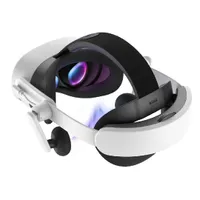
With Lying Down Mode enabled, it's just another way of getting full use out of your Quest 3 or Quest 3S, and is well worth it for anyone after a comfy way to check out the latest series, movies or videos in your own virtual cinema. And if you haven't tried it yourself, it's incredibly easy to enable.
How to enable Lying Down Mode on Meta Quest
If you're looking to give Lying Down Mode a try, it's extremely simply to enable on your Meta Quest 3 or Quest 3S. It's still classed as an experimental feature, but it works just as intended.
Follow the instructions below so you can get watching while staying comfy.
1. Open Settings

On your Meta Quest headset, select Quick Settings (next to the profile icon on the menu bar). In this window, choose Settings in the upper-right corner.
2. Head to Experimental options

Next, scroll through the option in the left-hand sidebar and click on Experimental.
3. Enable Lying Down Mode

Finally, scroll down until you see "Use apps while lying down." Toggle the switch to enable Lying Down Mode. To disable it, you can just as easily toggle the switch off.
There you have it. Now, you'll be able to lie down, look up at the ceiling while in bed (or anywhere else) and hold the Meta button on the right Touch Plus controller to reset your view and carry on without any problems.
It's just one of the many ways to fully utilize what the Meta's latest VR headsets have to offer, along with these other five apps to try first on your Quest 3. Looking to try it yourself or aren't a fan? Let us know your thoughts!

Follow Tom's Guide on Google News and add us as a preferred source to get our up-to-date news, analysis, and reviews in your feeds.
More from Tom's Guide

