Chrome is getting a trio of upgrades designed to help you be more productive: spilt view, PDF annotations and Save to Google Drive. All three appear to be available right now.
Annotations and save to Drive are specifically for PDFs, which we'll cover below. Split view, however, changes how you use tabs and view sites in the browser.
Google announced the new features in a blog post, saying they were developed for both everyday and business users. Here's what they do.
What Split View does

My colleague, Anthony Spadafora, tested out split tabs back when it was still in beta and came away quite impressed with the feature calling it a "browser breakthrough."
"Split Tabs provides a whole new way to browse that, as a long-time Chrome user, has really impressed me so far," he said.
Simply put, split view lets you put two tabs together so you can look at condensed versions of two websites side by side. In your browser, they're also put in the same tab so you can move the double tabs to a new window if you need to.
Now, you can bounce back and forth between the two tabs without having to actually open them or split them between two windows. Within the double tab, you can close one when you're done or separate it once you need more space.
To access it, right-click a tab you're using and click "Add tab to new split view." From there, you can either have it open a blank window that you can use to search or select another open tab to add it to the split view.
PDF Annotations and Drives
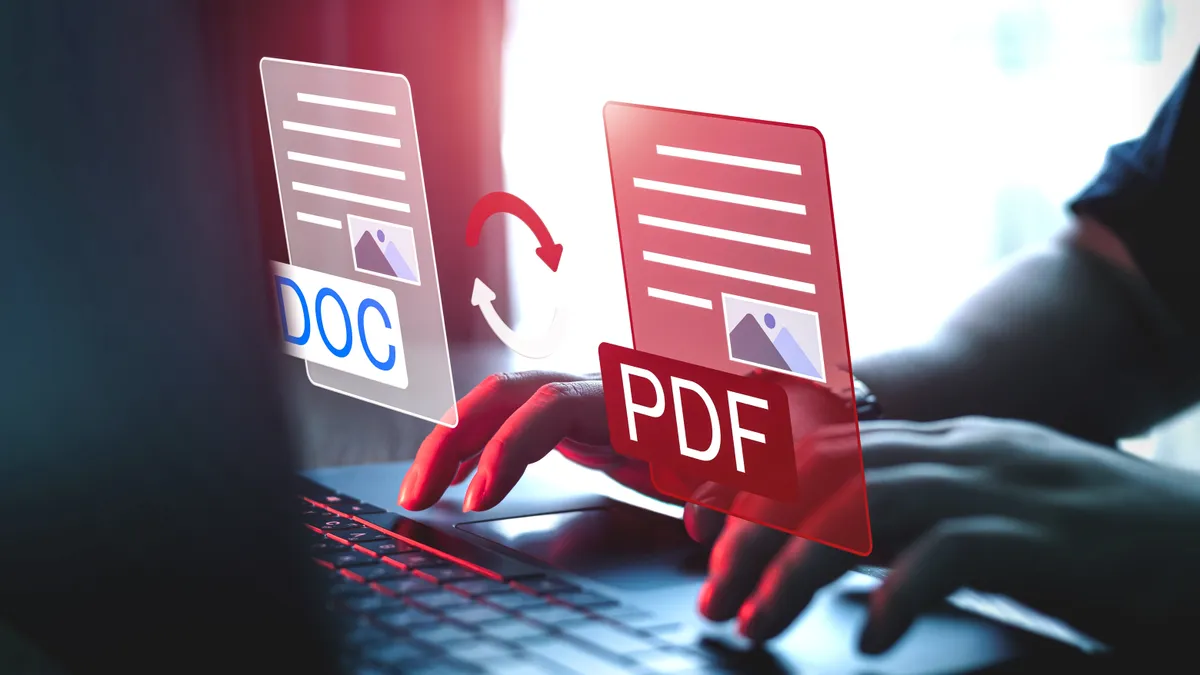
The other two upgrades are smaller but PDF-focused and should make editing and saving documents much easier when looking at them in Chrome.
Annotations allows you to highlight text and notes directly in a PDF in the browser. For example, you can use it to e-sign a document without opening a new program or build the feature into a PDF.
To access annotations, you can click the new icon that looks like a squiggly line in the tool bar. Once open you can change the color of your notes and the type of tool you're using.
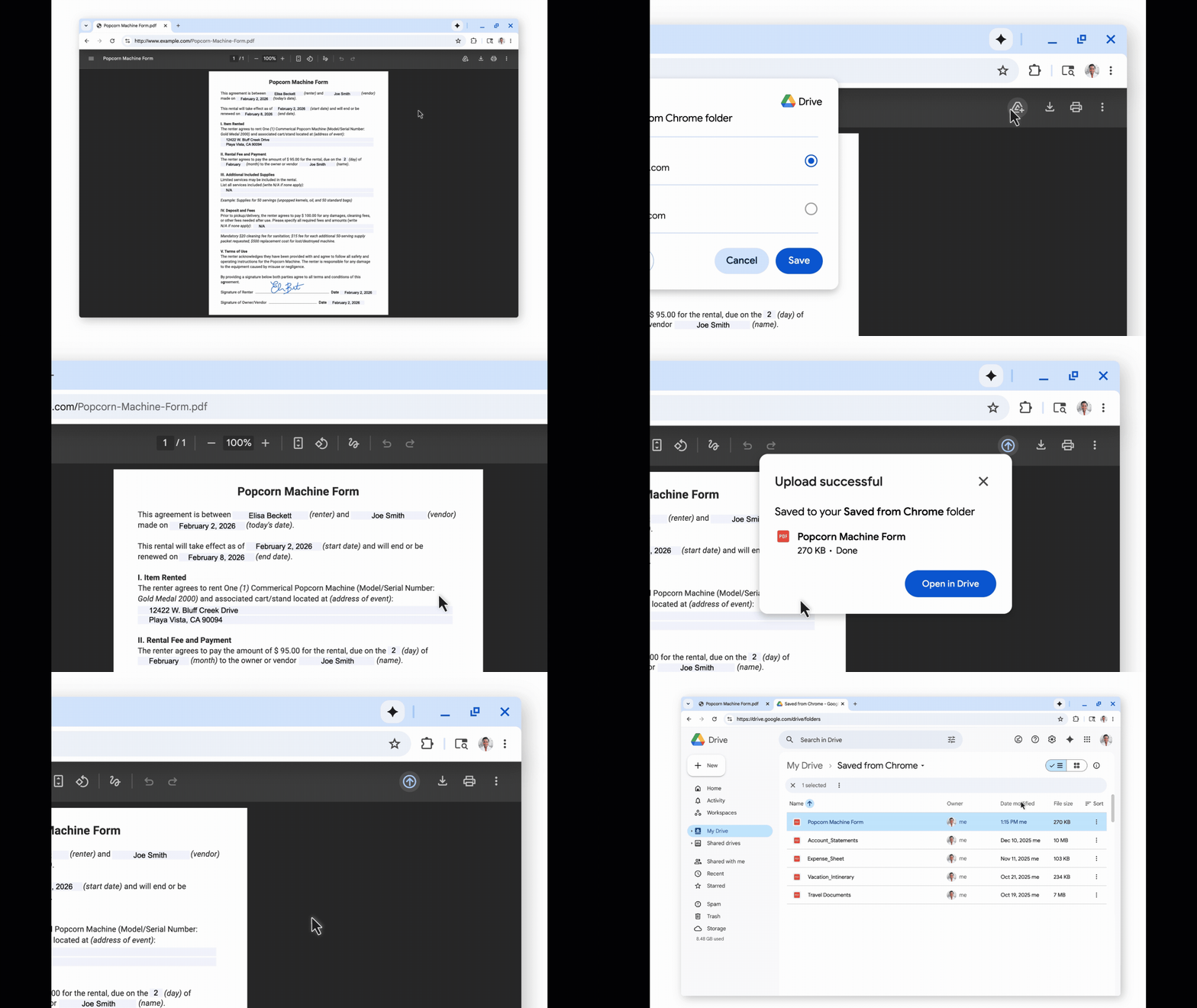
"Save to Google Drive" lets you save a new PDF directly to your Drive folders without downloading it and reuploading it. When looking at a PDF in Chrome you should see a Drive button with a plus symbol in the tool bar. Clicking that will allow you to automatically save the document.
These saved PDFs will be sent to a dedicated "Saved from Chrome" folder.
All three features are available in Chrome now. If you aren't seeing them, try to updating your browser to the latest version.

Follow Tom's Guide on Google News and add us as a preferred source to get our up-to-date news, analysis, and reviews in your feeds.
More from Tom's Guide