






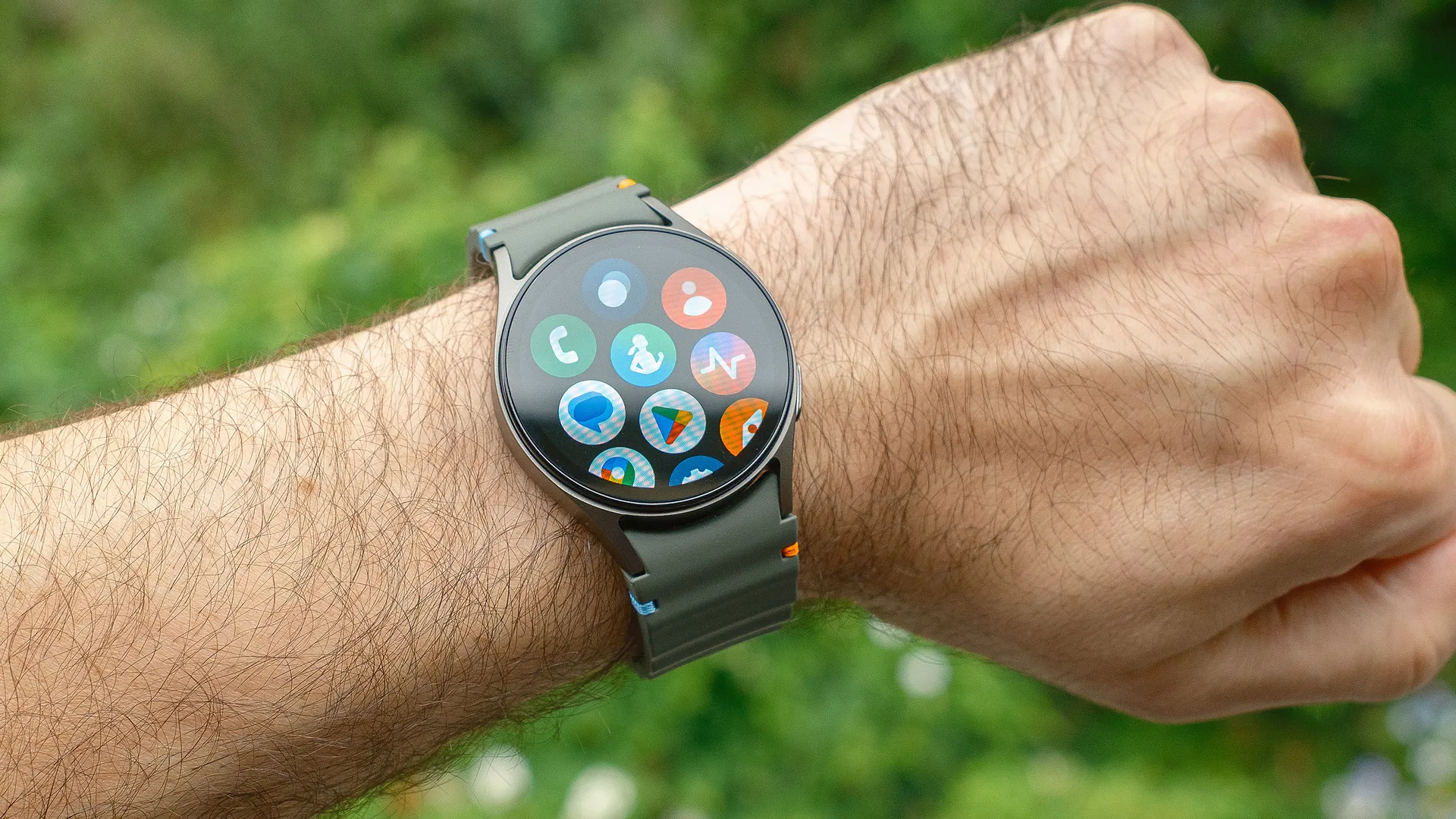
When you first unbox your new Android smartwatch, the Google Play Store offers hundreds of apps to choose from. It's tempting to start downloading everything that looks interesting, but even the best Android smartwatches need the right apps to unlock their full potential.
Instead of overwhelming yourself with options, start with these three essential apps that cover the core functions most people actually use their smartwatch for: staying organized, tracking fitness and controlling music. These apps give you a strong foundation before you start exploring more specialized options.
Here's why these are the most essential Android smartwatch apps to install first.
1. Spotify for music control

Spotify's Android smartwatch app gives you full music and podcast control from your wrist, which is essential whether you're working out, commuting, or just don't want to constantly reach for your phone. You can play, pause, skip tracks, adjust volume and browse your playlists, liked songs and recently played content.
The watch app also shows album art and song information, making it easy to see what's currently playing at a glance. If you have a smartwatch with LTE connectivity and Spotify Premium, you can download playlists directly to your watch and stream music without your phone nearby.
Even without Premium, the app lets you control playback on your phone or any connected device.
2. Strava for fitness tracking
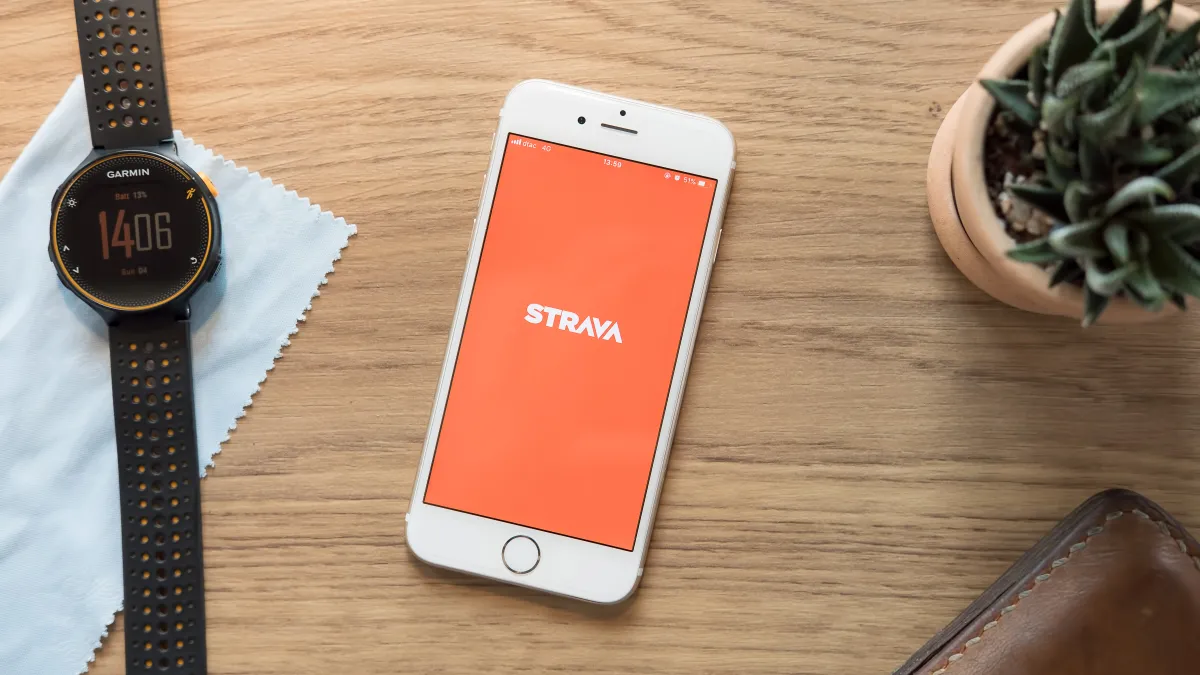
Strava is essential if you run, cycle, walk, or hike regularly. The Android smartwatch app lets you track activities directly from your wrist using your watch's built-in GPS, which means you don't need to carry your phone.
Strava records your route and collects metrics like pace, distance, time and heart rate. The watch app has large, glove-friendly buttons and haptic feedback for starts and stops, and it automatically pauses recording when you stop moving.
After you finish, everything syncs to the Strava mobile app, where you get a complete summary of your stats and route map. While you can't engage with Strava's social features like the activity feed or leaderboards from your watch, having workout tracking available on your wrist provides the convenience and motivation to stay active.
3. Google Keep for notes and reminders

Google Keep is one of the most practical apps for your Android smartwatch because it lets you capture ideas, set reminders and manage lists without pulling out your phone. Voice input is the standout feature here, as you can dictate notes while driving, running, or anytime your hands aren't free.
You can create both simple notes and lists like groceries or to-dos, then check items off as you complete them and set time or location-based reminders. Google Keep integrates with your watch's tiles and complications, making it even more accessible.
Swipe to a Keep tile to create a new note instantly, or add a specific note as a tile so crucial information is visible whenever you glance at your watch.

Follow Tom's Guide on Google News and add us as a preferred source to get our up-to-date news, analysis, and reviews in your feeds. Make sure to click the Follow button!
More from Tom's Guide
- How to hit your daily step goal without going outside
- I'm obsessed with the free offline navigational tools on this smartwatch
- 7 best Apple Watch features you're probably not using

