Did you just get a new Apple Watch under the tree? Excellent! You now own one of the best smartwatches out there, packed with features to track and improve your health and fitness, keep you safe, allow you to stay connected with loved ones, and help you remain organized.
The latest Apple Watch SE 3, Apple Watch Series 11, and Apple Watch Ultra 3 each offer so many features — courtesy of Apple's watchOS 26 operating system — it’s hard to decide which to check out first.
That’s where I come in. I’ve been reviewing Apple Watches for years, and I’m constantly evaluating the latest refinements, from new gesture controls to potentially life-saving holistic tech. With that in mind, here are the seven Apple Watch features I recommend checking out first.
1. Daily Sleep Scores

You don’t even need to have one of the best Apple Watch models (i.e., the latest devices) to unlock Apple's daily sleep scores. Apple added this handy metric, on a scale from one to 100, via software release in the fall of 2025. Here’s a step-by-step guide to enabling your Apple Watch sleep score.
The score is determined by a combination of factors, including the consistency of your bedtime, the amount of time you’ve spent asleep, your percentage of sleep time spent in various sleep cycles, and any sleep disturbances.
These metrics are included in your daily sleep report along with the numeric sleep score. Note: Sleep tracking can take a few weeks to properly calibrate
2. Sleep apnea detection
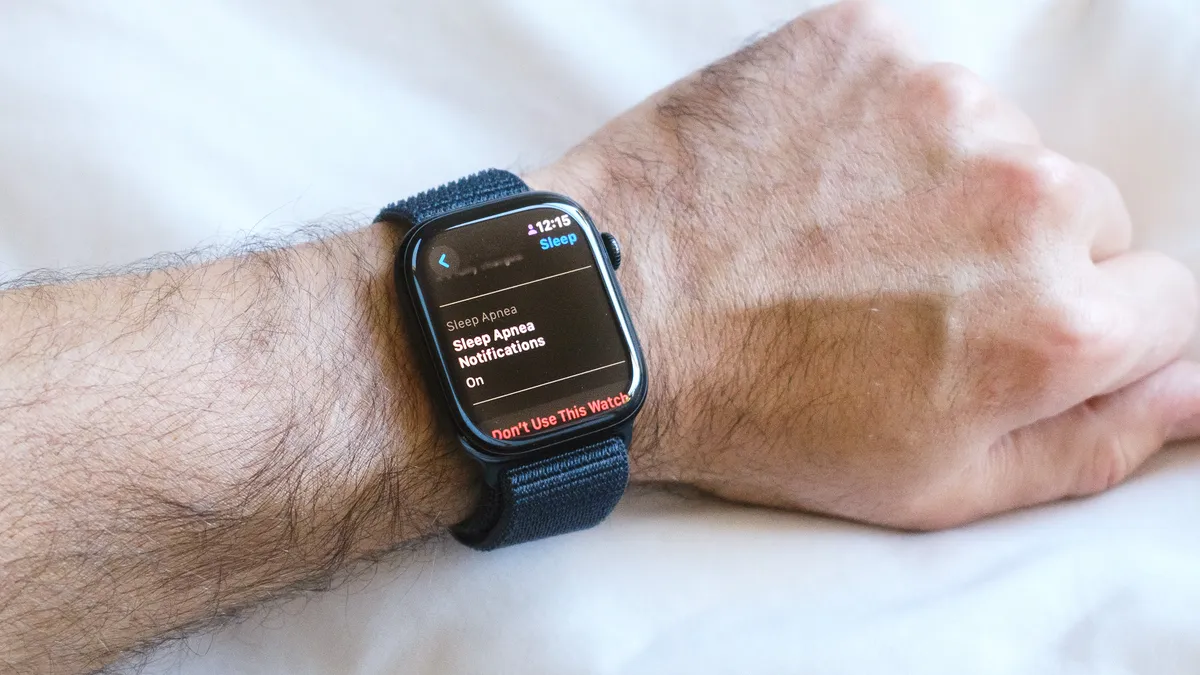
Speaking of sleep, all three of the latest Apple Watch models — along with several older ones, like the Apple Watch 9, the Series 10, and the Ultra 2 — support sleep apnea detection.
This fairly common condition, where users experience unusual or obstructed breathing patterns, is difficult to diagnose and frequently goes unnoticed. However, it can lead to serious health issues down the line
Apple’s sleep apnea detection is not meant to diagnose the condition, but rather alert users to potential signs that they might have it, with the recommendation to seek further medical analysis by a healthcare professional.
For the feature to work, you’ll need to first turn on sleep apnea detection, and then wear your new Apple Watch for at least ten nights in 30-night period. Remember, a sleep apnea notification doesn’t necessarily mean you have it, but it does mean that you should talk to your doctor.
3. Wrist flicks

Apple’s latest gesture control, wrist flick, is a simple and effective method for dismissing incoming calls, notifications, alarms, or timers with, you guessed it, a flick of the wrist. Best of all, it’s super easy to switch on. Here’s how to enable wrist flicks on your Apple Watch in just four steps.
4. Notes app

Tim Cook and Co. finally brought the Notes app to the Apple Watch in 2025, and it’s a simple yet effective tool for staying organized and recording important tidbits of info while on the go.
Best of all, all of the Notes you’ve saved on your other Apple devices are accessible from the Apple Watch Notes app, though you won’t be able to edit them. What you can do is start a new note and/or edit any notes created via the Apple Watch.
I find dictation to be the quickest and easiest way to capture my ideas in the Apple Watch Notes app, but you can also type them in with the tiny keyboard or draw them in letter by letter.
5. AI fitness coaching

While all of the latest Apple Watch models support Apple’s new personalized fitness trainer, Workout Buddy, you’ll need to have your watch paired with one of the latest-gen handsets (iPhone 15 Pro or newer) to get the most out of this AI-powered tool.
Once Workout Buddy is enabled, it uses Apple Intelligence to analyze your physical fitness data and trends. The result is highly customized training advice and plans, along with real-time audio feedback and motivational messages while you sweat.
As of writing, Workout Buddy can help coach you during the following activity types: outdoor and indoor walks, outdoor and indoor runs, outdoor bike rides, traditional and functional strength training, and HIIT.
6. Hypertension alerts

The Apple Watch SE 3 unfortunately doesn’t support hypertension alerts, but the Apple Watch Series 9, 10, 11, Ultra 2, and Ultra 3 all do. A first-of-its-kind wellness monitoring tool for a smartwatch, it works by monitoring your blood vessel response over thirty days using the optical heart rate sensor.
Note: Apple says the feature is only for users over 22 years of age, those who aren’t pregnant, and folks who have never been diagnosed with hypertension.
Similar to sleep apnea detection, hypertension alerts are not intended to diagnose any conditions (it’s also not a blood pressure monitor) but instead alert users to potential signs of hypertension. If you do get a hypertension alert, don’t panic, but do mention it to your doctor.
7. Auto volume adjustments

Last but not least, I recommend enabling Apple’s new automatic volume adjustment feature as soon as you get your new Apple Watch unboxed and charged up. This useful bit of tech continuously monitors the ambient noise levels in your environment and adjusts the output volume of the watch accordingly.
For example, if you’re in a library and receive a text, the watch will make sure that the notification is only loud enough to alert you but not others around you. On the flip side, if you’re having a phone conversation using your Apple Watch on a city street and a firetruck roars past, the audio levels will automatically be increased.

Follow Tom's Guide on Google News and add us as a preferred source to get our up-to-date news, analysis, and reviews in your feeds.
More from Tom's Guide
- 5 biggest wearable tech predictions for 2026 — from new Fitbits to the ever-elusive Apple Ring
- 5 reasons why the Apple Watch SE 3 is the smartwatch I recommend most
- Garmin vs Apple — who makes the better smartwatch?