




Even with a massive 40-inch ultrawide monitor on my desk, one screen just never seems to be enough — at least for me, anyway. So instead of adding yet another monitor, I decided to up the ante to five displays as a final send-off to one of my favorite desk setups yet.
I wasn’t always like this. Years ago, I could get by with just one of the best monitors and be perfectly content. However, after joining the Tom’s Guide team, side-by-side windows for reading and writing just didn’t cut it anymore. I had to keep up with work chats, too.
If you’ve followed the evolution of my desk setups, you know the story: I added a smart display under my ultrawide, then swapped it for a portable monitor. While that was great for Windows and macOS, I missed having Alexa Plus and Gemini just a tap or a shout away.
As I prepare to break down my non-conventional triple-monitor setup, I’ve added two of the best smart displays for its final hurrah. Here’s how things spiraled out of control in the first place and what it was actually like to use a "screenmaxxed" desk setup for the past week.
The obvious conclusion

Back when I first built and reviewed the Uplift V3 standing desk, I only had a single monitor on my desk with the Framework Desktop next to it. At the time, I mainly used that desk to play PC games since Framework’s first mini PC is a surprisingly capable gaming machine despite not having a dedicated GPU.
As part of my work reviewing the best mini PCs though, I swap computers quite frequently and of course, a new machine warrants a new desk setup. I really tried to keep things simple with a single ultrawide monitor and the Geekom A9 Max front and center.
Then late one night though, I realized that if I turned a 16-inch portable monitor sideways, it was almost the exact dimensions of my ultrawide’s screen from top to bottom. Naturally, I had to try this out for myself and unsurprisingly, I absolutely loved it. As you can see in the picture above, I still had some unused desk space on the right side of my desk.
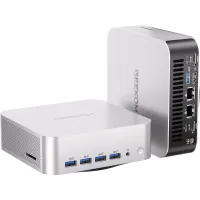

After meeting with Logitech at CES earlier this year, they sent over their entire MX Master Series line for me to check out. Instead of testing one device at a time, I built a whole Logitech-themed desk setup around those new accessories powered by the Khadas Mind 2S. In my mind, this was the perfect time to add another portable monitor on the right side of my desk.
Now if my desk was slightly smaller or my ultrawide monitor was slightly wider, I could have had those portable monitors flush with my main one. Instead, there’s a small gap between them but after using this desk setup for the past few months, it doesn’t bother me at all that they aren’t flush.

For my next upgrade, instead of swapping monitors or adding yet another one, I turbocharged the Mind 2S by adding Khadas’ Mind Graphics 2 dock underneath it. With the power of a desktop-style Nvidia 5060 TI with 16GB of VRAM, I really thought I was done with this desk setup. Then, I wanted to check the security camera in our driveway while working one Friday afternoon and…..
Just one more screen

Sure, you can always pull out your phone to bring up a live feed from one of the best home security cameras but where’s the fun in that? Plus, it’s easy to fall down a rabbit hole of notifications once you do so. That’s why I really like just asking Alexa or Gemini to do this for me. In fact, this was one of the main reasons I first put the Google Nest Hub Max underneath my main monitor to begin with.
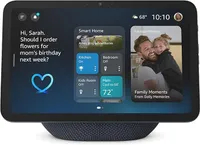
Since my family was coming home soon and I wanted to open the garage when they arrived, I grabbed an Echo Show 8 and plugged it in on the left side of my desk. In a minute or so, my Alexa Plus-powered smart display came to life and I had a clear view of my driveway. Even if you’re not a smart home enthusiast like myself, being able to watch your cameras on a larger screen hands-free is one of the best reasons to invest in a smart display.

When configuring the Uplift V3, I specifically picked out a set of Uplift’s powered grommets just in case I needed to quickly plug in a new device without having to disturb everything else plugged in at my cable management tray underneath it. On the right side of my desk, I have a standard power grommet while on the left, I have a pop-up one where the outlets are hidden when not in use.
With just one smart display on the left, the other side of my desk setup felt off though. So I headed to my garage and got my Nest Hub Max to add it to my desk too. I initially wanted to have that Gemini-powered smart display on the left but its circular plug was a bit too big for me to use it with the pop-up grommet. I switched the two around but since the larger Nest Hub Max fit comfortably under all my monitors, I decided to swap the Echo Show 8 for the brand new Echo Show 11.

This actually worked in my favor since I’m right handed and prefer to touch Google’s smart display and talk with Amazon’s. This wasn’t always the case but once Alexa became Alexa Plus and Google Assistant became Gemini, I’ve found it a lot easier to converse with Amazon’s upgraded smart assistant. It also helps that I get access to Alexa Plus through my Amazon Prime membership. I’m still not sold on Google Home Premium for an extra $13 per month, so for now, I prefer using Gemini on my computer and my smartphone.
With dual smart displays under my triple monitors, it was time to see how well this screenmaxxed desk setup really worked in practice.
A true command center

Switching from a single monitor to two and then to three was quite the upgrade for my desk setup. However, having two smart displays with completely different user interfaces and functionality ended up being an even bigger one. I get it, something like this is certainly overkill for most people but then again, I’m not most people.
When I first showed this setup off to my coworkers, one of them told me “Anthony, you’re now Batman with that monitor setup.” Personally though, working day in and day out with my desk like this had me feeling like a budget Iron Man without Jarvis standing by at the ready. Instead, I had both Alexa and Gemini at my beck and call.
For the most part, I used both AI assistants just like I normally would, with Alexa controlling my smart home devices and Gemini providing quick info to short questions. When I wanted to brainstorm though, I switched to Alexa and if I wanted to go hands-on when controlling my smart home, I did so on the Nest Hub Max.
This got me thinking that if Microsoft hadn’t given up so quickly on Windows Phone, I might be able to do all this via Copilot on my PC. If Apple can relaunch Siri with Gemini’s smarts, who’s to say that Microsoft can’t do something similar down the line if ChatGPT ever gets the power to control smart home devices.
Now if I wanted to, I could streamline this setup slightly but I’d need to swap out my main monitor. For instance, I have a Samsung smart monitor that has Alexa integrated into it. However, I don’t think Samsung has made an ultrawide monitor with Alexa support yet but I could be wrong. Then again, I could opt for one smart assistant instead of having two inches from each other on my desk.
Back to basics
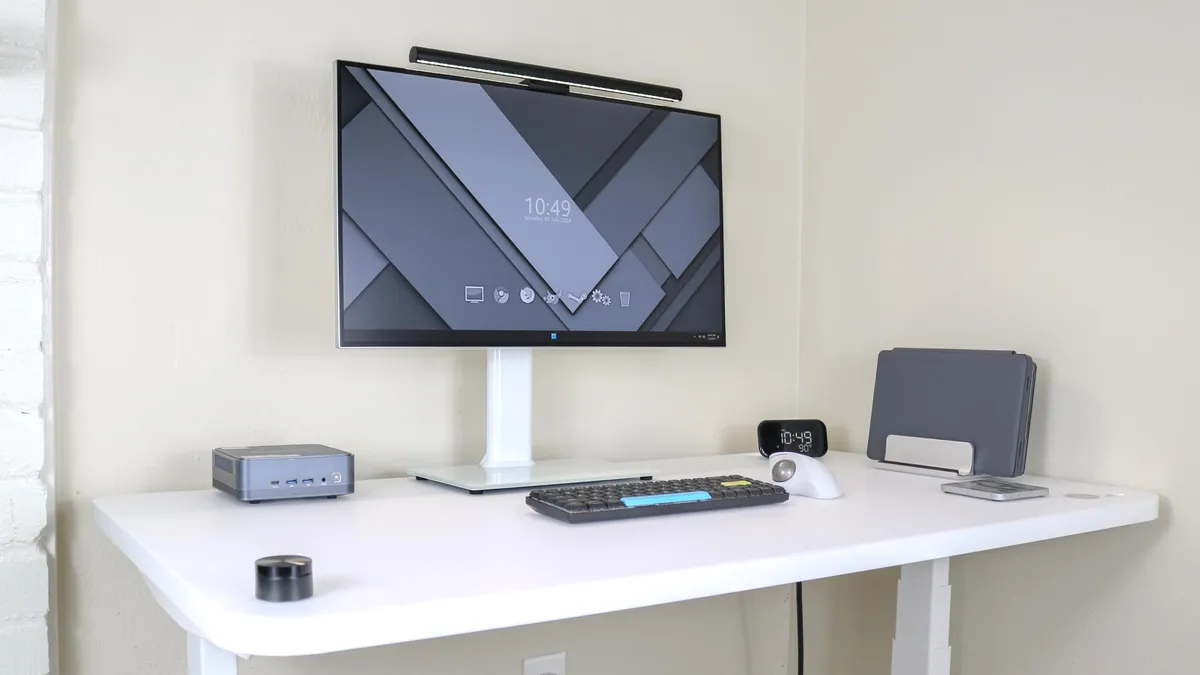
It’s always fun seeing what kind of desk setups I can put together and it’s one of the biggest perks of my job. However, as you’ve seen here, I can get carried away at times. That’s why for my next desk setup, I’m thinking about going back to a single monitor, though at this point, I reckon it has to be an ultrawide.
Just like with every other type of tech out there, no two desk setups are the same and what works for one person may not work for another. I know plenty of people who are content to do all their work from one of the best laptops and call it a day. Now if I had grown up with a laptop-first mindset instead of starting out on the family computer, maybe I’d be the same way too.
As for me, I’m going to break this whole desk setup down and start brainstorming what I should put together next. If there’s anything in particular you’d like to see me tackle, let me know in the comments down below.

Follow Tom's Guide on Google News and add us as a preferred source to get our up-to-date news, analysis, and reviews in your feeds. Subscribe to Tom's Guide on YouTube and follow us on TikTok.
More from Tom’s Guide

