
 Club Benefits







What is the best laptop you can buy in 2026? The honest answer is: it depends — on how you work, how you play and how much patience you have for compromise vs price. Performance, battery life, portability, repairability, cost... there's no single "right" choice anymore.
That's where I come in. Between my team and me, we've collectively spent more than 40 years testing laptops. Not just in labs, but the way we actually use them — living with these machines, pushing them to their limits, and calling out the ones that don't deserve your money.
This guide is not about hype or spec sheets. It's about cutting through the noise and recommending the laptops I'd genuinely tell a friend or family member to buy.

To help you on your way, here are some key questions you could ask yourself before picking. If you're already sure, then head on down to see my top picks.
Read more ▼

What am I going to use the laptop for?
To find the best laptop for your needs, I need to know more about what you're going to do with it and where you plan to use it most often.
Work & Productivity: If your #1 priority is having an easy-to-carry PC you can use to answer email, prep documents and get work done on the go, you want a modern ultraportable that's light, comfy to use and offers great battery life. I generally recommend the MacBook Air M5 (macOS) or the Dell XPS 14 (Windows 11) for this, since they're both light, capable and long-lasting. And now there's the latest MSI Prestige 13 AI+ as the lightest you can get! If you're technical and like the idea of upgrading and repairing your own laptop, I wholeheartedly recommend you check out the Framework Laptop instead, since you can modify and upgrade it for as long as you own it, in a way that no other laptop can match.
Gaming: If you plan to spend a lot of time gaming, you want a laptop with a speedy CPU, a discrete laptop graphics card and plenty of RAM. If you plan to play at higher than 60 frames per second, a screen with a high refresh rate is also critical. Personally, I recommend the Asus ROG Zephyrus G14 since it satisfies all these requirements while remaining pretty portable, but if you adore macOS, the MacBook Pro M5 is also pretty good for gaming if you restrict yourself to games optimized for Apple silicon.
Creative work: If you plan to do a lot of 3D work, audio/video editing or demanding content creation, you will want a laptop with a powerful CPU, a discrete GPU (or powerful integrated graphics) and plenty of RAM to handle demanding workloads. In that sense, you want something like a gaming laptop (but ideally with better battery life and lighter weight), and you also want a sharp, color-accurate screen. This is why I generally recommend the MacBook Pro M5 or the Samsung Galaxy Book 6 Ultra for such uses.
Casual use: If you just need a laptop for basic writing, browsing the web and binge-watching YouTube or your favorite shows, you can save yourself a lot of money with a budget-friendly laptop. I recommend the MacBook Neo if you prefer macOS, the Lenovo IdeaPad Slim 3x for Windows or the Lenovo Chromebook Plus 14 if you're okay with a Chromebook and have reliable access to Wi-Fi (because Chromebooks can't do much without an internet connection).
Should I buy a MacBook, Windows laptop or a Chromebook?
Buy a MacBook if you are comfortable using Macs or are already embedded in the Apple ecosystem. While macOS is not as robust as Windows when it comes to gaming, many people find it easy to use and it's tightly integrated with Apple's other products, so your iPhone, iPad and AirPods will seamlessly work with your Mac.
Buy a Windows 11 laptop if you need access to the widest selection of apps, are not tied down to any particular ecosystem, want the best gaming experience and are looking for the broadest selection of laptop designs. Only Windows laptops come with features like touchscreens, high-speed displays or the option to transform into a tablet. However, they typically have worse battery life than MacBooks.
Buy a Chromebook if your work and entertainment needs revolve entirely around a browser. If everything you do is within a Chrome browser, then a Chromebook is the most direct (and cheap) way to get there. Just be aware you'll be limited to that browser window — ChromeOS is a robust operating system, but without internet access, it can't do much.
Computex 2026 delivered some major updates to kick off a new era of laptops, driven by the arrival of Nvidia RTX Spark processors. We've gone hands-on with a wave of new Windows machines, but we can also expect a range of budget-friendly laptops that aim to take on the MacBook Neo. From what we've seen, these all look to be fierce contenders for this guide. For more updates, jump down to what's coming next.
We're tracking all the best Prime Day laptop deals
The best laptops you can buy right now
Why you can trust Tom's Guide Our writers and editors spend hours analyzing and reviewing products, services, and apps to help find what's best for you. Find out more about how we test, analyze, and rate.
The best laptop overall
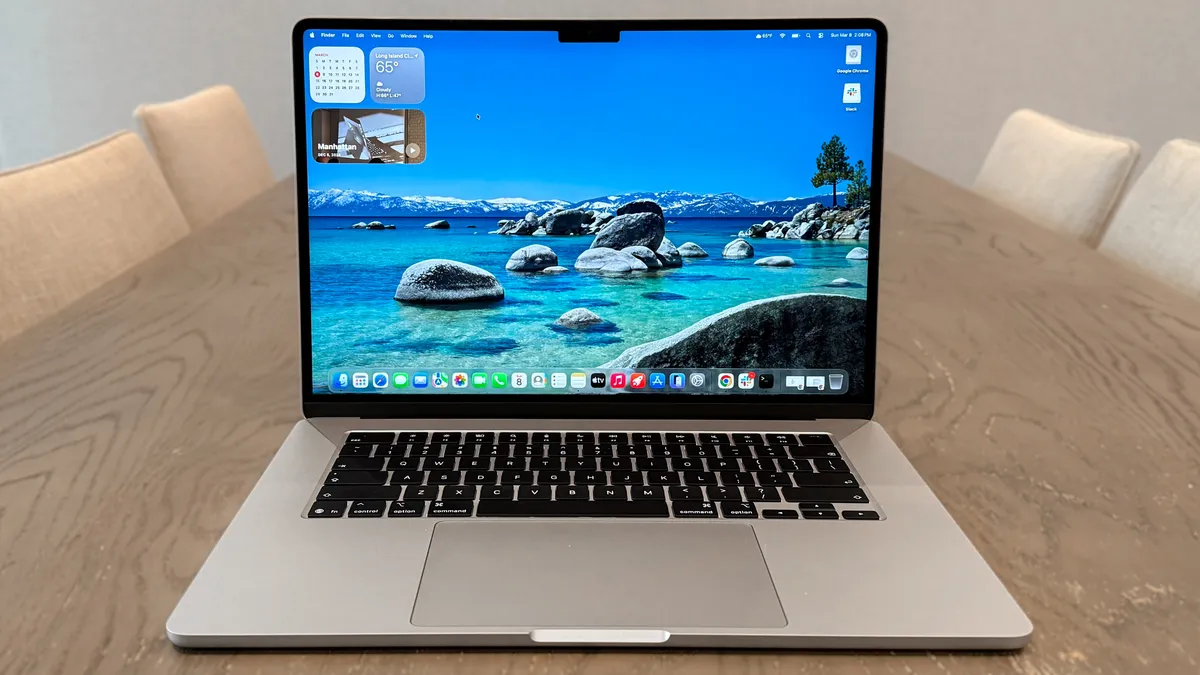

Test | Notes | How it stacks up |
|---|---|---|
Battery life | 15:28 tested battery life | ★★★★☆ |
Performance | More powerful than ever | ★★★★★ |
Design | The "if it ain't broke, don't fix it" design | ★★★★☆ |
Display | Sharp, vibrant visuals | ★★★★☆ |
What you need to know
The MacBook Air M5 has (unsurprisingly) taken over its M4 predecessor as the best MacBook and best laptop for most people reading this list, as it's hard to beat the mighty performance it offers at its cost. This time, though, its starting price is $100 more.
Starting at $1,099 for the 13-inch model and $1,299 for the 15-inch (but expect plenty of regular discounts), the latest MacBook Air may share that familiar lightweight, durable design, but its upgrades under the hood put its competition on notice. With faster M5 performance, double the base storage at 512GB, Wi-Fi 7 connectivity and longer battery life, this laptop ticks all the right boxes.
Buy it if
✅ You want a do-it-all laptop: With its M5 chip, along with its other notable upgrades, the latest MacBook Air takes its multitasking power to new heights, for web surfing, video editing and even some AAA gaming.
✅ You need a laptop that lasts: Now with 15 hours and 30 minutes of battery life, the M5 update makes the MacBook Air one of the longest-lasting laptops around, especially at its price. For those on the move or who don't want to rely on a charger, this laptop brings the stamina.
Don't buy it if
❌ If gaming is a priority: While the M5 is more than capable of playing demanding PC titles (like Resident Evil 4 Remake), it understandably isn't made for gaming. So don't think this will be your main gaming driver.
❌ You already have an M4 or M3 MacBook Air: Despite the impressive performance gains the M5 delivers, along with the 512GB base storage and Wi-Fi 7 connectivity, this is more of a modest update. There's still plenty of software support left in those still-amazing laptops!
Who is this best for?
💻 The MacBook Air M5 brings it home yet again, this time with notable upgrades that make this laptop better than ever. Yes, it's $100 more for both the 13- and 15-inch models, but this gets you a very welcome 512GB base storage, Apple N1 wireless chip for Wi-Fi 7 connectivity and longer battery life at over 15 hours.
This isn't the upgrade to grab if you already have an M4, or even an M3, MacBook Air, but for frequent travelers, students and anyone who wants a reliable notebook that will be your trusty, lightweight companion, this is the best laptop to buy — especially when the inevitable discounts arrive to drop its bumped up price tag.
- Read our full MacBook Air M5 review
The best value laptop

Test | Notes | How it stacks up |
|---|---|---|
Battery life | Strong battery life at over 13 hours | ★★★★☆ |
Performance | Solid performance for the price | ★★★☆☆ |
Display | Amazing, vivid visuals | ★★★★☆ |
Design | All-aluminum, sturdy design with fun colors | ★★★★★ |
What you need to know
Apple has changed the landscape of budget-friendly laptops with its MacBook Neo. It's almost strange to have a MacBook take the crown as the value laptop to beat, but for the performance, design and features it presents for just $599 ($499 for education), it's clear this laptop raises the bar.
The MacBook Neo comes with an A18 Pro chip, originally found in iPhones, but it still manages to run circles around Chromebooks and Windows laptops at similar prices, and beats the MacBook Air M1. Plus, it comes with many of the perks of the MacBook Air, including a comfy keyboard and lightweight design (this time with fun colors). Trade-offs include paying extra for Touch ID, a lack of Thunderbolt and no keyboard backlight. But for its wallet-friendly price, this is no doubt the best value laptop around.
Buy it if
✅ You need a budget-friendly, versatile laptop: From day-to-day tasks to delivering long battery life, all wrapped up in a slim, lightweight design, the MacBook Neo makes for a fine machine for traveling professionals, students, families and anyone who just needs a laptop that won't break the bank.
✅ You want solid performance for less: Despite a lack of the usual M-series chipset, the MacBook Neo's A18 Pro can power through multiple tabs and apps without breaking a sweat. We noticed occasional lag every now and then, but hardly a deal-breaker. For this price, it's incredibly speedy.
✅ You like a splash of style: Who doesn't like a sturdy, all-aluminum laptop with fun colors to bring your at-home setup or office to life? Coming in Silver, Indigo, Blush and Citrus, the MacBook Neo is eye-catching.
Don't buy it if
❌ You want the perks of other MacBooks: The MacBook Neo doesn't come close to matching the performance of its Air or Pro siblings, which is expected, but it's a shame there's also no keyboard backlight, and Touch ID (with more storage) comes with a $100 price hump. Plus, 8GB of RAM isn't all that much.
❌ You need Thunderbolt connectivity: With Thunderbolt ports becoming the standard for many laptops, not seeing one in the MacBook Neo is a letdown, and limits the type of connections (to monitors, for instance) you can make.
Who is this best for?
💻 The MacBook Neo is Apple's successful attempt at a budget laptop, and it ticks all the right boxes and makes the right (if annoying) trade-offs for it to be the value laptop for most.
At $599, you'll get good performance from its impressive A18 Pro chip, long battery life that lasts over 13 hours, a vivid 13-inch display, the lightweight design of a MacBook Air with striking color options, great audio from its side speakers and the speediness of macOS. If you're fine with the sacrifices Apple has made, and only need an affordable machine for browsing the web, accessing apps, working on documents and more, you'll be very impressed with the MacBook Neo.
- Read our full Apple MacBook Neo review
The best Windows laptop

Test | Notes | How it stacks up |
|---|---|---|
Battery life | 12:23 (OLED) and 20:41 (LED) - insane numbers | ★★★★★ |
Performance | Intel Core Ultra X7 impresses | ★★★★☆ |
Display | Tandem OLED is bright and vivid | ★★★★★ |
Design | A great, practical redesign that brings ergonomics back to XPS | ★★★★★ |
What you need to know
The Dell XPS 14 (2026) is the comeback we’ve all been waiting for. By ditching some of the controversial design aspects of previous models—along with the “Dell Premium” branding, the company has delivered a true MacBook Pro competitor. While it can get pricey, there’s a lot to like here.
Starting at $1,599, you get a relatively thin and light machine that’s perfect for traveling with. Upgrades like a tandem OLED panel and a stronger Intel Panther Lake chip make this notebook even more enticing. Right now, it’s arguably the best Dell XPS laptop we’ve seen in years. Well, that and its bigger sibling, the Dell XPS 16 (2026), which we also strongly recommend if you're after bigger (OLED) screen real estate.
Buy it if
✅ You want an ultraportable Windows laptop that’s as good for productivity as it is for gaming: Thanks to Panther Lake, this laptop can handle most of what you can throw at it.
✅ You need a long-lasting laptop: While the OLED model we tested only lasted 12 hours and 23 minutes, that’s still impressive endurance for a non-Snapdragon X Elite Windows machine. If you get the entry-level model, you can get over 20 hours of battery life, based on our testing.
Don't buy it if
❌ If you’re married to Apple: This one kind of goes without saying, but if you’re invested in the Apple ecosystem, any Windows laptop will be a hard sell. Also, an entry-level MacBook Pro M5 offers stronger performance and longer battery life than the higher-end $2,199 XPS 14 we reviewed.
❌ You need a microSD card: If you’re a creative, not having a microSD card slot could be a deal breaker. Keep that in mind when considering this laptop.
Who is this best for?
💻 The Dell XPS 14 has a lot going for it, thanks to its new practical design, strong Panther Lake performance and efficiency, and tandem OLED upgrade option. While a return to form, it still retains some of the better aspects of the past, such as the glass touchpad and snappy keys. Dell wisely listened to its users and delivered a machine that’s worthy of the XPS branding.
I’ve always been a fan of the XPS line, so I’m glad I can now recommend the latest model without adding a list of caveats. Beyond being a return to form, Dell has delivered an all-around fantastic machine that’s ready to go wherever you travel.
If you’re a Windows user who wants a slick-looking and portable machine that’s as adept for work as it is for gaming, this one comes with my highest recommendation. Looking for a bigger screen? The Dell XPS 16 will impress just as much.
- Read our full Dell XPS 14 (2026) review
The best budget Windows laptops


Test | Notes | How it stacks up |
|---|---|---|
Battery life | Over 16 hours of tested battery life | ★★★★★ |
Performance | Snapdragon X outperforms its budget constraints | ★★★★☆ |
Display | 1080p LCD display looks washed out and a bit dim | ★★★☆☆ |
Design | Uninspired aesthetic, but slim and lightweight for all-day use with a good keyboard | ★★★☆☆ |
What you need to know
The Lenovo IdeaPad Slim 3X leapt into my heart as one of the best budget laptops you can buy right now, especially for Windows users. Thanks to that Snapdragon X chipset and stellar ergonomics you know (and love) Lenovo for, this system vastly exceeds the expectations you set on spending $580 on a laptop.
Of course, there are some compromises here — the plasticky build quality can feel a bit cheap, the display is dim and this is a very generic-looking system. But the performance outclasses anything else at this cost, and the battery life leaves them all in the dust.
Buy it if
✅ Snapdragon X impresses: Of course, you're only spending 500 bucks here — don't expect the world. But in terms of what you get in single and multi-threaded performance across your whole workload, this is a zippy machine.
✅ Insanely good battery life: Normally, the big stamina numbers are reserved for far more expensive laptops. But the IdeaPad Slim 3X disrupts the whole thing with a whopping 16 hours and 29 minutes of longevity on one charge.
✅ You need a versatile productivity machine: Lenovo's machine isn't going to change the world, run games or lock in on anything super intensive. But for the day-to-day productivity, the company's classic attention paid to the ergonomics is here, the frame feels durable in the hand, and it'll keep up with your workload.
Don't buy it if
❌ You want a bright display: If you're out and about in bright lighting conditions (including direct sunlight), the low brightness of this display in my testing may not be enough for you.
❌ You regularly use apps not supported by Arm: The whole Windows ecosystem has been built for the x86 chips like Intel and AMD for the past 30 years. Emulation is possible (and getting better) on a Snapdragon chip, but it means certain apps not made for Arm-based systems won't work natively on this laptop. That said, for everyday tasks, you'll get what you need.
Who is this best for?
💻 The Lenovo IdeaPad Slim 3X is a cheap Windows laptop that manages to find that perfect compromise of parts to deliver a strong of an experience as possible within the confines of price.
Snapdragon X brings the whole thing together with strong budget performance and stellar battery life. Lenovo builds on top of it with a durable build quality with lovely keyboard ergonomics. And while the display underwhelms, this (and the quiet speakers) fade into the background of how much money you've saved going for this system.
If you have a casual workload with occasional moments of burst power needed, this is a banger of an option to treat yourself without hitting the bank account too hard.
- Read our full Lenovo IdeaPad Slim 3X review
The best gaming laptop

Test | Results | How it stacks up |
|---|---|---|
Battery life | 1:45 gaming battery life | ★★★☆☆ |
Performance | Amazing for work and gaming | ★★★★★ |
Display | Mesmerizing OLED screen with buttery smooth frame rate | ★★★★★ |
Design | Still the best-looking gaming laptop you can buy | ★★★★★ |
What you need to know
The Asus ROG Zephyrus G14 is my personal favorite gaming laptop you can buy — primarily because it doesn’t forget about the “laptop” part like a lot of gaming systems do.
This refreshed model packs a ton of power into that sleek MacBook Pro-esque aluminum shell in the form of the latest AMD CPU and Nvidia RTX 50-series GPU combo. But the more things change, the more they (fortunately) stay the same, thanks to that gorgeous CNC-milled utilitarian aesthetic and a mesmerizing OLED display.
If you need more raw horsepower dedicated to gaming, there are more performant options, and I recommend you check out our best gaming laptops list. But for a better balance of all elements that still delivers big on power, the Zephyrus G14 is a near-perfect pick.
Buy it if
✅ You want a beasty gaming machine: AMD Ryzen AI 9 HX 370 + Nvidia GeForce RTX 5080 makes for a monstrous pairing of power. Combine that with improved cooling and DLSS 4, and you can run the latest AAA games at over 140 FPS in max settings.
✅ You don’t want other people to know you have a gaming laptop: The standard gaming laptop design is pretty cringe. I always feel uncomfortable pulling one out. But the Zephyrus G14’s tastefully utilitarian CNC-milled aluminum construction looks fantastically subtle from every angle.
✅ You care about a good screen: That 3K OLED panel is a real marvel to look at — presenting all your favorite games with a real HDR quality that pushes impressive color and a deep contrast ratio.
Don't buy it if
❌ Battery life is a chief concern: This is more a problem I’ve found with gaming laptops as a whole rather than this specific model. But it’s worth noting, as the stamina levels of such highly demanding internals does drop the battery life in day-to-day use to below 7 hours of casual use.
❌ Webcam quality matters: The 1080p webcam remains unchanged from the Zephyrus G14 last year, which means you’re getting quite the grainy picture that struggles with low lighting.
Who is this best for?
💻 The Asus ROG Zephyrus G14 is a fantastic gaming laptop that kept me entertained across 5,000 miles of travel, balancing performance and portability perfectly. The OLED display makes all your gaming look incredibly colorful and immersive, the speakers have been improved, and it’s impressively thin and lightweight.
This is the best gaming laptop for folks who actually want to take their gaming laptops with them on occasion. Most gaming laptops are so big, heavy and poorly optimized that they're basically desktop replacements, since they're best left on your desk for their entire lifespan.
Not so with the Zephyrus; while battery life while gaming still isn't amazing, this thing fits in a backpack fairly easily and doesn't look out of place in a coffee shop or classroom, so you can take it to school and sneak in some gaming time at lunch. It's the best laptop for anyone who wants a gaming laptop that can double as a work device in a pinch.
- Read our full Asus ROG Zephyrus G14 review
The best Chromebook

Test | Results | How it stacks up |
|---|---|---|
Battery life | 13:19 tested battery life | ★★★★☆ |
Performance | MediaTek Kompanio chipset is a performant stunner in ChromeOS | ★★★★☆ |
Display | Gorgeous 14-inch display with great touch responsiveness | ★★★★★ |
Design | Lenovo's fundamentals bring a premium construction to the table with fantastic ergonomics | ★★★★★ |
What you need to know
Not only is the Lenovo Chromebook Plus 14 the best Chromebook you can buy right now, but it’s also a mighty laptop overall that shows ChromeOS is on a whole new level. That premium finish with stellar ergonomics and a mesmerizing OLED display puts Chrome on full glorious display.
Pair that with a new Arm chip that guarantees peak performance and power efficiency, and a truly AI-infused operating system that feels legitimately helpful rather than intruding with a chatbot every opportunity it gets (looking at you, Windows 11), this is a capable coworker through anything you’re doing.
Buy it if
✅ Your work/life revolves around Chrome: There’s a lot of us out there. Google Chrome is the center of pretty much everything you do in the day-to-day. If that’s you, the Chromebook Plus 14 is a top pick with an operating system built entirely around this browser — paired with a ton of next-gen AI smarts to boot.
✅You don’t want the Chromebook compromises: A lot of Chromebooks come with serious cutbacks to keep costs low. Lenovo has ditched all of that with the Chromebook Plus 14. That design is impressively premium and utilitarian, the keyboard and touchpad feel amazing, the Kompanio chip inside is fast and packs good stamina (13+ hours on one charge), and the OLED screen is beautiful.
Don't buy it if
❌ You want a budget Chromebook: If you’re OK with those Chromebooks, you can get that Chromebook Plus experience for cheaper. You are definitely getting what you pay for at $649 with that aluminum shell, OLED display and powerful internals, but that is a slightly higher price for a Google laptop.
Who is this best for?
💻 The Lenovo Chromebook Plus 14 is a standout laptop, offering a well-built design, a stunning OLED display, and a sharp webcam. It's best for anyone who knows you can get by with just a Chromebook, but you don't want to compromise with a low-quality display or a paucity of ports.
And while you are still limited in what you can do by ChromeOS, this AI-enhanced system can be awfully productive. So if you have steady Internet access and you're looking for an all-day productivity device for under $650, this is an excellent choice.
- Read our full Lenovo Chromebook Plus 14 review
The best laptop to repair and upgrade

Test | Results | How it stacks up |
|---|---|---|
Battery life | 11:38 tested battery life | ★★★★☆ |
Performance | Speedy enough for work and light gaming | ★★★☆☆ |
Display | Functional, sharp display | ★★★☆☆ |
Design | Elegant, unassuming chassis belies useful complexity | ★★★★☆ |
What you need to know
When it came out we called the Framework Laptop the Anti-MacBook because it's everything Apple doesn't do in laptops: repairable, upgradable and respectful of your rights as an owner.
I was initially excited about those promises but dubious the company could deliver on them without some glaring sacrifices. But now that I’ve used one myself, I’m happy to report the Framework Laptop is as good as advertised.
With its intentionally easy-to-repair design (you can pop pieces off this laptop and get at the innards in minutes, with no tools besides the spudger it comes with) and super cool swappable Expansion Card ports, the Framework Laptop 13 is a versatile ultraportable that's one of the best laptops you can buy if you care about your right to repair and tinker with your devices.
Buy it if
✅ You care about your right to repair: I've never seen a laptop that's easier to open up, fiddle around with and put back together. No other laptop on the market can match the Framework in this regard, so if you care about being able to repair and upgrade your laptop, this is the one for you.
✅ You're plagued by port envy: On most laptops, the ports it comes with are all you get. The Framework is different: you can change what ports it sports by buying hot-swappable Expansion Cards that you plug into 4 slots on the bottom of the laptop, and each can have one port on it. So you can swap out 2 USB-C and 2 USB-A ports for 1 USB-C, 1 USB-A, a DisplayPort out and an Ethernet jack, for example.
✅ You like a tall screen: The 3:2 display ratio of the Framework's screen feels a bit taller than the displays found on most laptops, and it's great for working with "tall" things like long documents, emails, coding projects and more.
Don't buy it if
❌ You're scared by pieces of your laptop coming off: The Framework is well-designed and sturdy, but because it's designed to be taken apart you may occasionally find yourself accidentally doing something like popping the bezel off the screen. This is a feature, not a problem, but it can unnerve new owners.
❌ You don't want to pay extra for ports: The Framework offers unrivaled port versatility thanks to its Expansion Card system, but it does require buying a handful of Cards for all the ports and other options you want, some of which could be easily lost or misplaced.
Who is this best for?
💻 The Framework Laptop is a remarkable piece of tech. It's a great laptop for getting work done, but more than that, it's a statement of purpose, a clear example that every other laptop maker could be building and selling us more repairable, sustainable laptops if they cared to as much as Framework does.
While it can be a bit daunting to open and upgrade, this is the ideal laptop for DIY fans, right-to-repair fanatics and anyone who wants to take a little more ownership of their tech. It's also an ideal laptop for curious students who love to tinker and take things apart. It's a fantastic investment if you care about your right to repair and upgrade your own laptop.
- Read our full Framework Laptop 13 review
The longest-lasting laptop
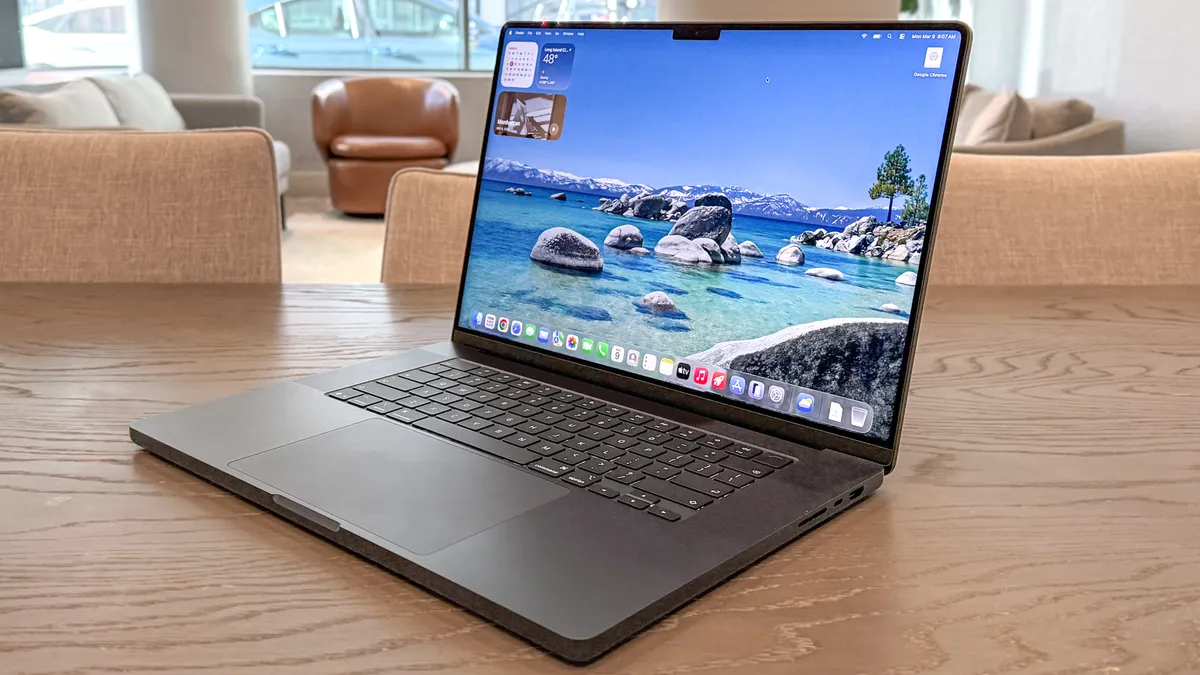
Test | Results | How it stacks up |
|---|---|---|
Battery life | 21:10 hours of tested battery life | ★★★★★ |
Performance | Exceptional speeds | ★★★★★ |
Display | Same gorgeous mini-LED | ★★★★☆ |
Design | Sturdy, minimalist design | ★★★★☆ |
What you need to know
While the MacBook Pro M5 is strong, the latest MacBook Pro M5 Pro takes performance up several notches. With that power comes even longer battery life, knocking its M4 Pro predecessor and finally going past 21 hours.
It’s the longest-lasting laptop Tom’s Guide has tested, but it still brings everything we’ve come to adore about the MacBook Pro, like its gorgeous Liquid Retina XDR display, full-height function keys, amazing speakers and plenty of ports. All that, along with its performance boost, makes this one of the best laptops around — especially for power users.
Buy it if
✅ You need top-notch performance: Sure, the M5 Max still has it beat, but the M5 Pro is no slouch. For the money, you’ll be getting one of the fastest laptops ever for video editing, creative work, coding and more.
✅ You want all-day battery life: Lasting 21 hours and 10 minutes in our battery endurance tests, the 16-inch MacBook Pro M4 Pro will take you through a day of work and a night of entertainment without needing a charge. Prepare for a full day of battery life.
✅ You don’t want to pay for an M5 Max model: The M5 Max model is powerful, no doubt, but it also costs over $1,000 more. For those who need speedy performance without paying a fortune, the M5 Pro offers this in spades.
Don't buy it if
❌ You’re on a budget: Not everyone needs the performance that the M5 Pro offers at its pricey $2,699 starting cost ($200 more than the last model), and may find the base MacBook Pro M5, and even the MacBook Air M5, is more than enough to handle their workload and daily activities.
❌ You’re waiting for a big upgrade: Despite the impressive performance boost the M5 Pro offers to the MacBook Pro lineup, that’s about it when it comes to notable updates. You may want to wait a little longer for a larger revamp…
Who is this best for?
💻 The 16-inch MacBook Pro with M5 Pro, yet again, boasts the best battery life of any laptop we've tested to date, along with incredible performance, a beautiful display and a familiar yet reliable design. For a big-screen laptop that can power through anything you throw at it, you’ll be hard-pressed to find anything better.
Right now, this is the best laptop for most power users, whether that be for photo/video editors, animators, Mac game fans and anyone after peak portable power. It’s pricey, but worth the investment for years to come.
- Read our full MacBook ProM5 Pro 16-inch review
The best MacBook Pro
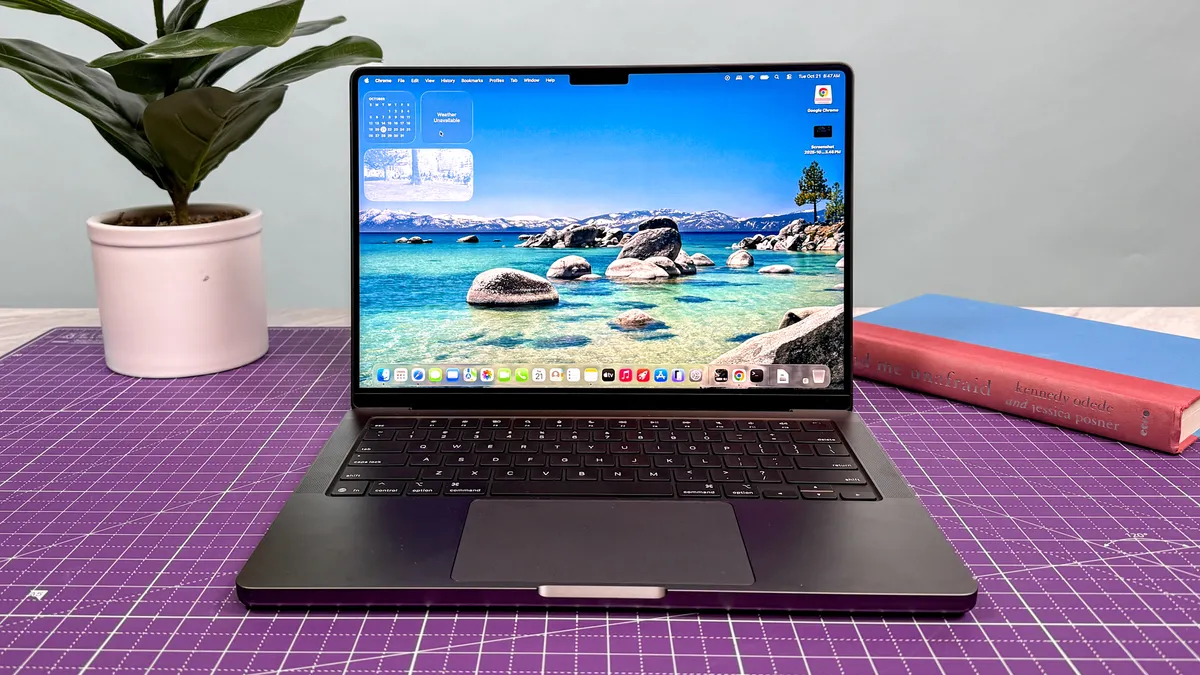
Test | Notes | How it stacks up |
|---|---|---|
Battery life | 18:31 tested battery life | ★★★★★ |
Performance | Great for video editing | ★★★★☆ |
Display | Gorgeous mini-LED display | ★★★★★ |
Design | Premium, durable design | ★★★★★ |
What you need to know
The 14-inch MacBook Pro with the M5 chip is one of the most powerful laptops we’ve yet tested, which is all the more impressive when you consider its svelte 3.4-pound chassis slips into a backpack with ease.
Of course, that's no surprise given that the company has been iterating on this design for years. The addition of an M5 chip under the hood takes the 14-inch MacBook Pro to new heights, making it the best MacBook Pro for most folks thanks to its unbeatable combo of size, performance and price.
Though, in our battery tests, it didn't fare as well as the older MacBook Pro M4, which managed an additional two hours between charges.
Buy it if
✅ You need to edit videos on the go: And I'm not talking iMovie clips, either - I'm talking about working with Final Cut and Adobe Premiere to edit videos while you're away from desk. The M5 chip is built for this kind of work, and it will serve you well.
✅ You plan to work outside often: The M5 MacBook Pro is the first to come with the optional nano-texture glass coating, which costs $150 extra but helps stop glare from bright light-which is great when you work outdoors a lot.
✅ You want a MacBook that'll last for years: M1 MacBooks are still (barely) viable, so it stands to reason that M5-driven notebooks could potentially last you 5-10 years. This could help justify the admittedly high initial price.
Don't buy it if
❌ Gaming is important: The M5 MacBook Pro runs Mac-compatible games pretty well, but it's not the best gaming laptop for the money. If you care about gaming performance, go with one of the best gaming laptops instead.
❌ You own a MacBook Pro M4: The M5 MacBook Pro is more capable than its predecessor, but not by much. If you already own a recent MacBook Pro and you're not craving the nano-texture coating, there's no reason to rush out and upgrade.
Who is this best for?
💻 The MacBook Pro 14-inch M5 is typically one of the best laptops for video editors, programmers and anyone who wants a more powerful Mac than the Air but doesn't want the big 16-inch Pro. It's also pretty good at running games that are optimized for the M5 chipset, so game fans won't be left out in the cold.
- Read our full MacBook Pro 14-inch M5 review
The best 2-in-1 laptop

Test | Notes | How it stacks up |
|---|---|---|
Battery life | 14:23 tested battery life (11:13 in dual-screen) | ★★★★☆ |
Performance | Team Blue is so back with Intel Core Ultra X9 388H | ★★★★★ |
Display | Dual OLED is a feast for the eyes | ★★★★★ |
Design | Thicker than your standard laptop, but thoughtfully redesigned | ★★★★☆ |
What you need to know
2026 is the year of the laptop, and the new Asus Zenbook Duo just proved why. In my time testing it, I've been truly blown away — easily the best Windows laptop I've used in a long time.
Why? Well I could talk about the thoughtful redesign of the whole chassis to make a dual-screen laptop all the more portable, durable and seamless to use. But in reality, it comes down to what's inside.
That Intel Core Ultra X9 388H is a breakthrough for Windows laptops with impressive CPU performance, a mind-boggling GPU and power efficiency that keeps both of those screens running brightly for over 11 hours of use.
Throw in improved ergonomics on that keyboard deck and a sturdy hinge to use in landscape or portrait, and you're onto a winner (albeit an expensive one).
Buy it if
✅ You want to transform Windows 11 productivity on-the-go: There are many great Windows laptops out there, but you can't deny that two screens are better than one when using Microsoft's OS. The dual OLED displays on here are mesmerizing with brightness and color accuracy.
✅ You want the best all-round performance: Some chips focus on blazing performance, and some aim for power efficiency. The Intel Core Ultra X9 nails both, while also packing a GPU that challenges even Nvidia gaming laptops while sipping that battery life.
✅You care about good ergonomics: Looking beyond the virtually zero latency of that touchscreen's inputs, the keyboard attachment has a top notch typing experience, and the trackpad has undergone a vast improvement to feel all the more smooth to browse and snappy to click.
Don't buy it if
❌ You're on a budget: The Zenbook Duo comes in at $2,099. Not only is that quite a hefty price increase over last year's model, it does make it an expensive system all-round. Not to say it doesn't earn its price tag in capability (hence why it's on this list), but if you're tightening the budget, you may want to wait for a deal.
Who is this best for?
💻 The Asus Zenbook Duo is an excellent Windows laptop that uses a second screen to rewrite what productivity looks like on-the-go. Touch-typers will love that keyboard deck, flipping between both of those delightful OLED screens is a cinch, and the redesign brings those screens almost seamlessly together.
But the real superstar here is Intel Core Ultra X9, which unlocks so much performance potential with that monster GPU and CPU speed uplifts — all while marrying it with serious power efficiency.
And while it is a pricey option, there's nothing better in the Windows space right now for nailing your intensive workloads by day and playing by night while not having to worry about your battery %.
- Read our full Asus Zenbook Duo (2026) review
The best MacBook Air alternative

Test | Notes | How it stacks up |
|---|---|---|
Battery life | Great all-day battery life at 14 hours | ★★★★☆ |
Performance | Snappy for multi-tasking | ★★★☆☆ |
Display | Mesmerizing OLED, but reflective in bright spaces | ★★★★☆ |
Design | Extremely lightweight and compact | ★★★★★ |
What you need to know
The latest MSI Prestige 13 AI+ isn't just a blow-for-blow MacBook alternative for those sticking with Windows. In fact, it shows Apple exactly what "Air" means: even lighter and more compact, all while delivering the same solid all-day battery life and strong ultraportable performance — this time with the might of Intel's Panther Lake.
At just 1.9 pounds, this is the lightest laptop we've tested. That alone is a triumph, especially for a laptop that can handle multitasking and play Cyberpunk 2077 at 40 frames per second (with Intel's XeSS 3). And while there are some sacrifices, including lackluster speakers and a fuzzy webcam, the Prestige 13 AI+ is an excellent choice for on-the-move Windows users. Oh, and that 2.8K OLED display? Glorious.
Buy it if
✅ You're hunting for a featherweight, high-end laptop: Carrying the Prestige 13 AI+ is a delight thanks to its 1.9-pound chassis and compact frame. It's the lightest laptop we've tested, and its build means you don't sacrifice confidence for portability, as the refinements made over the last-gen model make it far sturdier.
✅ You enjoy a gorgeous display: With a 13.3-inch 2.8K (2880 x 1800) OLED screen, this laptop is great for binging your favorite shows on, and you can bet it offers up a flood of colors and crispy details — more so than the MacBook Air's.
✅ You want reliable performance: While it doesn't quite match Apple's M5 chip, the Intel Core Ultra 7 355 on board is more than capable of handling demanding workloads, and is even able to play high-end games like Cyberpunk 2077 thanks to Intel XeSS 3.
Don't buy it if
❌ You're after all the premiums: There have been some sacrifices made to cut down this laptop's weight, and that includes speakers lacking bass, and a 1080p webcam that makes you look spongy.
❌ You’re after more power for the price: The Prestige 13 AI+ is an ultraportable, so it won't be stuffed with the performance you'd get on similarly priced notebooks. While impressive, its £1,299 (not available in the U.S., yet...) price is quite high if you're looking for breakneck speeds.
Who is this best for?
💻 The MSI Prestige 13 AI+ is for buyers who want Air-level portability, crave a premium OLED display, and prefer Windows. If you need maximum battery life, raw power, or the Apple ecosystem, better fits exist. That said, it's hard to deny just how much power and premium features this laptop packs in such a compact, lightweight frame.
For those seeking a light, stylish and enjoyable ultraportable, though, this MSI is a very strong Windows option.
- Read our full MSI Prestige 13 AI+ review
Best MacBook Pro alternative
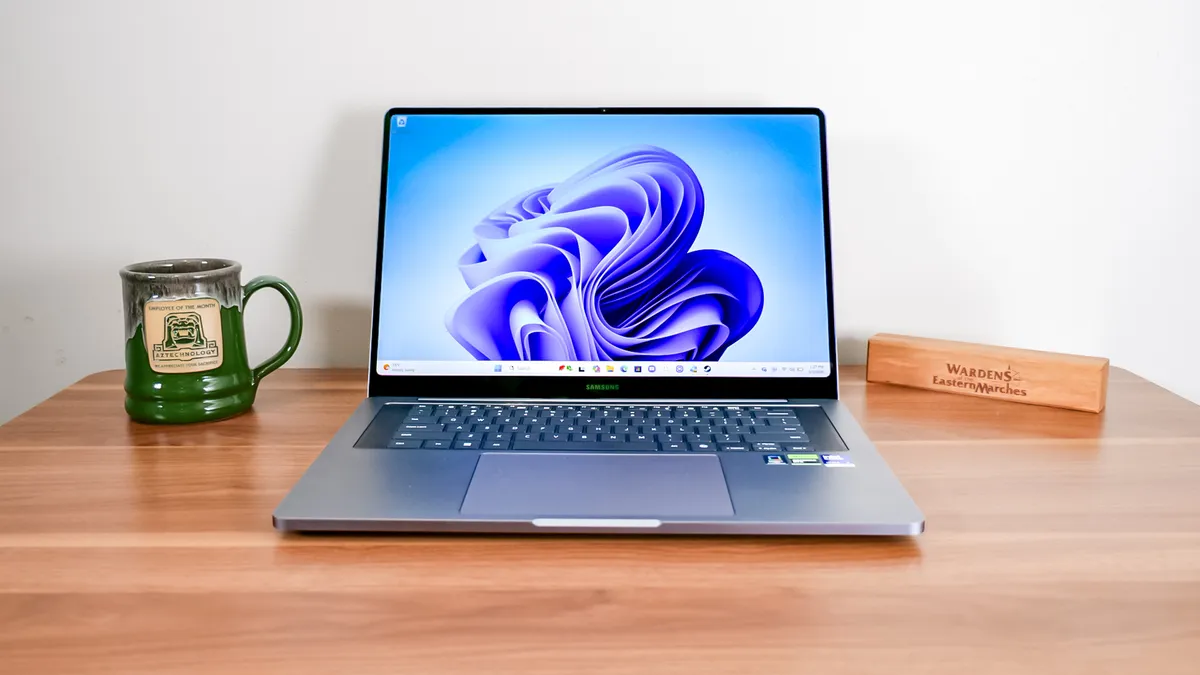
Test | Notes | How it stacks up |
|---|---|---|
Battery life | 15:12 tested battery life | ★★★★☆ |
Performance | Stellar performance for both productivity and gaming | ★★★★★ |
Display | Outstanding anti-reflective OLED display | ★★★★★ |
Design | Sleek, slim and lightweight for a 16-inch laptop | ★★★★☆ |
What you need to know
Samsung finally brings its flagship laptop back in the spotlight, and we can attest to how brilliantly it shines. The Galaxy Book 6 Ultra is a powerhouse machine that's up there with the MacBook Pro, so there's now another reason to flock to Windows if you're after plenty of power for creative work and gaming.
With Intel Panther Lake inside, or the option to choose a mighty RTX 50-series GPU, you can expect strong performance across the board. It's only made better with its long 15 hours of battery life, along with its gorgeous OLED touchscreen and sleek, thin design. Sure, there's a lot of Samsung bloatware, and all this comes at a high price, but you'll find there's a lot to love about the Samsung Galaxy Book 6 Ultra. For another great (and slightly more affordable) option, though, the equally amazing Samsung Galaxy Book 6 Pro is worth checking out.
Buy it if
✅ You run heavy creative software: The Galaxy Book 6 Ultra’s Intel Panther Lake Core Ultra 7 CPU (especially the X7 and RTX 5070 model) brings desktop-class muscle to demanding creative and professional tasks, ensuring smooth performance even under heavy workloads.
✅ You want a best-in-class display: With its 16-inch AMOLED touchscreen, the Galaxy Book 6 Ultra delivers exceptional color, contrast and resolution. That makes it a standout choice for anyone who values top-notch visuals.
✅ You work mostly away from outlets: Lab results show the Galaxy Book 6 Ultra can run for over 15 hours on a single charge, so you can work or create all day without reaching for the charger. And that's with its OLED display and powerful internals running rounds under the hood. It's impressive how long it lasts.
Don't buy it if
❌ A pure Windows experience matters to you: Samsung loads this laptop with extra Samsung-specific apps and utilities that clutter the experience, so if bloatware is a dealbreaker, this isn’t the cleanest premium choice. That said, if you're part of the Samsung ecosystem, this will work in your favor.
❌ You prefer a keyboard with more depth: Our reviewer noticed the keyboard is too shallow, so each key press doesn't have much travel before bottoming out. That can wear out your fingers if you're typing for hours on end, but that's hardly a major flaw compared to everything else this laptop offers.
Who is this best for?
💻 The Samsung Galaxy Book 6 Ultra makes an extremely strong case to be one of the best laptops on the market right now. It covers all areas with flying colors, from its strong Intel Panther Lake performance (along with the optional RTX 5070 throw-in) to its dazzling OLED touchscreen. Oh, and its amazing 15+ hours of battery life.
It's a laptop that will make the MacBook Pro sweat, so if you prefer to use Windows 11 for all your power-hungry tasks, then the Galaxy Book 6 Ultra should be on your radar — if your wallet allows it.
- Read the full Samsung Galaxy Book 6 Ultra review
The best Copilot laptop

Test | Notes | How it stacks up |
|---|---|---|
Battery life | 14:14 tested battery life | ★★★★★ |
Performance | The Snapdragon X Elite chip delivers stellar performance | ★★★★★ |
Display | Its 14.5-inch (2,944 x 1,840) OLED display is one of the big selling points | ★★★★★ |
Design | This ultraportable laptop is light and thin enough to carry around all day | ★★★★★ |
What you need to know
The Lenovo Yoga Slim 7x is a Windows 11 laptop built for portability and efficiency.
Thanks to its Snapdragon X Elite chip, you'll get more than all-day battery life and enough performance to power through your regular workload. The OLED panel is a marvel to behold, and its ultraportable design makes it easy to travel with. For $1,199, it offers an excellent value all around.
Buy it if
✅ You want a great Copilot+ laptop: Copilot+ PCs with Snapdragon X Elite chips are great, but the Lenovo Yoga Slim 7x delivers a great combination of portability, performance and battery life.
✅You want an OLED display: The Lenovo Yoga Slim 7x's OLED display is one of its strongest attributes. It delivers vibrant colors and deep contrasts at a sharp 2,944 x 1,840 resolution.
✅ You want dependable battery life: The Yoga Slim 7x lasted for 14 hours on our battery life test, which is well more than you'll need for a full workday — with enough left over to stream some videos.
Don't buy it if
❌ You expect useful AI features: This is an issue with all Copilot+ PCs at the moment, but the advertised AI features this laptop supports aren't fully realized yet. As such, don't expect this laptop to deliver in that regard.
❌ You want a headphone jack: If you want to listen to music or videos without bothering your neighbors then you'll need to use a pair of wireless headphones since this laptop doesn't have a headphone jack.
Who is this best for?
💻 The Lenovo Yoga Slim 7x is arguably the best Copilot+ PC thanks to its ultraportable design, fast performance, gorgeous OLED panel and phenomenal battery life. Best of all, it won't break the bank.
So if you want a speedy, long-lasting Windows laptop that's guaranteed to support all the Copilot+ AI features in Windows 11, I recommend the Lenovo Yoga Slim 7x because it satisfies those requirements at a (comparatively) low price. The gorgeous OLED display is just icing on the cake.
- Read our full Lenovo Yoga Slim 7x review
Also tested
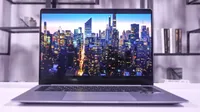
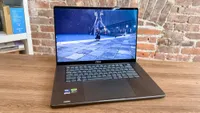
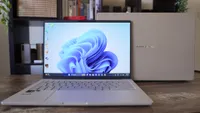
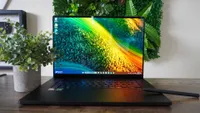
We test and review hundreds of laptops, and just because they don't all make this list doesn't mean they aren't good machines.
There are loads of great laptops that don't quite achieve the level of excellence needed to lead the pack. But they're still great machines, and they're worth considering if you're looking for a specific feature or another laptop you want isn't available.
Below, I've gathered all the great laptops we've tested that don't quite make this list, but are still good alternatives well worth considering if they meet your unique needs, or if you can't find your first choice on sale.



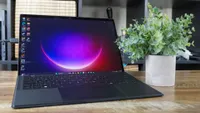

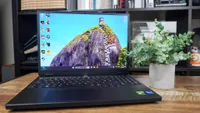

Coming soon

There will always be another laptop coming down the line, and we're here to keep you updated on the latest machines to put on your radar. Here's what's coming up:
- Nvidia RTX Spark has finally arrived, the company's first all-in-one processor for laptops that's as powerful as we've been expecting. This ARM chip comes equipped with 6,144 CUDA cores (the same ones found in Nvidia's best graphics cards), meaning its integrated GPU can deliver performance equivalent to an RTX 5070. Not only will this offer exceptional power for gaming on a single chip in thin, lightweight laptops, but it also aims to change the way we interact with Windows with agentic AI. We can expect 30 laptop models and over 10 desktop variations with Nvidia Spark inside coming up. Pricing is still a mystery for these devices (prepare for them to be expensive, though), but they're set to launch this fall. In the meantime, here's a hands-on look at Nvidia RTX Spark laptops.
- There are eight Nvidia RTX Spark laptops set to launch, which includes the following: Microsoft Surface Laptop Ultra, Asus ProArt P16 and ProArt P14, MSI Prestige N16, an updated version of the Dell XPS 16, the HP OmniBook X 14 and Omnibook Ultra 16, and finally the Lenovo Yoga Pro 9n.
- Speaking of Nvidia RTX Spark laptops, we've had a first look at the Microsoft Surface Laptop Ultra, and it's already looking to be one of the best laptops we've tried. Featuring a 15-inch (2880 x 1920) mini-LED display, up to 128GB of RAM, and Team Green's new chip, this is already set to be a powerhouse, but we're also big fans of the luxurious build, great selection of ports and the haptic touchpad. Rumored pricing puts this anywhere between $3,000 to $7,000, so brace yourselves, but this will be a great mix for productivity, creativity and gaming. Plus, Microsoft Build 2026 gave us a look at all the AI features we can expect with this machine, along with other Windows laptops.
- Dell has announced a new low-cost XPS 13, taking on the MacBook Neo. Set to be $699 ($599 for students), it still comes with premium features, including a 13.4-inch 2.5K (2560 x 1600) InfinityEdge touch display and a backlit keyboard (unlike the Neo). This will come with an Intel Panther Lake Core 5 CPU, and even p to 32GB of RAM (expect that to increase the price, though). After our hands-on testing with the Dell XPS 13, we're impressed with what's on show. It's expected to arrive this June, so stay tuned for our full review!
- Qualcomm announced its new Snapdragon C chip, set to bring a new wave of budget laptops priced around $300 to $400. Targeted at students, families and small businesses, laptops with Snapdragon C are made for general tasks, such as web browsing, video streaming and productivity. But we can also expect an integrated NPU for on-device AI tasks. We can expect to first Snapdragon C laptops from HP, Lenovo, and Acer, with one of the first being the Acer Aspire Go 15. We expect these to arrive sometime later this year.
- Google announced its new lineup of laptops: Googlebooks. Built for Gemini Intelligence and designed to work in the Android ecosystem, these machines are expected to compete with high-end Windows laptops and MacBooks, with professionals and power users in mind. With the first Googlebooks set to be from manufacturers like Acer, Asus, Dell, HP and Lenovo, these could be contenders for this guide. We've yet to hear of pricing and release dates, but we expect to hear more at Google I/O 2026, so stay tuned for the latest. For now, you can find out the biggest differences between Googlebooks and Chromebooks.
How to choose the best laptop for you

What kind of power do you want?
If you only need something basic for surfing the web, consider a Chromebook or a cheap Windows laptop with an Intel Core i3 processor and 8GB of RAM, because that's the minimum you should expect from a modern laptop.
If you want something that feels speedy and can handle more than basic writing and web browsing, look for beefier laptops with at least an Intel Core i5 CPU from the past few years, 16GB of RAM and a 256GB to 512GB SSD for storage.
What kind of games (if any) do you want to play?
Many laptops have graphics chips built into the central processing unit (CPU), which means fewer components overall. This simplified approach works for most uses, but not for gaming, where you need a dedicated graphics card to play recent titles.
Plus, it takes more computing resources, so you'll want a laptop with more RAM, better cooling and potentially gaming-specific software features and optimizations. But there are tradeoffs if you're looking for a gaming laptop over a gaming PC.
It'll need a large battery to handle the power requirements, but also an effective cooling mechanism to discharge heat effectively without cooking its innards. That's why I generally recommend the Asus ROG Zephyrus G14 as the best laptop for gaming.
It hits a nice sweet spot between price, performance and portability. Plus, you can get it with the latest Nvidia GeForce RTX 50-series graphics cards and a lovely OLED display.
But there are lots of other gaming laptops on the market, and we review most of them, so if the 14-inch Zephyrus G14 isn't right for your needs, I recommend perusing our regularly-updated list of the best gaming laptops to find more options with bigger screens, better battery life and (potentially) lower prices.
How big do you want your laptop?
Think about how often you might carry this laptop around. Machines such as the Dell XPS 14, MacBook Air and MSI Prestige 13 AI+ are remarkably light and slim, but their 13-inch screens are on the small side.
You can get a larger 16-inch display on a premium ultraportable like the MacBook Pro, Galaxy Book 6 Ultra or XPS 16 and still not have to worry about weight too much, but once you start getting up into the realm of 16-inch to 18-inch screens, expect your laptop to weigh at least 3 to 5 pounds.
As mentioned above, gaming laptops are almost always several pounds heavier than thin-and-light ultraportables because they need more room for beefier components, but they offer big power in exchange.
At under 4 pounds, the ROG Zephyrus G14 is actually fairly portable compared to most gaming laptops, which typically range from 5 to 7 pounds.
Frequently asked questions

What's the difference between a Chromebook and a laptop?
A laptop is the general term for a computer you can take with you on the go. The screen hinges closed against the keyboard, underneath which are all the computer's components. But people often say laptop and mean a device running Windows, or as a casual way of referring to a MacBook. A Chromebook is also a form of a laptop, but running a version of ChromeOS, an operating system developed by Google based on the Chrome web browser.
This makes it ideal for cheaper, low-powered or older hardware, as it's not as resource-hungry as Windows or macOS. The downside is that it is more limited — you need to be connected to the internet to do most things, and there are fewer apps designed for Chrome OS. Though Google has started merging Android and ChromeOS, you can install many of the apps you have on your phone.
What is an SSD hard drive?
Your computer's hard drive is where all your data is stored, including your files, photos, apps and the computer's operating system. In the past, a hard drive was a bit like a vinyl record — a needle sped across a physical record of the data. These were often slow and easy to damage.
So manufacturers designed Solid State Drives (SSDs) which are the type you find in most laptops, PCs and phones. These use flash memory, a digital-only way of storing and accessing data. They're faster and more reliable, and are now available in much larger sizes, which is how even a small device like your phone can reach up to 1TB of storage.
What are 2-in-1 laptops?
Most laptops have a display which only shows you what's on the screen. To interact with it, you need to use a mouse or touchpad. But as phones have made us so used to touchscreens, laptop manufacturers created 2-in-1 laptops that have all the power of a laptop, but with a touchscreen for easy use.
Some models have 360-degree hinges, allowing you to fold the screen back against the underside of the laptop and use it entirely in touchscreen mode like a large tablet, while others like the Microsoft Surface Pro have detachable keyboards, so you can use it solely in laptop or tablet mode.
How much RAM do I need?
Given the current demands of apps like Google Chrome being heavily reliant on RAM and the ever increasing move to more AI processes running in the background, I'd aim for at least 16GB of RAM.
This is also more than enough for a solid amount of multitasking across intense apps, and even some AAA gaming, too. If you're the pro-est of pros, 32GB is a minimum — 3D animation tasks and running the most intensive games alongside an OBS window for Twitch streaming will need that headroom.
Which accessories should I buy?
Laptops are great for portable productivity and entertainment, but they're not the most ergonomic devices. That's why I always recommend picking up some accessories that'll make your new laptop more comfortable to use.
First up: a decent laptop stand, because looking down at your laptop for more than a few minutes at a time can do real harm to your back and neck. We have a detailed guide to choosing the best laptop stand for your needs, and you don't to spend a lot to see real results. After all, this $45 laptop stand revolutionized how I work and seriously cut down on my fatigue while working.
I also recommend you invest a good mouse you like, because relying on the trackpad is less than ergonomic and can lead to real pain and hand issues over time. Check out our guide to the best mouse for all sorts of use cases and budgets for some ideas and advice on how to choose the perfect mouse for your needs.
Finally, if your laptop doesn't have many ports you might consider getting a good USB hub so you can plug in more accessories when you need them. This is really key to getting the most out of slim ultraportables like the MacBook Air and Dell XPS 14, since they typically have a pair of USB-C ports and that's it.
How we test the best laptops

In our never-ending quest to find the best laptops, I put every computer we test through a barrage of synthetic and real-world tests to benchmark how well it performs compared to the manufacturer's claims, and compare how good it is relative to the competition.
These tests include, but are not limited to: measuring the average brightness and color quality of each laptop's display using our in-house colorimeter, using a heat gun to measure the heat generated by the laptop after 15 minutes of strenuous work, and using a mix of real-world and synthetic benchmarks to test how well a laptop performs at various day-to-day tasks.
I put all laptops through the Geekbench CPU performance benchmark tests as well as various 3DMark tests to measure graphics capabilities. I also run a file transfer test to measure how fast a machine's hard drive is, a video transcoding test to gauge how well a laptop can cut video and a custom battery test that has the machine browse the internet over Wi-Fi until it runs out of juice.
There are also gaming benchmarks that I use — testing a basic game like Sid Meier's Civilization VI: Gathering Storm to gauge how good it is at running games compared to other laptops. I use this old game because it runs on a wide variety of laptops across different prices, sizes and operating systems, so it's great for comparing performance.
Of course, when testing dedicated gaming laptops, I run benchmarks for many more demanding and popular games, including Assassin's Creed Shadows, Cyberpunk 2077 and Black Myth: Wukong. For more information on our testing process, check out our guide to how we test.

