






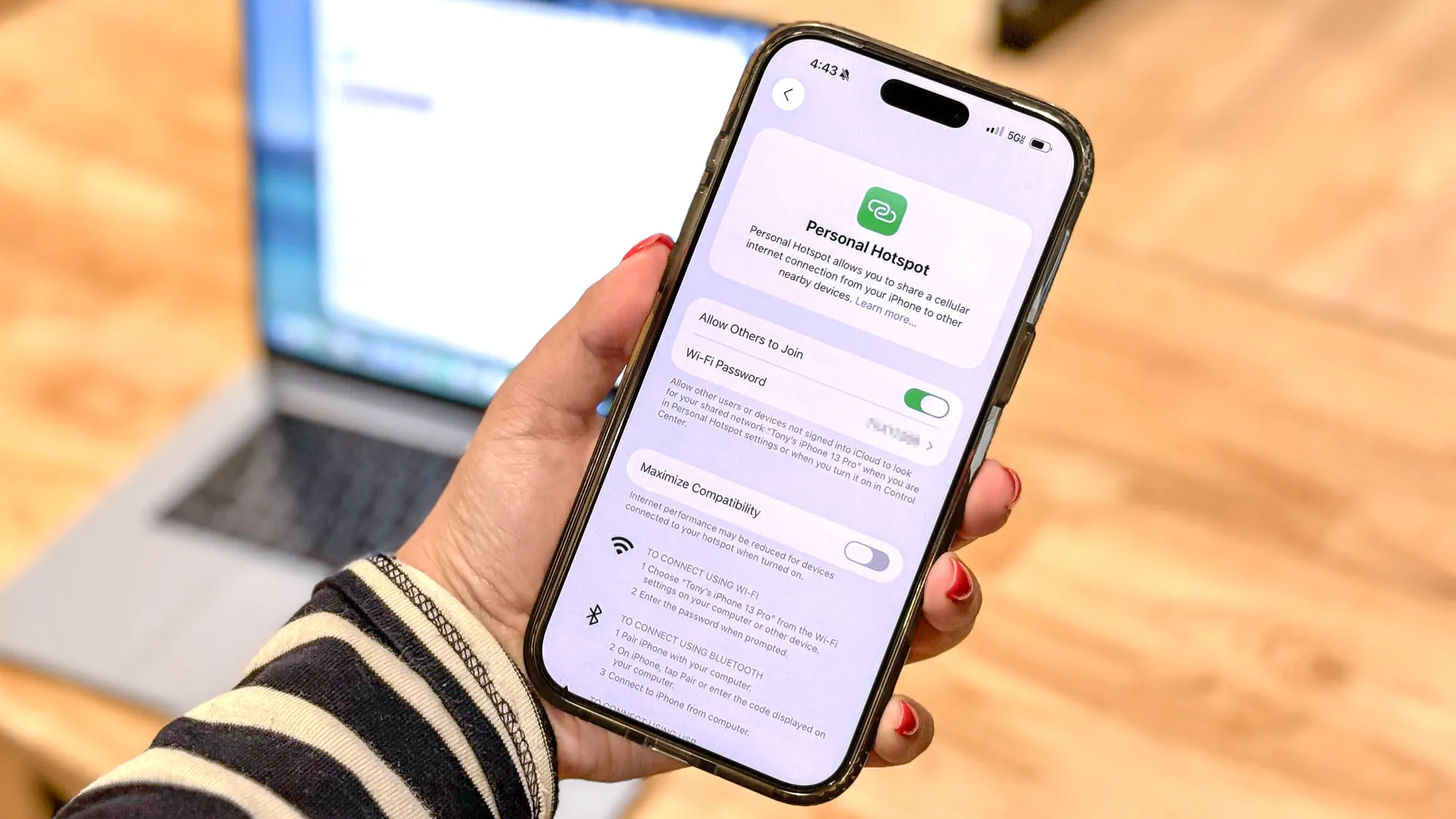
There's a special kind of panic that hits when your iPhone's Personal Hotspot refuses to work on a deadline. No Wi-Fi in sight, your laptop is useless, and the one feature standing between you and connectivity has gone dark.
The vast majority of hotspot failures come down to a handful of simple settings: cellular data switched off, Personal Hotspot toggled out of place, or a network configuration that's quietly gone wrong. Occasionally a carrier issue or software bug is to blame, but those are easier to fix than they sound.
Try these five steps first. Most people are back online within minutes.
1. Verify cellular data is enabled
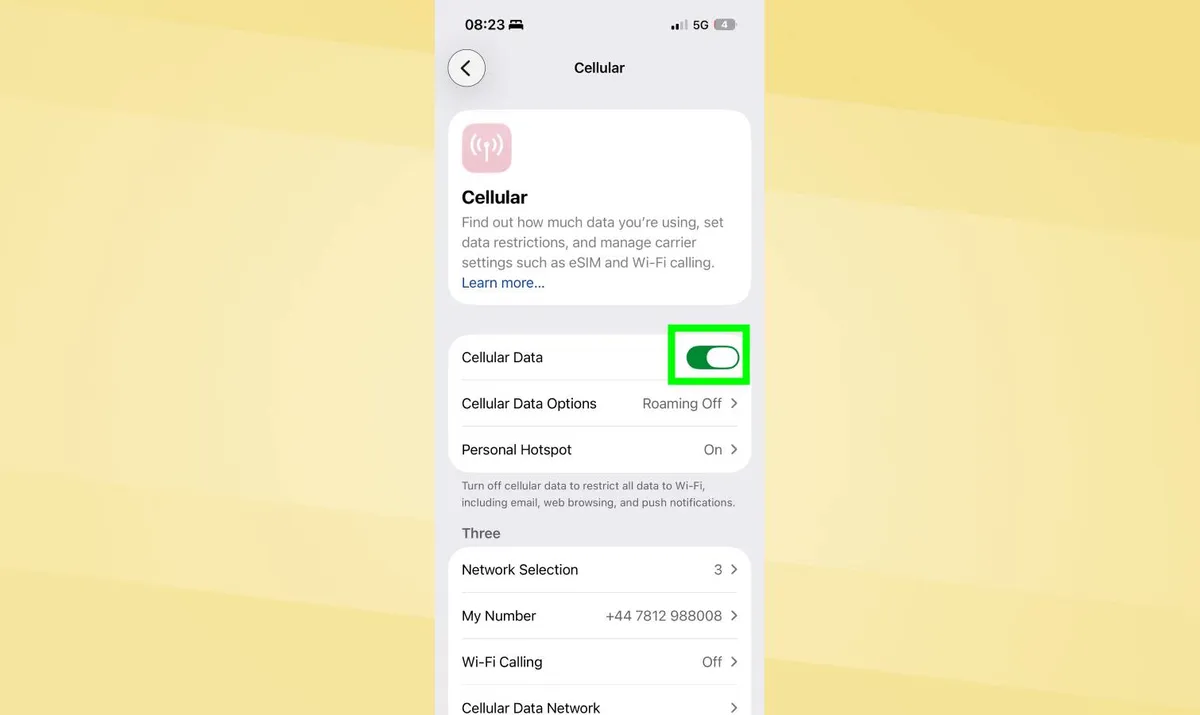
Personal Hotspot requires active cellular data to function. If cellular data is disabled, hotspot won't work even when toggled on in settings.
Open Settings and tap Cellular, then check that "Cellular Data" is toggled on.
If it's off, toggle it on. If you can't toggle it on or it immediately switches back off, your cellular account may be suspended or inactive. Contact your carrier to verify your account status and that your plan includes hotspot functionality.
Some carriers limit or disable hotspot on certain plans. If cellular data works for regular phone use but hotspot still fails, your plan might not include tethering. Check with your carrier about hotspot availability on your current plan.
2. Check Personal Hotspot settings
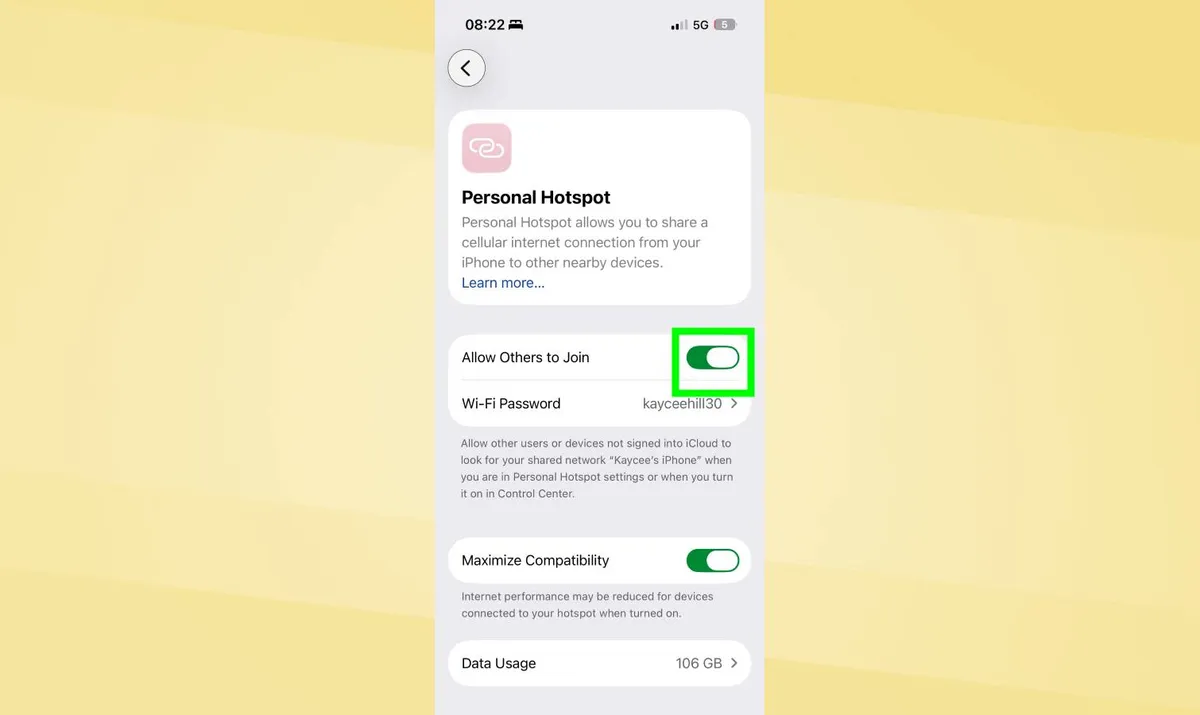
Personal Hotspot must be enabled and configured to allow connections. Even if it was working previously, settings can reset or get accidentally toggled off.
Go to Settings, Personal Hotspot, and make sure "Allow Others to Join" is toggled on. This setting specifically permits other devices to connect to your hotspot. Without it enabled, your iPhone broadcasts the hotspot network but rejects all connection attempts.
Your iPhone assigns a random password to the hotspot automatically. You can view this password in the Personal Hotspot settings screen. If devices are being rejected despite entering the correct password, tap the password field and change it to something new.
3. Restart your iPhone
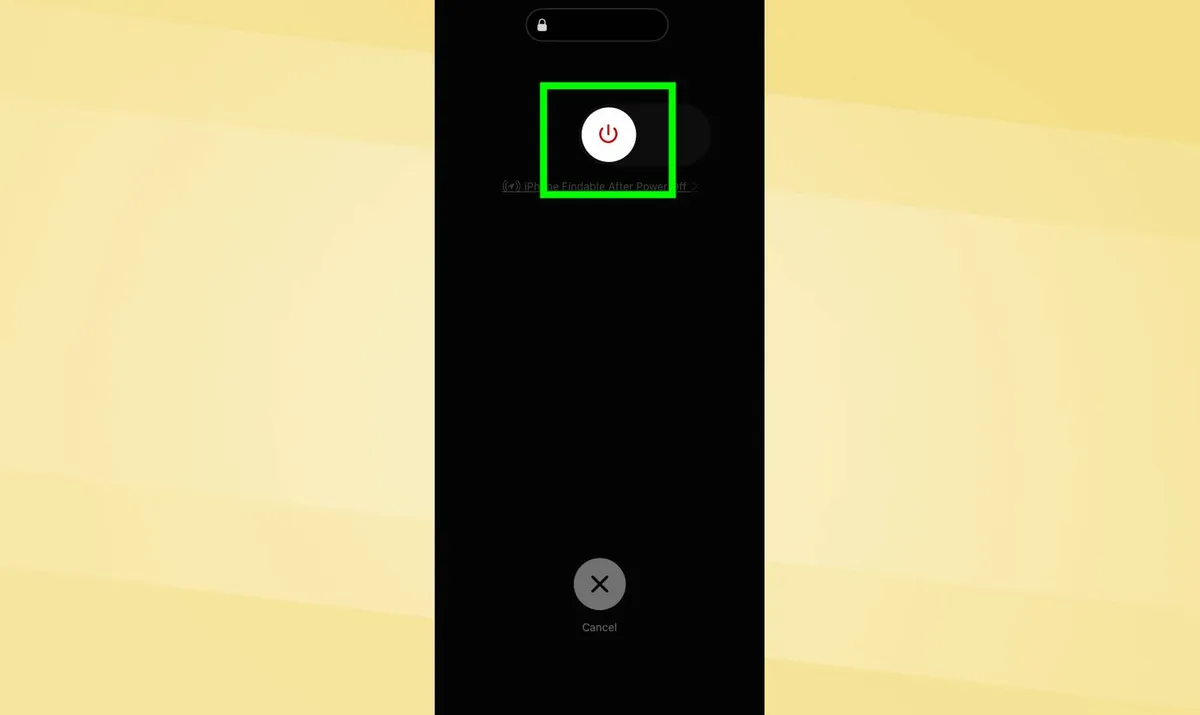
Software glitches in iOS or on the device trying to connect often prevent hotspot from working properly. Restarting both devices clears these temporary bugs.
Restart your iPhone and, if possible, the device trying to connect to your hotspot as the connection failure could be happening on the other device side, rather than your iPhone. After both devices restart, re-enable Personal Hotspot and attempt to connect again.
If you need to connect just one computer and wireless hotspot keeps failing, test a USB connection instead. Connect your iPhone to the computer with a Lightning or USB-C cable. The computer should detect the iPhone's internet connection automatically and use it without requiring wireless hotspot.
4. Reset network settings
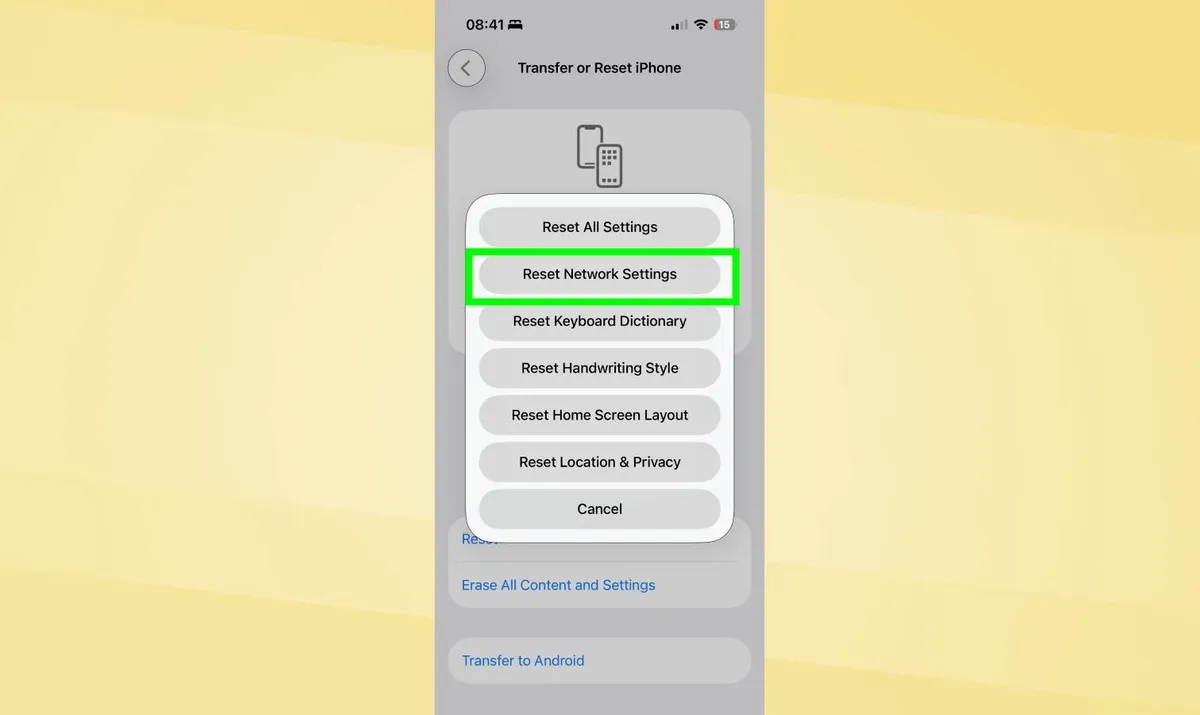
Network settings can become corrupted over time, preventing Personal Hotspot from functioning correctly. This step should only be attempted after simpler fixes fail, as it requires reconfiguring network connections afterward.
Go to Settings, General, Transfer or Reset iPhone, and Reset. From here, tap "Reset Network Settings" only, enter your passcode when prompted and confirm the reset.
It's important that you do NOT select "Reset All Settings" or "Erase All Content and Settings", as these will wipe your entire phone.
5. Contact your carrier
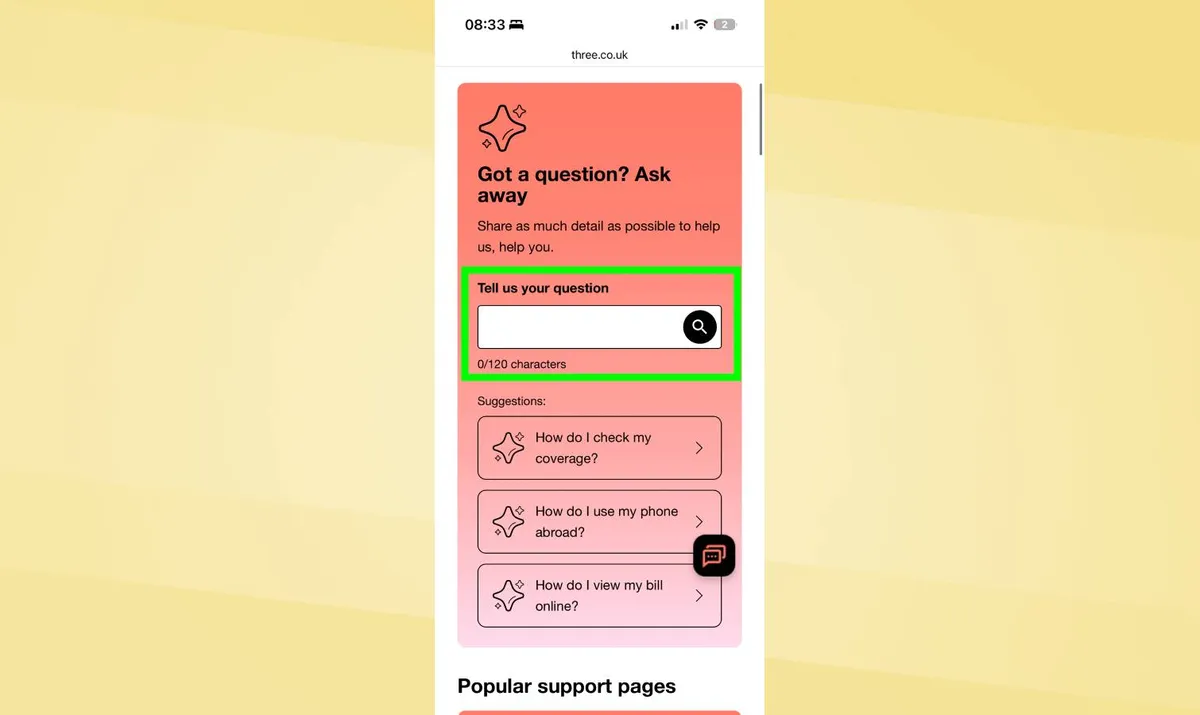
If none of the previous steps work, the problem likely involves your carrier account or network rather than your iPhone itself. Contact your wireless carrier's support and explain that Personal Hotspot isn't working despite trying all troubleshooting steps.
If you're using a work-issued iPhone, contact your IT department instead of the carrier directly and they can support you from there.
Protect your iPhone

Follow Tom's Guide on Google News and add us as a preferred source to get our up-to-date news, analysis, and reviews in your feeds. Subscribe to Tom's Guide on YouTube and follow us on TikTok.
More from Tom's Guide

