






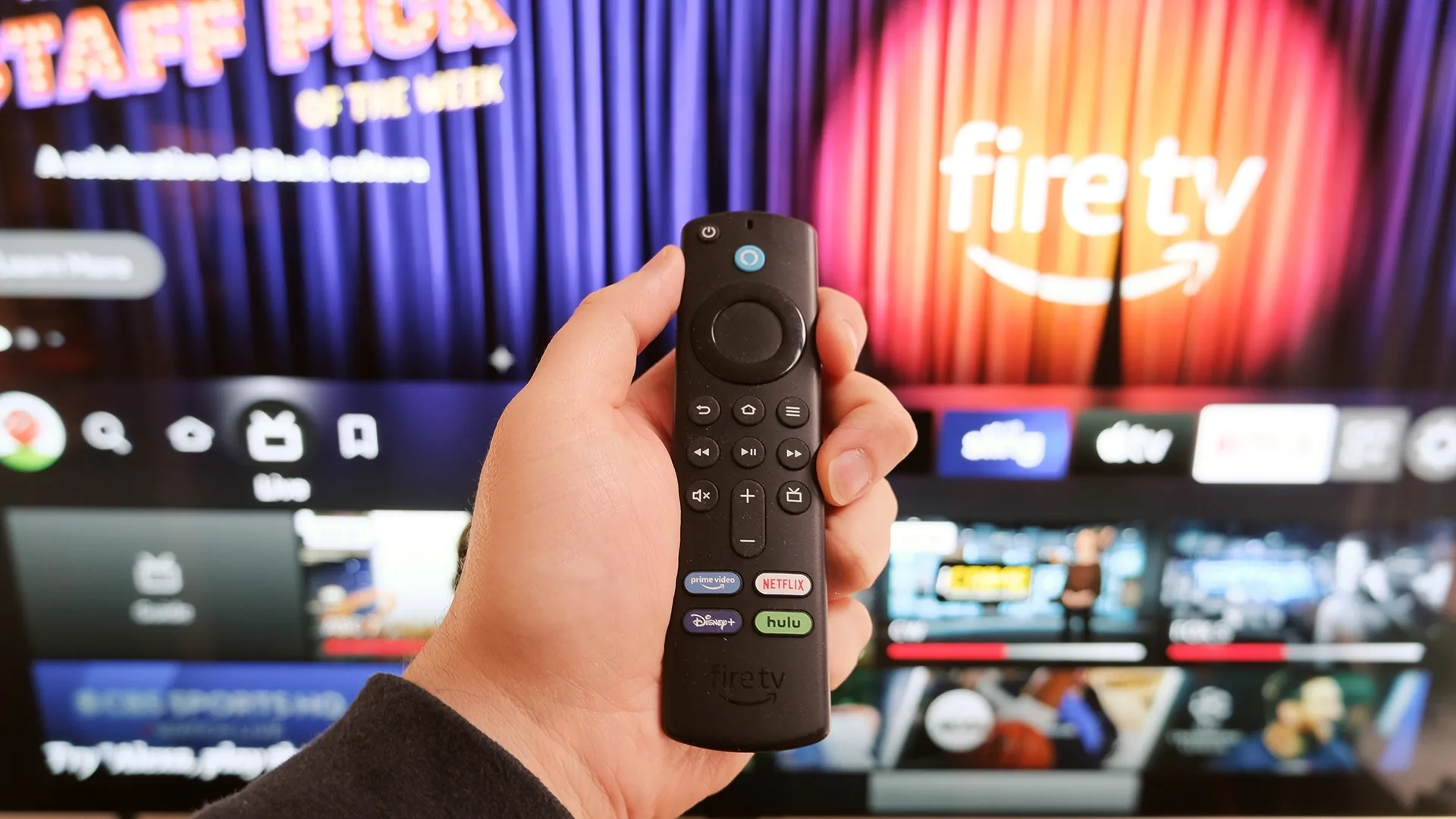
Many people plug in a Fire TV Stick, find Netflix and Prime and call it done. That's fine — but Amazon quietly builds a lot more into Fire OS than the setup screen ever tells you. Better performance, smarter controls, features that should be obvious but somehow ended up buried three menus deep.
Some of what's hiding in there fixes the stuff that actually annoys you: the lag, the sluggish menus, the remote juggling. Other features unlock things you'd assume require extra hardware entirely.
Here are seven hidden Fire TV Stick features worth exploring.
1. Use the Fire TV mobile app as a remote

The Fire TV app for Android and iOS turns your smartphone into a full-featured remote with significant advantages over the physical one. Typing searches or passwords with the bundled remote is tedious, tapping out text on your phone's keyboard is faster.
Download the Fire TV app, connect it to your Fire TV Stick on the same Wi-Fi network, and use it alongside or instead of the physical remote. The app works on tablets too, giving you a larger screen for reading descriptions or filtering content by genre while you browse.
2. Turn off data monitoring
Fire TV's data monitoring feature tracks how much bandwidth each app consumes, but this tracking itself uses CPU and memory. Unless you're on a metered connection with strict data caps, you don't need this information and disabling it frees up system resources.
From the home screen, go to Settings, Preferences, Data Usage Monitoring and toggle Data Monitoring off.
3. Control multiple devices with one remote
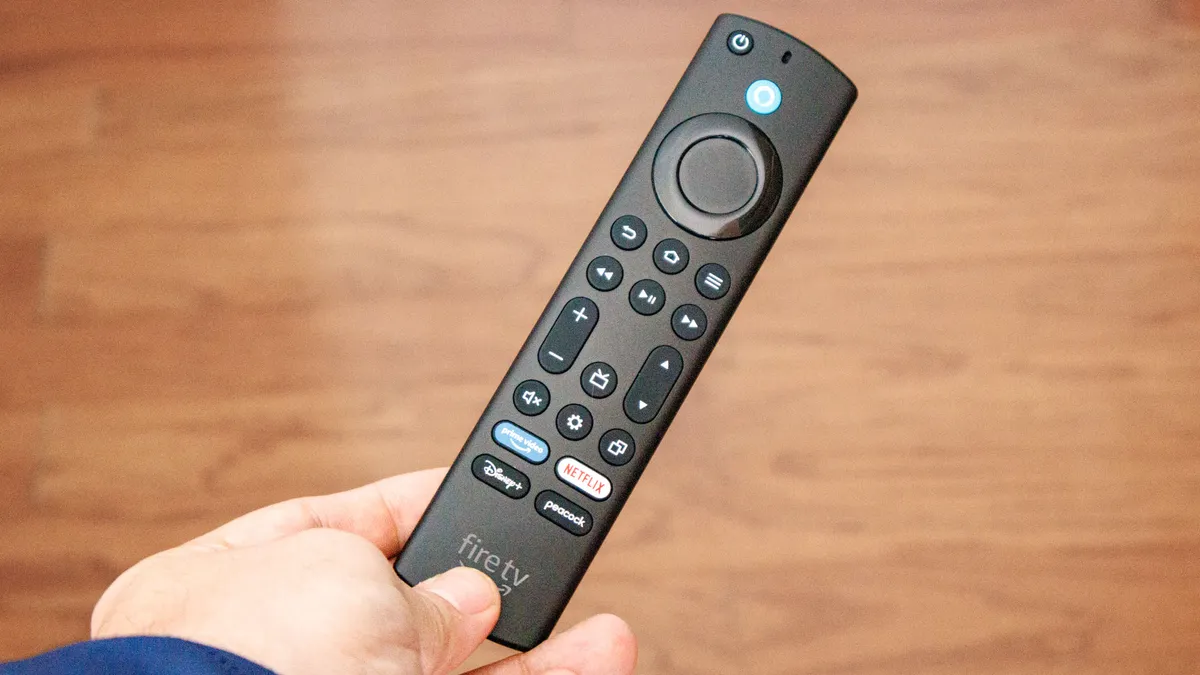
HDMI-CEC (Consumer Electronics Control) lets devices connected via HDMI communicate with each other. This means your Fire TV remote can control your soundbar volume, turn your TV on and off, and manage other connected devices without juggling multiple remotes.
Go to Settings, Display and Sounds, HDMI CEC Device Control and enable it. As long as your TV and other devices support HDMI-CEC (most modern equipment does), they'll respond to commands from your Fire TV remote.
Some devices might have compatibility issues or quirks, but when it works it eliminates remote clutter. If a device stops responding or behaves strangely after enabling HDMI-CEC, disable it for troubleshooting.
4. Play games through Amazon Luna
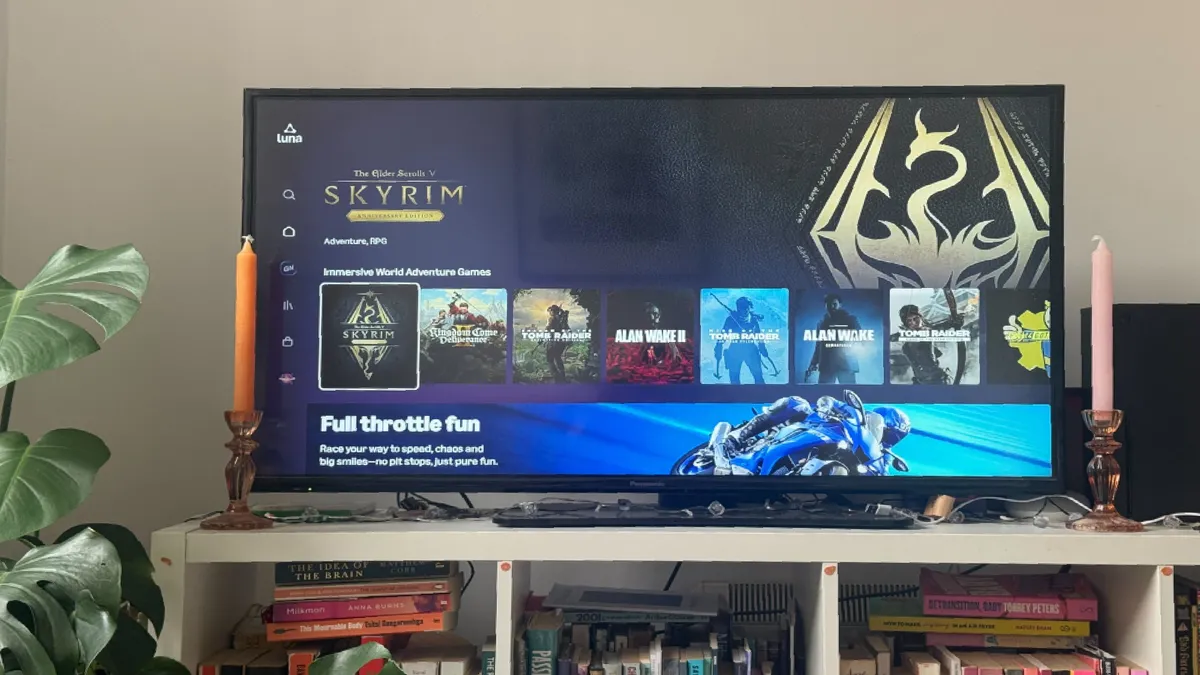
Fire TV Stick hardware can't run demanding games, but Amazon Luna streams them from remote servers. This lets you play graphically intensive titles on your Fire TV without a console or gaming PC. This is a literal game-changer.
If you have Amazon Prime, Luna is included at no additional cost with access to a rotating selection of games. Download the Amazon Luna app from the Fire TV app store, connect a compatible game controller (Bluetooth controllers work), and launch games directly.
5. Clear app cache to free up memory
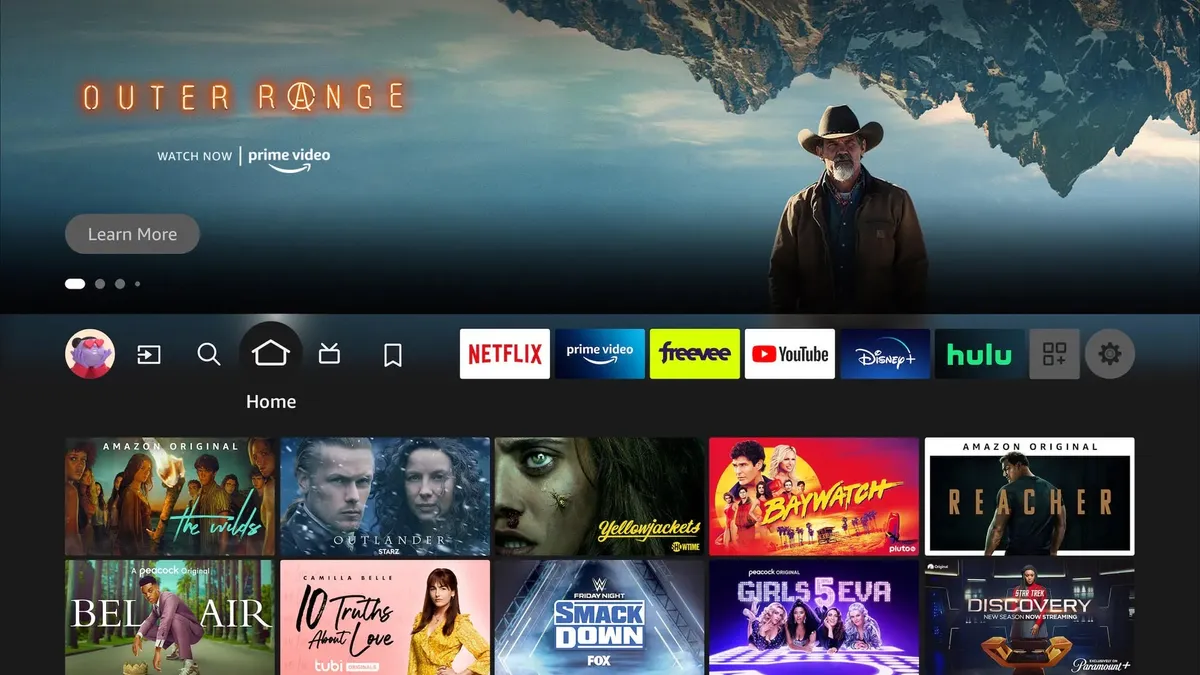
Every app quietly hoards temporary files in the background — and while the cache is supposed to speed things up, too much of it does the opposite. If your Fire TV feels like it's running through mud, bloated cache is usually the culprit.
Head to Settings, Applications, Manage Installed Applications, pick a heavy hitter like Netflix or YouTube, and hit Clear Cache. Or skip the one-by-one grind and use "Clear all Application Caches" to clear it all at once. No logins lost, no settings changed.
Make this a monthly habit and you'll be surprised how much snappier everything feels.
6. Force stop apps running in the background
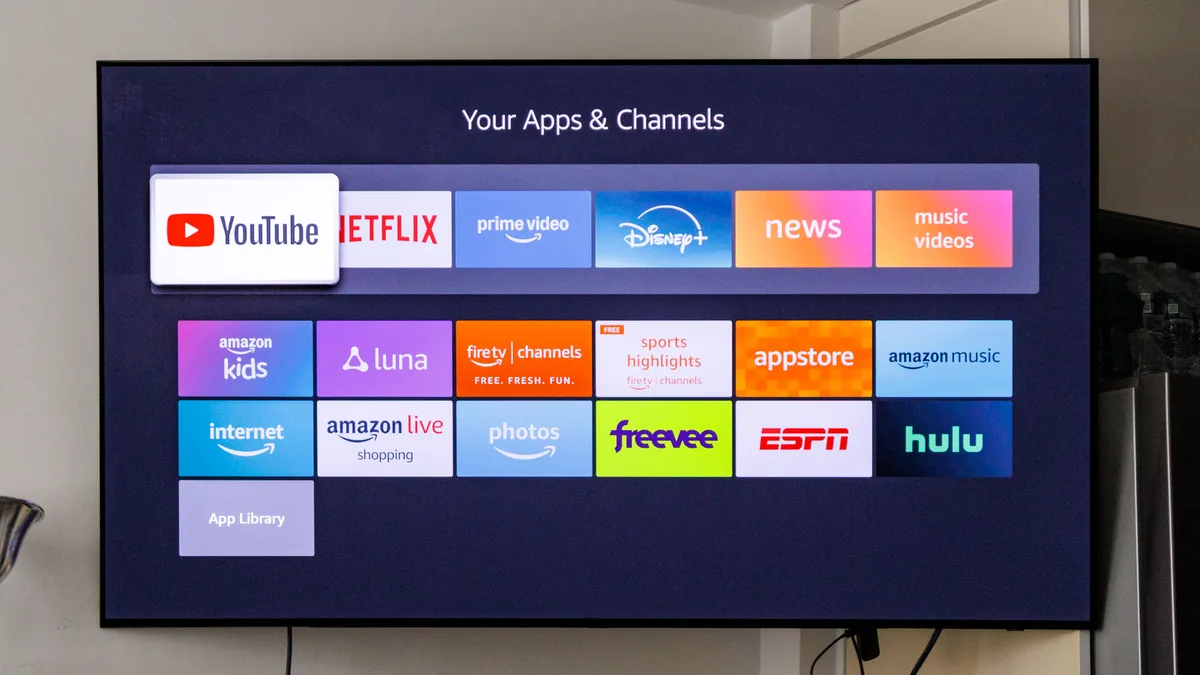
Closing an app doesn't actually close it. Netflix, Hulu, Prime Video — they all linger in the background chewing through memory while you're trying to launch something else. That's why your next app takes forever to load.
Go to Settings, Applications, Manage Installed Applications, pick any app you're not actively watching, and hit Force Stop. Run through a few of the usual suspects and you'll free up a meaningful chunk of RAM instantly.
7. Delete unused apps

Deadweight apps are a silent performance killer. To remove unnecessary apps go to Settings, Applications, Manage Installed Applications, scroll ruthlessly, and uninstall anything you haven't touched in months. If you can't remember the last time you opened it, it goes.
Fewer apps means more RAM and storage for the things you actually watch — and a Fire TV that stops acting like it's struggling.

Follow Tom's Guide on Google News and add us as a preferred source to get our up-to-date news, analysis, and reviews in your feeds. Make sure to click the Follow button!
More from Tom's Guide
- This Fire TV stick setting causes lag — here's how to turn it off
- I discovered this Fire TV stick feature by accident — and it's a game-changer
- 5 Fire TV settings you should change right now for better performance

