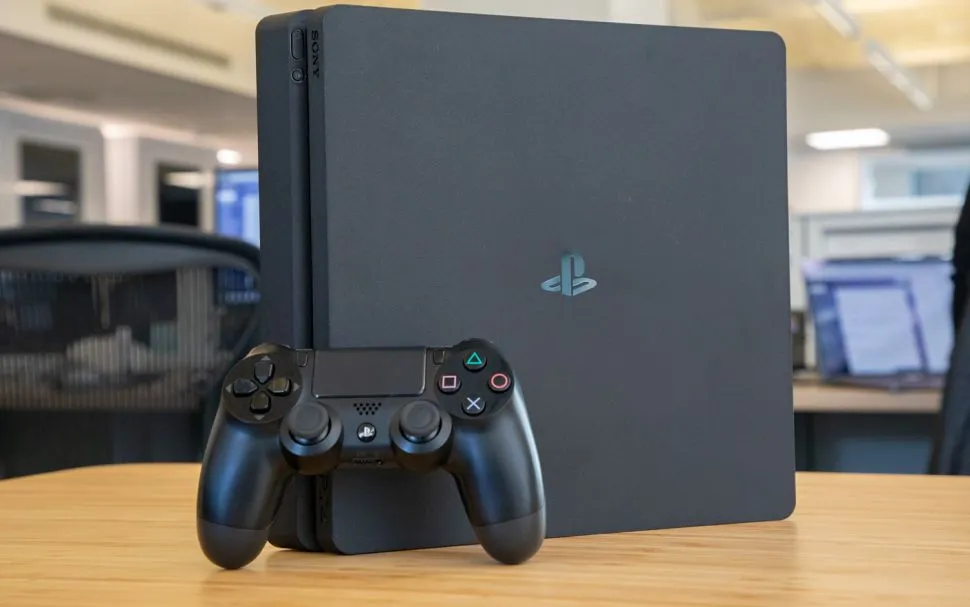
A PS5 is a serious investment. Meanwhile, your PS4 is starting to show its age.
Here's the thing: your PS4's real bottleneck is a spinning hard drive — the same technology you'd find in a budget laptop from a decade ago. Swap it for an SSD and load times drop dramatically. The drive costs less than a single new game and a screwdriver is the only tool you need.
The catch is you can't just yank one drive and slot in another. You'll need to back up your saves, reinstall the OS fresh on the new drive, then pull everything back. Two USB drives, about an hour, mild inconvenience. Here's exactly how.
1. Back up your game saves and data

The new SSD will be blank, so you need to save everything from your current hard drive first. You'll need a USB drive with enough space for your game saves and any apps you want to avoid re-downloading.
Insert the USB drive into your PS4 and head to Settings, System, Back Up and Restore, then select "Back Up PS4." Choose what to back up — at minimum, select your saved data. You can include applications too, though games themselves are too large and will need reinstalling regardless.
If you have PlayStation Plus, you can skip the USB drive and back up to cloud storage instead. For trophies, sync them through the Trophies section before you do anything else.
Once the backup is done, shut the PS4 down completely and unplug it before opening the console.
2. Replace the hard drive with an SSD

You need a 2.5-inch SATA SSD — not the slimmer type used in modern PCs and the PS5. Any 2.5-inch model will do, you don't need anything high-end.
The process varies slightly depending on which PS4 you have, but the principle is the same across all models: remove a panel, unscrew the drive cage, swap the drive, and reassemble.
Once that's done, don't turn it on yet, you need to get the operating system ready first.
3. Reinstall the PS4 operating system

Your new SSD is blank, so you'll need to install the PS4 operating system from scratch using a second USB drive and a computer.
Format the USB drive, create a specific folder structure on it, then download the full reinstallation file from Sony's support page and drop it in. The file name needs to stay exactly as downloaded.
From there, boot your PS4 into Safe Mode by holding the power button until you hear a second beep, select "Initialize PS4 (Reinstall System Software)", insert the USB drive, and let it do its thing. When it's done, the PS4 reboots like it's brand new.
4. Restore your data and reinstall games
Log in and set up as normal, then restore the backup you made earlier — either from your USB drive or cloud storage, depending on which route you took.
Your saves and settings will come back, but you'll need to reinstall your games. Once everything is back in place, the difference in loading times should be immediately obvious.

Follow Tom's Guide on Google News and add us as a preferred source to get our up-to-date news, analysis, and reviews in your feeds. Make sure to click the Follow button!
More From Tom's Guide
- Just got a PS5? Here's 7 settings to change first
- Here's how to stop your TV from turning on your Xbox or PS5
- Your PS5 Pro can boost image quality on PS4 games — here's how