



Just when I thought I’d never go back to using a split mechanical keyboard, Keychron’s new Q11 Ultra came along and fixed everything I disliked about my previous one while taking the typing experience to a whole new level.
Switching from a mushy membrane keyboard to one of the best mechanical keyboards was one of the biggest upgrades I’ve ever made. Doing so not only improved my typing, but it also helped reduce hand fatigue. There was just one problem: ergonomics.
That’s where split mechanical keyboards come in. As the name suggests, these keyboards are made up of two halves that work together but can be spread apart on your desk. This way, your arms rest at a more natural position while typing, keeping them shoulder-width apart.
For most people, using a standard mechanical keyboard will still be a massive improvement over a membrane one. Given that I write for a living and type a lot more than most people do each day, I wanted to take things to the next level.
Now, the Q11 Ultra isn’t the first split mechanical keyboard I’ve used. However, it has one big upgrade that I’ve been waiting to try out for myself. After using Keychron’s latest split keyboard for a week, I don’t know how I can go back to a standard mechanical keyboard.
A premium keyboard with a twist

The Q11 Ultra comes with plenty of useful accessories in the box. From Windows-specific keycaps to extra mechanical switches and a USB-C to USB-A adapter, you have everything you need to get started and to tweak this keyboard to your liking.
Just like with the Keychron Q1 Ultra I tried earlier this year, the Q11 Ultra is an 8K mechanical keyboard with a premium design and build. This higher polling rate is often associated with the best gaming keyboards but there’s a benefit for fast typists too, as it results in a very responsive, fluid, and connected feeling.
In the past, you’d have to use the included cable to experience an 8000 Hz polling rate. This isn’t the case with the Q11 Ultra though, as you can do so wirelessly using the included 2.4 GHz USB dongle. This just so happens to be my preferred connection method too, since I’m always switching between computers while reviewing the best mini PCs. Instead of dealing with Bluetooth pairing, I just plug in the dongle and I’m good to go.

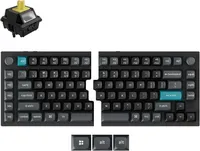
The Q11 Ultra features KSA double-shot PBT keycaps like on the Q1 Ultra. They look great and feel just as good underneath your fingertips. Besides being a split keyboard, the Q11 Ultra has some other unique features too. For instance, instead of just one knob on the top right side of the keyboard, there’s a second knob on the left side too. Out of the box, both are set to control your computer’s volume while pressing the knob down mutes your audio. However, in the web-based Keychron Launcher, you can customize them and the rest of the keyboard’s keys. Likewise, you’ll need to use it to activate the Q11 Ultra’s faster 8K polling rate too.
Although the Q11 Ultra is a 75% keyboard with a function row up top and arrow keys in the bottom right corner, it does have a few extra macro keys on the left side. Within the Keychron Launcher, you can program M1-M5 any way you want. For instance, I currently have M1 set to open a new File Explorer in Windows while I have M2 set to open Task View so I can easily switch between virtual desktops. The possibilities are basically endless since you can also record your own macros — or multi-key shortcuts — and assign them to any of these M keys as well.

Now around back is where things get interesting with the Q11 Ultra. On the left half, you have a USB-C charging port and two toggle switches: one to switch between connection modes (Bluetooth, wired and 2.4 GHz) and another to switch between Mac or Windows. Then on the right half, you have another USB-C charging port for that side of the Q11 Ultra and a simple on/off switch. This switch can come in handy if you just want to play one of the best PC games with just the left side of the keyboard to make more room for your mouse.
With the Q11 Ultra unboxed, it was time to bring it over to my desk and get it set up.
A no-compromise split

Since I’m in the process of reviewing the 2026 Edition of the Geekom A9 Max, I decided to build a whole productivity-focused desk setup around it with the Q11 Ultra front and center. On the right, instead of my trusty trackball mouse, I’ve paired this keyboard with the Keychron M5 vertical mouse I’m also testing out. Then in the center above the A9 Max 2026 Edition, I have the Innocn 40C1U 40-inch ultrawide monitor for as much screen real estate as I can get without having to go from a flat to a curved display. And if you’re wondering about the desk, this is the Uplift V3 standing desk with power grommets on either side.
Although the monitor and the mini PC powering this whole setup are excellent in their own right, it’s the Q11 Ultra that’s made the biggest difference. It feels just as good to type on as the Q1 Ultra since I’m also using Keychron’s own Silk POM Banana switches, which feature an early tactile bump compared to traditional brown mechanical switches. When combined with the KSA double-shot PBT keycaps and the Q11 Ultra’s full metal body, the whole experience of using this keyboard has an incredibly premium feel to it.

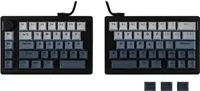
The best part about the Q11 Ultra is its tether-free design. In the past, the two halves of a split mechanical keyboard needed to be connected to one another using a short cable. With the Q11 Ultra, Keychron uses advanced 2.4 GHz wireless sync to allow the two halves to communicate seamlessly without one. What I like about this is that you can have the two halves of this split keyboard as far apart or as close to one another as you’d like. Although I prefer having the two halves aligned, you can also tilt them inward or outward depending on your preference.
Keychron has also made a lot of improvements to the acoustic profile of the Q11 Ultra compared to the original Q11. While you just had one layer of sound-absorbing foam with the latter, this upgraded model has two layers of foam between its switches and PCB, as well as two more at the very bottom. As such, the Q11 Ultra sounds just as good while typing as it feels underneath your fingertips.
Even though I’ve kept it off for the most part, you also have full RGB backlighting as well as per-key RGB, where you can individually customize the color of each key. Just like with 8K polling, leaving the Q11 Ultra’s RGB backlighting on will drain its battery faster. Speaking of battery life, Keychron says you can get up to 160 hours on a single charge. I’ve been using the Q11 Ultra as my daily driver for over a week now and I haven’t had to charge it yet.
Tether-free, finally
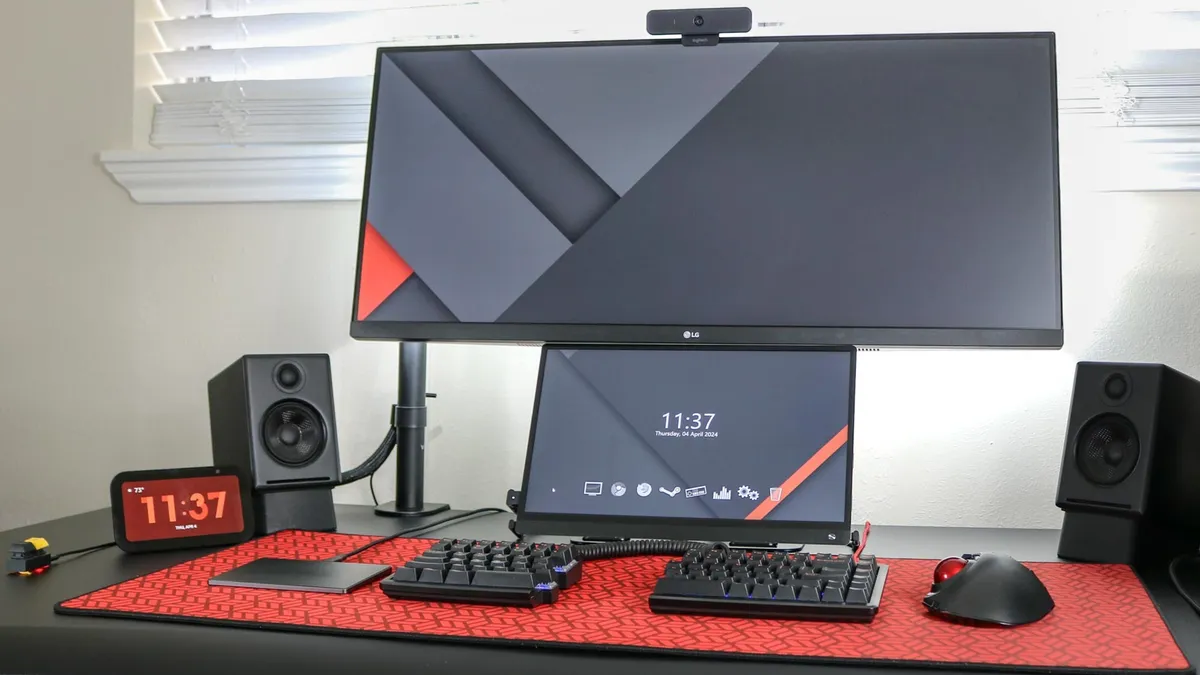
Back when I had my first split mechanical keyboard — the Mistel Barocco — almost everything except for my mouse was connected to my PC via wires. Sure, it was dependable and lag-free, but as my desk setups have evolved, having wires running across the top of my desk just didn’t do all the work I put into my under-desk cable management justice.
After picking up the Keychron C3 Pro for just $30 on a whim a few years ago to see how far budget mechanical keyboards had come, I fell for Keychron, and I fell hard. While I initially gravitated toward its low-profile mechanical options, getting a chance to try the Q1 Ultra recently really made me appreciate its full-profile boards.
I almost picked up the original Q11 several times over the years, but in retrospect, I’m glad I waited for the Q11 Ultra. Keychron’s Banana switches feel like a massive improvement over traditional MX Browns, and its tether-free design is something I never thought I’d see at this price point. At $239, the Q11 Ultra is far from a starter board, but given what premium mechanical setups used to cost only a few years ago, it’s an absolute steal for this level of design and wireless functionality.
If you’ve already invested in one of the best office chairs and a solid standing desk to go alongside it, a split mechanical keyboard could be the last piece of the ergonomic puzzle you’ve been missing. I used to think a standard mechanical layout was good enough for me too, but after spending a week daily driving the Q11 Ultra, going back is going to be incredibly tough.

Follow Tom's Guide on Google News and add us as a preferred source to get our up-to-date news, analysis, and reviews in your feeds. Subscribe to Tom's Guide on YouTube and follow us on TikTok. Finally, you can visit our dedicated Tom's Guide Savings Squad hub for expert help on getting the best products for less.
More from Tom's Guide
- I've used the same $30 Logitech keyboard for 10 years and Framework just showed off the upgrade I actually want
- I tested the world’s first concrete keyboard and there’s a reason nobody else does this
- I gave my favorite pocketable mini PC an instant upgrade with this docking station — and now it’s a full-fledged gaming rig