







Just like sitting in an office chair all day isn’t good for your health, using a traditional mouse for hours on end does a number on your body. Those small, repetitive movements and awkward hand positions take a serious toll on your wrist, forearm, and even your shoulder — which is why I switched to a trackball mouse many years ago.
Not too long after I made the switch, though, a different kind of mouse started blowing up. Although the vertical mouse was first introduced by inventor Jack Lo back in 1994, it wasn’t until the launch of the Logitech MX Vertical in 2018 that they actually became mainstream.
Maybe it was because this new device was part of Logitech's excellent MX Master Series, but once the MX Vertical hit store shelves, vertical mice were here to stay. More recently, the company released a cheaper, more compact version called the Logitech Lift. In the years since, other accessory makers have joined the fray, and these days you can find vertical mice from Acer, Anker, ProtoArc, Ugreen, and of course, Keychron.
Since I was already testing out its new Q11 Ultra split keyboard, Keychron asked if I’d be interested in trying out its M5 vertical mouse. While I’ve used a trackball as my daily driver for over a decade now, I figured it was finally time to give a vertical mouse a shot. After using the Keychron M5 for the past month, I honestly wish I had sooner.
Form follows forearm

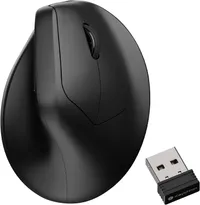
As the name suggests, a vertical mouse takes the design of a traditional mouse and shifts the buttons and scroll wheel to the side. This allows your hand to rest naturally on its edge in a "handshake" position, rather than being forced flat against your desk. The curves around the base and top of the Keychron M5 conform perfectly to your hand, making it incredibly comfortable to hold even for long stretches at a time.
In the box, alongside the mouse itself, you get a 2.4 GHz USB receiver, a braided USB-C to USB-C cable, and a USB-C to USB-A adapter just in case you’re using an older machine. Everything was really well packaged, and it was nice to see similar accessories to the ones you get with one of the best mechanical keyboards from Keychron.

On the front of the M5, there's a USB-C port used for charging or running the mouse in wired mode. Over on the right side, you'll find the standard left and right-click buttons, separated by a nicely textured scroll wheel that's easy to grip with your index finger.

The left side is where things get interesting. In addition to where your thumb rests, Keychron placed a second, wider scroll wheel up near the top. While you can map it to scroll vertically, I used the browser-based Keychron Launcher to set it to horizontal scrolling. This way, I can easily scroll through extra wide spreadsheets horizontally without having to use the scroll bar at the bottom in Google Sheets.
In my rush to get the M5 unboxed and on my desk, I completely forgot to take a picture of the bottom. On the underside, there’s a mode toggle switch surrounded by three small buttons. One button controls your DPI, another lets you crank the polling rate all the way up to an ultra-responsive 8K and the last one lets you swap between several Bluetooth channels as you can pair this mouse with up to three devices over Bluetooth.
With the M5 all charged up, it was time to plug into my computer and take it for a scroll.
Sculpted to your workflow

To test out the Keychron M5, I added it to a productivity-focused desk setup I put together while reviewing the Geekom A9 Max mini PC. It’s sitting right next to the Q11 Ultra split mechanical keyboard, and I’m using the Innocn 40C1U 40-inch ultrawide as my display.
Even though I recently took a hiatus from my trusty trackball mouse to try out the Logitech MX Master 4, it still took me a bit to get fully accustomed to the M5. My hand wanted to rest flat out of habit, but by the second day of using this vertical mouse, that craving went away and having my hand tilted slightly felt like second nature. Once the initial novelty wore off, it was time to put the M5 to work — but before doing so, I wanted to customize those side buttons.

To that end, I booted up the Keychron Launcher, hit the connect button on the top right, and the web app instantly recognized the M5. You can technically customize all of the mouse’s wheels and buttons, but for my purposes, I stuck to tweaking the functionality of the ones on the left side.
Since I’m constantly working with long blocks of text when uploading and editing articles, I set the button toward the front of the mouse to copy and the one behind it to paste. Then, like I mentioned before, I set the larger scroll wheel above them to scroll horizontally. This took two steps, as I had to manually set scrolling down to go right and scrolling up to go left. Still, I appreciate that you can fine-tune how this extra scroll wheel works to your liking.

In day-to-day use, what surprised me most about the M5 is that I didn’t feel any wrist strain at all, even though this vertical mouse works more like a traditional one with an optical sensor on the bottom as opposed to a trackball controlled entirely by your thumb or index finger. I chalk this up to the fact that Keychron didn’t just make a vertical mouse; they made an exceptionally fast one with an 8K polling rate. I also have my mouse cursor set to go insanely fast across the screen given the 5K2K resolution of the Innocn monitor I’m using.
As for the M5’s battery life, Keychron claims it can last up to 140 hours on a single charge. I’d say that’s fairly accurate, as during the month or so I’ve spent using this mouse (without turning it off overnight), I’ve only had to charge it once. Keep in mind, though, with the polling rate set above 1,000Hz, the mouse is going to use more power and the battery won’t last nearly as long. However, you could easily turn it up when doing a task where you need that high polling rate and then click it back down afterward using the button on the underside.
One thing I haven’t tried out with the M5 yet is gaming, but I expect it would work pretty well for that, too. After using a trackball mouse for gaming, I don’t think it would be that difficult to use a vertical mouse to do the same.
A perfect ergonomic pair

As a trackball convert turned diehard, I initially wrote off vertical mice. Why would I want to go back to moving my hand across my desk when I could just move my thumb? In fact, when a coworker brought them up as a great ergonomic option, I scoffed at the idea since trackballs already existed. Now, though, I’ve been converted yet again — using a vertical mouse is a lot more comfortable and enjoyable than I ever thought it would be.
There’s a steep learning curve when switching from a traditional mouse to a trackball. With a vertical mouse, there really isn’t one at all. Sure, your hand might feel slightly out of place for the first hour or so, but by the end of the day, you’ll be clicking and scrolling just like you always have.
One thing that really helped ease my transition was using it alongside a split keyboard. I had used a split keyboard for several years in the past but eventually gave it up in favor of a standard wireless mechanical keyboard. With my arms resting more naturally with the Q11 separated into halves, it just felt completely right reaching for the M5 when it came time to move my cursor.
Since I review tech for a living, I switch between different keyboards and mice as often as I try out new mini PCs. However, this combination of the Keychron Q11 keyboard and M5 mouse has really grown on me, and I think I might stick with it for a bit longer than I normally do. If, like me, you’re on the fence about giving a vertical mouse a shot, I highly recommend this one — especially since you can pick it up for around $70.

Follow Tom's Guide on Google News and add us as a preferred source to get our up-to-date news, analysis, and reviews in your feeds. Subscribe to Tom's Guide on YouTube and follow us on TikTok. Finally, you can visit our dedicated Tom's Guide Savings Squad hub for expert help on getting the best products for less.
More from Tom's Guide
- I ditched my iPad and Kindle for this tablet with a paper-like display — and it's up to 39% off for Prime Day
- I screenmaxxed my desk setup by going from three to five displays — but they aren’t all monitors
- I held the MacBook Neo in one hand and the new XPS 13 in the other — and Dell’s $699 laptop is surprisingly lighter

