There comes a time when doing things easier and faster becomes your sole motivation and the driving force behind learning new things on your computer.
Whether that’s doing complex Photoshop edits in fewer clicks or mastering even the most obscure keyboard shortcuts, once you fall down that rabbit hole, it seems like you’ll never reach the bottom.
Like with most people, this started small for me. A keyboard shortcut here and a keyboard shortcut there, until I was outright remapping them to buttons on my mouse. Then I took things a step further and did so with a tiny controller from 8BitDo and even a foot pedal connected to my PC. However, there was an easier way: macropads.
Designed to work alongside your keyboard and mouse, macropads are fully customizable accessories where you can map whatever you want to each key. From simple things like copy and paste to full-on commands, the possibilities are truly endless. However, what if you only had a single, comically large key to work with?
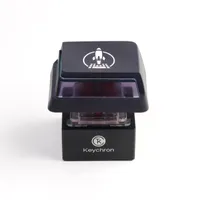
Well, that’s exactly the position I found myself in when I decided to add Keychron’s Q0 Mini 8K Action Key to my desk setup. While a traditional macropad certainly would have been more useful, reaching over to slam this one down throughout my workday has been a whole lot more fun.
Not your typical Keychron keyboard

From a super budget-friendly wired board to a split ergonomic one, I’ve tried out a lot of Keychron’s keyboards over the past few years. In fact, I’d go so far as to say that the company makes some of the best mechanical keyboards you can get today without breaking the bank. Keychron’s Q0 Mini 8K Action Key may only have a single key switch, but unboxing it still gave me the familiar experience I’ve come to expect from the brand.
In the box, you get the Q0 Mini 8K Action Key itself along with a braided USB-C cable, and just in case you don’t have any free USB-C ports, you also get a USB-A adapter. For a device that could have easily been an April Fools' joke, everything feels a whole lot more premium than it has any right to be.

The first thing that stuck out to me about the Q0 — besides the fact that it’s massive at 3.65 x 3.25 x 3.25 inches — is its heft. This thing isn’t going anywhere on your desk thanks to its machined aluminum base. Even with its oversized keycap, the Q0 weighs nearly a pound on its own.
On the backside, there’s a single, recessed USB-C port and that’s all you get. While I would have loved for it to have Bluetooth or wireless 2.4 GHz connectivity, Keychron went overboard with its wired connection. A single key like this doesn’t need to be that fast, but the company went ahead and gave it a polling rate of 8,000 Hz anyway, which I consider overkill in the best possible way.
I have to admit, I didn’t read the instructions as I was just too excited to try out this single-key macropad for giants. But before I took it over to my desk and plugged it in, there was one more thing I wanted to try, and boy am I glad I did.
One key to rule them all

Unlike those cheap membrane keyboards you find in offices or libraries, one of my favorite things about mechanical keyboards is that they’re just as easy to clean as they are to customize. And that all comes down to the fact that with a bit of back and forth, their keycaps pop right off.
Now if the Q0’s keycap had been permanently attached to the switch underneath it, I wouldn’t have knocked Keychron for it in the slightest. Much to my surprise though, when I gave its double-shot PBT keycap — with a rocket ship emblazoned on top — a bit of a wiggle, it popped right off. Oh, and if you don’t like rockets, Keychron has the switch and keycap spec drawing on its site so you can make your own with one of the best 3D printers.

Not only did this let me see the inner workings of this extra-large 3 x 2.5-inch keycap, but I also got a closer look at the mechanical key switch underneath it. By working closely with Outemu, Keychron created a scaled-up version of a traditional key switch that’s actually 64 times larger. It has your standard MX-style cross stem and a south-facing LED for the RGB goodness often associated with mechanical keyboards.
I’ve been using a mechanical keyboard for over a decade now, but I wish there was something like this when I first got into the hobby. It’s one thing to see a diagram of how all the various types of mechanical key switches work and it’s another thing to hold an oversized one in your hands.
With my curiosity piqued, it was time to plug the Q0 in and see if a massive macropad was as fun to use as it was to hold in my hands. Spoiler alert: it definitely is.
Bottoming out never felt this good

Next to the mechanical keyboard on my desk, the Q0 looks almost absurd. It’s about the size of a coaster, and unlike the rest of the peripherals in my current desk setup, it’s the only wired one.
Still, being able to reach over and slam it down to pull off pretty much anything I can think of is absolutely worth it. And for the keen-eyed among you, yes, the keyboard I’m currently using — the Keychron Q11 Ultra — already has five programmable macro keys.
With the Q0 plugged into the Geekom A9 Max mini PC under my monitor, I pressed it and ... nothing happened. Yeah, I was a little surprised at first, too. I figured the Q0’s massive key would be mapped to Esc or Enter out of the box, but that wasn’t the case. This is a device for tinkerers and mechanical keyboard enthusiasts after all, which is why Keychron likely decided to ship it unmapped.

Just like with the rest of Keychron’s more recent keyboards and mice, complete customization is just a browser tab away. So I loaded up the Keychron Launcher in Chrome and the Q0 was instantly recognized. Normally in this browser-based launcher, you’re treated to a whole keyboard’s worth of keys you can tweak and customize to your liking. Here though, as you’d expect, there’s only one key to work with.
Sure, you could program it to Esc, Enter, or even the Windows key, but where’s the fun in that? Likewise, since it’s compatible with Mac (and Linux), you could have it work as a giant Command key too. However, I immediately went to the Special Keys option in the Keychron Launcher and saw what was available for each platform.
If I wanted to lose my work every time my 4-year-old came to my desk, I could have easily programmed the Q0 to shut down my computer, but I’m not a glutton for punishment. Alternatively, it would also work quite well as a massive mute/unmute button for video calls.
Remember what I said before about fewer clicks? Well, opening File Explorer on Windows is something I do quite often, and who wants to mouse down to their taskbar or open the Start Menu? After trying out a few different customizations with the Q0, I settled on having it open a new File Explorer window.
At the same time, you can take things even further by recording your own macros — think complex multi-key commands — and programming them to the Q0. I wanted to keep things simple though, so I’ve mainly stuck to File Explorer for now. Still, it’s great knowing that when I do think of a unique new use case or come up with a clever macro, reprogramming the Q0 is dead simple.

Besides remapping the Q0’s single key, you can also customize its RGB lighting in the Keychron Launcher. There are several colors and lighting effects to pick from, but I ended up going with something as close to turquoise as I could find to match my keyboard’s Esc and Enter accent keys.

During the time I’ve had the Q0 on my desk, slamming down its extra-large key has helped break up the monotonous parts of my day.
For instance, when I’m moving photos off my camera and need an extra File Explorer window to drag the keepers to, I just press it down and one appears instantly. Likewise, if one of my coworkers needs a file like a deal badge or even a Photoshop template I previously downloaded, the Q0 has made quickly pulling those up a lot more fun.
From micro to a macro macropad

Even though I had known about macropads for years, I actually built my first one. You see, back then, I had a lot more time on my hands and had previously built my own custom mechanical keyboard. This was back before hot-swappable switches were a thing, so I had to solder each switch individually. While that took a bit of work, I learned a lot going through the process.
When I saw a two-key macropad kit with a hot-swappable PCB pop up online, I figured it was worth trying out, even if I didn’t have a dedicated use case for it in mind at the time.
At first, I thought about taking the easy way out and mapping one key to copy and the other to paste. However, since I work with large blocks of text while writing and editing every day, I already had Ctrl + C and Ctrl + V mapped to my trusty trackball mouse. There was one thing my PC — or should I say my monitor’s built-in speakers — didn’t have at the time: a volume knob. So that’s what I used my tiny, two-key macropad for.
Besides their excellent build quality and value, one of my favorite things about Keychron’s keyboards is that many come with a built-in volume knob as standard. I’ve been using a keyboard with one such knob for the past few years, so my old macropad has gone to the box of decommissioned gadgets in my closet.
Going from two keys to one might seem like a downgrade at first. However, thanks to Keychron’s excellent launcher and everything I’ve learned in the years since, it’s been surprisingly useful having it on my desk.
Is it unnecessary though? Sure, but that defeats the purpose. A fun little — or should I say big — gadget like the Q0 was just what my desk setup was missing. Instead of being utilitarian like the rest of my accessories, it adds a touch of personal flair, while slamming it down brings a bit of fun my workspace was sorely lacking.
Now, I don’t know yet if the Q0 will remain a permanent fixture on my desk, but for now, I’ll gladly slam it down every time I’m looking for a local file.

Follow Tom's Guide on Google News and add us as a preferred source to get our up-to-date news, analysis, and reviews in your feeds. Subscribe to Tom's Guide on YouTube and follow us on TikTok.
More from Tom’s Guide
- I tested the Keychron Q1 Ultra 8K and this full-metal body mechanical keyboard is a game changer for my workflow
- I finally tried a vertical mouse and it was the ergonomic upgrade my desk setup was missing
- I tried this mechanical keyboard with a built-in pointing stick and it almost convinced me to ditch my mouse