




Besides the iMac, there’s never been an Apple desktop quite like the Mac mini. It’s small yet powerful while still being whisper-quiet on your desk — and with the M4 model, you finally get front-facing ports.
Still, just like they often do with other Apple products, accessory makers were quick to try and fix its biggest flaws: an inaccessible power button and the lack of full-sized ports. While Cupertino wanted you to leave your new machine running full-time and toss out all your USB-A cables, many people like myself just weren’t ready to be that drastic.
That’s why the first accessory I added to my new desktop was a USB hub that doubled as a stand. I had one on my older M2 model for the same reason, so when Satechi released an upgraded version for this new completely redesigned Apple mini PC, I was ecstatic.
After using Satechi’s M4 Hub & Stand for months, I eventually swapped it out for a similar accessory from Orico that transformed my Mac mini into a miniature Mac Pro. Both devices worked well, but recently, I decided to give one more dock a chance, and I’m glad I did.
I didn’t expect to like this add-on from a company best known for its chargers and NAS devices, but Ugreen just might have made the most useful one yet. Here’s why.
Docked and fully loaded

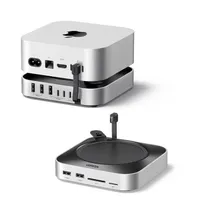
At first glance, I wouldn’t blame you for mistaking Ugreen’s Mac mini M4 dock for Satechi’s. Both have a similar design and a matching silver finish, but Ugreen trades a third USB-A port up front for a full-sized SD card reader sitting next to a microSD one. It’s also slightly taller, measuring at just over an inch versus Satechi's sleeker, sub-inch height.
The one thing that really surprised me about Ugreen’s dock, though, is that it isn’t made from aluminum like Satechi’s. Instead, it’s entirely made from plastic with a very convincing paint job. Although this might sound like a downgrade at first, by opting for plastic over anodized aluminum, Ugreen solved one of the biggest issues docks like this have when sitting under your Mac mini: signal interference. From Wi-Fi to Bluetooth, having a big block of metal underneath one of the best mini PCs can significantly hamper your connections.

When you flip Ugreen’s dock over, you can easily add more storage to your Mac mini without having to pay the Apple Tax. Unlike Satechi’s hub, which caps out at 4TB, you can add up to an 8TB drive here. Now, I know that’s easier said than done, as we’re currently living through RAMageddon which has also greatly affected storage prices. However, it’s nice to have the option to add all that extra room, and who knows — maybe once the AI boom dies down, you just might be able to.

Besides that extra storage potential, it’s the rear ports that convinced me to give Ugreen’s dock a try in the first place. While Satechi keeps all of its connectivity up front and leaves the back bare, Ugreen did the complete opposite. You still get the hardwired USB-C cable that plugs into your Mac mini to get things started, but the back expands into even more ports than you do on the best MacBooks, including three more USB-A ports and two USB-C ones.
Interestingly, Ugreen also included another USB-C port on the back. Instead of using it to connect more accessories, it’s designed to plug directly into a power adapter, as the “IN 5V” label underneath it suggests. You see, with an 11-in-1 hub like this one, there’s no way you’d be able to reliably run all of those rear connections, the front card readers, and a high-speed SSD off the Mac mini’s bus power alone. By plugging Ugreen’s dock into a power strip underneath your desk, you completely avoid slow data transfer speeds, disconnected peripherals, and worst of all, random SSD disconnects that could corrupt your data.
If all those rear ports and extra power weren’t enough, Ugreen’s Mac mini M4 dock has one more trick up its sleeve that completely took me by surprise.
Power with a twist

As I’m currently in the process of reviewing MSI’s new Pro Max QD-OLED Mac monitor, I decided to set up my Mac mini M4 with Ugreen’s dock next to it. However, as this is one of the rare Mac monitors you can also play PC games on — unlike Apple’s new Studio Display XDR — I also have the Khadas Mind 2S with the company’s Mind Graphics 2 eGPU next to it.
In my testing, Ugreen’s dock for the Mac mini M4 worked in a similar way to Satechi’s. It gave me quick access to full-sized ports and an SD card reader without having to use a bulky dongle. One thing I prefer about it, though, is that with Ugreen’s dock, I can hide the 2.4GHz USB dongles for my keyboard and trackball mouse at the rear instead of having them front and center like with Satechi’s dock. Likewise, if you need to run cables from the back of your Mac mini behind your desk, this dock is the better option hands down.
I didn’t think to test and compare the Wi-Fi speeds on my Mac mini when using these two docks. However, with Ugreen’s, I didn’t notice any interference at all, nor did my speeds dip down. If you want me to put both docks through a Wi-Fi speed showdown, let me know in the comments below.
Even though I’ve come to terms with the Mac mini’s awkward power button placement after leaving it on for over a month, it’s still nice to be able to easily reach it. While Satechi has a standard cutout to make it more accessible, Ugreen took things a step further.

At the top left corner of Ugreen’s dock, there’s a physical plastic pass-through lever that makes pressing the Mac mini’s power button almost effortless. A simple press up and your Mac mini magically springs to life, while holding it down while the device is on brings up Apple’s shutdown menu. It’s a small detail, but in my day-to-day use, it made a noticeable difference.
Now, if you’re thinking about adding this dock underneath your own Mac mini, you do need to be careful. You see, Ugreen actually makes two docks for this mini PC, not just a single one. The $89 base version doesn’t have an SSD slot on the bottom, nor does it have this lever. Instead, it uses a basic cutout just like Satechi’s.
For $10 more, though, you can get the dock I have here which supports up to an 8TB SSD. Because it houses that drive, it’s slightly taller, hence the inclusion of that ingenious power button lever at the back.
A final docking place

There are only so many times you can redo your Mac mini M4 setup, and after years of experimentation, I think I’ve finally found my forever dock.
While I love how Satechi’s standard dock is an exact match to the design and materials Apple used, its lack of rear ports and smaller SSD capacity hold it back. Alternatively, you could pair your Mac mini with Satechi’s Thunderbolt 5 CubeDock if you want even more power, much higher data bandwidth and support for up to an 8TB SSD. Then again, that professional powerhouse costs $399 on its own, whereas all of these other docks sit comfortably under $100.
Orico’s dock, on the other hand, is as much of an enclosure for Apple’s mini PC as it is a dock. I’ll admit, it did look really cool on my desk. However, it forces your Mac mini into an awkward sideways position, meaning you lose out on seeing the beauty and compactness of Apple’s redesign. It does support up to an 8TB SSD, but you are ultimately left with fewer ports overall.
Having tried all three of these options for extended periods, Ugreen’s is my favorite yet, and for good reason. Those extra ports and having them hidden at the back really make a massive difference. At the same time, since it can be independently powered, I know that all of my connected devices won’t be constantly fighting for wattage.
You really can’t go wrong with any of these docks, but the right one for you will depend entirely on your specific workflow. If you just managed to pick up a new Mac mini or you’re looking to give your current setup a serious upgrade, at least you have plenty of great options.

Follow Tom's Guide on Google News and add us as a preferred source to get our up-to-date news, analysis, and reviews in your feeds. Subscribe to Tom's Guide on YouTube and follow us on TikTok. Finally, you can visit our dedicated Tom's Guide Savings Squad hub for expert help on getting the best products for less.
More from Tom's Guide

