







No matter how mobile you think your laptop really is, sooner or later, you’re going to plug it in at a desk. At that point, you’ll probably think to yourself, I wish I had a larger display to connect it to. Then, when you throw one of the best mechanical keyboards and a mouse into the mix, you’ve essentially converted your laptop into a desktop.
There’s just one problem though, even the best laptops likely don’t have all of the ports you need. And even if your laptop does, every time you want to use it this way, you’re constantly plugging in cables or unplugging them when you want to slip it back into your bag. Well, what if there was a better way?
If you use your laptop at your desk with several peripherals, there’s one more you might want to consider investing in: a laptop docking station. Sure, if you have one of the best monitors with a USB-C port capable of Power Delivery, you can just use a single cable. However, if you don’t or prefer using an external keyboard and mouse instead of the one built into your laptop and the trackpad underneath it, then you’re going to need ports and this is where a laptop docking station can really help.
Back at CES earlier this year, I had a chance to go hands-on with Satechi’s new CubeDock. In addition to being equipped with multiple Thunderbolt 5 ports, this dock immediately sets itself apart from other laptop docking stations thanks to its unique design. Made from an all-aluminum chassis, this dock isn’t just powerful and packed with useful ports, it actually looks good. So good in fact, that I doubt I’d ever consider hiding it behind my monitor or mounting it underneath my desk.
The wait is finally over and you can now pick up a Satechi Thunderbolt 5 CubeDock for your own desk setup. I’ve been using one Satechi sent over for me to check out alongside a MacBook Pro 16-inch M5 Pro for the past week and not only does it deliver excellent performance, it also looks great on my desk while doing so.
From one cube to another

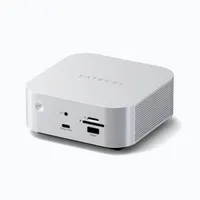
At 5 x 5 x 2.04 inches, Satechi’s Thunderbolt 5 CubeDock is just slightly taller than the Mac mini M4. However, with the two side by side on a table, even I couldn’t notice this slight difference in height. At first glance, I honestly thought I was looking at Satechi’s take on the Mac mini M4, albeit with more front ports and a power button you can actually reach without lifting Apple’s smallest Mac yet up off your desk.

Although the Mac mini M4 only has two USB-C ports and a 3.5mm audio jack on the front, Satechi’s Thunderbolt 5 CubeDock features a high-speed USB-A port and a high-speed USB-C port capable of delivering 30W of power.
Above the USB-A port, you get both a full-size SD card reader and a microSD card reader. Then above the USB-C port, you get a headphone/microphone combo port like on the Mac mini M4. Then for the kicker, a power button right on the front of the device where you can easily press it. One other nice touch with this power button is the white LED lighting that wraps entirely around it.

Around back is where things really get fast with the Satechi Thunderbolt 5 CubeDock. As the name implies, you get one upstream Thunderbolt 5 port along with three downstream ones on the bottom of the device. Then above them, there’s another pair of high-speed USB-A and USB-C ports as well as a 2.5 Gigabit Ethernet port.
Since this dock can push out a lot of power to multiple devices, there’s a DC power port on the far left that connects to the included 180W external power supply. While I would have preferred an internal one, Satechi’s smart power supply would likely take up too much room within the CubeDock’s case. Plus, you need a larger power supply to deliver up to 140W via the upstream Thunderbolt 5 port, 30W from that front USB-C port and up to 15W as well as 7.5W from the ports around back.

Besides all these ports though, the most useful upgrade housed on the underside of the Satechi Thunderbolt 5 CubeDock is the free internal SSD slot. It supports a wide variety of different sized SSDs, all the way from those tiny 2230 M.2 ones up to a larger 2280 M.2 SSD. In the box, Satechi includes a thermal pad for underneath your SSD as well as a second, larger one that goes on top.
One of my favorite things about the Satechi Mac Mini M4 Hub & Stand is that, like with the company’s new CubeDock, it also has a free SSD slot on its underside. However, this time around, you also get a second thermal pad to keep your newly installed drive even cooler. When laying it down on top of my SSD, it reminded me of those PS5 SSDs which require a separate heat sink to run smoothly and quietly inside Sony’s latest console.
With my SSD installed and everything unboxed, it was time to get the Satechi Thunderbolt 5 CubeDock set up and plugged into my MacBook Pro.
Docking never looked so good

A lot of times with a laptop docking station, you’re better off hiding it behind your monitor or even under your desk because let’s face it, most of them just aren’t that great to look at. Sure, they add more ports to your laptop and let you connect multiple displays but for most part, they’re more utilitarian than elegant. That couldn’t be further from the truth with Satechi’s Thunderbolt 5 CubeDock though.
After plugging its massive power supply into the cable management tray underneath my desk and routing all of my cables up to it, I decided to place the CubeDock on the right side of my desk where I usually have my Mac mini M4. Since I’m currently testing out the 16-inch MacBook Pro M5 Pro with Apple’s new Studio Display XDR, I decided to dock the laptop on the left side of my desk. To do so, I used Twelve South’s BookArc vertical laptop stand. This frees up some extra space on my desk and keeps the MacBook Pro’s Apple logo front and center.
With my new MacBook-powered desk setup all put together, I pressed the power button on the CubeDock and the LED ring around it lit up white. With a few taps on the Keychron Q1 Ultra 8K mechanical keyboard I’m currently using, the MacBook Pro M5 Pro sprung to life. While I would have preferred having the CubeDock’s two USB-A ports to be together on the front or the back of the dock, having one up front and one at the rear worked well enough.
The CubeDock had no trouble outputting a clear video signal to the Studio Display XDR in the middle of my desk. However, it’s worth noting that — at least on Mac — its refresh rate is capped at 60Hz which means I won’t be able to take advantage of the monitor’s faster refresh rate with this setup.
While it’s a bit of a letdown that macOS limits the CubeDock to 60Hz — even on the 120Hz-capable Studio Display XDR — it’s a common quirk for Mac users. On Windows though, you can push this dock all the way to 144Hz. It’s a reminder that even with the massive bandwidth of Thunderbolt 5, we’re still at the mercy of Apple’s display drivers.

Just like with Satechi’s Stand & Hub for the Mac mini M4, what I really like about the CubeDock is having extra ports and an SD card reader at arm’s reach. I am using the two USB-A ports for the 2.4 GHz USB dongles for that Keychron keyboard and a trackball mouse from Logitech but the rest of the ports on the CubeDock are completely free.
Though I used the CubeDock with a single display for most of the week, by Friday, I realized I needed a bit more screen real estate. So I plugged a portable monitor into one of the Thunderbolt 5 ports on the back and used the USB-C port with 30W of Power Delivery on the front to power it. Everything worked like a charm and on the hardest day of my work week, I now had a dedicated second display just for keeping up with work chats in Slack.
Given all that extra power under the hood, the CubeDock does get warm to the touch when using it for long periods. However, this is only on the top of the device and not on the front panel where those reachable USB ports are located. Another nice thing about the front of the CubeDock is the power button. When I’m not using the MacBook Pro M5 Pro, I like to power down Satechi’s latest dock to save on my electric bill. Likewise, turning the device off also means that you won’t see the white LED light around its power button too.
Enough to make my Mac mini M4 jealous

I never thought I’d refer to a laptop docking station as beautiful but here we are. Satechi’s Thunderbolt 5 CubeDock certainly gets the job done (and done well) but unlike with other docks, it’s as nice to look at on my desk as it is to use.
If I weren’t a sucker for the best mini PCs and used a laptop as my main machine, I’d honestly consider picking up a CubeDock for aesthetics alone, it’s that gorgeous in person. While it may be a laptop docking station, you aren’t limited to using it with just a laptop. In fact, once I send this MacBook Pro M5 Pro back, I’m tempted to set up my Mac mini M4 beside it just to see how the two look side by side on my desk.
At $399, the Satechi Thunderbolt 5 CubeDock is certainly an investment compared to the cheaper and less powerful docks you often see online. However, if you have a need for Thunderbolt 5 speeds and want a dock that looks and works as well as one of Apple’s best designed desktop Macs yet, it could definitely be worth it.
Likewise, though I haven’t had a chance to test it since I just redid my whole home networking setup, having a 2.5 Gigabit Ethernet port around back is incredibly useful too. While the Mac mini M4 comes with a Gigabit Ethernet port on the base model (but can be upgraded to a 10 Gigabit one for an extra $100), the best MacBooks no longer come with Ethernet ports at all. If you want fast and reliable downloads/uploads, being able to hardwire your Apple laptop to one of the best Wi-Fi 7 routers for incredibly fast speeds is another big selling point with a super powerful docking station like this one.
Seeing Satechi’s new Thunderbolt 5 CubeDock in person was one of my favorite moments at CES this year. However, getting to unbox and set it up at home proved to be even more fun, especially once I integrated it into my desk setup.

Follow Tom's Guide on Google News and add us as a preferred source to get our up-to-date news, analysis, and reviews in your feeds.
More from Tom's Guide
- I ditched Windows for Mac before it was cool and felt like the odd kid out at school — now everyone wants a MacBook
- I put Apple’s new macOS ClickFix warnings to the test and they actually worked — now I want them on Windows too
- I spent a week with dual Apple Studio Displays and realized I’ve been lying to myself about glossy screens for years

