







Moving from one operating system to another can be a daunting task. The different ways to simply find and open files, work out keyboard shortcuts, download apps — the list goes on. None says that more than shifting from Windows to macOS.
I know because I've made the transition myself, and it was jarring to even start using "Command" as the usual "Ctrl" I'd gotten used to after years of copying and pasting on my Windows machine. What's worse, if it doesn't gel well, that's a lot of money down the sink after grabbing one of the best MacBooks, or even a Mac mini.
It's the little things that make working on a Mac a comfortable, seamless experience to whizz through, and if you're a Windows user, you may be missing that feel. Fortunately, I've found a few small ways to make the transition easier.
If you think your Mac is missing a few features that only Windows has, not to worry; they're actually hidden in Apple's OS. Here's how to use them.
The 'Cut and Paste' fix
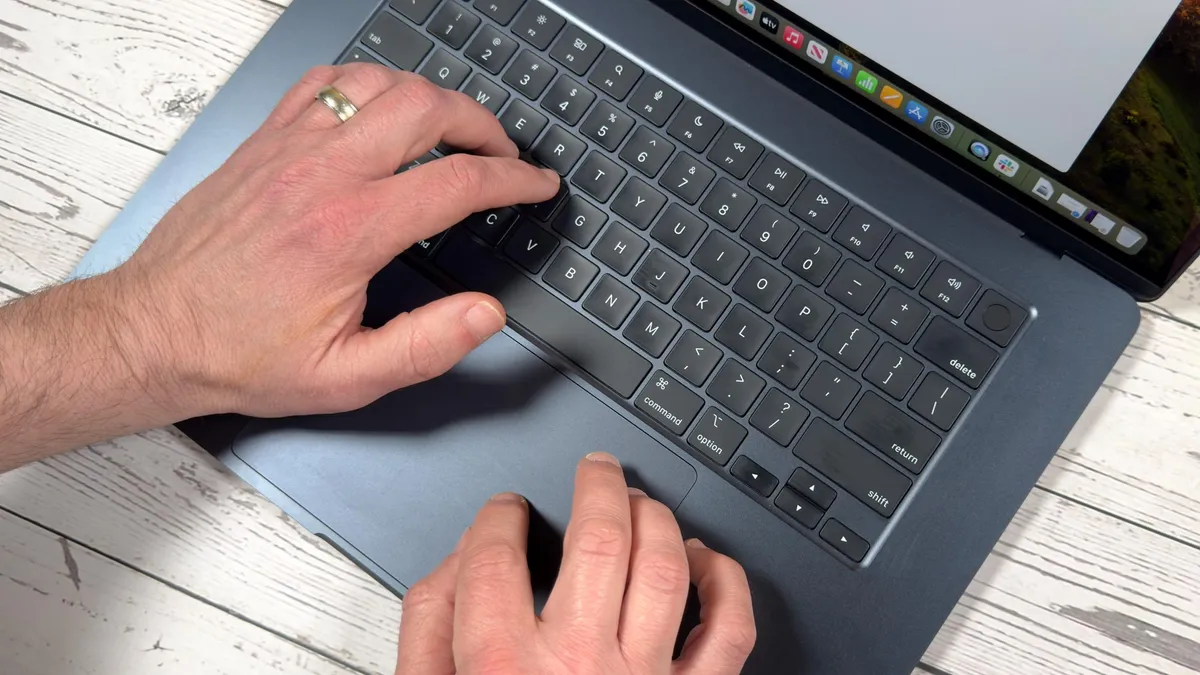
You'd think the incredibly simple action of "Cut and Paste" in File Explorer on Windows would carry over to Mac in Finder, but sadly, that hasn't been the case. Sure, CMD + C for "Copy and Paste" works just fine, but trying to use CMD + X to "Cut" isn't an option.
That means having to copy and paste a file and then having to go back to the original folder to delete the original, and that can be tedious and, what's more, take up more storage. However, there is a simple way to cut and paste instead.
If the lack of "Cut and Paste" is driving you crazy, then you can just use another shortcut to make it happen in macOS' Finder.
- Simply copy (CMD + C) a file as normal
- Head over to the folder you want to paste in
- Press CMD + Option + V
This will perform a "Move" action, rather than just copying the file and pasting it. That means no duplicates, and it mimics the "Cut and Paste" command on Windows.
Window Snapping

Being able to multitask is crucial while working, especially on a machine that's more than capable of juggling several apps at once (looking at you, MacBook Air M4 and MacBook Pro M5). You can spend your hard-earned cash to link up a secondary monitor, or use a feature like the Windows Snap tool.
With Snap Layouts, you can customize the way your windows, apps and folders are shown on your screen, whether that be side-by-side, in quarters, in a set of three and more. For a while, Mac was missing out on this feature, but macOS Sequoia made this available. Now, you can simply drag a window to a corner or edge of your screen and snap it to a layout of your liking.
However, there's another controlled way of doing this. By hovering over the green Traffic Light button in the top-left corner of a window, you can move, resize, fill and arrange the window to a layout of your liking.
From taking up half the screen to laying it out to four corners, the window will "snap" into place. That green button does a whole lot more than just turn your window into a full-sized screen!
Snipping tool in all but name

One of my favorite tools on Windows 11 is the Snipping Tool, as it lets you easily and freely screenshot or record anything shown on your screen. For a long time with macOS, I thought the only way to grab a shot was capturing the whole screen with CMD + Shift + 3.
That's fine, as it's simple to edit, crop or draw on the screenshot after it's taken, but it's not quite as immediately flexible as Windows. That was until I learned I'd been pressing the wrong number on my MacBook's keyboard.
When first getting to grips with my MacBook Air, I searched "how to take a screenshot on my Mac," with the top result stating the usual CMD + Shift + 3. If you're not in the know, you can also use CMD + Shift + 4 to get more options to drag just the shot you want.
However, you can also press CMD + Shift + 5 to get the full screenshot app, allowing you to set timers, screen grab a precise section or window and even screen record. It's incredibly helpful, and acts as smoothly as the Snipping Tool on Windows would.
More like File Explorer

File Explorer on Windows 11 has its problems, but once you get used to how it works and where to look for files, it becomes second nature to use. So, using Finder in macOS can be frustrating to navigate around.
With that in mind, why not give it a "File Explorer" touch? If Finder is looking a tad too simplistic, you can add more options to offer more information and make it easier to navigate around. To do this, you'll want to enable the "Path Bar" and "Status Bar."
While Finder is open, click on the View menu in the top right corner of your screen. From there, select Show Path Bar and Show Status Bar, and you'll find another two small bars at the bottom of Finder.
Most importantly, you'll see the Path Bar showing a directory of where files are stored like a breadcrumb trail, which is hugely handy to know where exactly a file is. What's more, you can simply pick up a file and drop it in one of the parent folders that's shown along the path bar.
Plus, the Status Bar will finally show you the number of items you've selected, and just how much space you have left on your Mac. That last one was enlightening, as I actually had no idea the amount of storage I had left.
More Wi-Fi details

There's a lot you can find out about your Wi-Fi network on a Windows 11 PC, just by selecting Properties and checking out its settings and the like. On a Mac? Well, clicking on the Wi-Fi icon will show you a list of networks to connect to and...that's it.
The good news is there's a way to get a ton of information on your Wi-Fi network, and it's as easy as pressing a key. Quite literally, as all you need to do is hold Option while clicking on the Wi-Fi icon on the top-right corner of your screen along the menu bar.
From there, you can find out your Wi-Fi network's hardware address, IP address, security protocol and even the RSSI (Received Signal Strength Indicator) that's measured in dBm — with that last one being especially handy so you can check how good your connection is (anywhere from -30 to -60 dBm is good).
You can even enable Wi-Fi logging and create a diagnostics report, giving you far more options to get to know your Wi-Fi network better. That's definitely handier than just seeing what else you can connect to.

Follow Tom's Guide on Google News and add us as a preferred source to get our up-to-date news, analysis, and reviews in your feeds.
More from Tom's Guide

