




Most people unbox a new Mac, breeze through the setup steps, and start using it exactly as Apple intended. The Magic Mouse stays. The built-in display is enough. Default settings remain untouched. That approach works fine for basic tasks, but it leaves a lot of capability on the table.
Power users do things differently. They upgrade their peripherals and expand storage before it becomes a problem. These aren't complicated modifications that require technical know-how — they're straightforward upgrades that make your daily work faster and more comfortable.
The gap between a stock Mac and a power user setup isn't as wide as you'd think. Three key changes cover the crux of it.
1. Replace Apple's included accessories

The Magic Mouse ships with iMacs and it's the default option when you're buying from Apple. It looks great on a desk, but the charging port is on the bottom, so you can't use it while it charges, which is really annoying.
Third-party mice fix these problems. The Logitech MX Master 3S, which we named best overall in our wireless mouse buying guide, is is built for all-day comfort with an ergonomic grip that won't leave your hand aching. The programmable buttons and horizontal scroll wheel turn repetitive tasks into single clicks, and it works seamlessly across multiple device
Same goes for keyboards. Mechanical keyboards like the Cooler Master MK770 offer deeper key travel and tactile feedback that Apple's keyboards lack. The responsive switches and sturdy design make a noticeable difference during long typing sessions.
2. Learn the keyboard shortcuts and customize your desktop

You're probably clicking through menus dozens of times a day when you don't need to. Keyboard shortcuts eliminate that repetition. Command+Space opens Spotlight Search instantly.
Mission Control shows all your open windows at once — map it to a mouse button or keyboard shortcut you can hit without thinking.
Widgets put useful information right on your desktop without needing to open apps. Whatever you check throughout the day can sit there waiting for you. This works especially well on larger displays where you've got space to spare.
Hide the Dock to recover vertical screen space. It pops up when you move your cursor to the bottom and automatically shifts to whichever monitor you're using. Enable it in System Settings under Desktop & Dock.
These small efficiency gains add up fast. Saving a few seconds on actions you repeat dozens of times daily becomes meaningful time over weeks and months.
3. Expand your storage with external drives
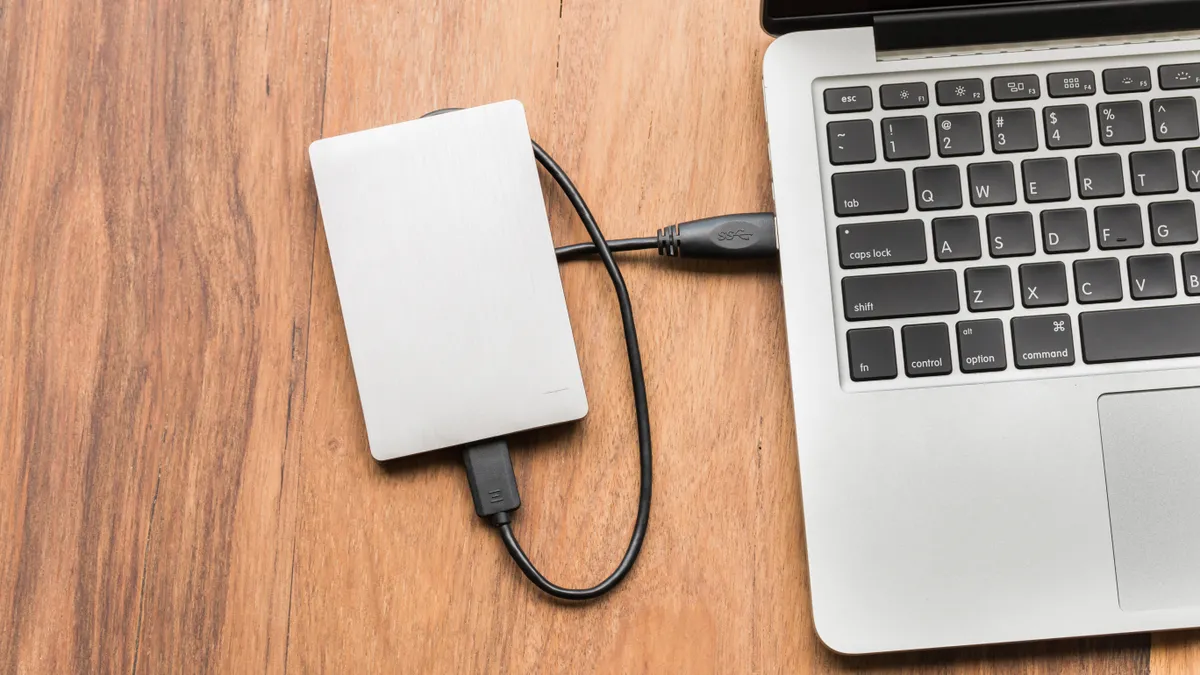
Apple charges a premium for internal storage upgrades. Base model Macs often start with just enough space to get you going, but not much more. External drives connected via Thunderbolt or USB-C give you way more capacity for way less money.
Time Machine makes backups effortless once you plug in an external drive. It continuously backs up your entire system in the background, so recovering files is as simple as browsing to a date and hitting restore. This is a lifesaver for large video projects that would take forever to upload to the cloud.
Cloud storage through iCloud takes a different approach. Turn on Desktop and Documents folder syncing, and everything you save becomes accessible across all your devices.

Follow Tom's Guide on Google News and add us as a preferred source to get our up-to-date news, analysis, and reviews in your feeds. Make sure to click the Follow button!
More from Tom's Guide
- 18 macOS Terminal commands to turn you into a Mac power user
- 5 free ways to speed up your slow Mac
- You can schedule your Mac to turn off and on — here's how

