Windows 11 has been going strong for five years now, yet I still meet people who use it like Windows 10. And while it works just fine for them, I feel bad when I hear them complaining about it because Windows 11 doesn't work the way they want it to.
I totally understand, because I too miss the good old days of Windows before it started advertising Microsoft services to you and pushing all your data into Microsoft servers. But the fact is that Windows 11 is here to stay, and now that Windows 10 is officially dead you'd be wise to update to Windows 11 and get comfortable using it.
To help you I figured I'd quickly share my favorite hidden and hard-to-find features in Windows 11 that make it a lot easier and more efficient for me to use during my workday. I wrote our Windows 11 review so I've been using it since launch and had a front-row seat as Microsoft steadily added new features over the years.
With that in mind, I wanted to quickly run down my five favorite Windows 11 features that I rarely see people taking advantage of. This is what I use to make Windows 11 more comfortable and more efficient to use. I hope you find something here that works for you! And if you have any favorite Windows 11 tips let us know in the comments.
Focus modes

If you're not using Windows 11's focus sessions feature when you're working, you're missing out on a very useful tool for staying productive during the day.
I know because I use it myself as basically a Pomodoro timer, replacing the old browser extensions and apps I used to use to keep myself on task for focused 45-minute work sessions.
But with focus modes in Windows 11 you can just tell Windows how long you want to work without distraction. Here's how it works: you can configure a custom focus session from 5 - 240 minutes long, and configure which notifications (if any) you want to see during your session. You can also choose to hide badges on apps, flashing icons on the taskbar and more. You will then see a timer appear on your screen counting down how much time remains in your focus session, with built-in 5 minute breaks.
The fastest way to set up focus sessions is to open the Start menu and type Focus to bring up the application’s menu. You can set how long you want a focus session to last, whether you want do not disturb mode to turn on and what notifications will break into your focus session. You might turn off notifications from distracting social meda apps and your web browser when doing deep work, for example, or have an R&R focus session that ignores all your work-related notifications so you can focus on gaming or watching something.
I really love using this feature to stay productive when working from home, and I can't believe more people don't know about this super-useful feature buried in Windows 11.
Shake to minimize
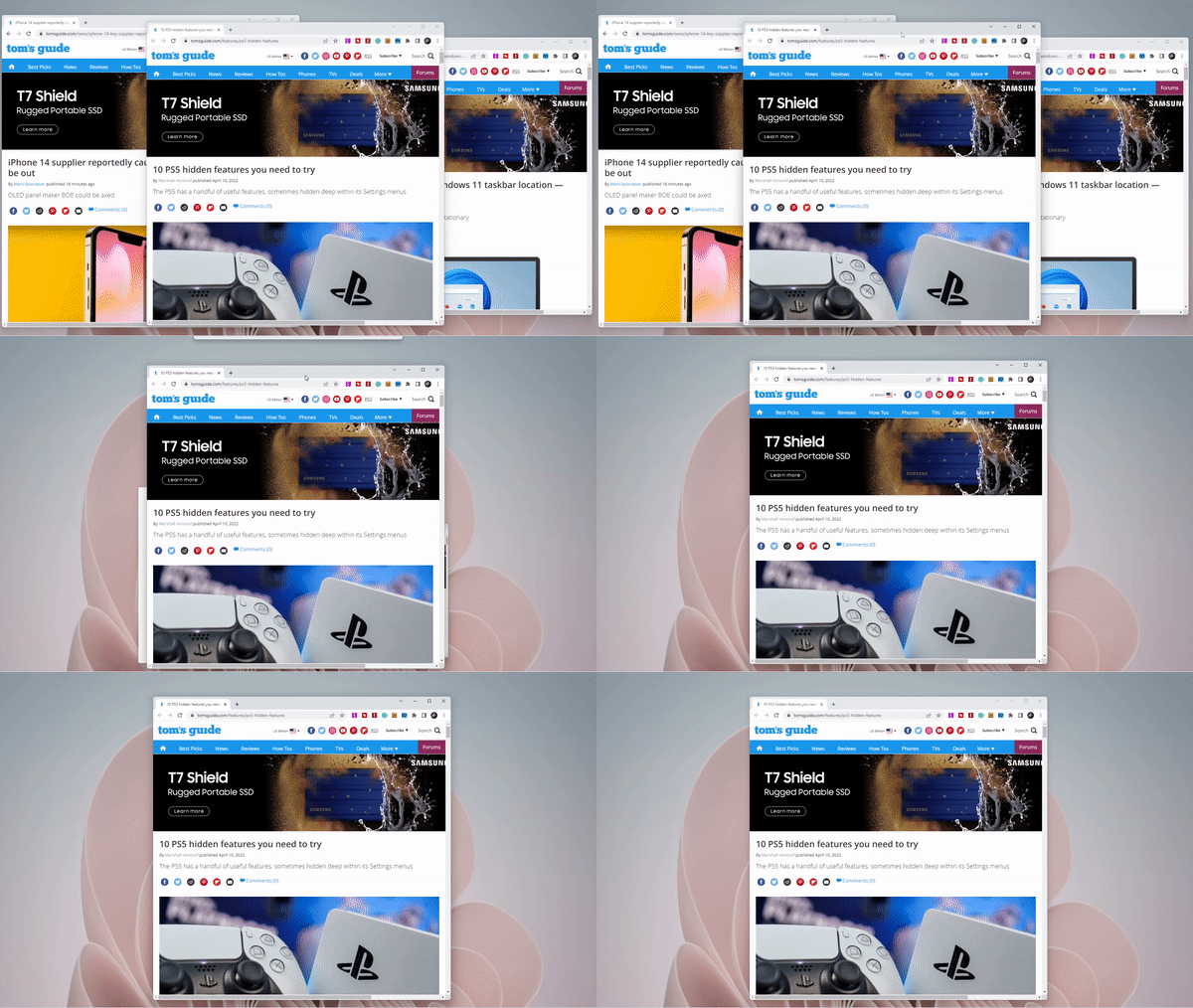
One of my favorite hidden features of Windows 11 gives you a faster, funnier way to minimize windows so you can focus on the one you care about. It's a silly, easy way to close distractions when you're working: you just grab the window you want to focus on by the title bar and shake it around a bit.
I say it's hidden because it's not enabled by default and you'd never know it existed if you didn't know to look for it. So I'm telling you how to find it: navigate to Settings -> System -> Multitasking and click the radio button to toggle Title bar windows shake on.
Once that's done you should be able to grab your window of choice and shake to close everything else. However, don't close that Multitasking menu just yet — there are settings in there which affect the little-known Windows 11 feature I'm going to tell you about next.
Clipboard history

This feature isn't unique to Windows 11 since it's also on Windows 10 as well as macOS, but for some reason it's often disabled by default. I'm talking of course about clipboard history, which when enabled allows you to view a list of things you've copied to your clipboard.
This is super useful for me because I work with text and images for a living, so I'm regularly copying and pasting sentences, strings of passwords and images between apps. By default we all tend to assume you can only copy and paste one thing at a time, and when you copy something new it removes the last thing you copied from the clipboard.
But Windows 11 can remember, and if you turn on clipboard history you'll be able to copy and paste multiple things and then open the clipboard history to access and re-copy multiple things. It's super useful and easy to use once you know how.
The first step is to enable clipboard history by navigating to Settings > System > Clipboard. From that menu make sure the radio button next to Clipboard History is set to on.
Once you've turned clipboard history on, you can view your clipboard history by hitting Windows key + K. This will pop up a small window with multiple tabs, one of which lets you view recent things you copied to the clipboard.
But there's extra fun features built into the clipboard history menu if you explore the tabs at the top. One lets you copy and paste special characters and punctuation quickly, another lets you copy and paste GIFs and another lists emoji you can use. It's a super useful little feature that's hidden in Windows 11, and I wish more people knew about it!
Dynamic lock

Windows 11 has a built-in feature that lets it intelligently lock your PC when you walk away, but it's hidden away in a submenu by default. Here's how to turn it on for more peace of mind when you need to leave your PC unattended in a public space.
While you can automatically lock your Windows 11 PC with the Windows key + L keyboard shortcut, you can also set up your PC to do it automatically based on either your phone's movements or (if supported) sensing cameras built into your PC.
To turn on dynamic lock, navigate to Settings > Accounts > Sign-in options and make sure the dynamic lock feature is enabled.
However, it won't do much unless you have a means by which Windows can tell when you walk away. Many modern laptops from the likes of Lenovo and HP, for example, come with IR cameras and software you can use to have your laptop intelligently lock itself when it detects you've walked away.
If you don't have something like that on your PC, you'll want to connect your phone to your PC using the Microsoft Phone Link app. Once you do have your phone connected (I have my Motorola Razr 2025 paired in the screenshot above) you should see it appaer in the dynamic lock section and you're good to go!
Control your PC with your voice

There are some awfully robust voice command and control systems built into Windows 11, but you have to know they exist and how to access them before you can ever make use of them.
I've been using these tools for years, and I wish more people knew about them because they aren't just accessibility aids for folks who have trouble controlling PCs with their hands—they're also productivity enhancers and ergonomic creation tools that make it easier to write and control your PC with just your voice.
First, you need to know about voice typing in Windows 11. To enable it, simply hit the Windows key + H shortcut to pop open a small window with a microphone button. Hit the mic and start talking; Windows will automatically transcribe your words to text and write them in whatever text box you have selected on-screen.
The other, more powerful voice command feature is called Voice Assist, and it lets you not just type with your voice but actually move your mouse around on the desktop, so you can point and click (sort of) with voice commands.
To turn on voice assist, navigate to Settings > Accessibility > Voice and make sure the Voice access feature is turned on. You will likely need to wait for the PC to download some additional data to make this work, and then you'll be able to summon or dismiss the voice access menu by hitting Windows key + Ctrl + S.
I love voice assist because you can open and close programs, transcribe text and click on things with commands like "left click", "go back" and "open [app]". Personally I love it because I have RSI and it lets me give my hands a break in long work sessions, but it's also useful if you like to walk around your office while dictating a memo or if you want to control a PC from across the room.
Admittedly, while Windows 11 voice access is the most useful voice control tool I've ever used it can be frustrating and tricky to master. Sometimes commands aren't recognized and editing text can be especially tricky (try telling a PC to fix a comma splice, I dare you), but overall I think it's a great feature that's worth using—and I wish more people knew about it!
Have any favorite Windows 11 tips of your own? Let us know in the comments!

Follow Tom's Guide on Google News and add us as a preferred source to get our up-to-date news, analysis, and reviews in your feeds.
More from Tom's Guide
- 15 top Windows 11 tips everyone needs to know
- 5 things I wish I knew about Windows 11 when I upgraded from Windows 10
- Don't buy a new PC for Windows 11 just yet — this lightweight version can save your old Windows 10 PC