




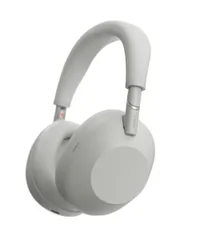
I can't think of anything much more exciting than unboxing a brand new pair of Sony WH-1000XM6 headphones. Releasing them from their cardboard prison and getting them in hand — glorious. You're the proud new owner of some of the best noise-canceling headphones in the world.
But to get them working their best, there's a couple of things you'll want to do. Let me guide you through your new headphones and the first few hours that you'll be spending with your fresh audio companions.
1. Download the app

As with so many recent ANC headphones, the majority of the WH-1000XM6's features are housed within an app that you need to download and install onto your phone. In this case, it's called the "Sound Connect" app.
You'll find it on the Apple App Store or the Google Play store on your device. Get that downloaded, and then get ready to connect your phone to get everything working properly.
Go to the settings menu of your phone, and pair the headphones with your device. For Android users, you'll find a pop-up when the headphones are near your phone for easy connection. Then, head back to the Sound Connect app.
Follow the on-screen instructions to connect the headphones with the application — and you're done! Now you can change the settings of your headphones to make sure they're working their best.
2. Create your spatial audio profile

Spatial audio is all the rage right now, and Sony doesn't want to be left out of the party. There are two spatial audio options in the WH-1000XM6, and they're both relatively easy to set up.
The first is standard spatial audio, and you'll find it in Device settings > Sound Quality/Volume > Spatial Sound Optimization. Click that option, and then follow the on-screen instructions. This is a very niche option, working with only the background audio setting and select Bravia TVs.
The Sony 360 Reality Audio setting above is the more in-depth setup. You'll need to sit down and get comfy for this one, as it guides you through the process. It also doesn't work with many services, unfortunately, now that Tidal has removed it from the service.
Instead, you can use Spatial Audio upmix for movies, games and other content. You can use it for music, but I wouldn't. You can access it through the "Sound Modes" section and by selecting Cinema.
3. Dial in your sound with EQ

Not a fan of the way that the WH-1000XM6 sound? That's easily fixed by a quick visit to Sony's very in-depth EQ tuner. There are 10 different bands you can adjust in a custom EQ, so you can really dial the sound quality in to your taste.
There are also several presets to choose from if building your own feels a bit too much like hard work. There are plenty of options sound-wise here, so you're sure to find something that suits you.
Just a note, however, that those EQ settings do not carry over if you use the spatial audio modes.
4. Initiate high quality listening, no matter your device

iPhone users generally have to give up high-quality listening on non-Apple headphones thanks to codec limitations — you'll generally only get SBC and AAC with Apple devices, rather than the higher-quality AptX and LDAC codecs in Android devices.
Sony, not happy with this limitation, has built in upscaling called DSEE Extreme. Turning this setting on noticeably makes your headphones sound better, but be warned: the AI models used to make your music sound good do drain some extra battery life.
It works by filling in the gaps in your music left out by lossy compression — it's all very clever. It's also easy to turn on. Just head to the Sound Quality/Volume menu, select DSEE Extreme, and set it to "auto." Now your music will sound great no matter the source.
5. Dial in your ANC settings

The ANC found in the Sony WH-1000XM6 is excellent, and blocks out loads of noise. There are also different modes in the Sound Connect app so you can get it blocking out noise in different environments, depending on where you might be.
You'll find these in the "adaptive sound control" pane of the Sound Connect app. Here, you can allow the headphones to detect your actions (such as sitting down or moving around) and adjust the noise canceling accordingly.
You can also set them to change depending on what time you tend to things, so you don't have to worry about playing with settings. The headphones will learn your routine and react accordingly. It's well worth trying, but you might find — as I did — the accuracy is a little unnerving.

Follow Tom's Guide on Google News and add us as a preferred source to get our up-to-date news, analysis, and reviews in your feeds.
More from Tom's Guide
- 3 best crime miniseries on Netflix to binge-watch in one weekend
- Scammers love Christmas — here’s how AI can help you spot holiday frauds
- Ditch the push-ups — this dumbbell workout will help you carve out a stronger upper body and core in just 30 minutes

