




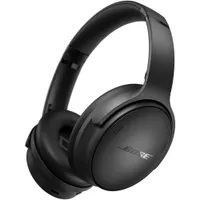
So you've just opened your new pair of cans — a pair of Bose QuietComfort headphones, ready to block out all the worst noises of the world. But before you go out on a proper road test, there are a few things to make sure that they're working their best.
After all, they might be some of the best noise canceling headphones, but there are a few key things to do to make sure that you get the most out of them. So get your phone good to go, reset that App Store password so that you can get downloading and get those test tracks ready.
1. Download the Bose app

The first thing to do is download the Bose app — it might sound obvious, but its easy enough to forget. A friend of mine didn't even know that his earbuds had an application, and missed out on loads of features.
The app in question is simply called "Bose." You'll find it in the iOS App Store or the Google Play store. Download it, and you can start playing with the features of your new headphones.
Once installed, you'll need to create an account. It's not entirely necessary, but you do get helpful updates from Bose about new products and features. Once logged in, you'll need to connect your headphones.
Make sure your headphones are connected to your phone in the settings menu, and then head back to the app. The app will detect your headphones, et voila — connected!
Now you can play with more features than you'll ever know what to do with.
2. Adjust the EQ

Out of the box, the QuietComfort Headphones are quite bassy. If you enjoy loads of low-end you're in for a sonic treat, but I prefer some extra detail for a more engaging audio experience.
If you're like me, then you'll want to adjust the sound slightly to get just the right level. Find the EQ section in the Bose app — it's aptly named "eq" — and then get adjusting.
I like to bring the bass down a couple of segments. Around -1 or -2 will do it. That will rein in the low end. Then, for some extra dimension, I like to raise the highs. Again, not by much, around +2 or +3. There are only three adjustment bands here, so there's not much to get wrong. And if you do, there's the ever helpful reset button.
3. Familiarize yourself with the controls

The controls attached to the Bose QuietComfort headphones are very intuitive, but as with all headphones, you can't see them when you want to use them. Spending a little time to get used to where they are and what they do makes sure you won't be feeling around when you need to change the ANC mode in a pinch.
The left earcup houses the ANC button, and then the right earcup has the playback controls. The button towards the rear of the right earcup acts as volume up and skip with a double tap, while the bottom button lowers volume and rewinds with a double tap.
The middle button plays and pauses your music. Unlike other headphones, you can't change what these controls do, so it's worth sitting down for a while to make sure you know what they all do.
4. Get multipoint working

If you've got a couple of devices that you'd like to use with your new headphones, there's a great way to instantly switch between the two without dipping into a settings menu every time.
In the Bose app, find the "Multi-point" pane, and then follow the on-screen instructions to get your headphones connected to your devices. From there, you just need to play audio on whatever device you want to listen with, and the headphones will switch over with a quick beep!
If you're going to be listening to music on your phone and then need your cans for a work call on your laptop, multi-point is a game-changer. It only works with two devices, but it's still very useful.
5. Create some noise canceling modes

Straight out of the box, you have two ANC modes; On and transparency. There is no way of turning off the noise canceling system, unfortunately. However, you can create your own custom modes for different environments.
You can make your own modes in the "modes" panel. There you'll find the 'on' and 'aware' (transparency) modes, along with a custom option. Hit the custom option, and you can set ANC settings for different places.
You might want the highest level and wind-blocker for walking around, but only need light ANC for when you're working in an office. You can create these modes here, and then cycle through them with the ANC button.

Follow Tom's Guide on Google News and add us as a preferred source to get our up-to-date news, analysis, and reviews in your feeds.
More from Tom's Guide
- The Steam Frame is the VR headset I've longed for — but I can't get over this one key spec
- Ditch the push-ups — this dumbbell workout will help you carve out a stronger upper body and core in just 30 minutes
- I found an LG OLED TV on sale for $549 and it feels like Black Friday never ended

