




AirPods work great straight out of the box, but most people never discover the features that can make them sound significantly better and fit more comfortably. Apple builds audio enhancement tools and fit customization options into iOS, but they're buried in various settings menus and can be easy to miss.
These features can boost sounds, create immersive 3D audio, and help you find the perfect ear tip size for AirPods Pro. Once you know where to find them and how to use them, you can improve your listening experience.
Here are three ways to make your AirPods sound better and fit more comfortably.
1. Boost sound with Headphone Accommodations
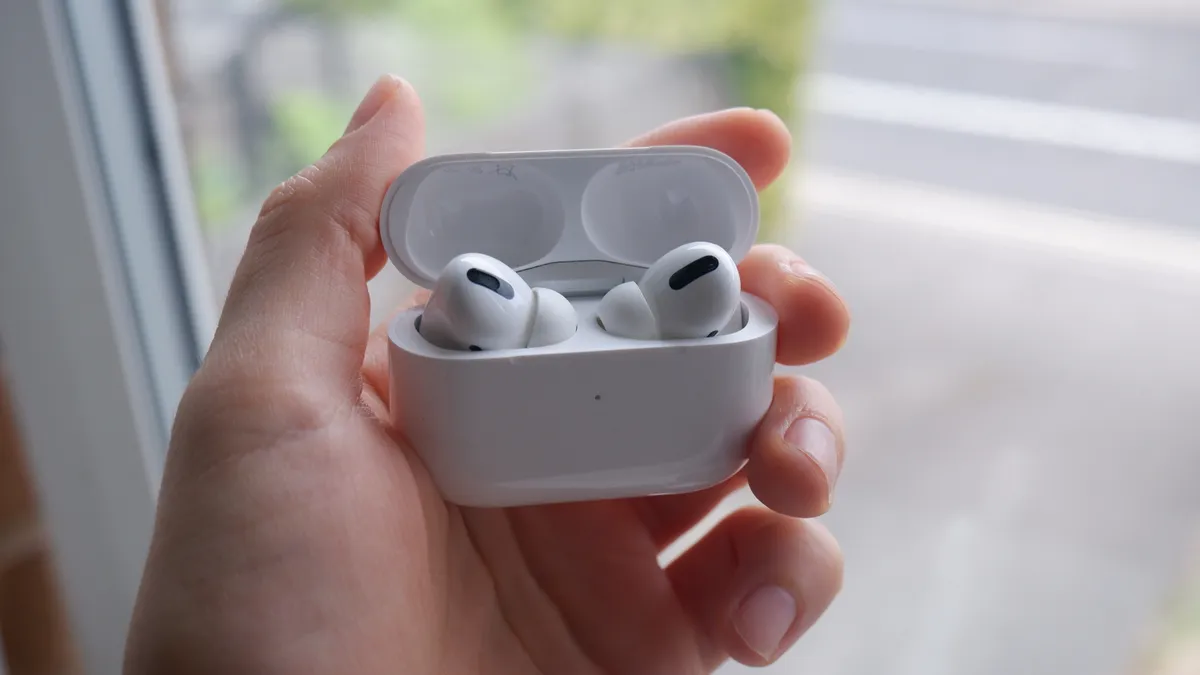
Headphone Accommodations enhances audio from your AirPods by boosting softer sounds and adjusting certain frequencies. This makes music, podcasts, and calls clearer and more detailed.
Go to Settings, then Accessibility, then Audio & Visual, and enable Headphone Accommodations. Tap Play Sample to start playing music, which lets you tune the audio while you listen.
You can choose from three tuning options: Balanced Tone boosts a range of frequencies for overall clarity, Vocal Range emphasizes middle frequencies where voices sit, and Brightness highlights higher frequencies for crisper sound. You can also boost softer sounds slightly, moderately, or strongly to bring out quiet details in your audio.
Test each setting with music or podcasts you listen to regularly. The right combination depends on your hearing and personal preference, so experiment until you find what sounds best to you.
2. Turn on Spatial Audio for 3D surround sound

Spatial Audio creates a three-dimensional quality to your music, making it seem like sound is coming from all around you instead of directly from your ears. This feature works with any generation AirPods Pro and with AirPods 3 and 4.
Go to Settings, tap Bluetooth, and select the info icon (i) next to your AirPods. Under the Spatial Audio section, tap See & Hear How It Works to compare Spatial Audio with regular stereo playback so you can hear the difference.
To enable Spatial Audio while listening to music, open Control Center by swiping down from the top right corner of your screen. Press and hold the audio control for your AirPods, then tap Spatialize Stereo.
Spatial Audio offers two modes: Fixed mode keeps the sound anchored to your device, so audio stays in place as you move your head. Head Tracked mode makes sound move with your head position, creating a more immersive experience where audio feels like it's coming from specific locations in space.
Not all content supports Spatial Audio, but when it does, the difference is noticeable. Apple Music, Apple TV+, and many streaming services offer Spatial Audio.
3. Find your perfect fit with the Ear Tip Test
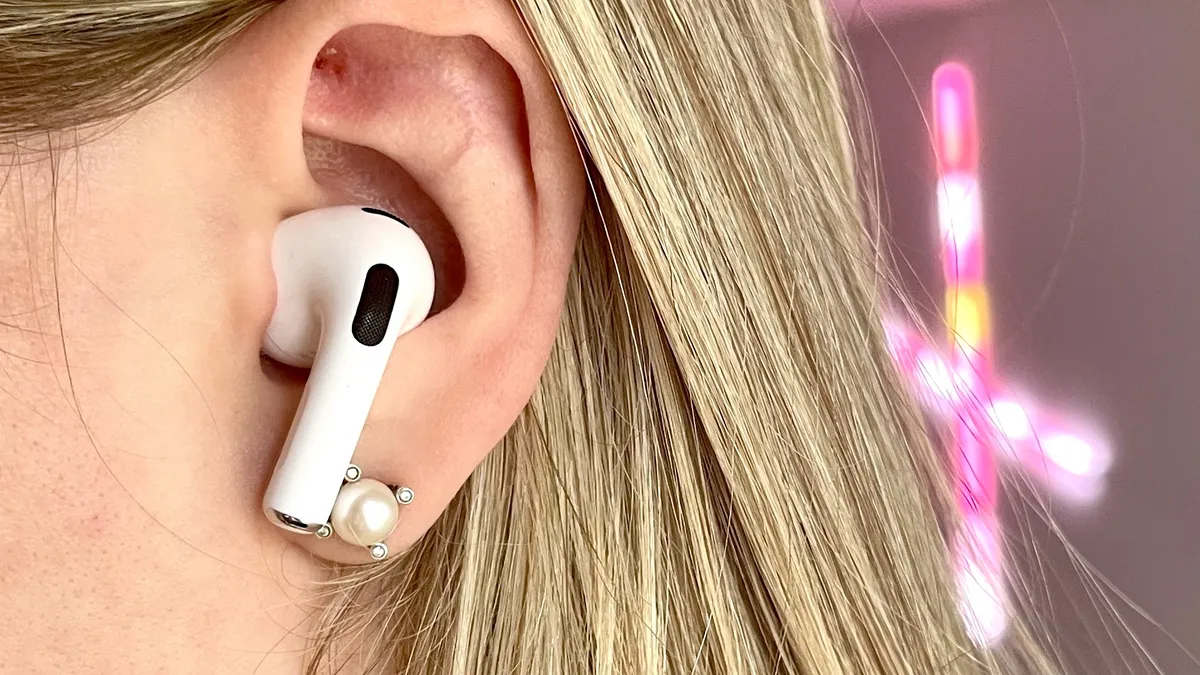
AirPods Pro come with three ear tip sizes: small, medium, and large, to fit different ear canal sizes. Getting the right fit matters because poorly fitted tips let sound leak out, reduce bass response, and make the earbuds more likely to fall out. The Ear Tip Fit Test helps you find which size creates the best seal.
To change ear tips, pull firmly on the current tips until they detach from the AirPods. Next, align the new tips so the center white circle on the tip matches the center black circle on the earbud base, then push until they click into place.
Once you've attached tips and inserted the AirPods into your ears, go to Settings, tap Bluetooth, and select the info icon next to your AirPods Pro. In the Fit & Comfort section, tap Test Acoustic Seal, then Continue, then Play. The test plays a short music clip and analyzes whether the tips create a proper seal.
The test results will tell you if each earbud has a good seal. If one or both don't, try adjusting the position of the AirPods in your ears or switch to a different tip size. Repeat the test until both earbuds show a good seal.
If you've never taken the fit test, it's worth doing — many people are using the wrong size tips without realizing it.

Follow Tom's Guide on Google News and add us as a preferred source to get our up-to-date news, analysis, and reviews in your feeds. Make sure to click the Follow button!
More from Tom's Guide

