There’s no feeling quite like getting into your car, turning it on, and seeing your phone immediately show up on the infotainment screen through wireless CarPlay or Android Auto. You don’t have to plug anything in or mess with any cords. It just works.
After experiencing wireless Android Auto for myself, I ended up buying the newer, more expensive version of my truck rather than saving money on an older model.
My wife got her SUV right before wireless CarPlay became mainstream, leaving her stuck plugging and unplugging her iPhone every time she got behind the wheel.
While annoying for her, at least her iPhone connected. On my Android phone, the connection was hit-or-miss, and whenever I drove her car, I dreaded trying multiple cables in the hope that one might actually work. To make life easier for both of us, I bought her a wireless CarPlay and Android Auto adapter. It did the trick initially, but before long, my wife’s music started skipping constantly.
I was originally going to replace it with another similar adapter, but then I came across a 2-in-1 gadget that made a lot more sense. The first accessory I ever bought for my truck was one of the best dash cams, and I had been meaning to put one in my wife’s car as well. With the OttoSafe Cam from Ottocast though, I was able to add both front and rear cameras to her car while fixing her wireless CarPlay woes for good.
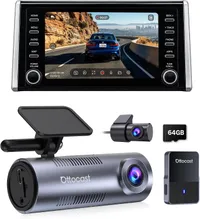
A dash cam with a wireless twist

Just like with the Rove R2-4K Dual dash cam I installed in my truck, the OttoSafe Cam that Ottocast sent over came with everything needed for a seamless installation. In the box, you get the main dash cam, a rear camera for the back of your vehicle, a wireless CarPlay/Android Auto adapter, and all the cables required to connect them.
Most importantly in my book, it also comes with a pry tool. With it, you can easily tuck the shorter cable for the dash cam and the longer one for the rear camera neatly behind your car’s trim.
Running wires during my first dash cam installation took quite a while, but this time around — since I knew what I was doing — the whole process only took about an hour.

The OttoSafe Cam’s main body is cylindrical and mounts to your front windshield with adhesive. To view its live feeds and browse recordings on your infotainment screen, there’s a small, rectangular wireless CarPlay/Android Auto adapter.
While the adapter in my wife’s car previously plugged directly into her car’s USB port and stuck out, I like that this one is designed to sit flat toward the front of the center console.

On the left side of the OttoSafe Cam, there’s a physical button you can press in the event of an incident to manually save whatever the dash cam is recording. On the right side, you'll find a USB-C port for power, a 3.5mm jack-style port to connect the rear camera, and a microSD slot.
While you can bring your own card, Ottocast also sells this dash cam bundled with a 64GB card included.
Getting the OttoSafe Cam installed was surprisingly easy. I plugged the wireless CarPlay/Android Auto adapter into the main USB port in my wife’s car, then powered the dash cam via the 12V power outlet in the center console using the included adapter.
After positioning the front camera, I tucked its cable under the headliner above the windshield for a clean install. From there, I did the exact same thing with the cable for the rear camera, and I was good to go.
One screen for all

If you’ve used CarPlay or Android Auto before, you know that what you can do on your car’s infotainment screen is intentionally limited — and for good reason. Drivers are distracted enough as it is, but I’ve always felt this display could be used for far more than just navigation, music, or viewing your vehicle’s factory backup camera.
With the OttoSafe Cam installed, you get wireless CarPlay or Android Auto alongside live feeds from the front and rear cameras and direct access to your saved footage.
While I haven’t connected my Android phone to it yet, on my wife’s iPhone, two small buttons appear as overlays in the top corners while CarPlay is running. The button on the left returns you to the OttoSafe Cam’s main menu, while the button on the right jumps straight into the dash cam’s live feeds.

By default, you get an unobstructed view of the camera feed with a timestamp along the bottom and a small camera icon to quickly snap a photo. Tapping the center of the screen brings up another row of controls where you can switch between camera feeds, review past recordings, and tweak settings.
Compared to my Rove dash cam, I like this approach a lot more. Instead of squinting at a tiny screen on the camera body itself, you have a large dashboard display to view your feeds.
I like using the dash cam's rear camera in my truck to check on cargo in the bed, but it’s just as useful for overall situational awareness. Your standard rearview mirror offers a fairly narrow angle, but looking at the feed from the rear dash cam gives you a much wider field of view. There have even been times when my side mirrors fogged up, and I relied on the dash cam feed to see what was behind me.

In my wife’s SUV, I mounted the OttoSafe Cam directly in the top center of her windshield for two practical reasons: I didn’t want the adhesive sticking to the frit matrix (the black dot pattern near the top of the windshield) where it might lose grip, and I wanted to make sure her EZPass didn't block the lens.
Mounting it here also allowed me to route the wires neatly up behind her rearview mirror, making them easy to tuck behind the headliner.

As for the wireless CarPlay/Android Auto adapter, I have it sitting flat right next to the wireless charging pad at the front of her center console.
It keeps the setup looking tidy, and I was even able to tuck the extra cable length into the corner where the dash cam wire runs down to the 12V power outlet.
My wife has been using this wireless CarPlay setup for a week now with zero complaints — and more importantly, zero skipped music.
While she hasn’t needed to pull footage from her dash cam yet, I can rest easy knowing that if someone cuts her off in Houston traffic and causes an accident, she’ll have all the video evidence required for an insurance claim.
A double upgrade with a single install

At $150 full price, the OttoSafe Cam is exactly the upgrade my wife’s car needed. While she was initially hesitant about me installing a dash cam in her vehicle, as soon as I told her it would fix her wireless CarPlay issues at the same time, she came around quite quickly.
With this setup, you’re also paying significantly less than you would if you bought everything separately. Standalone wireless CarPlay or Android Auto adapters typically cost around $50 to $100 on their own, while a quality dual-camera dash cam system ranges between $120 and $180.
If you don’t have a dash cam in your vehicle — or those of your family members — it’s a practical and worthwhile investment. Whether you’re dealing with a reckless driver or an incident where you need clear proof for insurance, one quick check of your dash cam footage can make a massive difference. They can even serve as a great deterrent.
For instance, shortly after I installed the OttoSafe Cam, another driver abruptly cut in front of my wife while she was exiting the highway. When the driver looked back in their rearview mirror and spotted her newly installed dash cam, they instantly slowed down and started driving a whole lot more carefully.
There are plenty of choices when picking out a dash cam, but if your vehicle currently relies on wired CarPlay or Android Auto, Ottocast’s OttoSafe Cam gives you two upgrades for the price of one.
Follow Tom's Guide on Google News and add us as a preferred source to get our up-to-date news, analysis, and reviews in your feeds. Subscribe to Tom's Guide on YouTube and follow us on TikTok.

More from Tom's Guide