Storing everything in the cloud and streaming movies online is certainly convenient, but subscription costs just keep climbing. That’s why a lot of us — myself included — are ditching the monthly fees in favor of local storage and physical media backed up on a home NAS. However, when you take your data into your own hands there’s a real catch: one sudden power loss can wipe out everything before you even know what happened.
I’ve always been interested in Network Attached Storage (NAS), but it wasn’t until last year that I finally added one to my home network. Being able to access my files from anywhere — just like I did through the cloud, but without a monthly subscription — has been a real game changer for my workflow. Likewise, instead of bouncing between streaming services, I can watch all my favorite movies right from my home network.
Overall, this whole setup has worked out so well that even the rest of my family now knows how to access the NAS and stream content right from the TV. There’s just one problem: local grid work means constant power outages, forcing me to manually boot the NAS back up. At home, this is a minor inconvenience, but over time, it’s become a real hassle — especially when the power goes out at least once a week.
Power outages don’t just interrupt movie night, either. With every sudden drop, I worry about corrupted data — or worse, a full mechanical failure on the drives inside. For this reason, I decided to pair an Uninterruptible Power Supply (UPS) with my NAS. While these backup batteries can be expensive, if you have a Ugreen NAS like I do, you’re in luck as the company now makes an affordable one that’s a cinch to set up.
Power bank-sized peace of mind

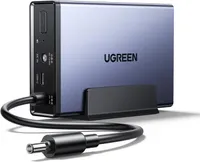
After looking into getting a UPS a few years back and seeing them on sale at Costco more recently, I was completely surprised by just how small Ugreen’s US3000 one is. At 5.7 x 5.3 x 1.7 inches, it’s more of a mini UPS that’s not much larger than one of the best power banks. This makes sense though — the US3000 is designed to power a single device as opposed to your whole desk setup in case of an outage.
In the box, you get the device itself, a vertical stand, and a USB-C to USB-A cable — but more on that later. Despite its small size, the US3000 packs a 12,000 mAh battery and can power a four-bay Ugreen NAS like the DH4300 Plus I’m using in my living room or the more powerful DXP4800 for about 8–10 minutes.
You won't be streaming movies or running large backup jobs off its battery during a prolonged blackout. Instead, the US3000 acts as a bridge — giving you enough time to gracefully power down your system, or to safely ride out split-second power dips where the lights flicker and instantly come back on.

The US3000 is a surprisingly simple device too, with only a single USB-C port, a barrel-shaped power port, and a hardwired power-out port. If you prefer completely silent operation, there’s also a small pinhole that — instead of resetting the device — mutes the internal alarm that beeps whenever you switch to battery power.

One thing I have to give Ugreen credit for is the fact that the US3000 doesn’t come with a separate power adapter. Instead, you take the power adapter from your NAS, plug it into this UPS, and then plug that hardwired cable into your NAS. Personally, this made setup a whole lot easier since I didn’t have to redo my NAS’ cable management to add a backup battery to it.
Plug and play protection

Just like I mentioned above, getting the US3000 set up and connected to my NAS was an absolute breeze. I safely powered down my NAS, plugged its power adapter into the back of the US3000, and then inserted that hardwired cable into the back of my NAS. In fact, I was so eager to get this mini UPS set up that I initially forgot the most important part.
Sure, the US3000 will serve as a basic battery backup this way, but you’re missing out on its best features. Remember that USB-C to USB-A cable in the box? When you connect the US3000 directly to your NAS with it, the two can actually talk to each other. Without that data link, your NAS has no idea the power is out — it will simply drain the battery to zero and crash anyway during a long outage. Plugging in the cable is what unlocks intelligent features like automatic status detection and safe system standbys.

After realizing the error of my ways, I connected the two devices via USB and powered my NAS back on. From there, I pulled up the Ugreen desktop app on my computer — though I could have also done so from my phone or tablet — and opened the Control Panel within UGOS. I navigated to Hardware & Power, clicked the UPS tab, and the US3000 was instantly recognized.

Hitting the Connect button gives you access to a quick suite of tailored options. For instance, you can choose between Standby mode and Auto Shutdown. Standby mode unmounts your storage volumes and halts read-write activity to protect your drive pool from corruption while keeping the CPU powered at minimal draw — allowing the NAS to resume instantly once your power returns. Auto Shutdown, on the other hand, fully powers off the hardware, which is ideal for prolonged blackouts but requires a full boot later on.
Just like with the rest of UGOS, there’s plenty to tinker with. However, everything is presented clearly enough that even NAS newbies can get the US3000 configured to their exact liking in under a minute.
Physical insurance for your NAS

Although Ugreen’s NAS devices have made Network Attached Storage more accessible for the average user, they became widely available during one of the worst possible times: RAMaggedon.
Just a few years ago, buying several 3.5-inch or even 2.5-inch hard drives with a lot of capacity wouldn’t have set you back all that much. Now though, thanks to the current AI-fueled memory and storage crisis, outfitting your NAS with terabytes of storage space isn’t nearly as cost-effective as it used to be.
Whether you’re ditching cloud storage or streaming services, adding a NAS to your home network and outfitting it with the necessary storage is certainly an investment. Adding a US3000 mini UPS between your Ugreen NAS and the nearest power outlet does add to that initial investment too, but at $129, I’d say it’s well worth it.
You never know when a power outage, blackout, or in my case, power dips can strike. Best-case scenario, you just have to reboot your NAS, but worst-case scenario, you suddenly find yourself dealing with data loss and hardware failure. Storing your files securely at home is one of the main reasons to get a NAS in the first place, but with a strong enough surge, you might end up losing them and having to replace multiple hard drives. That’s why investing in the US3000 or even a larger, more powerful UPS is an absolute must.
For me, I can rest easy knowing that my files are safe when the lights flicker and that I won’t have to manually reboot my NAS just so my family can watch a movie when they come back on.

Follow Tom's Guide on Google News and add us as a preferred source to get our up-to-date news, analysis, and reviews in your feeds. Subscribe to Tom's Guide on YouTube and follow us on TikTok. Finally, you can visit our dedicated Tom's Guide Savings Squad hub for expert help on getting the best products for less.
More from Tom's Guide